- Log in to the Oloid Portal.
- On the Applications page, click on an Windows application to edit.

- Click the Configure tab.
- Do the following:
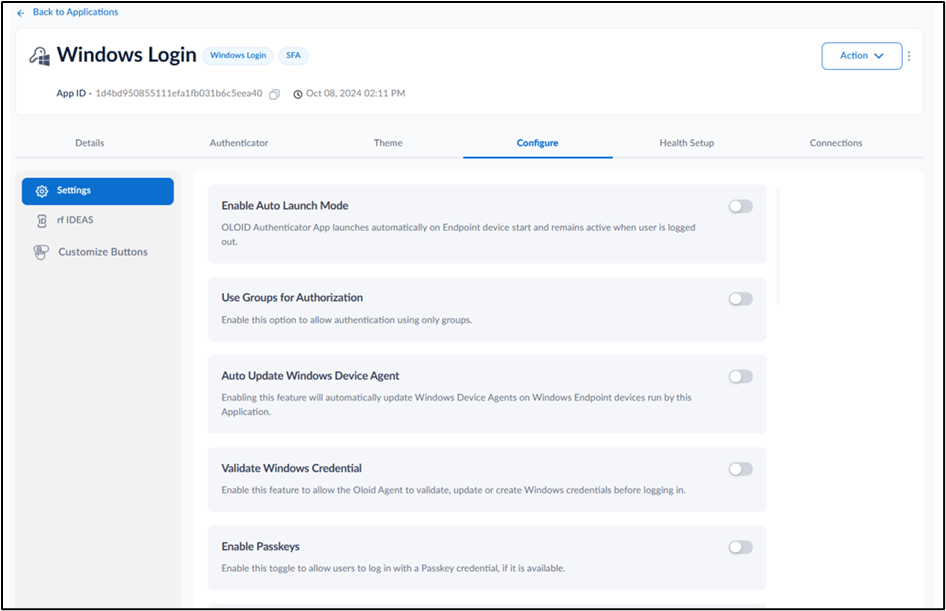
Configure Settings Tab
-
Enable Auto Launch Mode: Select this option to auto-launch the Windows Login app in the login screen.

- Use Groups for Authorization: Coming Soon
-
Auto Update Windows Device Agent: Select this option to auto-update the Windows device agents on Windows endpoints run by this application.
Note: Select the Sync option in the Supervisor App and then close the app. Wait for one hour before restarting. For details, see How to sync configuration in Supervisor App.

-
Validate Windows Credential: Select this option to ensure Oloid Agent checks the validity of the user’s Windows credentials before logging in.

-
Allow Credential Updates and Enrollment: Select this option to allow users to self-enroll or update their credentials.

-
Capture Windows User Events: Select this option to capture Windows events for user logins, logouts, locks, unlocks, and credential provider details. All captured data is stored in the transaction tab.

-
Enable Manual Capture Accessibility: Turn on this option to allow users to manually capture their face during face authentication.

-
Enable Badge Out: Select Badge out using Windows Service option to allow users to log out of their Windows system using their badge. For details, refer to Windows Login - How to configure Enable Badge Out option

-
Set Time-Out for Login Screen: Select this option to allow users to configure the maximum time the system will wait on the login screen before timing out.

-
Master Admin override passcode: Follow the onscreen instruction to create master admin override passcode. For details, refer How to create device-admin passcode for Supervisor App


Configure rf IDEAS Tab
- Do the following:
- Select RFID Reader Type from the Select RFID reader type dropdown .
- Enter Description. (Optional)
- Click to browse the file or drag the file to upload/download.
- Click Save.
The application is updated successfully. For more details, refer How to upload/download HWG file in Oloid Portal

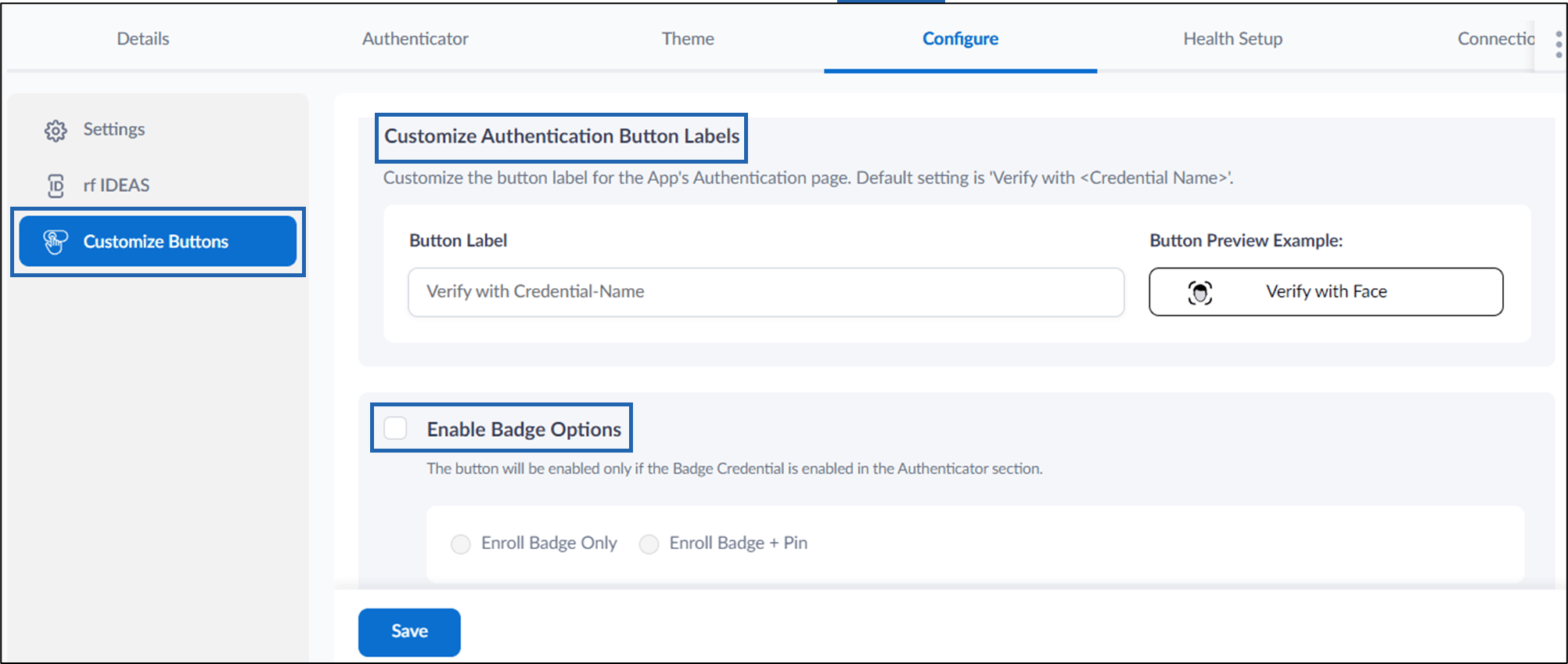
Customize Buttons Tab
- Customize Authentication Button Labels: Enter customized Button Label to display on the Windows application.
- Select Enable Badge Options to display on the Windows Login app.
- Do one of the following:
- Select Enroll Badge Only to enable Badge login
- Select Enroll Badge + Pin to enable Badge and Pin login.
- Do one of the following: