Introduction
This document explains how to assign a Temporary Badge to a user in the Tenant Admin Portal. Temporary Badge allows users to authenticate using a temporary credential when a permanent badge is unavailable or replaced.Prerequisites
- You must have access to the Tenant Admin Portal.
- Ensure that Permanent Badge is assigned.
- Ensure the badge reader is connected.
- Ensure that the Temporary Badge Toggle is enabled. To enable, referHow to Enable Temporary Badge in the Tenant Admin Portal
Steps to Assign Temporary Badge to a User
- Log in to the Tenant Admin Portal.
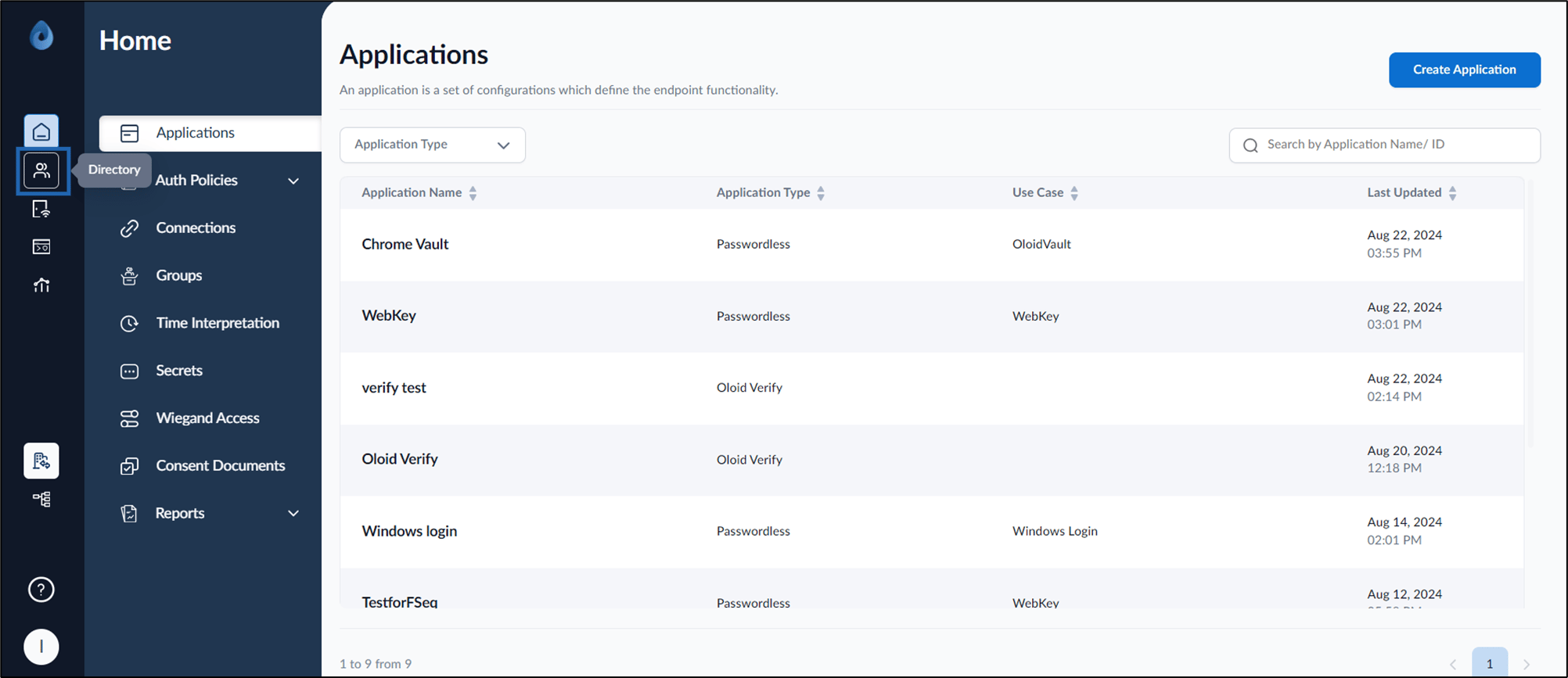
- On the home page of the portal, click Directory on the left menu panel.
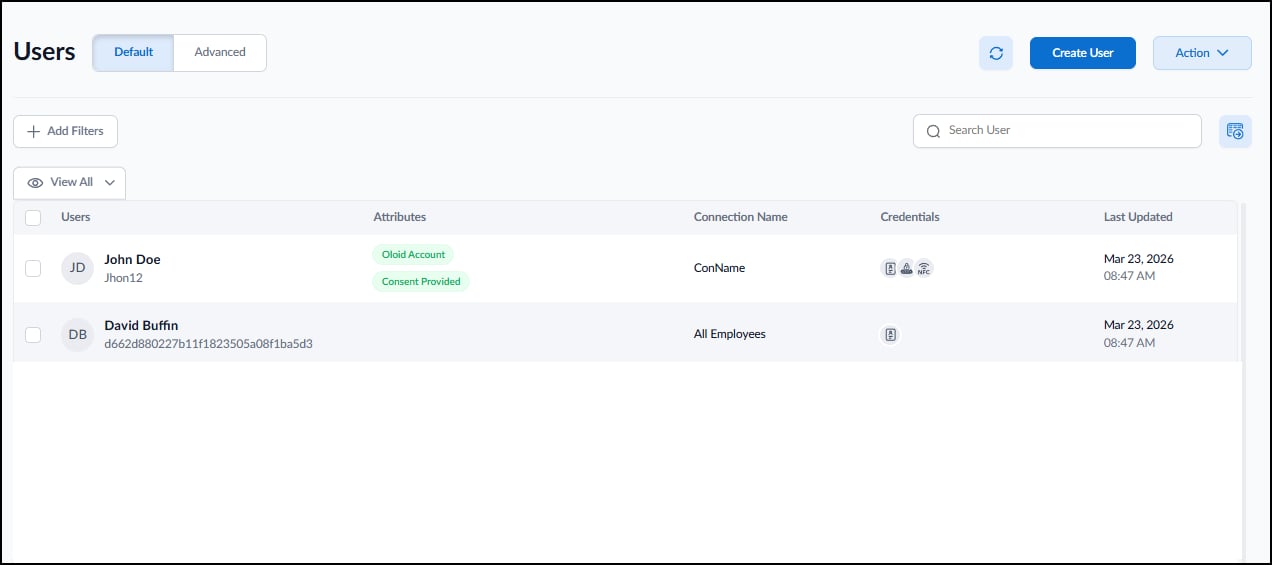
- Click user name to edit.
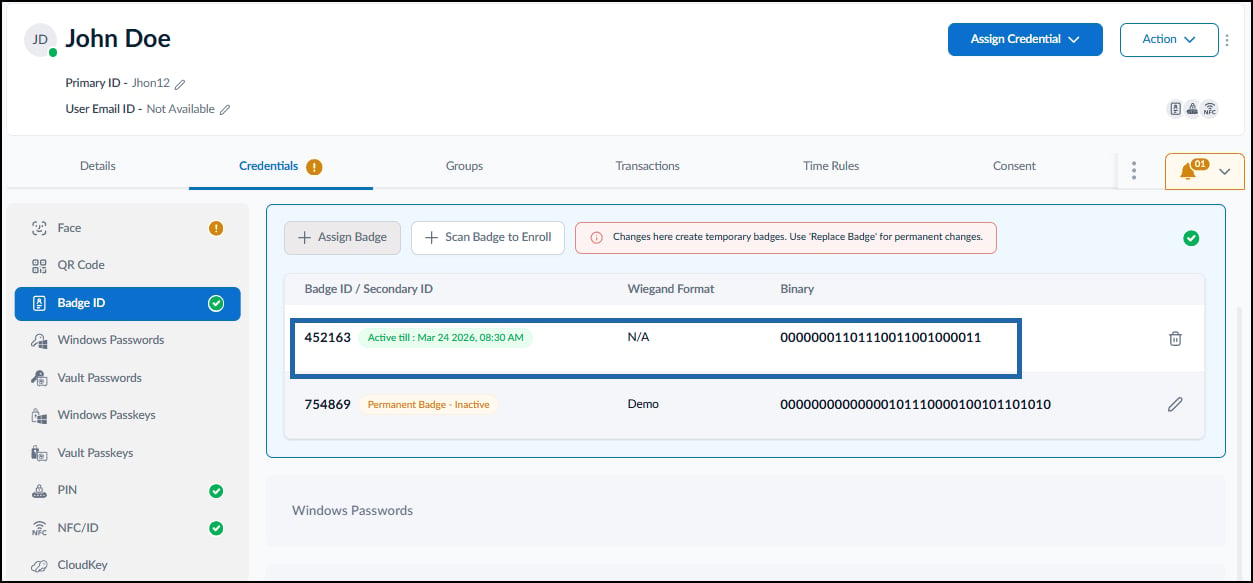
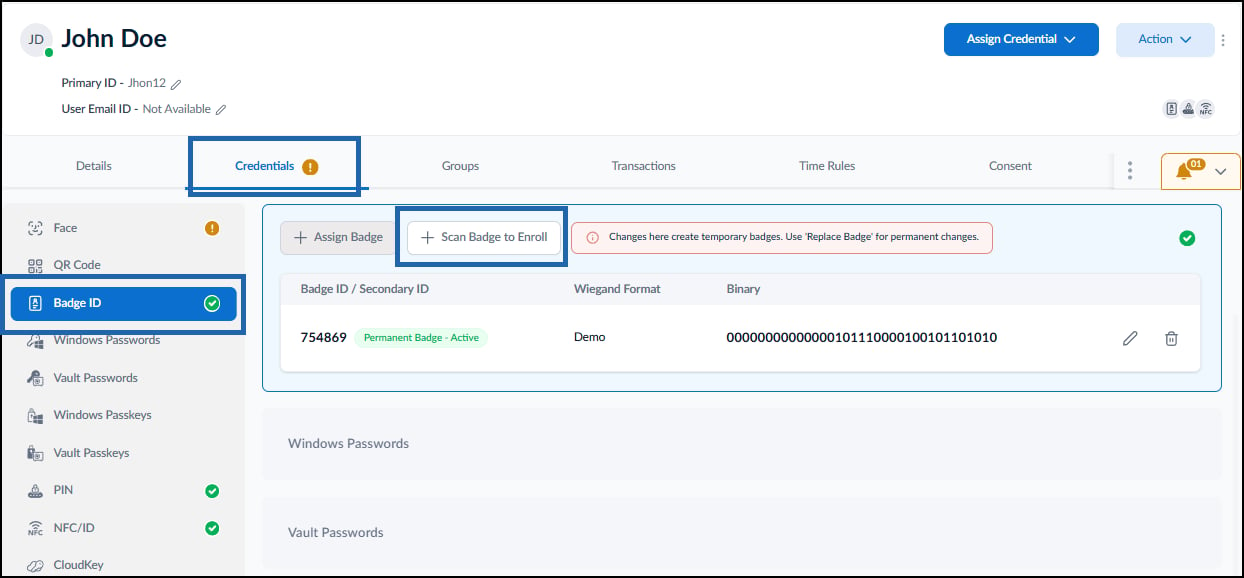
- Go to Credentials tab > Badge ID > + Scan Badge to Enroll.
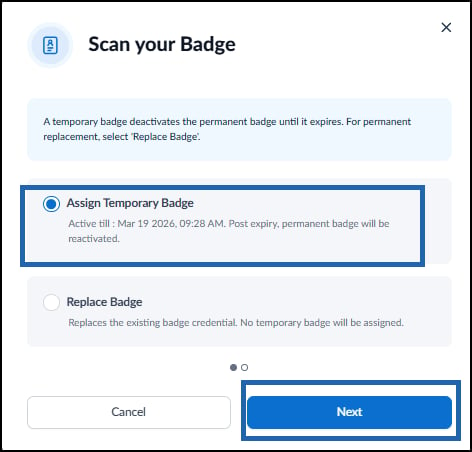
- Select Assign Temporary Badge and click Next.
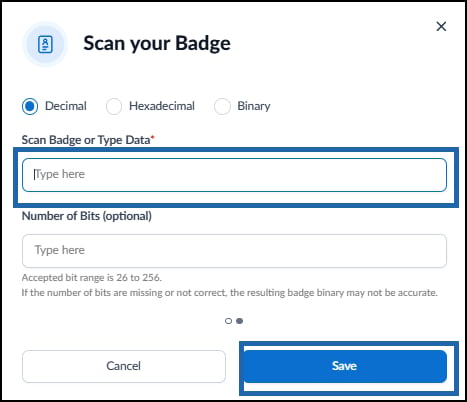
- Scan the Badge on the Badge reader and click Save.