Introduction
This document provides step-by-step instructions for enabling SSO using Personal Passkey in the Tenant Admin Portal.Prerequisites
- You must have a Tenant Admin account.
- OKTA IDP must be created for the application. To create, refer How to create IDP Profile for OIDC-Okta in the Tenant Admin Portal
Steps to Enable SSO using Personal Passkey
- Login to the Tenant Admin Portal.
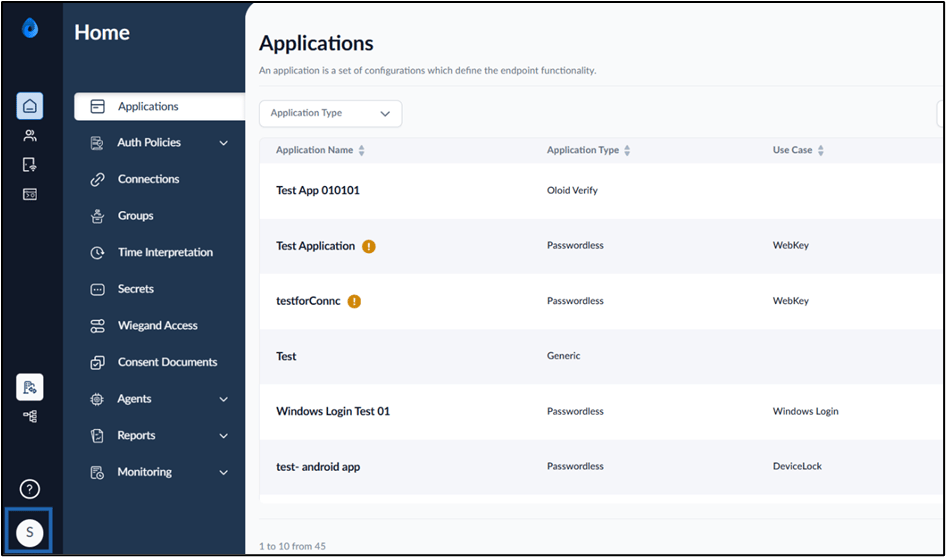
- On the homepage of the portal, click Profile icon on the bottom left corner of the menu panel.
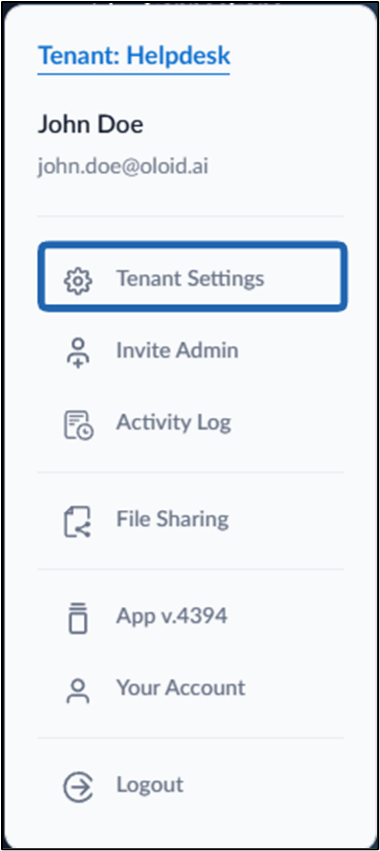
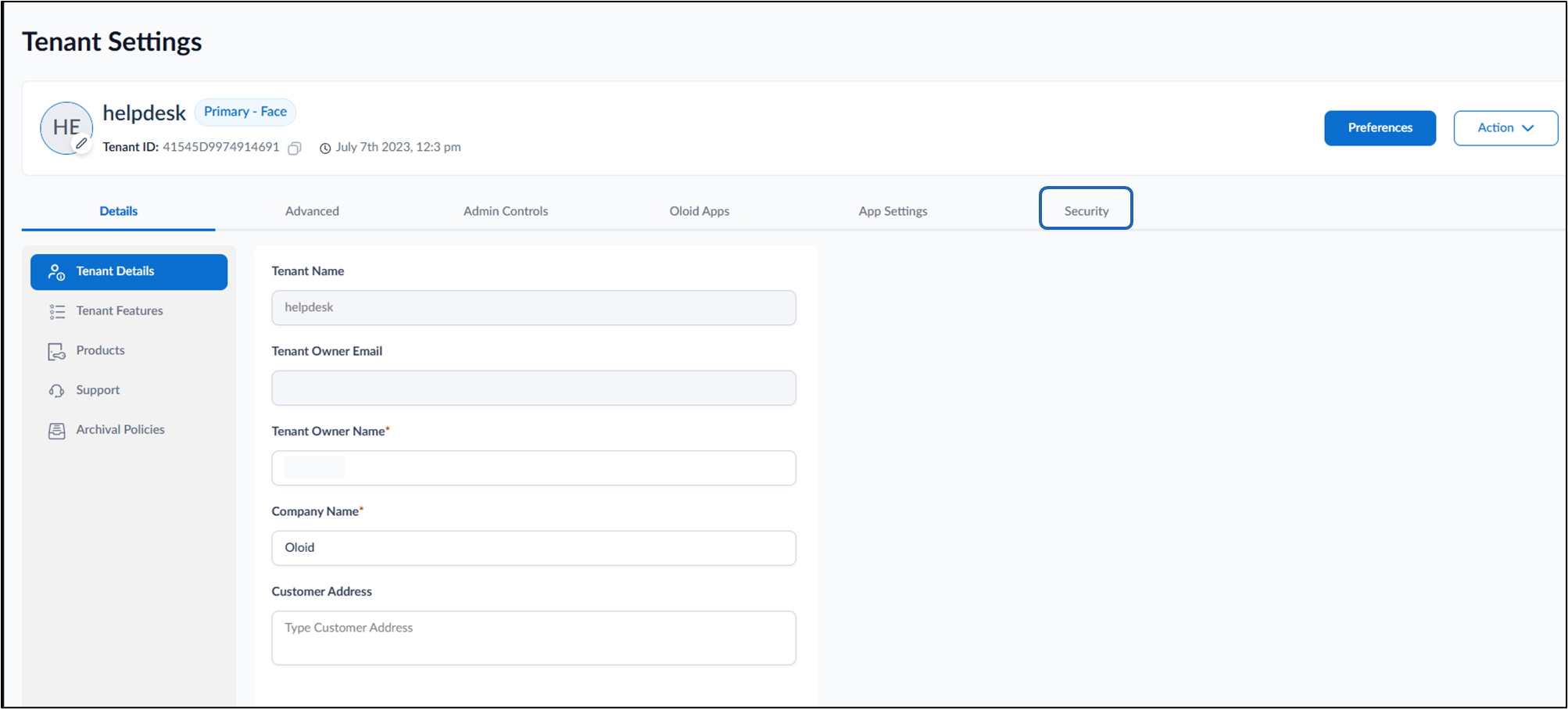
- Click Tenant Settings.
- Click Security tab.
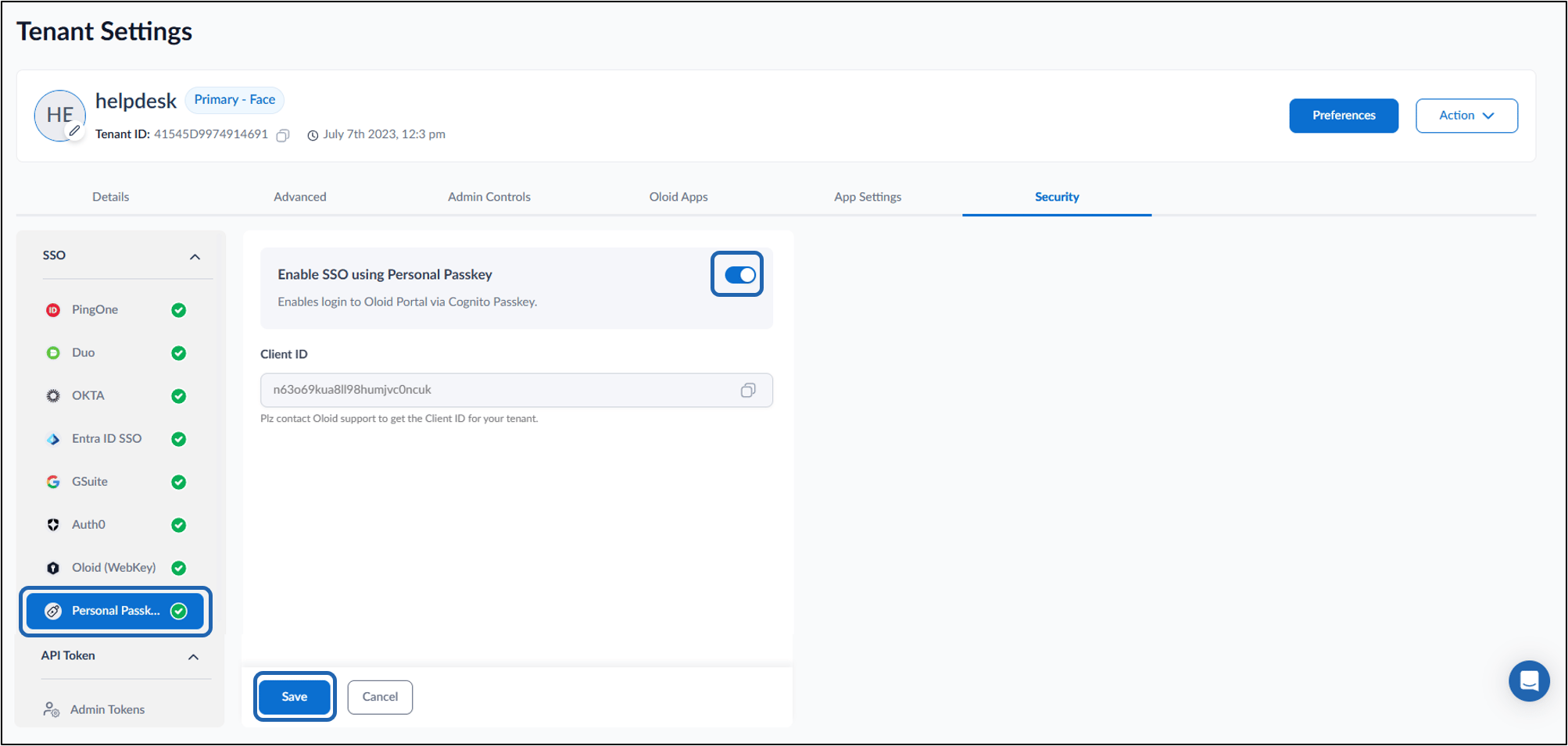
- Do the following:
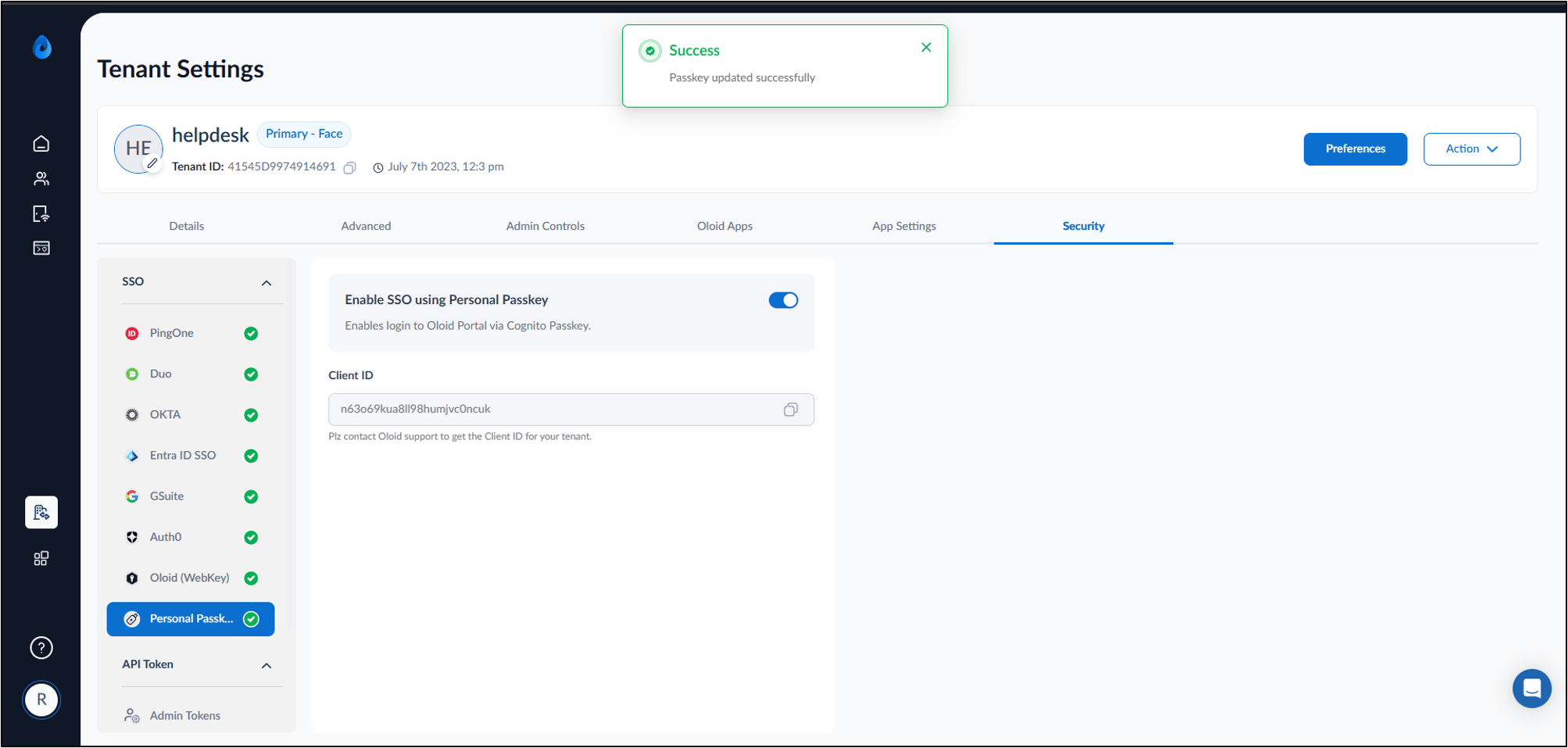
- Turn on Enable SSO using Personal Passkey toggle.
- Click Save.