Introduction
Screen timeout duration refers to the idle time after which the device screen automatically times out. Configuring this setting help ensures efficient device usage in DeviceLock mode.Prerequisite
You must have an active tenant and access to the Tenant Admin Portal. For more details refer How to log in to the Tenant Admin Portal.Steps to set screen timeout duration
- Log in to the Tenant Admin Portal. For more details refer How to log in to the Tenant Admin Portal.
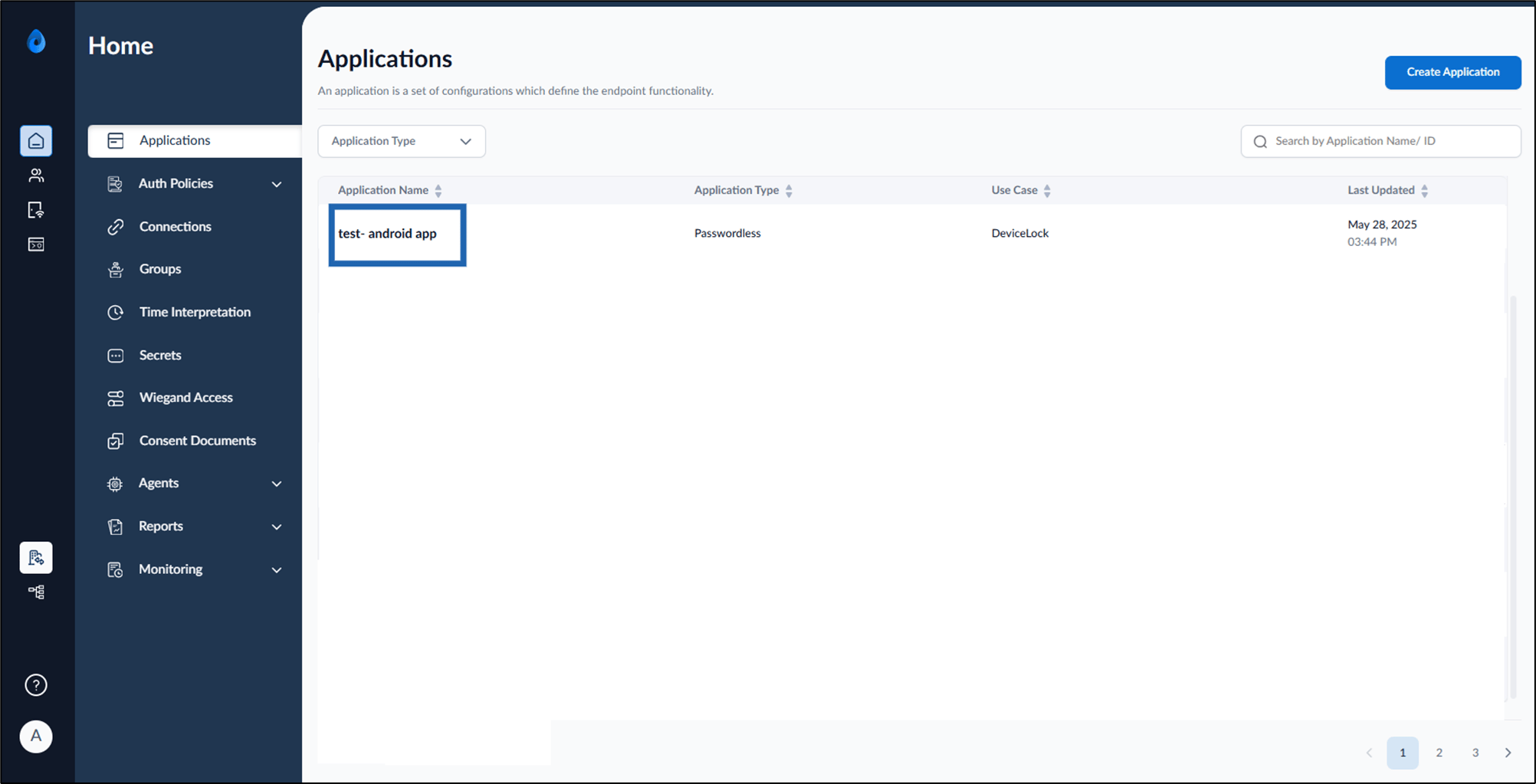
- On the homepage of the portal, click the preferred application from the application list.
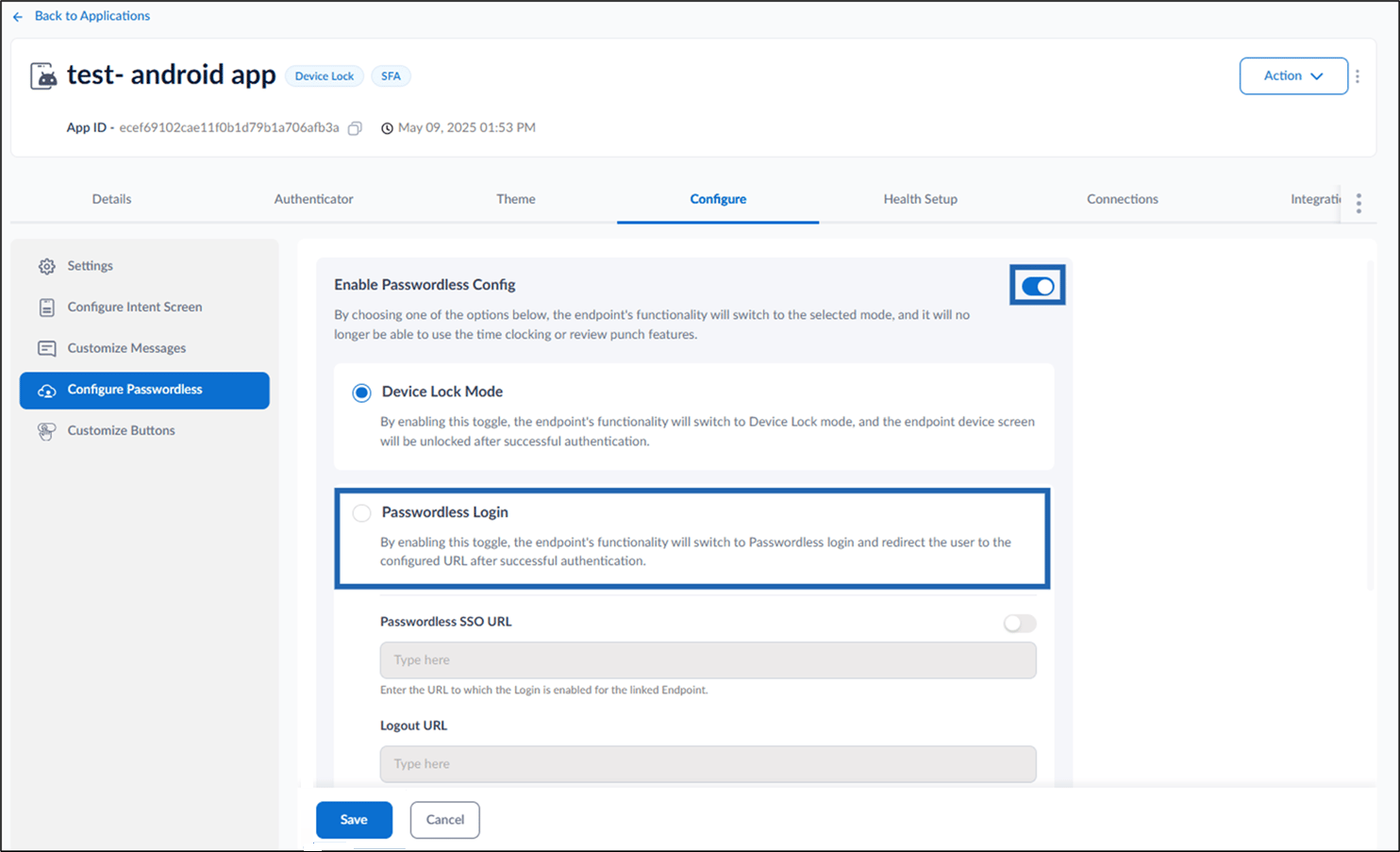
- Go to Configure tab > click Configure Passwordless from the left menu panel.

- Do the following:
- Turn on Enable Passwordless Config toggle.
- Select Passwordless Login.
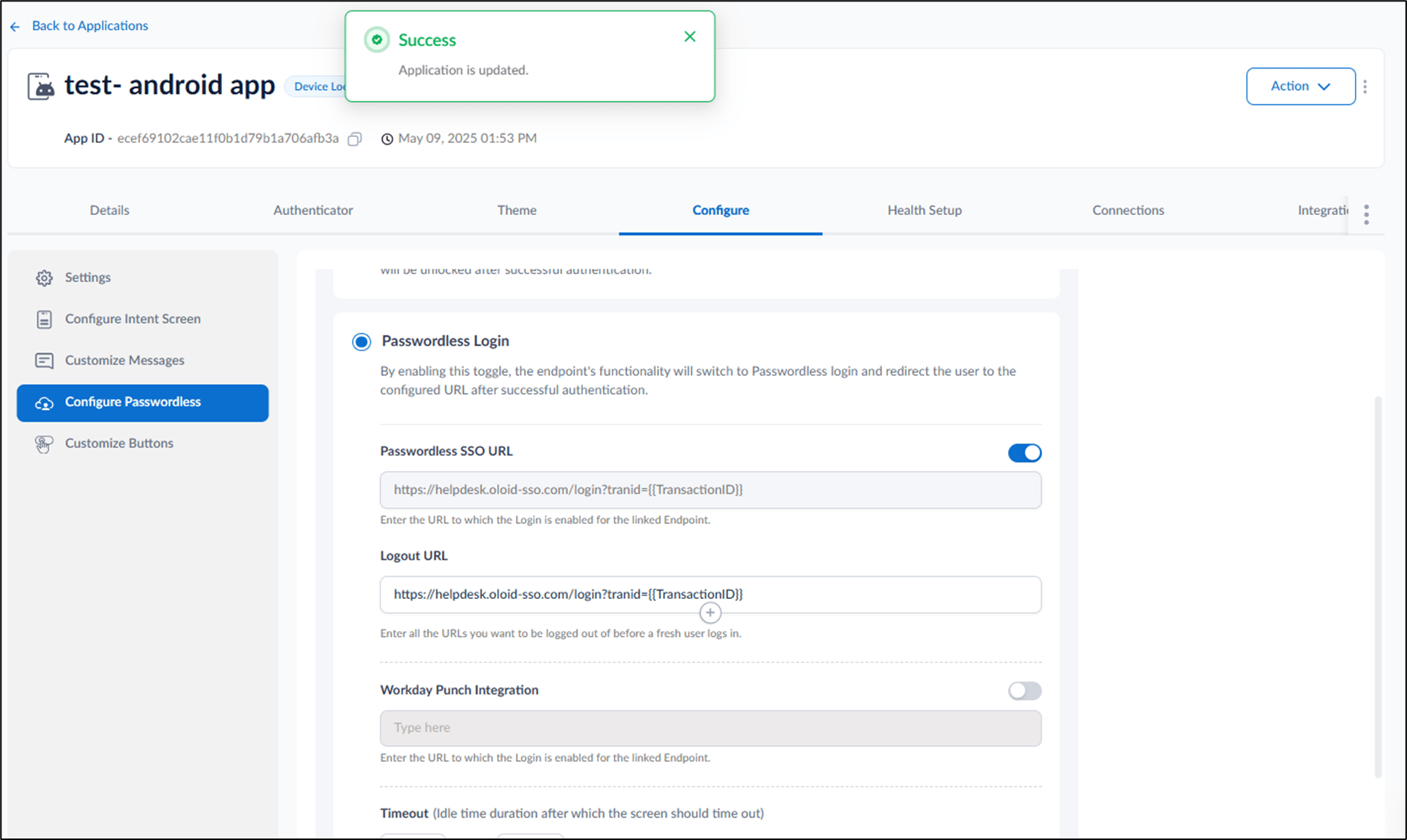
- Scroll down and select the duration in minutes and seconds from the drop-down list or manually enter the value in the field to define the duration the screen should remain active before it times out.
- Click Save.