

Introduction
This document provides instructions for creating and configuring the Oloid Connect Endpoint Template. Tenant Admins and Supervisors in the Oloid Connect application can apply the template to configure endpoint-specific settings.Prerequisite
You must have a Tenant Admin Account.Steps to create Endpoint Template
- Log in to the Tenant Admin Portal. The Application page is displayed.
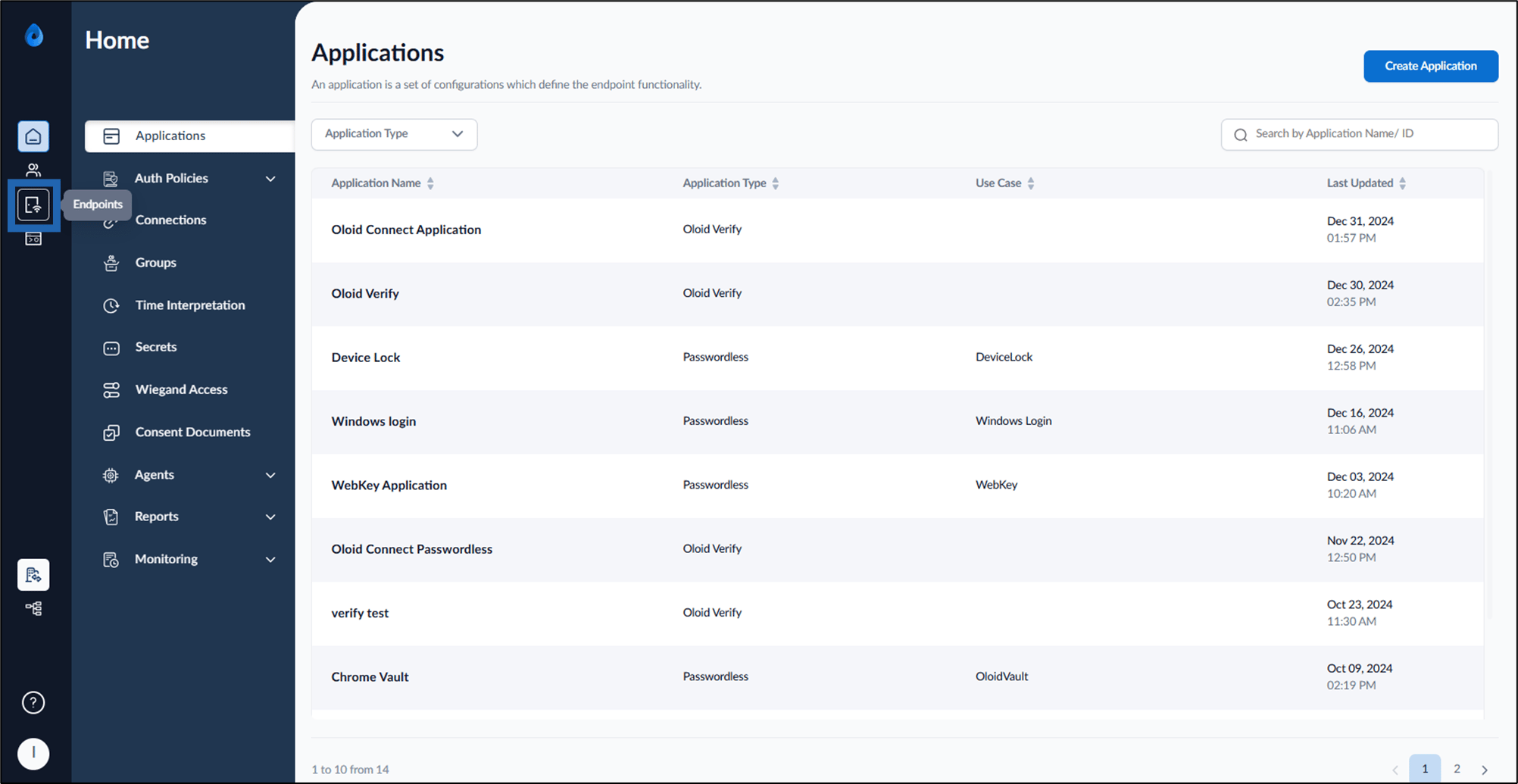
- Select Endpoint from the left menu panel.
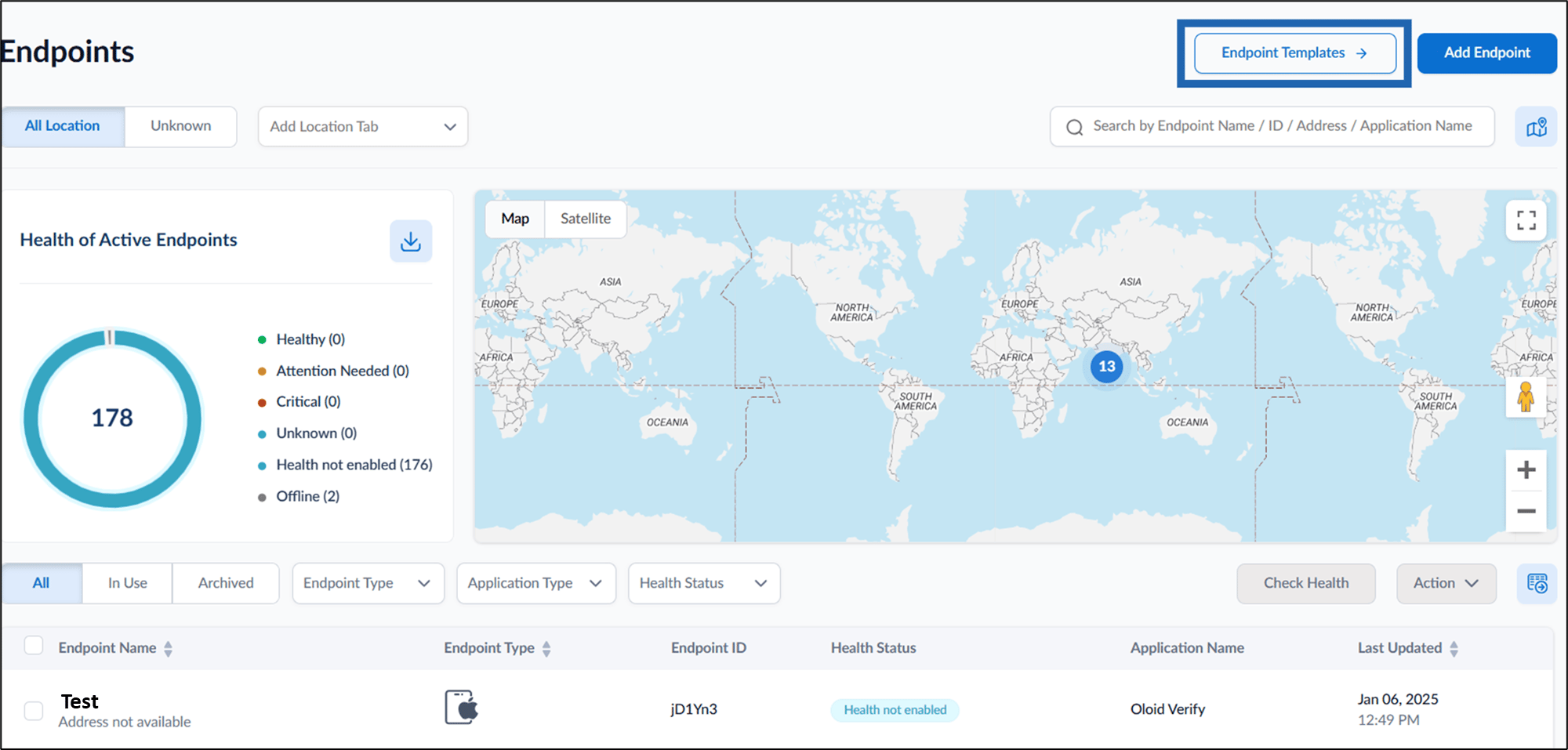
- On the top right click Endpoint Template.
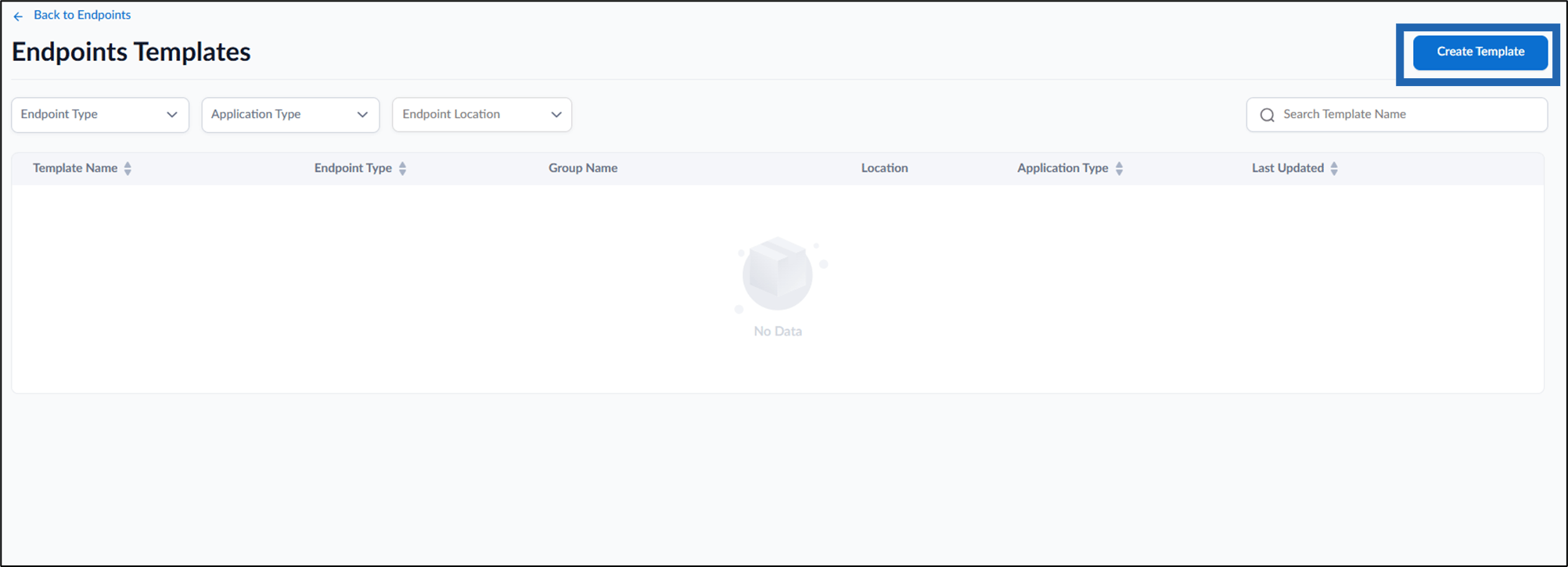
- On the top right, click Create Template.
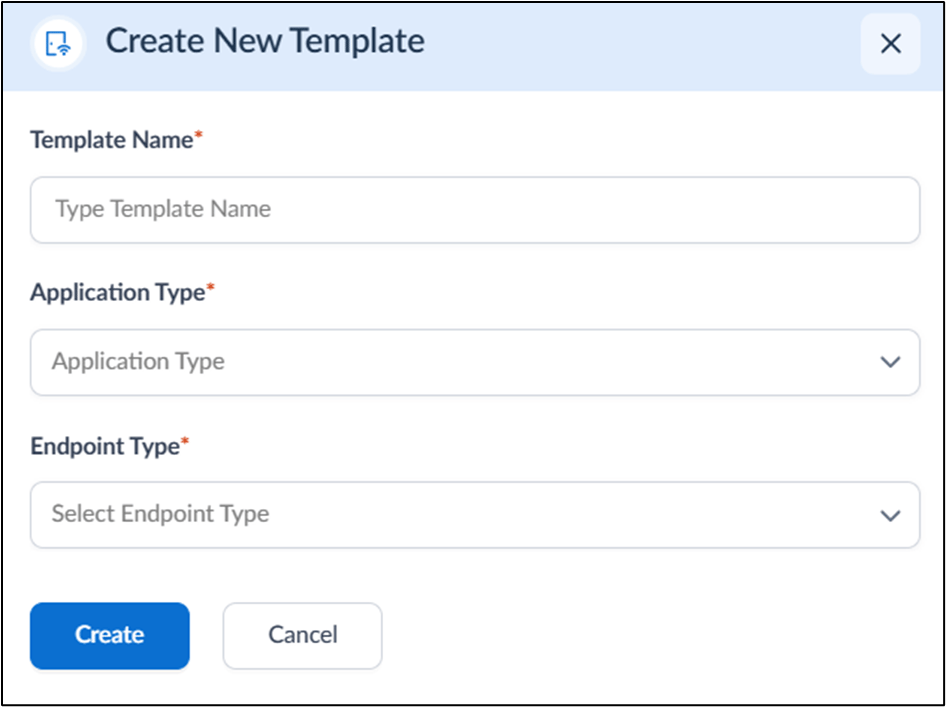
- Do the following:
- Enter Template Name.
- Select Application Type as Oloid Verify from the dropdown list.
- Select Endpoint Type as Oloid Connect from the dropdown list.
- Click Create.
The Endpoint is created and listed successfully on Endpoint Template page.
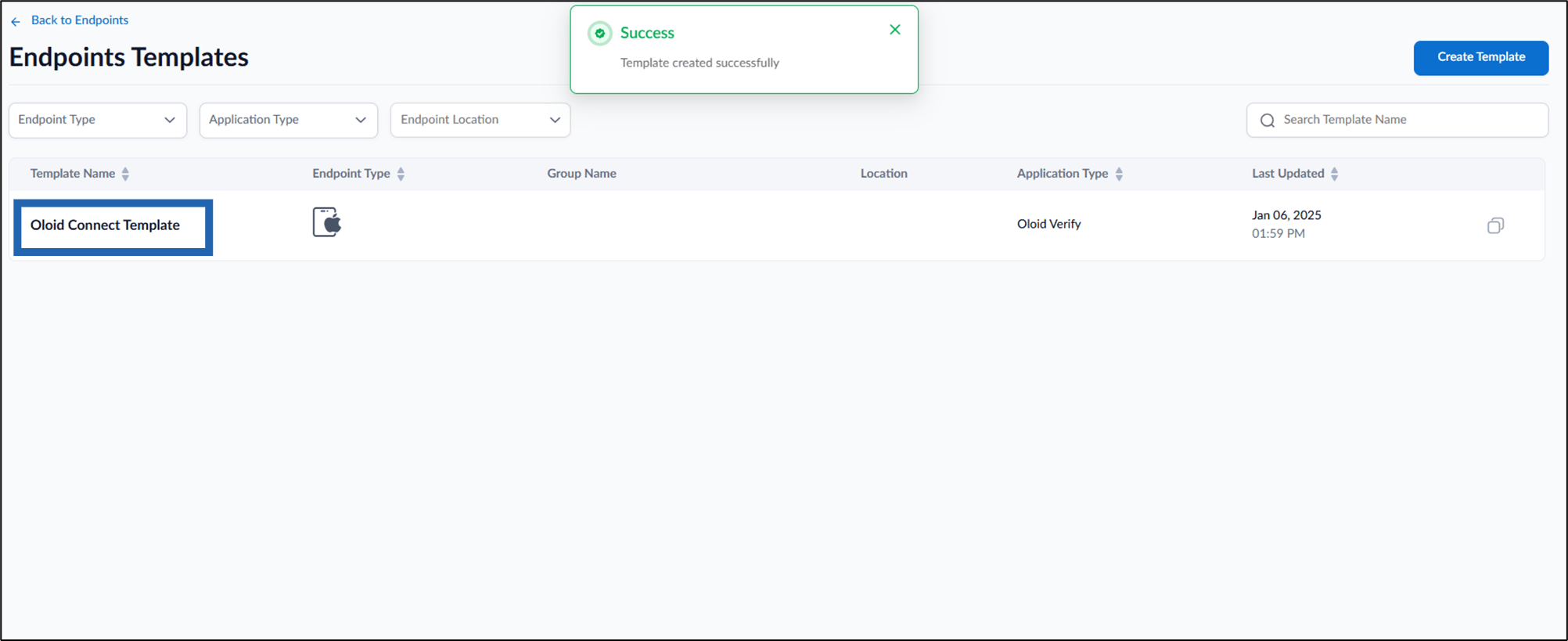
- Click Endpoint Template to be configured from the listed templates.
- Configure the following:
- Details tab
- Configure tab The Endpoint Template is configured successfully.
Configure Details Tab
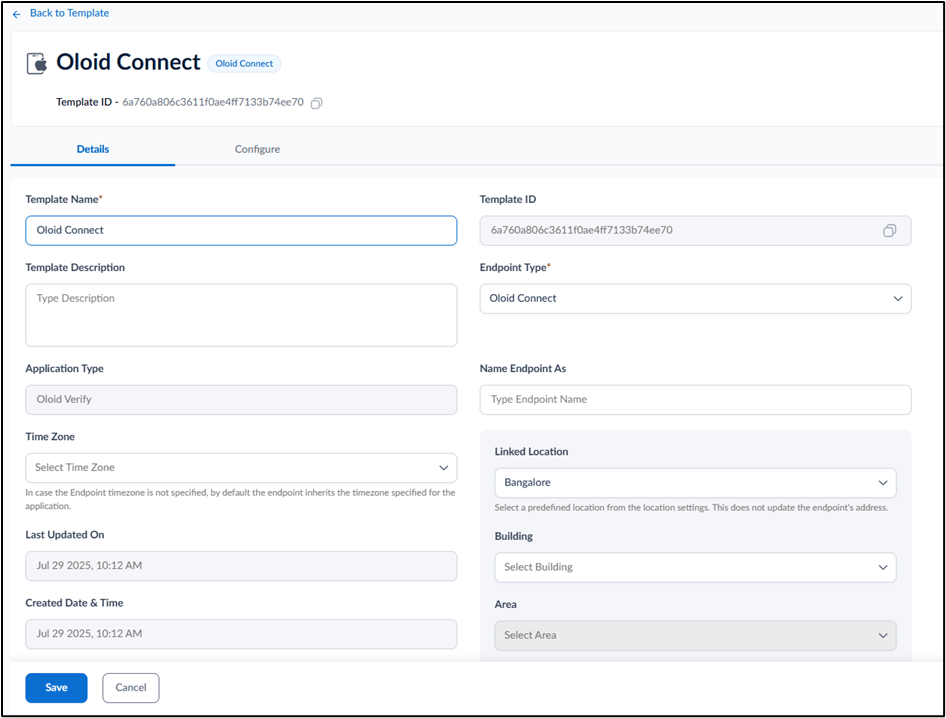
- Edit Template Name (If required).
- Enter Template Description. (Optional)
- Select Endpoint Type from the dropdown list.
- Select Timezone from the dropdown list. (Optional)
- Enter name in Name Endpoint As text field. (Optional)
- Select Location from the dropdown list. Once selected, this activates the Building field. (Optional) For more information on creating a location, refer How to create a new location and add location details
- Select Building associated with the chosen locationfrom the dropdown list. Once selected, this activates the area field. (Optional)
- Select area within the building from the dropdown list. (Optional)
-
Click Save.
Note: The Building and Area fields remain disabled until a valid Location is selected.The Details tab is configured successfully.Note: Configure settings only if they are applicable. Consult your Oloid representative before making any changes.
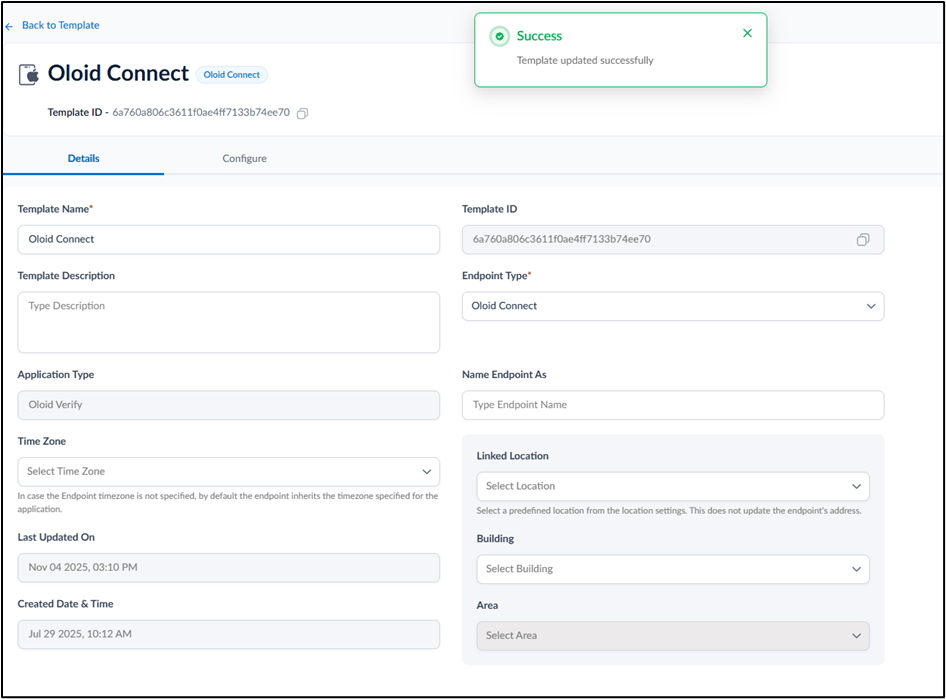
Setting up Configure Tab
Configure Endpoint Setting Tab

- Use Endpoint in Admin Mode Only: Enable this toggle to restrict the endpoint device to admin mode and discard user’s access control.
- Capture Location: Enable this toggle to capture location on the endpoint for each transaction. Note: Location Permission on the Endpoint device must be enabled to Capture Location.
- Generate Debug Logs: Enable this toggle to generate debug logs for the endpoint. Logs are saved locally on the device.
- Enable Landscape Mode for Preview Screen: Enable this toggle to allow the user preview screen to switch from portrait to landscape orientation.
-
Click Save.
The Endpoint Settings tab is configured successfully.
Note: Configure settings only if they are applicable. Consult your Oloid representative before making any changes.
Groups Tab
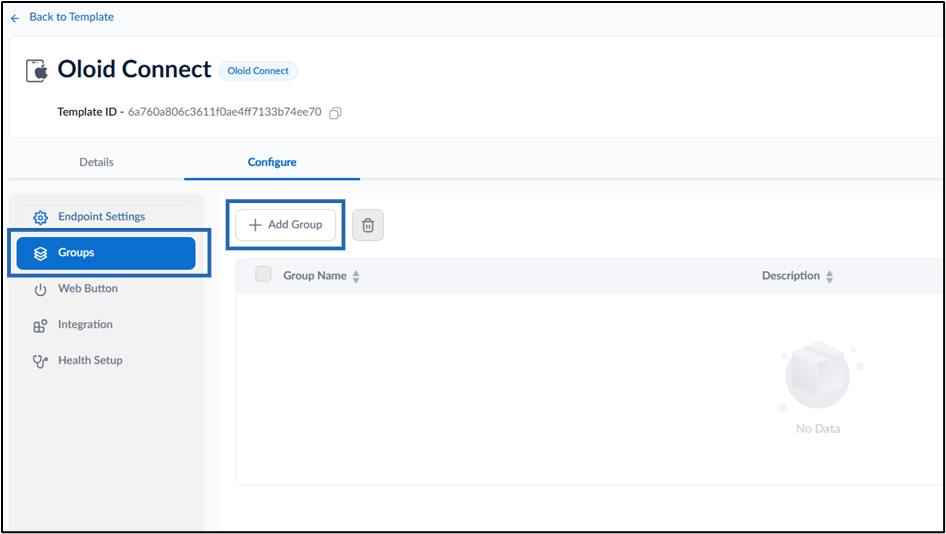
-
Click +Add Group.
The Add Group pop-up is displayed.

- Select Group(s) from the dropdown list.
-
Click Add.
The group is added and listed in the Group Name section.
Note: Configure settings only if they are applicable. Consult your Oloid representative before making any changes.
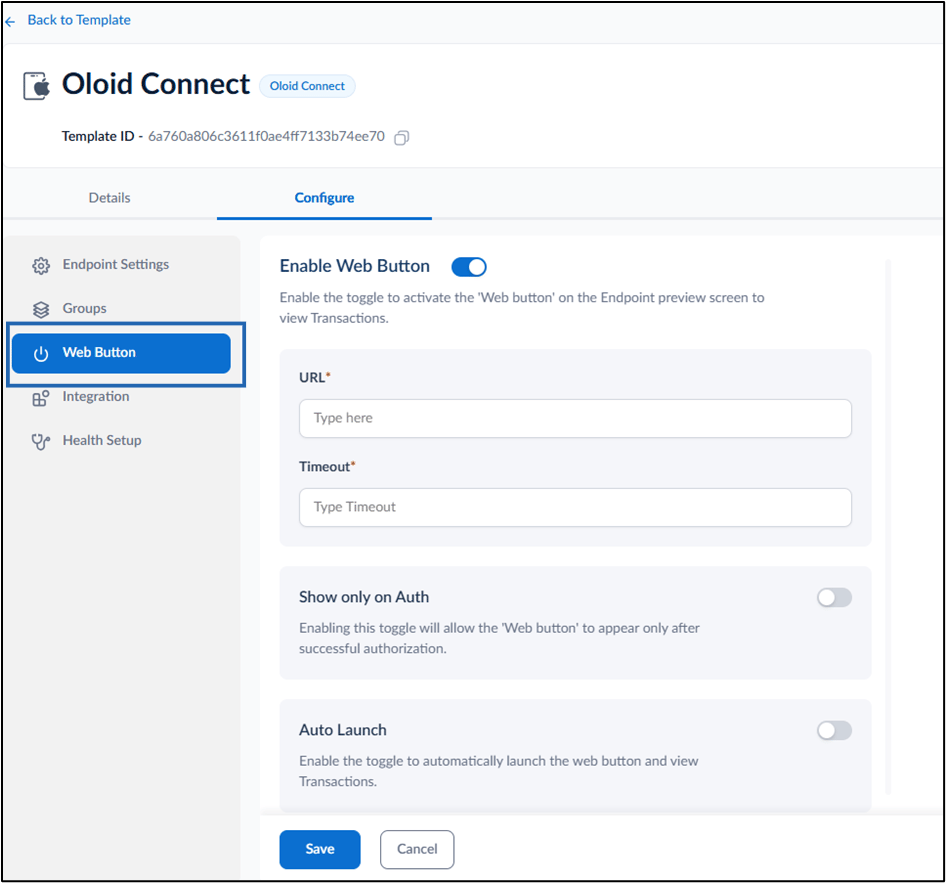
Configure Web Button Tab
-
Enable Web Button toggle to activate the web button on the endpoint preview screen to view transaction.
-
Enter URL.
Note: You have to enter the URL of the website where the user will review the punches.
- Enter Timeout duration.
-
Enter URL.
- Enable Show only on Auth to allow the web button to appear only after successful authorization.
- Enable Auto Launch to automatically launch the web button and view transaction.
-
Click Save.
The Web Button tab is configured successfully.
Note: Configure settings only if they are applicable. Consult your Oloid representative before making any changes.
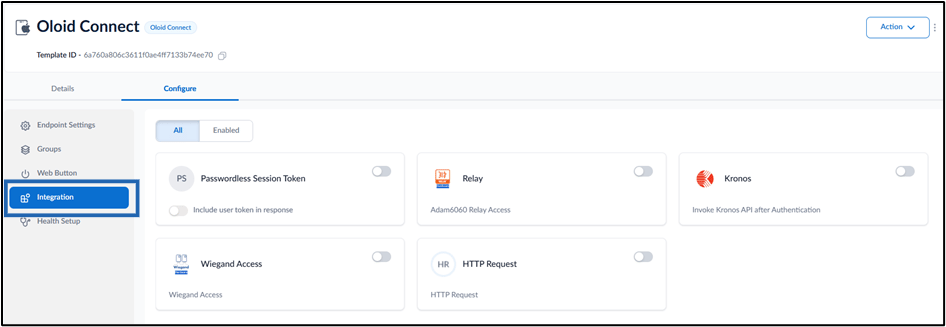
Configure Integration Tab
Configure Health Setup Tab
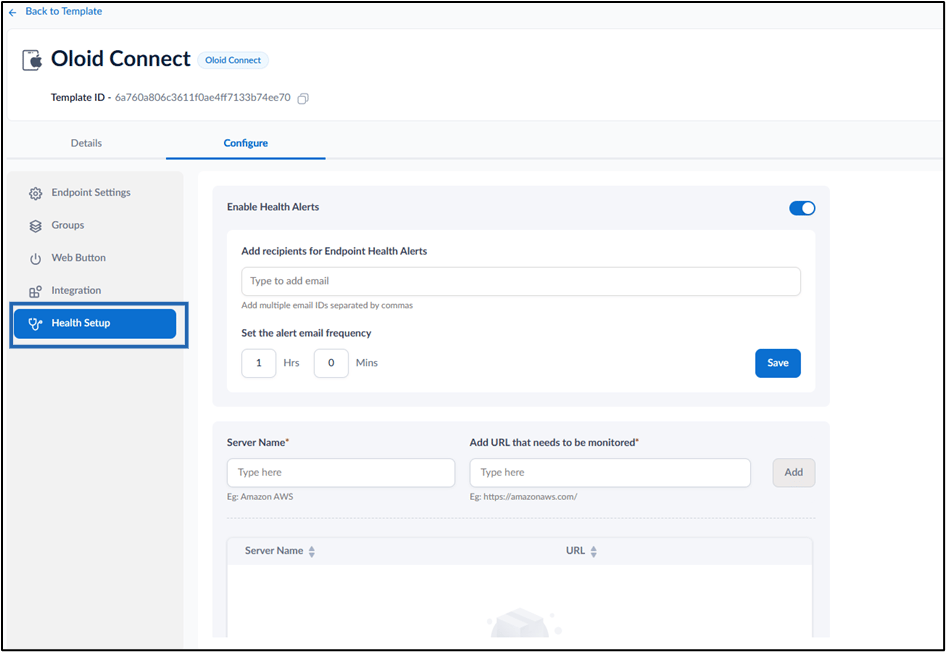
- Turn on Enable Health Alerts toggle to monitor the health of the paired endpoints. (Optional)
- Enter email ID(s) in Add recipients for Endpoint Health Alerts whom you want to share the health alert notifications. (Optional)
- Set Email frequency in Hours and Mins to adjust the frequency of email notifications.
- Click Save to apply your changes. The Health Alert is configured for the endpoint.
- Enter Server Name.
- Enter URL in Add URL that needs to be monitored field.
- Click Add.
