Prerequisite
- In the Tenant Admin Portal, admin must do the following:
- Assign QR Code to the user. For more details, refer How to create QR code as credential for User.
- Assign a face credential to the user. For more details, refer Face Onboarding
- Enable QR option under the Oloid Connect application in Authentication tab. For more details, refer How to create and configure Oloid Connect Application in Tenant Admin Portal
Steps to log in using QR and Face
-
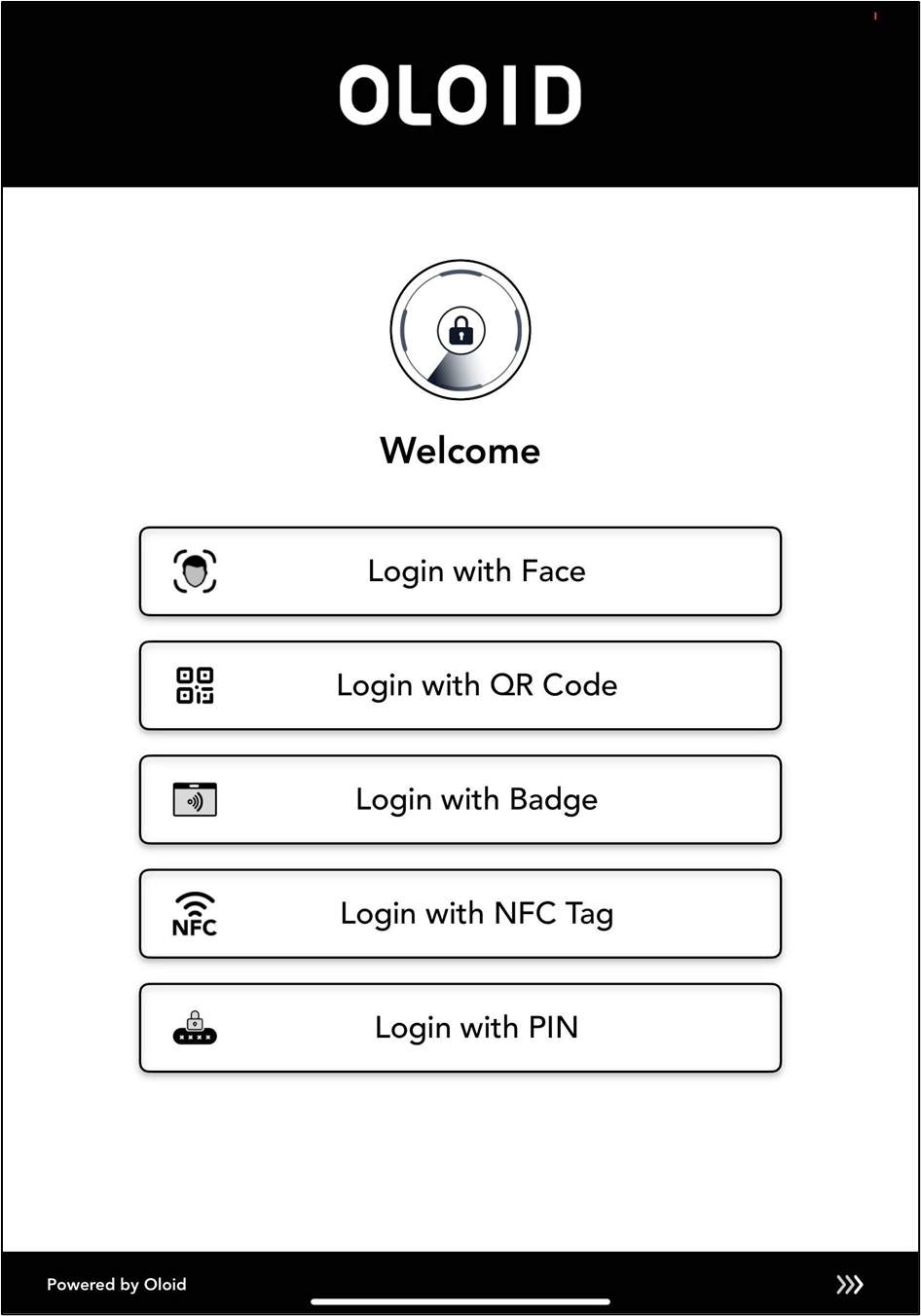
Launch the Oloid Connect App.
Note: Since the endpoint is already paired, the App will launch in the Auth selection screen of the App. For more, refer to How to pair an Oloid Connect endpoint.
-
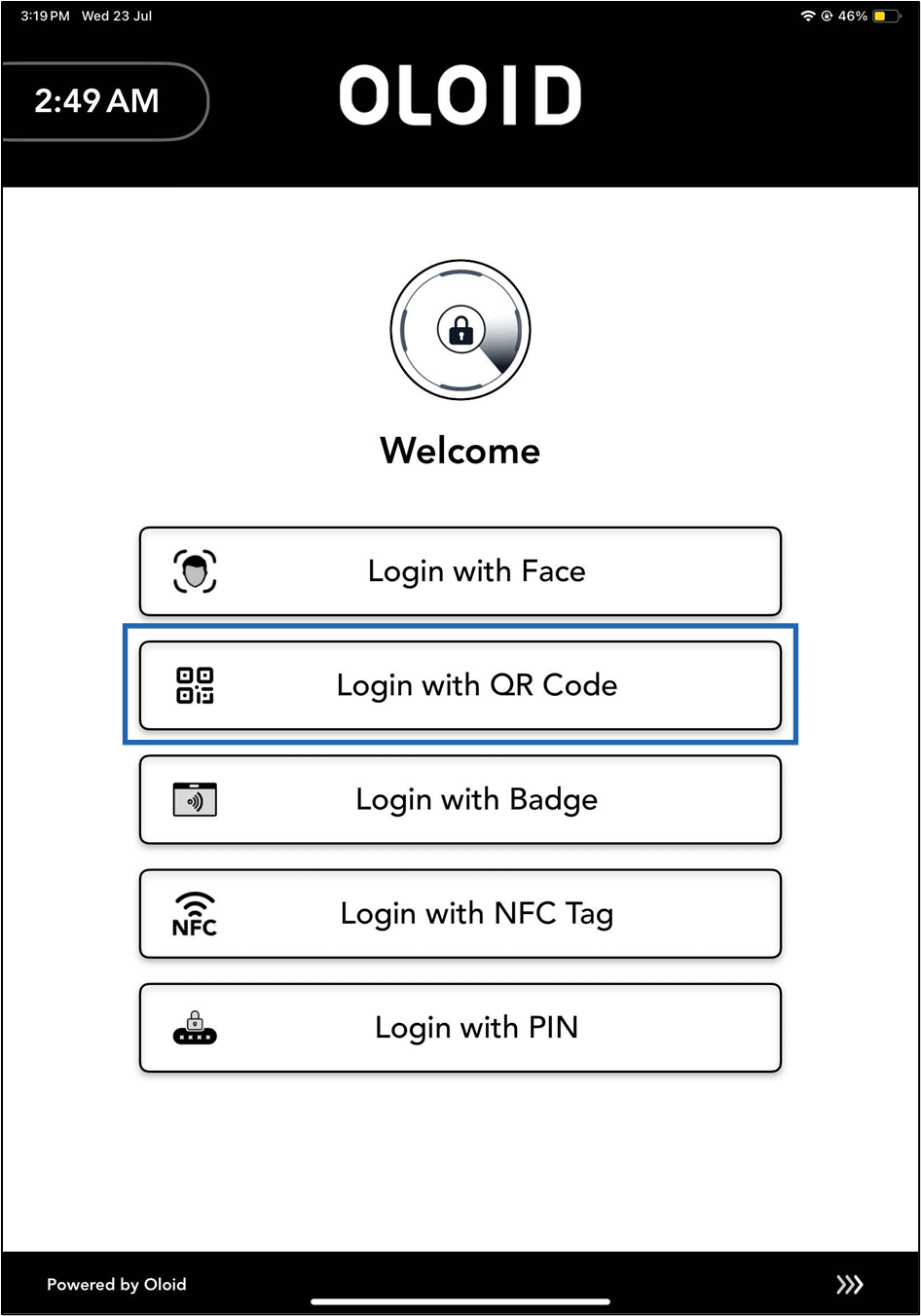
Tap Login with QR Code.
-
Scan QR Code.