Steps to Add pass to wallet
Introduction
This document provides instructions to Add pass to wallet using the invite link.Prerequisites
- You must download and install the Google Wallet app on your mobile device. For more, refer to
- A valid invite link to add pass must be available in the user’s mailbox.
Steps to Add pass to wallet
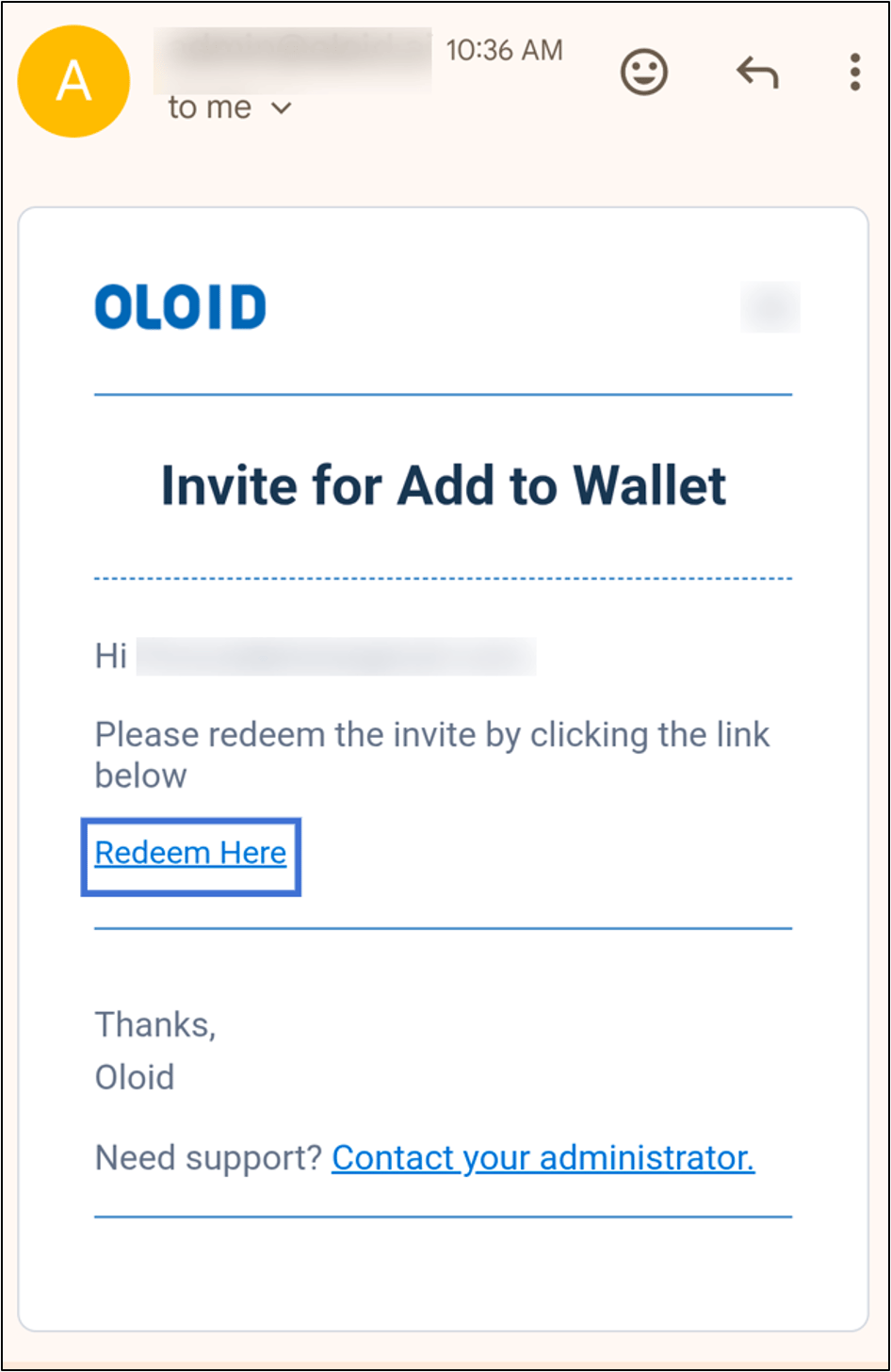
- Tap the invite link available in your mailbox. The mail box is displayed.
- Tap Redeem Here.
- Tap Add to Google Wallet.

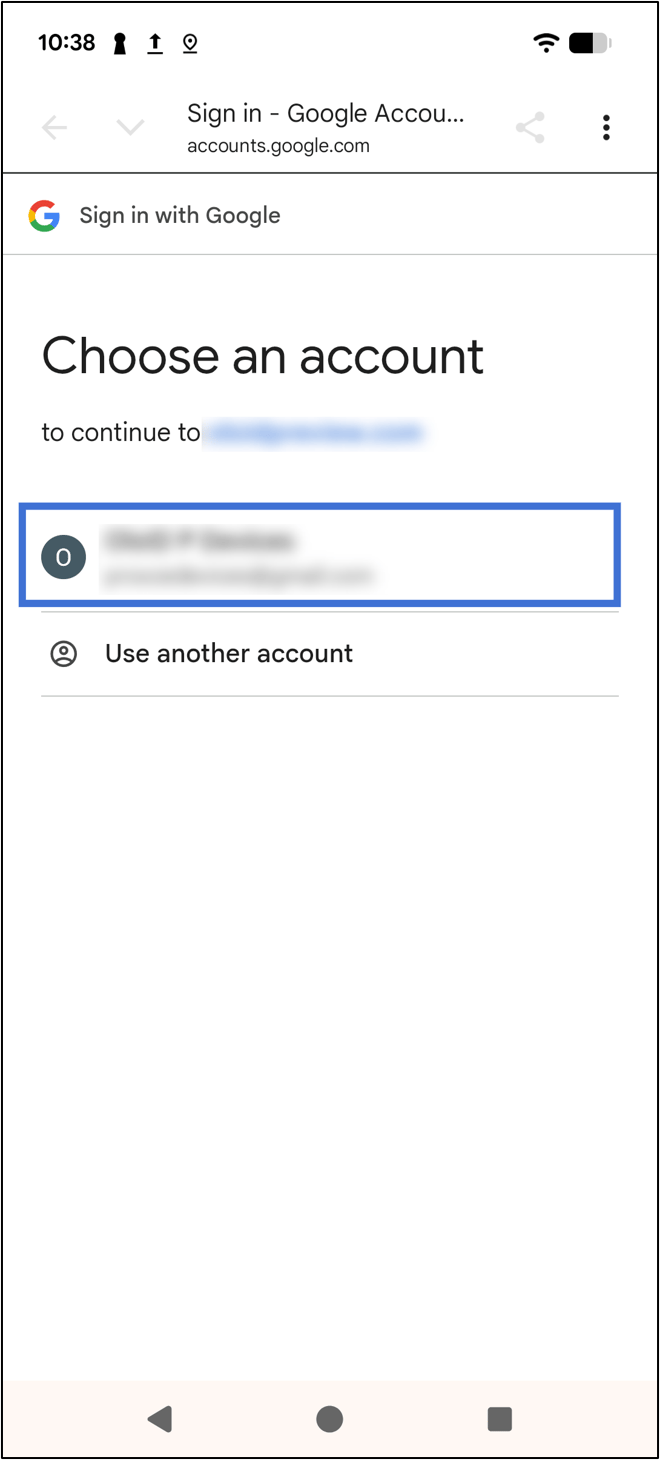
- Select the preferred google account.
- Tap Continue.
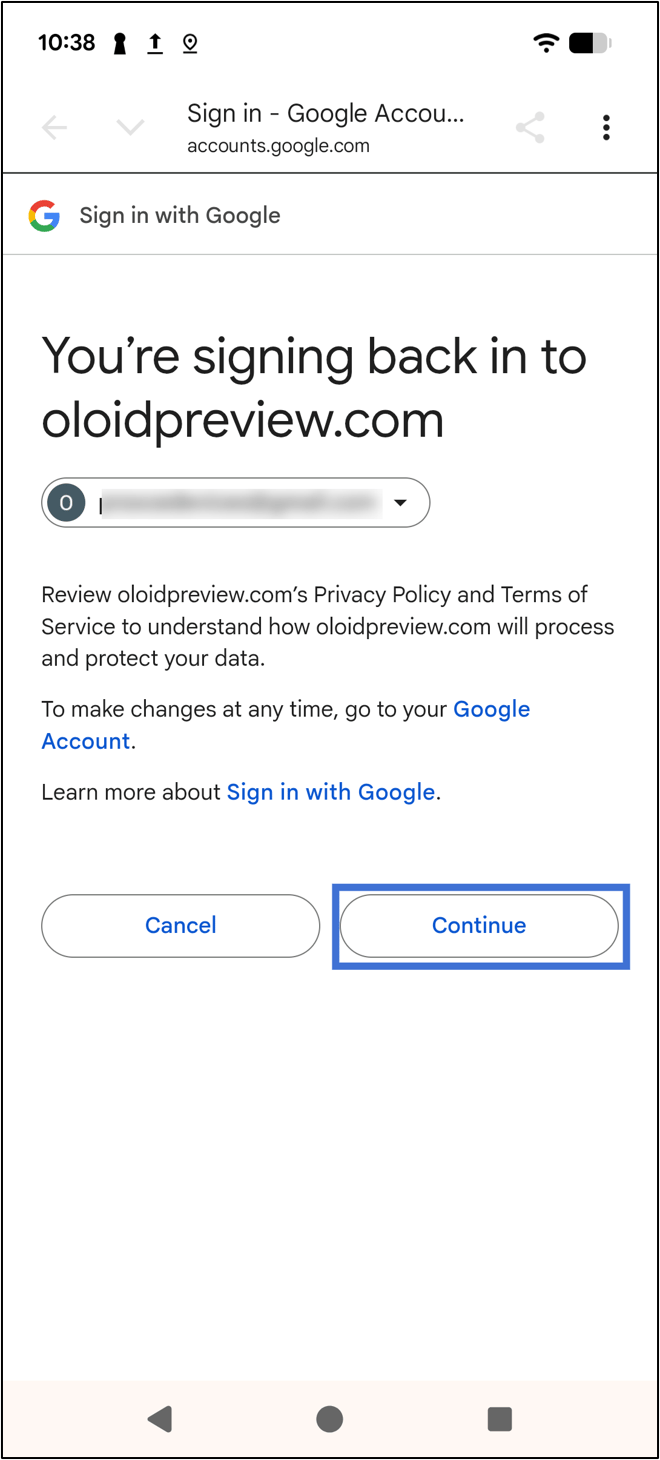
- Tap Add to Google Wallet.

- Tap Accept &Continue.
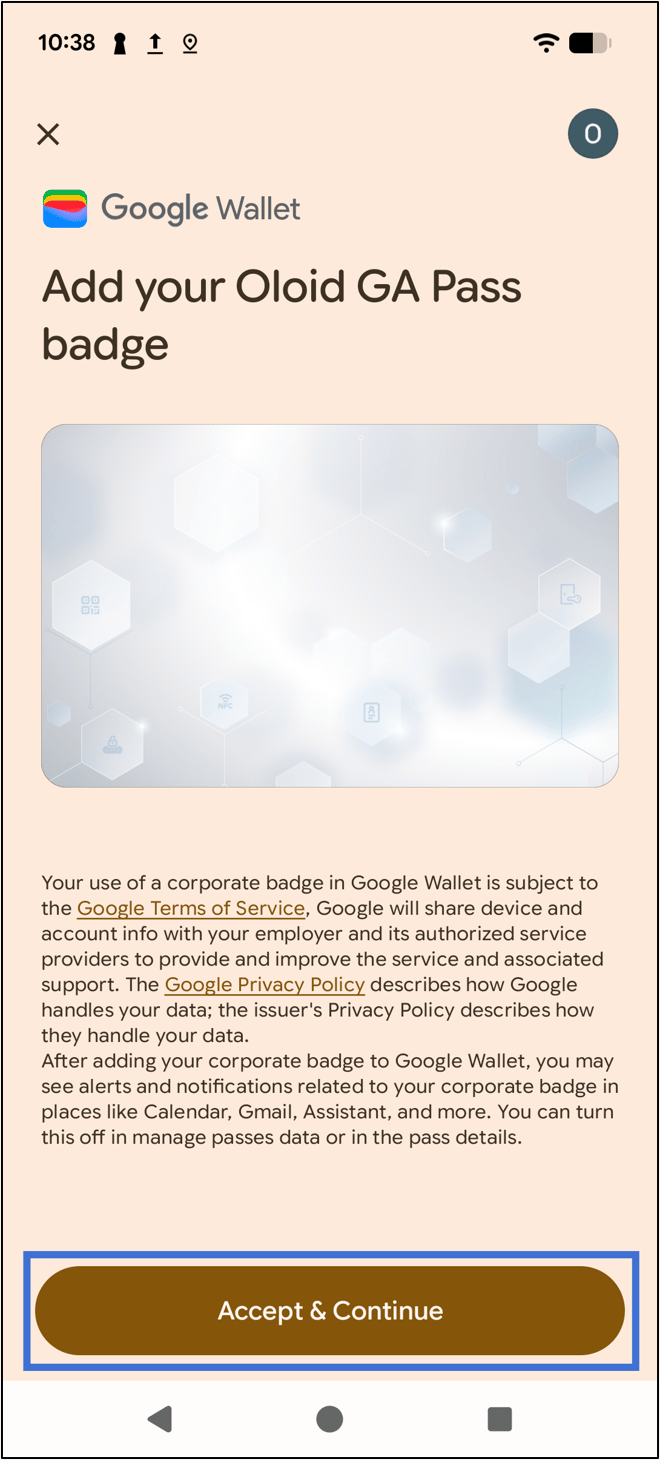
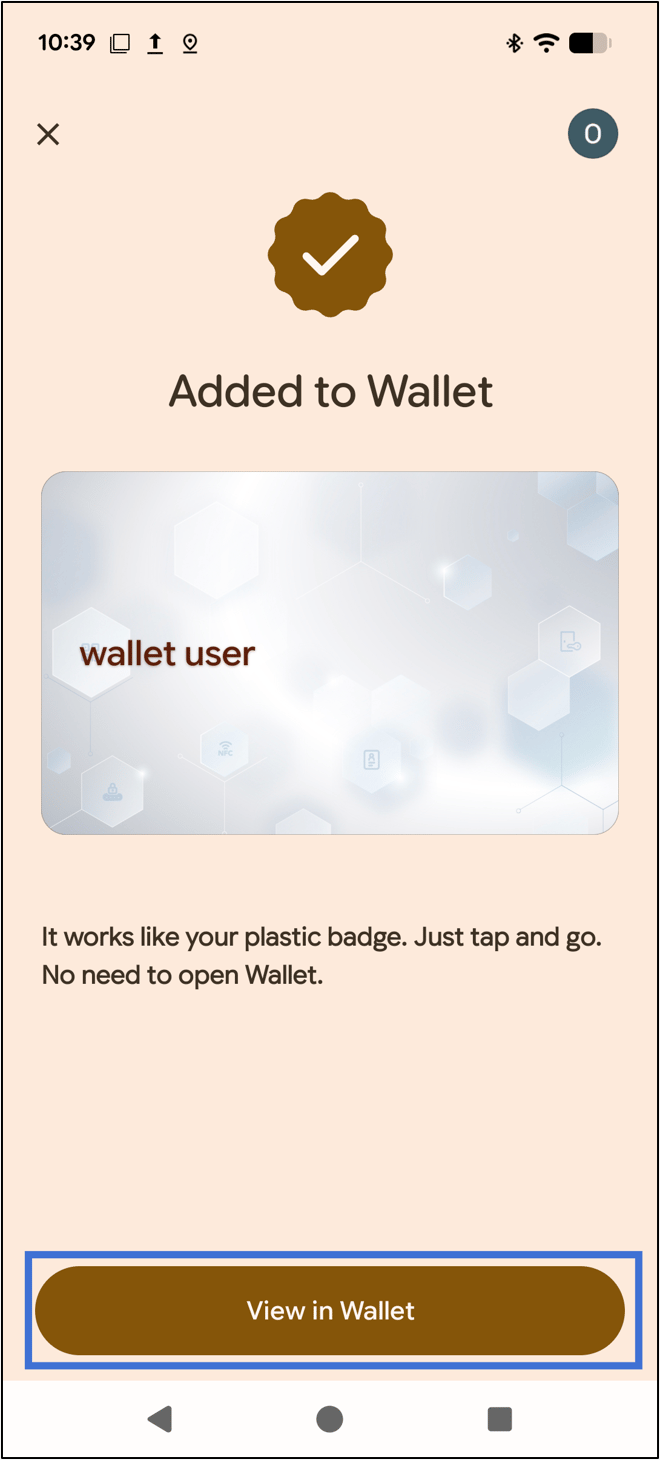
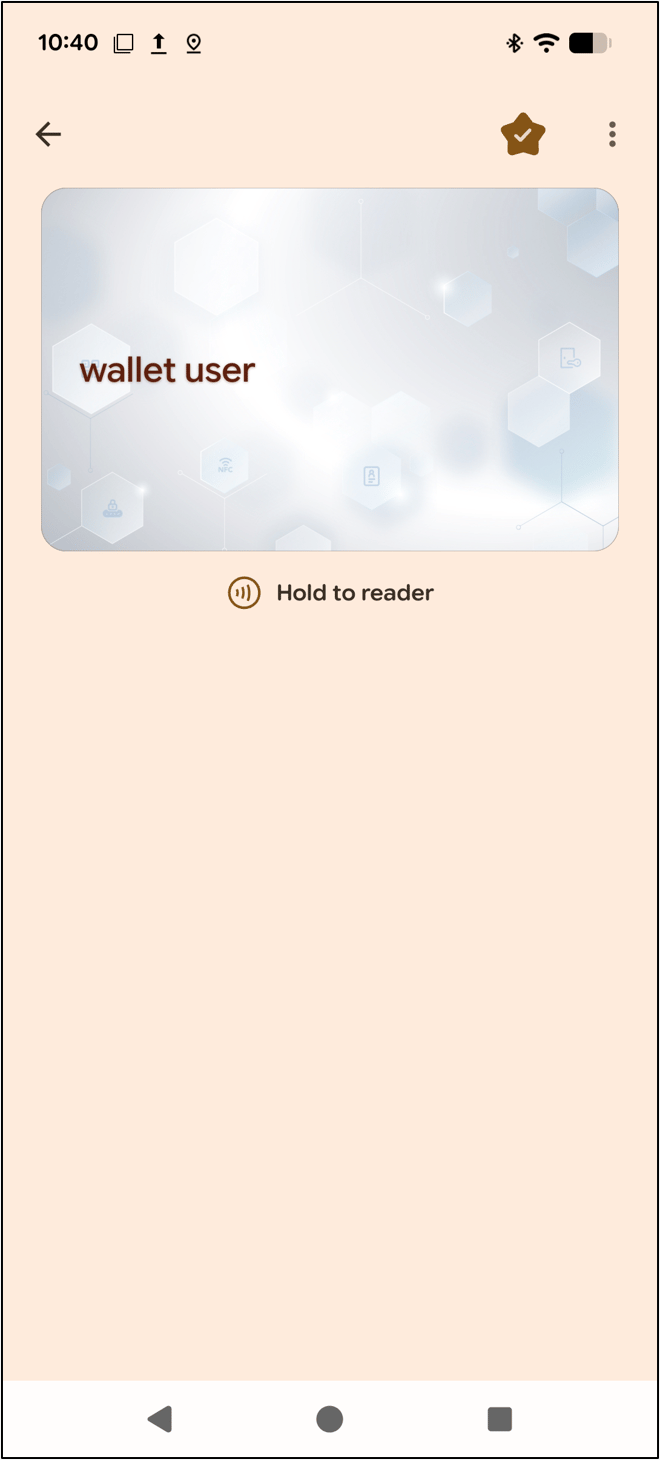
- Tap View in Wallet to view the pass.