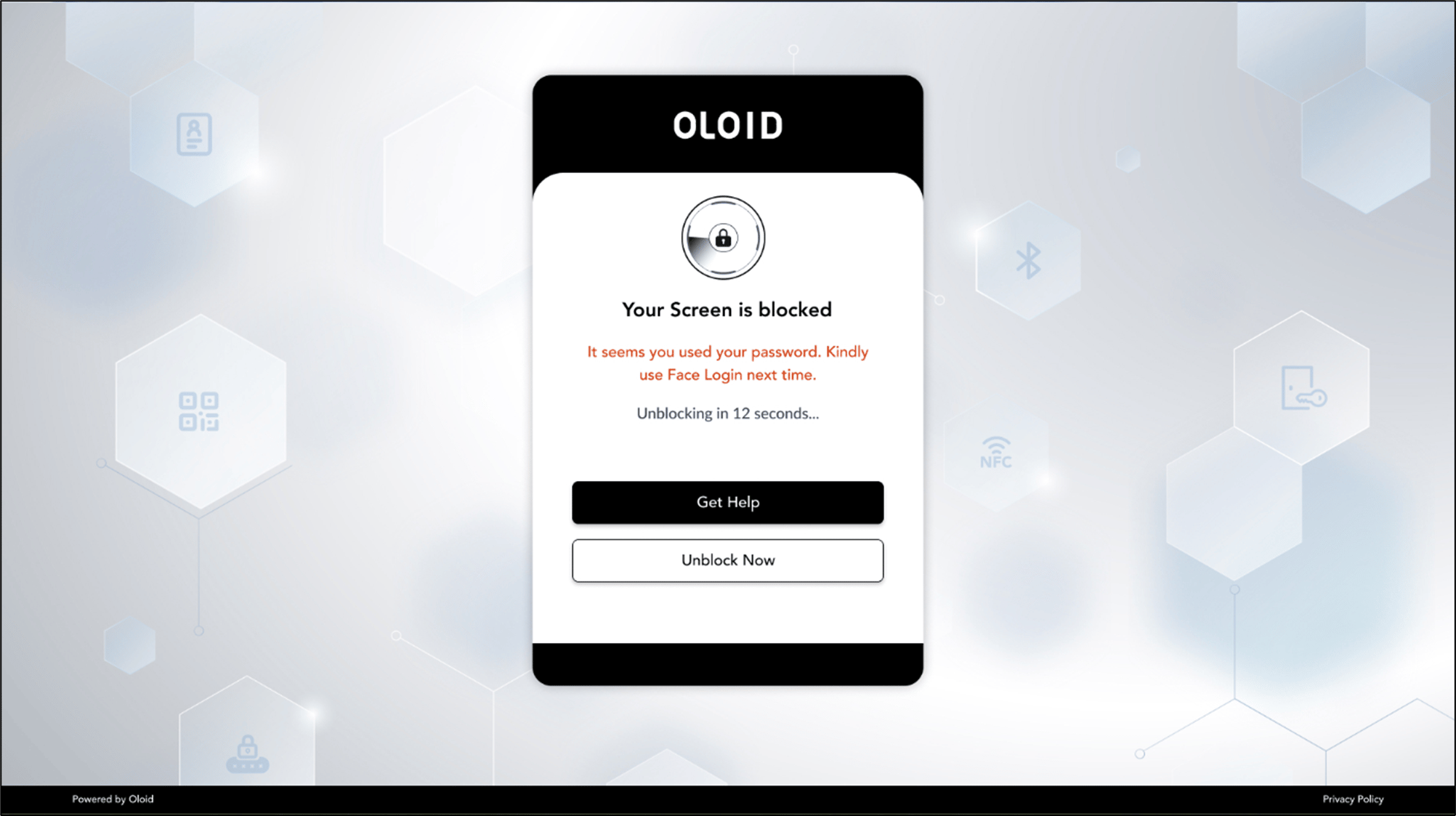
Screen block on Check Emotion (Emotion Detected)
This document provides instructions for users to take action when their Windows screen is blocked by the Presence Detection feature during a session. Presence Detection uses facial, gaze tracking, head pose tracking, and emotion classification to monitor user attentiveness.Requirement for Presence Detection Feature
- Your Windows system must be registered for Presence Detection.
- The “Multiple Faces Detected” option must be enabled by your admin at the endpoint level.
Steps to Take if Your Screen is Blocked
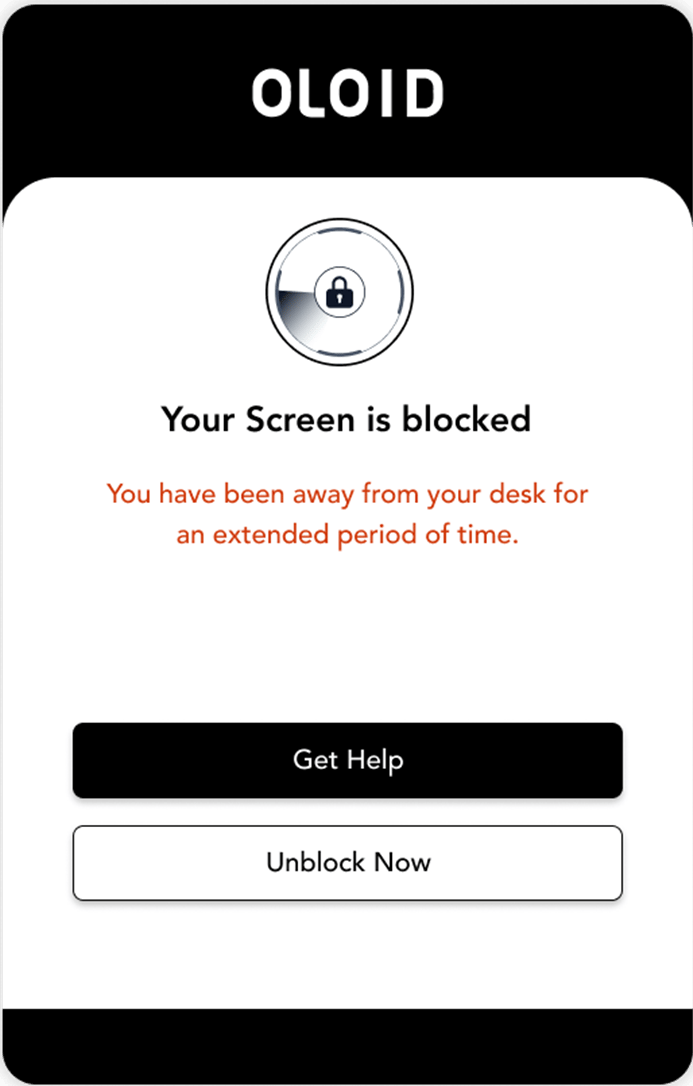
- Click “Get Help” to contact your Support team and report screen block.
- The Support Team will notify your supervisor of the event.
- The supervisor will review and unblock your screen.
- Click “Unblock Now” after Supervisor confirms of screen unblock.
- Your screen will be unblocked, and you can resume work.
- If the screen remains blocked and the “Unblock Failed” popup appears:
- Contact your supervisor to reach out to Oloid Support.
Note: Without Supervisor approval, your screen will automatically be unblocked after the specified time duration if auto unblock is enabled for that endpoint.