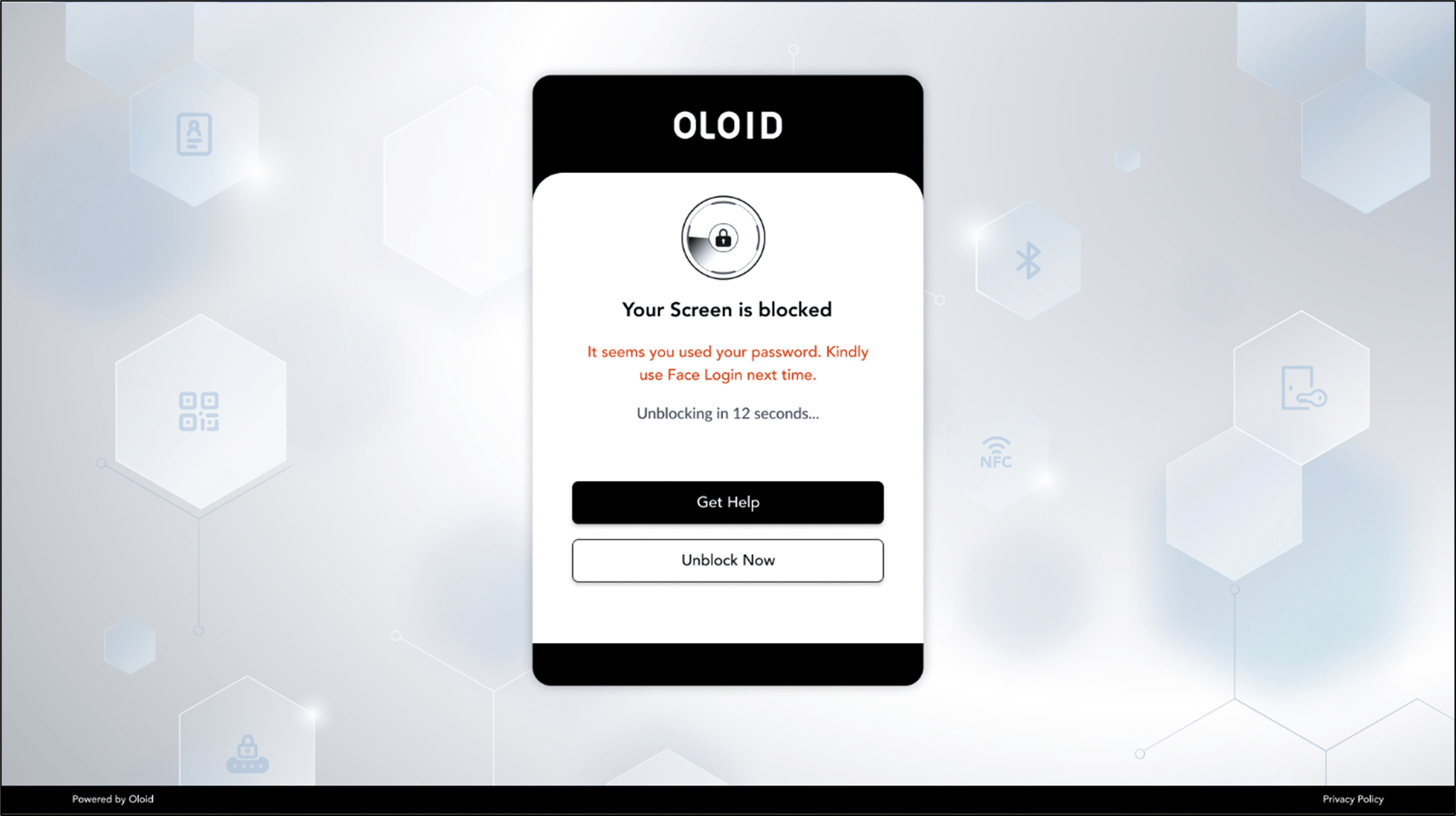
Screen block on Focus Monitor Violation
The Focus Monitor feature in Windows Login uses Oloid’s Presence Detection capability to monitor whether the user is looking at the screen. If the user looks away beyond the configured angle for the specified duration, a focus loss alert is triggered and the configured action is performed. When Screen Block is selected as the action, the Windows screen is automatically blocked when a focus violation is detected. All screen interactions are disabled except for the actions available on the blocked screen.Requirement for Presence Detection Feature
- Your Windows system must be registered for Presence Detection.
- The “Multiple Faces Detected” option must be enabled by your admin at the endpoint level.
Steps to Take if Your Screen is Blocked
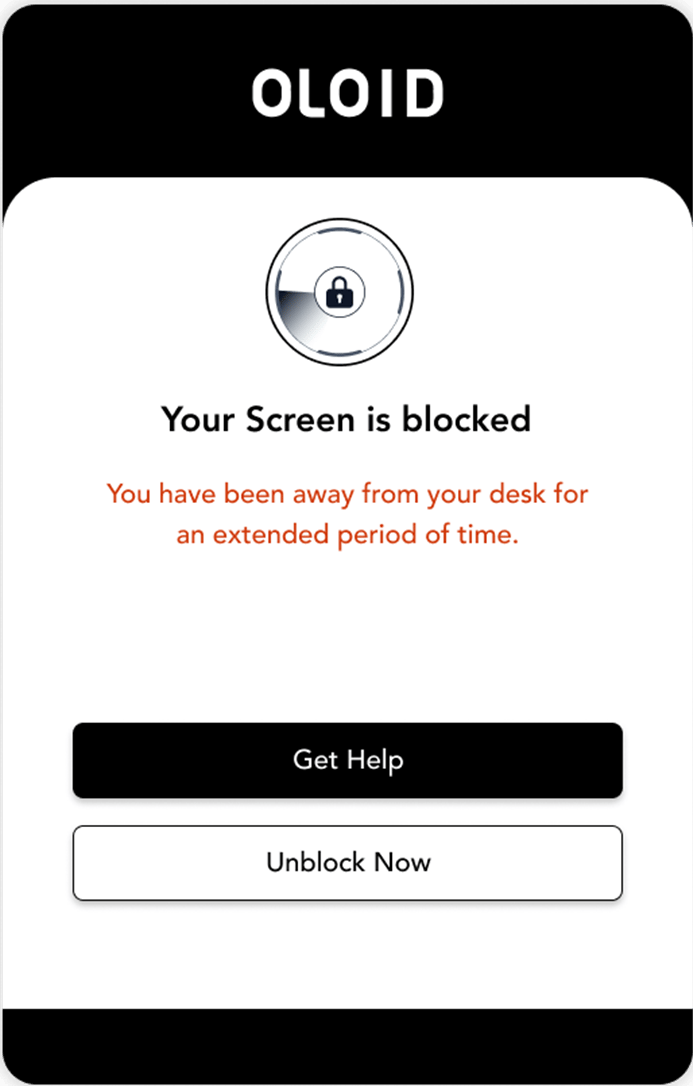
- Click “Get Help” to contact your Support team and report screen block.
- The Support Team will notify your supervisor of the event.
- The supervisor will review and unblock your screen.
- Click “Unblock Now” after Supervisor confirms of screen unblock.
- Your screen will be unblocked, and you can resume work.
- If the screen remains blocked and the “Unblock Failed” popup appears:
- Contact your supervisor to reach out to Oloid Support.
Note: Without Supervisor approval, your screen will automatically be unblocked after the specified time duration if auto unblock is enabled for that endpoint.