Introduction
This document explains how to enable wallet pass in the Tenant Admin Portal. By enabling Wallet Pass in the Tenant Admin Portal, administrators can make wallet-based Badge credential available to users.Prerequisite
You must have access to the Tenant Admin Portal.Steps to Enable Wallet Pass
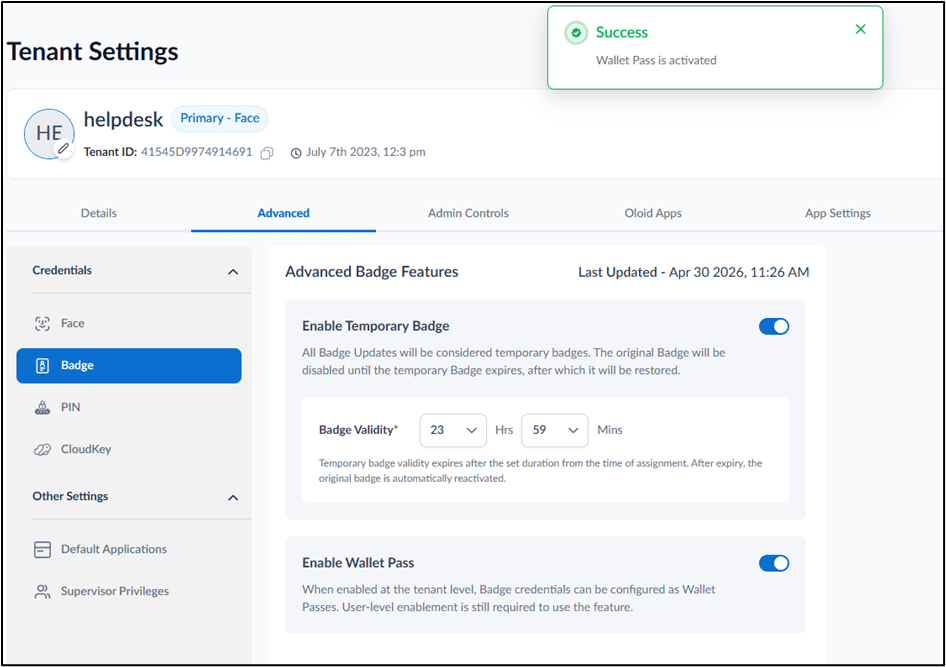
- Log in to the Tenant Admin Portal.
- On the homepage of the portal, click user profile icon on the bottom left corner of the menu panel.

- Select Tenant Settings.

- Go to Advanced tab > Badge.

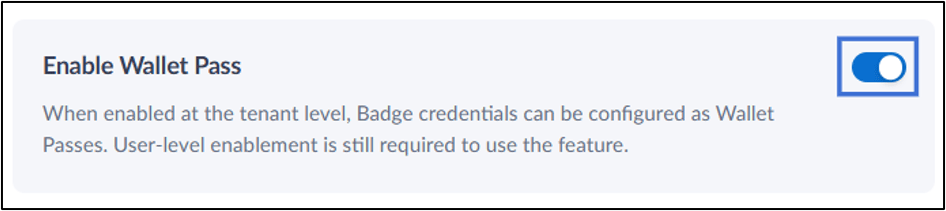
- Enable Wallet Pass toggle.