Introduction

This document provides an overview of how to login to Windows device when passkey is enabled, and how the authentication is processed on the Windows device.

Prerequisite

Steps to sign in to Windows device when passkey is enabled

  1. On the Windows lock screen, do the following:
    1. Click Sign-in options. Authentication when Passkey is Enabled... - screenshot 1 The Windows login app is displayed.
    2. Select Windows login app. Authentication when Passkey is Enabled... - screenshot 2
    3. Select Login with OLOID. Authentication when Passkey is Enabled... - screenshot 3 The Windows login app opens and the Scan Badge page is displayed.
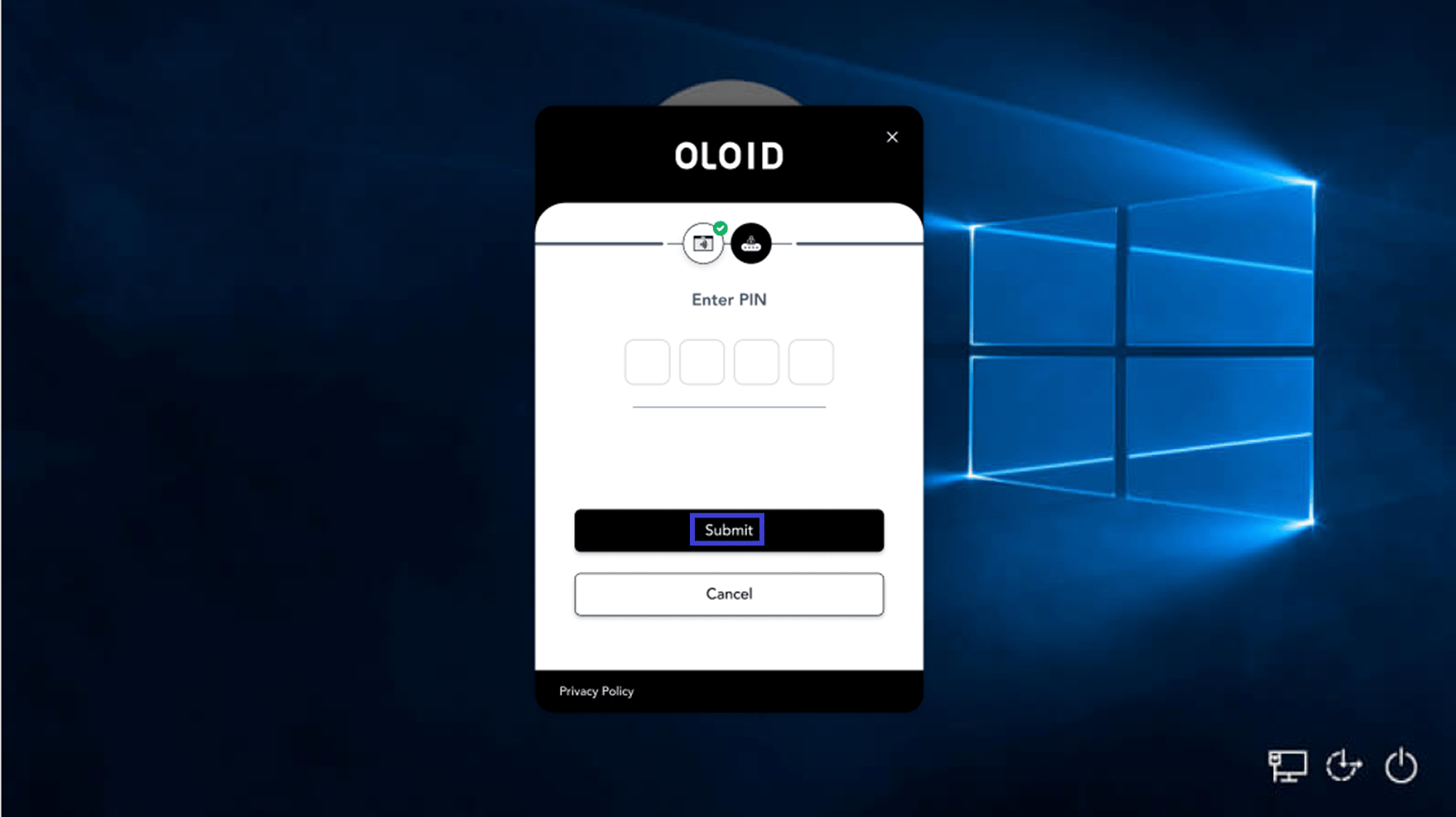
  2. Tap the Badge on the Badge Reader to scan it. Authentication when Passkey is Enabled... - screenshot 4 On Badge authentication, the Enter PIN pop-up box is displayed.
  3. Enter the PIN then click Submit.
Authentication when Passkey is Enabled... - screenshot 5 On PIN authentication, you are signed in to the Windows device.
Note: If the user has multiple passwords configured in the Oloid Portal, then the Choose Your Account page is displayed. You can select a specific account to sign in successfully.
Authentication when Passkey is Enabled... - screenshot 6

Passkey Authentication Flow

When a user initiates login on the Oloid authentication page, the system is prompted to authenticate using a previously registered passkey. The authentication request is handled by the user’s device, where the user verifies their identity Oloid Credentials, this verification happens locally on the device. Once the user is successfully verified, the device generates a secure authentication response and sends it to the server. The server validates this response using the registered credentials and, upon successful verification, grants the user access to the application. This ensures that sensitive credential handling is confined to the device and backend systems, with no passwords being transmitted or exposed. As a result, passkey authentication provides a secure and seamless login experience while minimizing the risk of phishing and credential theft. If authentication fails, the system proceeds with fallback authentication methods if they are configured.