Introduction
The Badge credential feature in the Tenant Admin Portal allows administrators to enable badge-based multi-factor authentication (MFA) for the Windows Login application. Once enabled, users can log in to Windows endpoints by scanning their badge or smart card.Steps to configure Badge credential
- Log in to the Tenant Admin Portal.
-
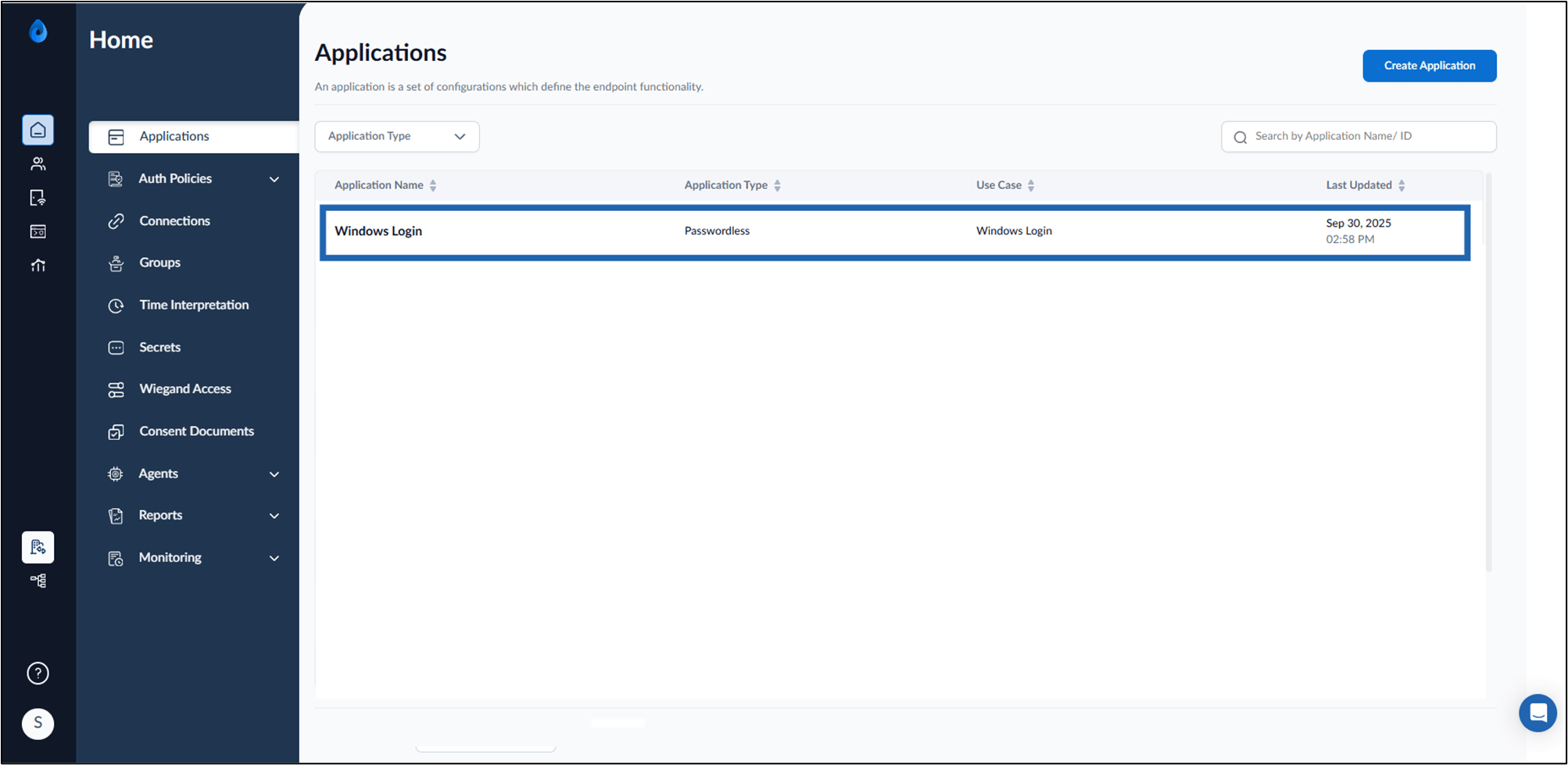
On the Applications page, select the Windows Login application.

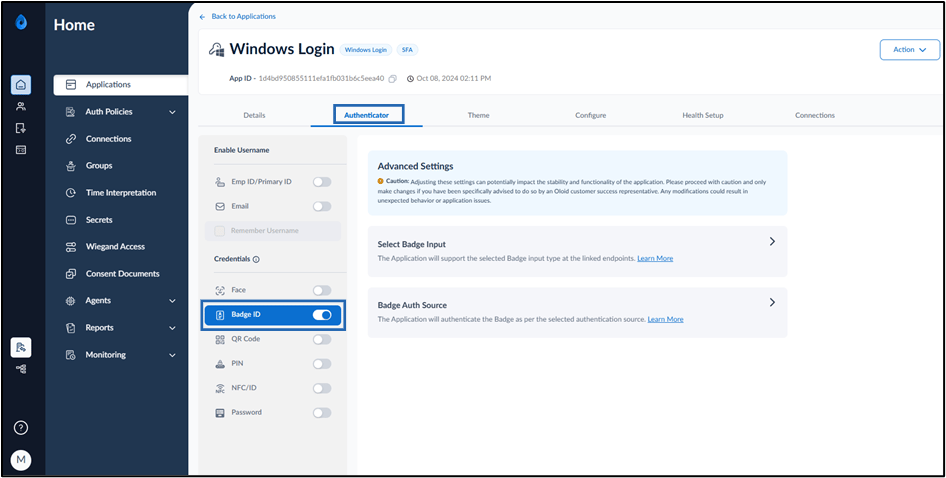
- Go to Authenticator tab.
-
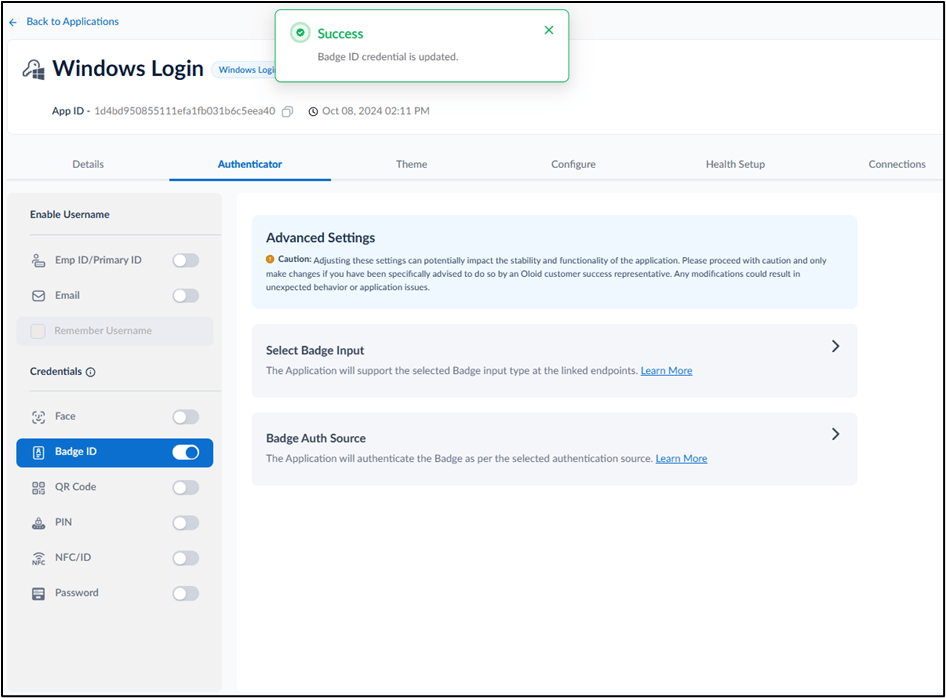
Turn on Badge ID toggle.
-
Configure Select Badge Input, and Badge Auth Source on the Advanced Settings page.
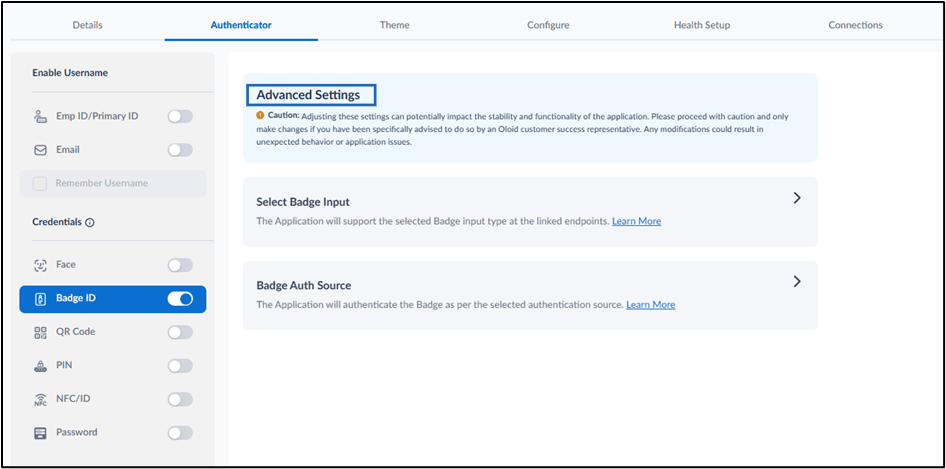
-
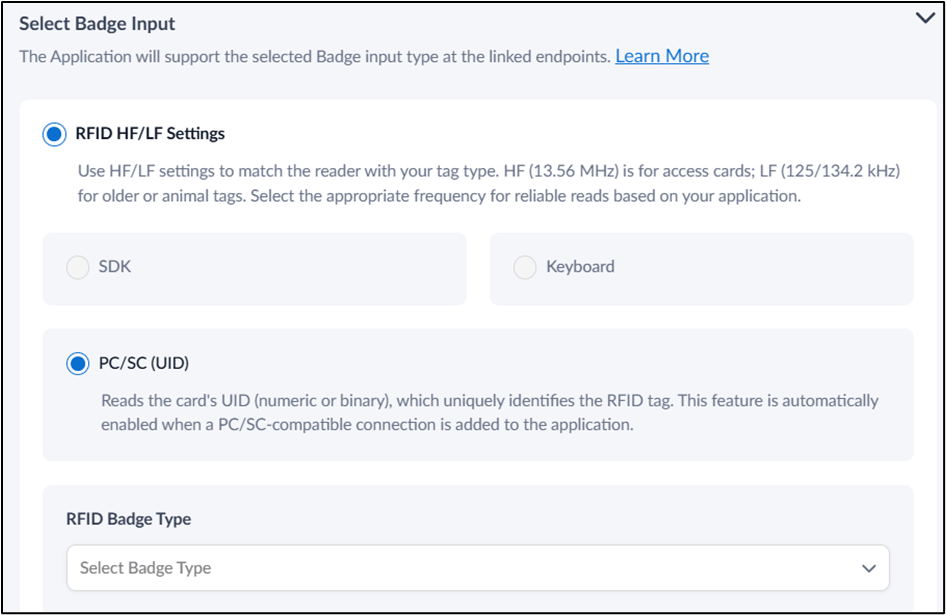
Do the following setting for Select Badge Input.
Note: You must consult your Oloid admin before you make any changes to badge input and type as it may result authentication error.

-
Configure RFID HF/LF Settings.
- Select SDK to use the integrated SDK to handle badge input.
- Select Keyboard to allow manual keyboard entry of badge IDs.
-
Select PC/SC (UID) to read the card’s unique identifier (UID). The UID is a number (numeric or binary) that is permanently stored on the RFID card.
Note: This feature is automatically enabled when a PC/SC-compatible connection is added to the application.
-
Select RFID Badge Type from the Select Badge Type drop-down list.
-
Configure RFID HF/LF Settings.
-
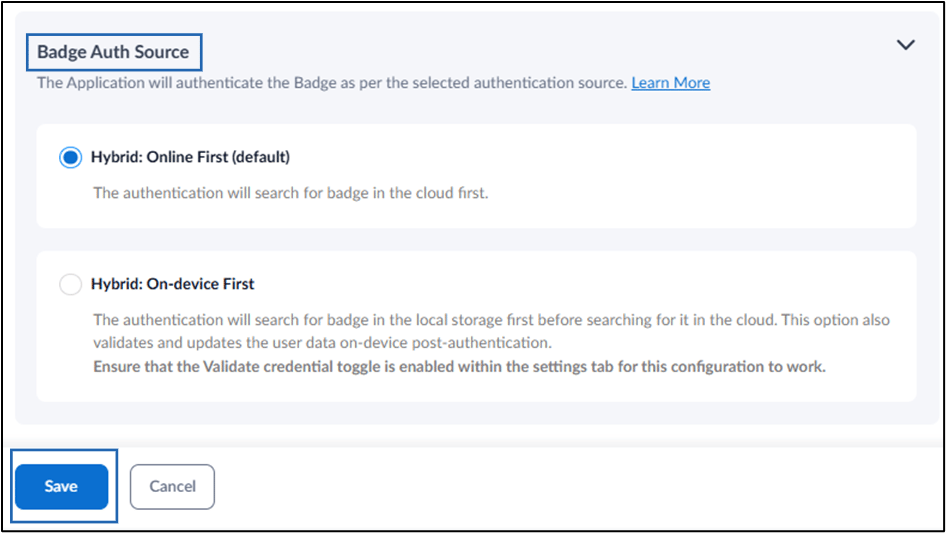
Select the following options for Badge Auth Source.
- Select Hybrid: online First(default). This option verifies the updated badge information from the cloud.
- Select Hybrid: on device-first. This option checks the device’s local storage and verifies badge authentication based on the successful transaction.