

-
Go to App Store and download Oloid Connect

-
Install the application and upon successful installation, launch the app.
The Welcome screen is displayed.

-
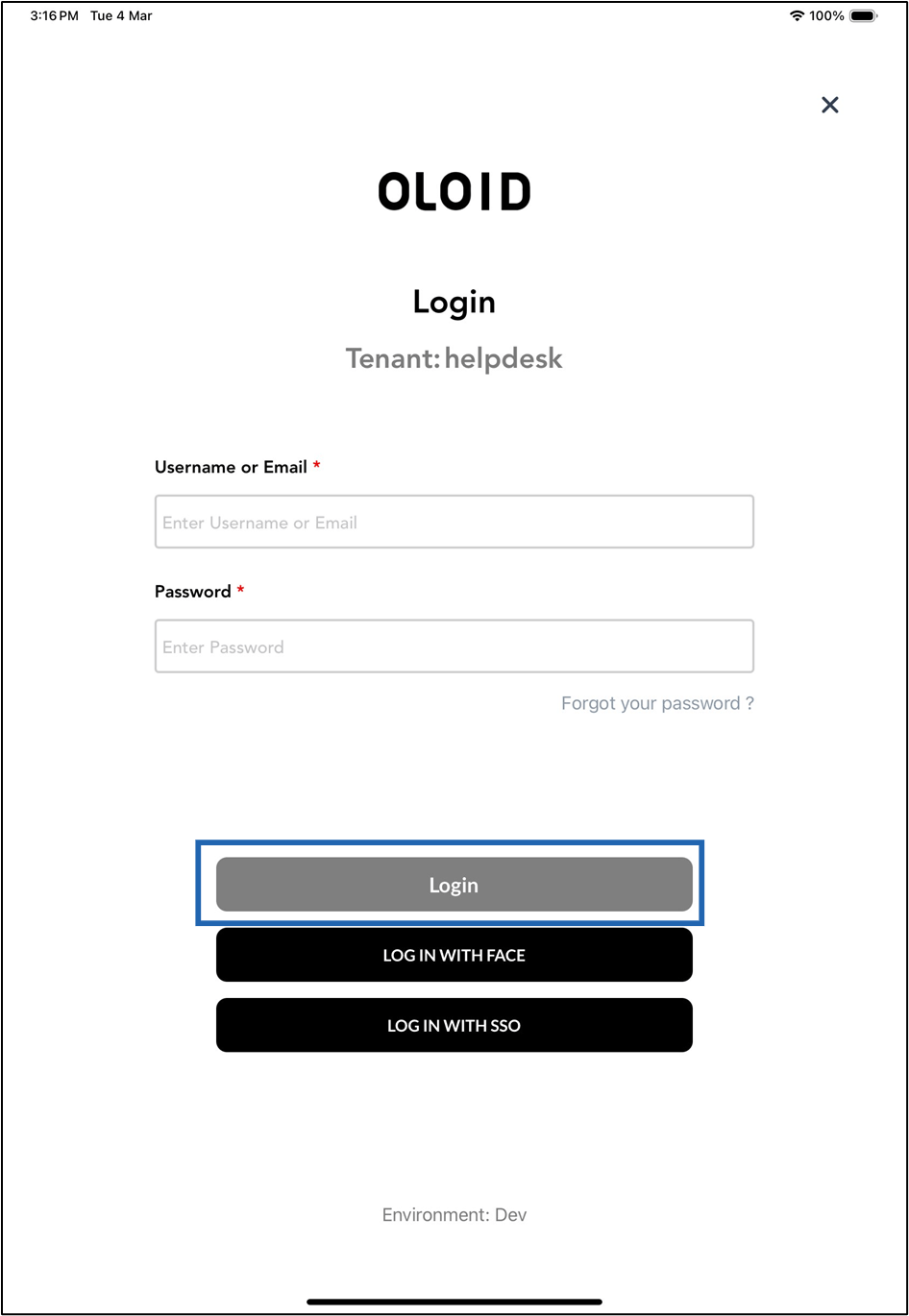
Do the following:
- Enter your email ID in the Email text field.
- Enter your password in the Password text field.
-
Log in to Admin Mode.
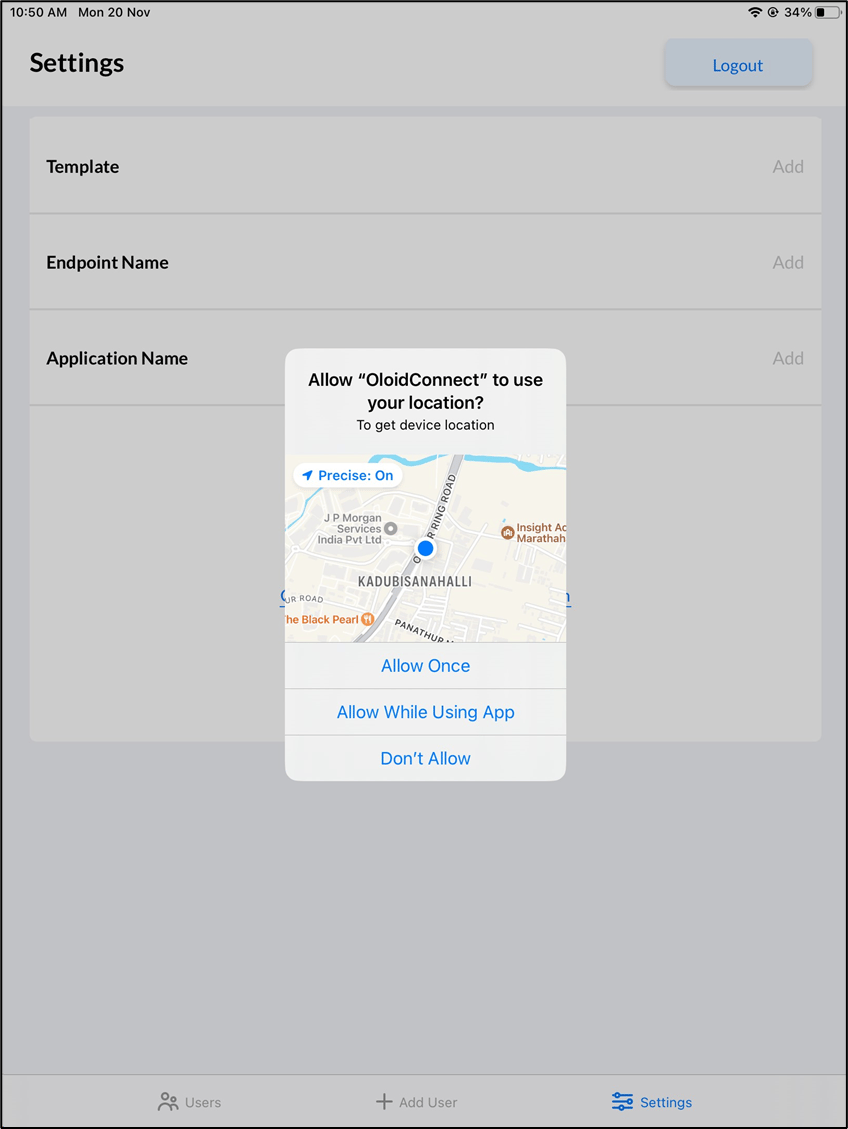
The Allow “OloidConnect” to use your location? Pop-up box is displayed.Note: For knowing more about logging in to Admin Mode, see How to log into the admin mode of Oloid Connect App as a Supervisor/Admin. You can also log in with SSO. See How to Login with Google SSO in Oloid Connect , How to login with Microsoft SSO in Oloid connect, and How to Login with Okta SSO in Oloid Connect to know more.Note: This pop-up is displayed only the first time you open the App. See How to update Location to change the Location settings.
-
Select an option:
- Allow Once: Every time you open the app, it’ll ask to use your location.
- Allow While Using App: The app can use your location only when you’re using that app.
- Don’t Allow: The app cannot use your location, even when you’re using the app.
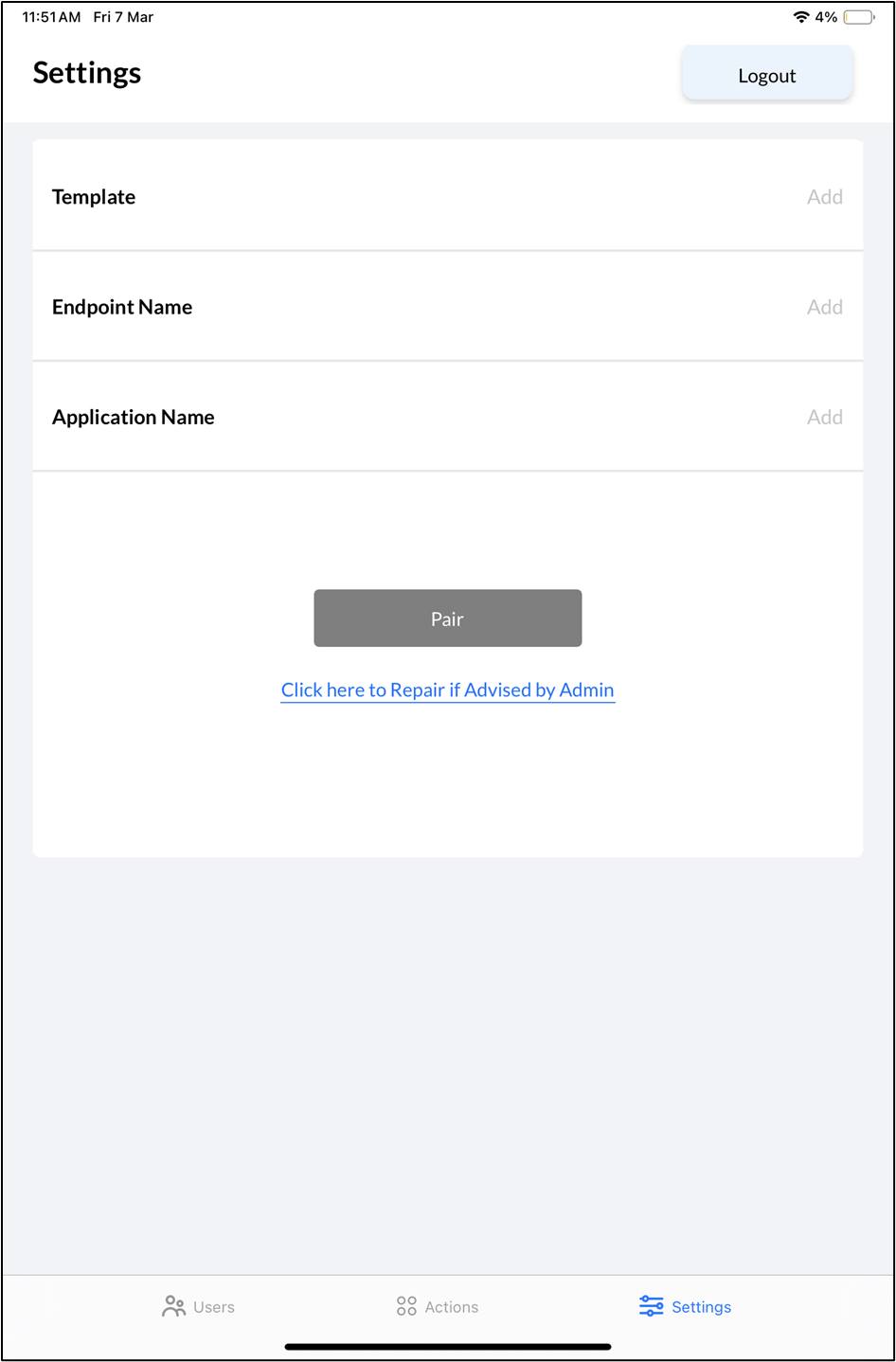
The Location is added to the Oloid Connect App and the Setting screen is displayed.
-
Do the following on the Settings page.
- Add Template (optional).
- Enter Endpoint Name.
- Select Application Name from Application Name list.
- Tap Pair.
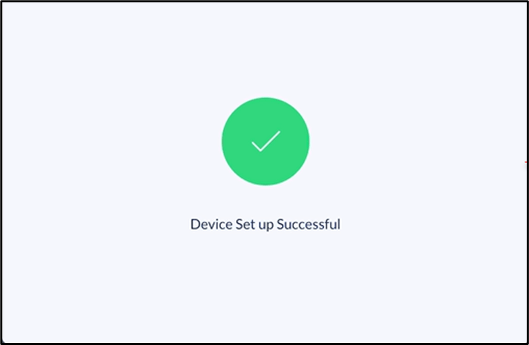
The settings are saved and the Device Setup success message is displayed.

-
Do one of the following:
-
Click Yes to log out and launch the application (preview mode).
The app displays preview mode and allows you to capture live Images for facial transactions.
Note: To go back to admin mode, double-click on preview mode and tap Yes- To Continue.
- Click No to stay logged in to the admin mode. You can now log in to the Oloid Portal to check the location added to the specific endpoint.
-
Click Yes to log out and launch the application (preview mode).
The app displays preview mode and allows you to capture live Images for facial transactions.
Oloid Connect: Add Location
This document provides step-by-step instructions to add Location in Oloid Connect App.
Steps to Add Location:
⌘I