

Steps to configure NFC/ID credential
- Log in to the Tenant Admin Portal.
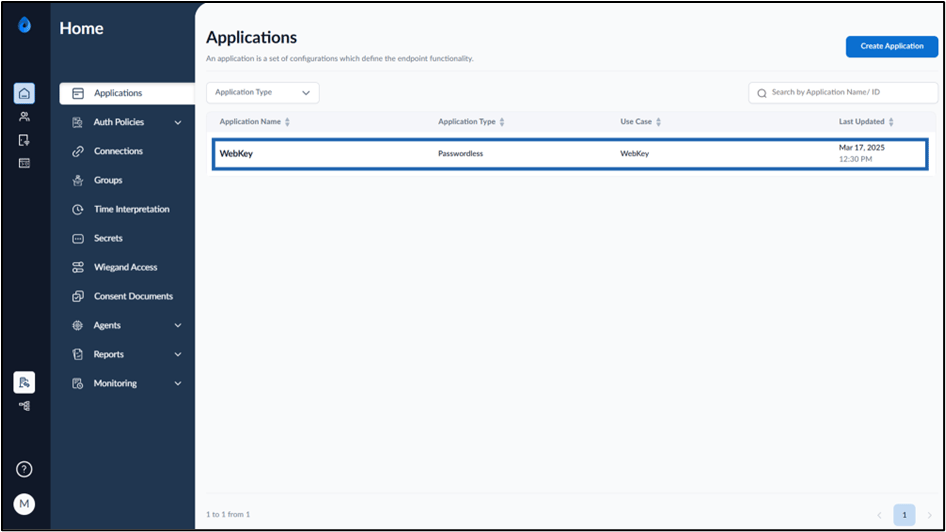
- On the Applications page, select the Webkey application to edit.
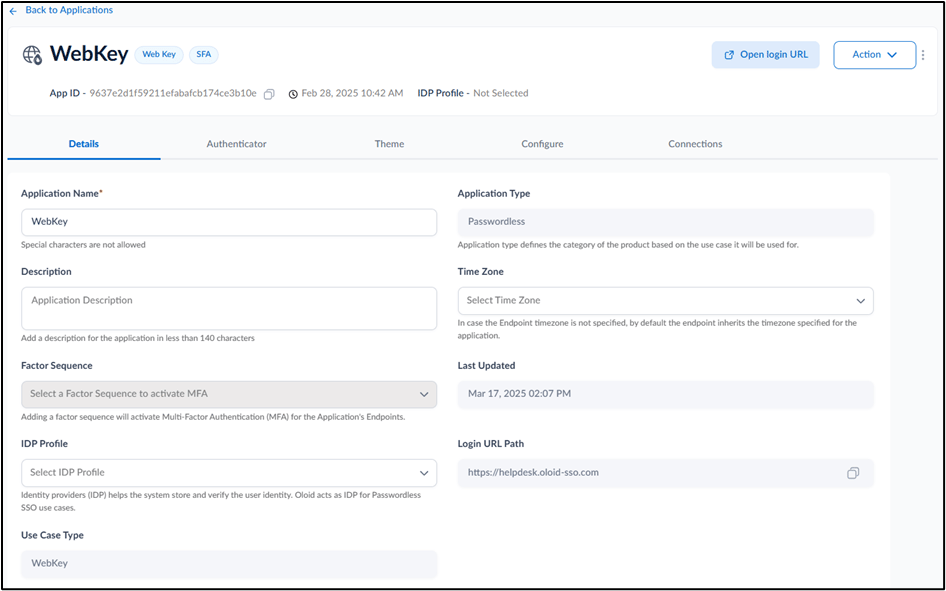
- Go to Authenticator tab.
- Turn on NFC/ID toggle.
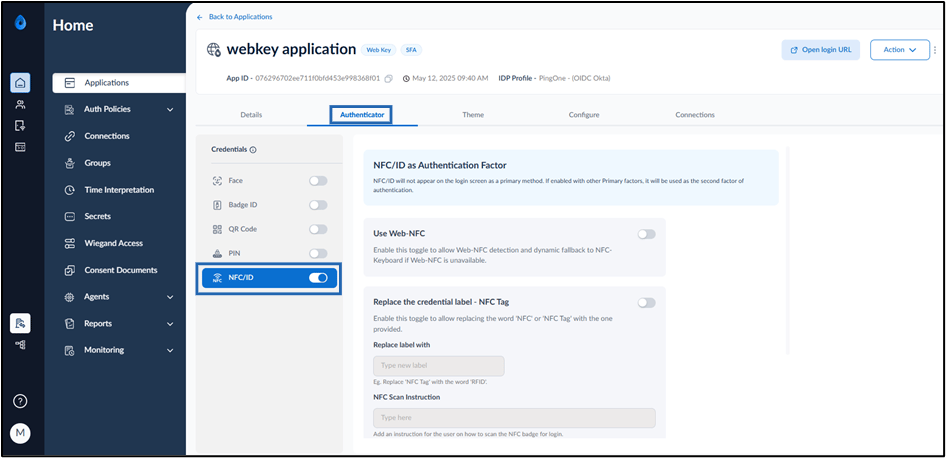
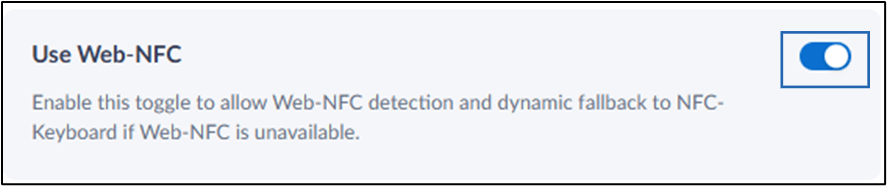
- Turn on Use Web-NFC toggleto allow NFC Login from the Mobile Phone and Tablet browser that supports NFC. (such as Google Chrome on Android)
- Enable Replace the Credential Label - NFC Tag to replace the default “NFC” or “NFC Tag” label with a custom name.
- Enter the new label in the Replace label with field. Example: Replace NFC Tag with RFID.
- Provide NFC Scan Instruction to guide users on scanning their NFC badge for login.

- Authentication Success Message: Enter a message to display when authentication is successful.
- Authentication Failure Message: Enter a message to display when authentication fails.
- Click Save.
