

Steps to configure CloudKey Endpoint
- Login to the Oloid Portal.
- On the homepage, click Endpoints from the left menu panel.
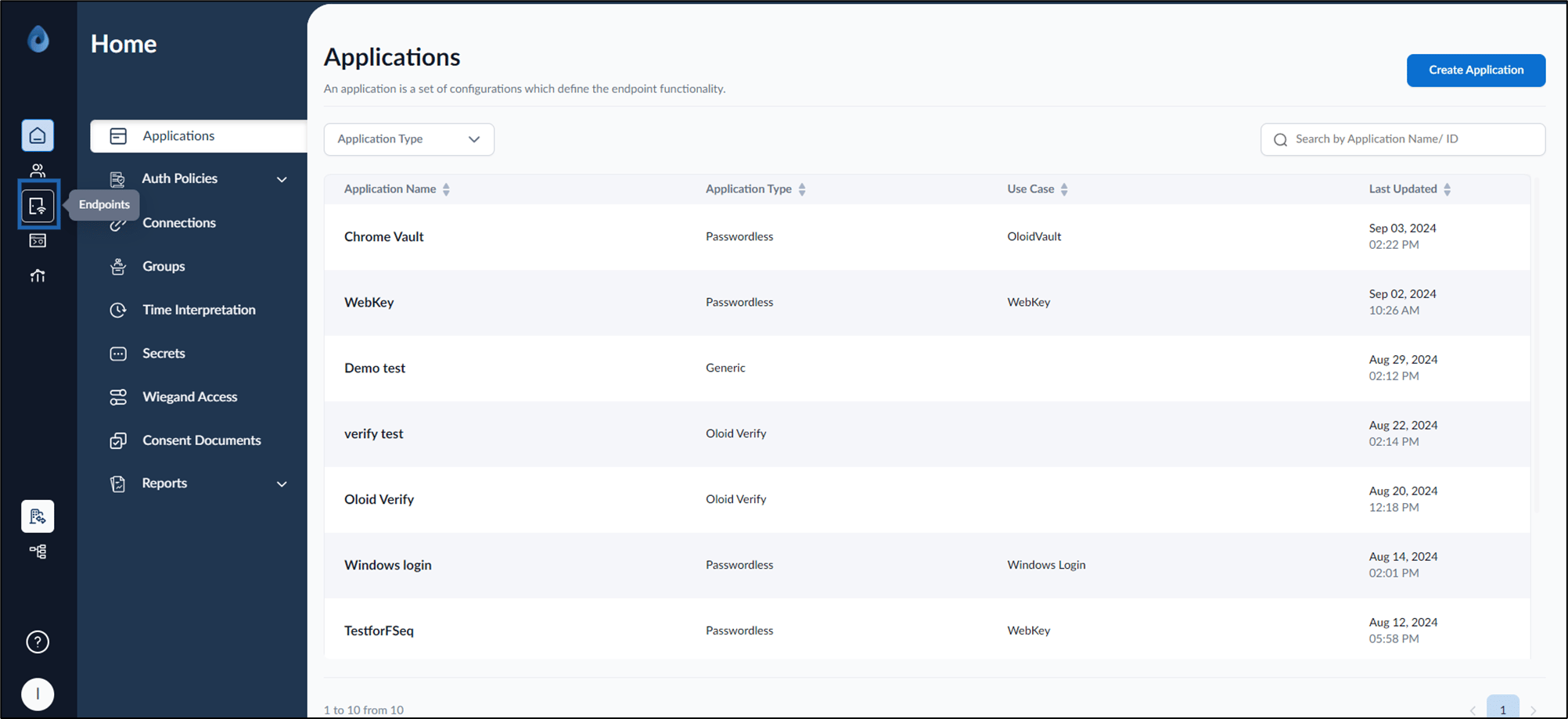
- Click CloudKey endpoint name to edit.
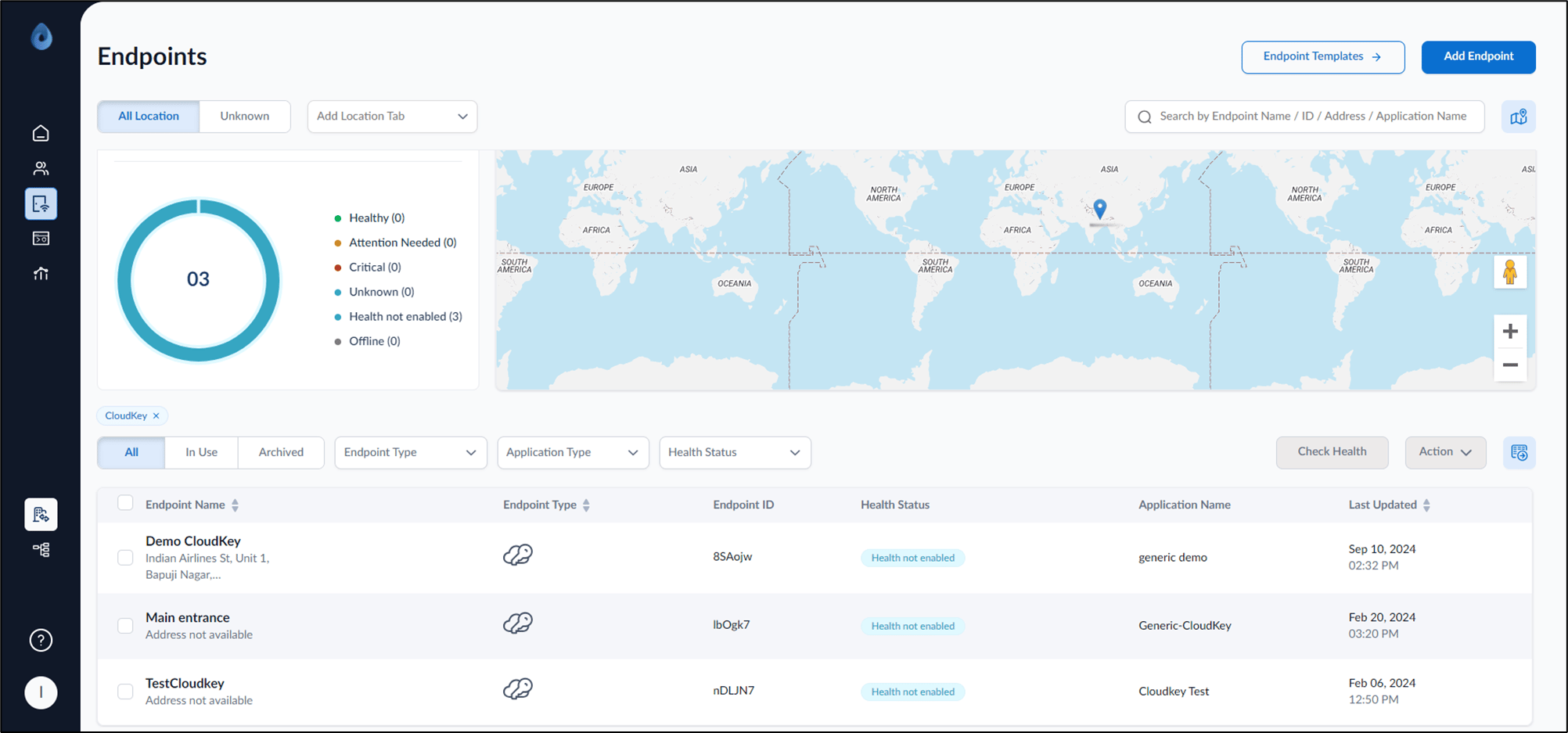
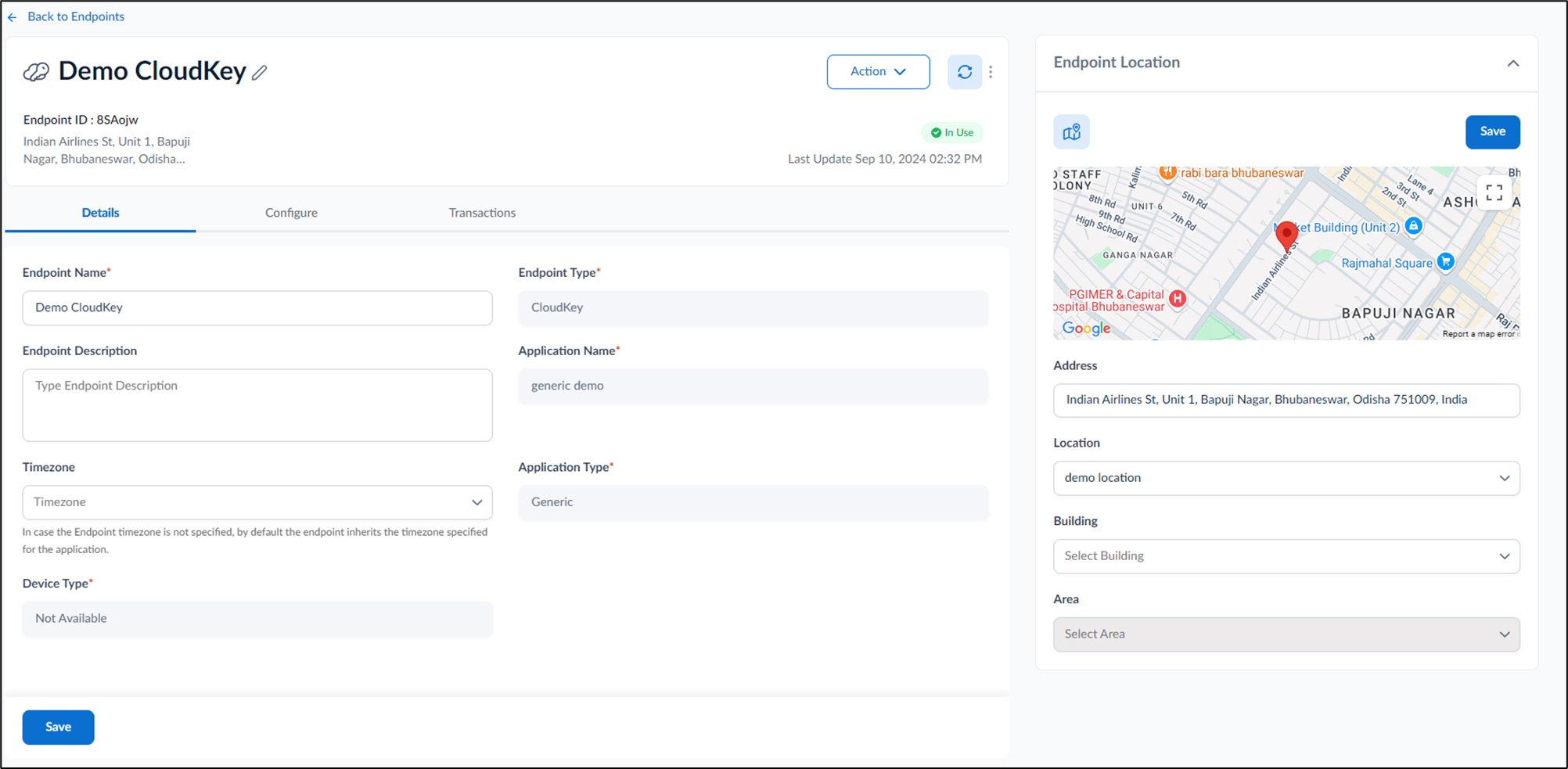
- Configure the following:
- Add Endpoint Location

Configure Details Tab

- Edit Endpoint Name.
- Enter Endpoint Description. (optional)
- Select Timezone from the timezone dropdown list. (optional)
- Click Save.
Design Configure Tab

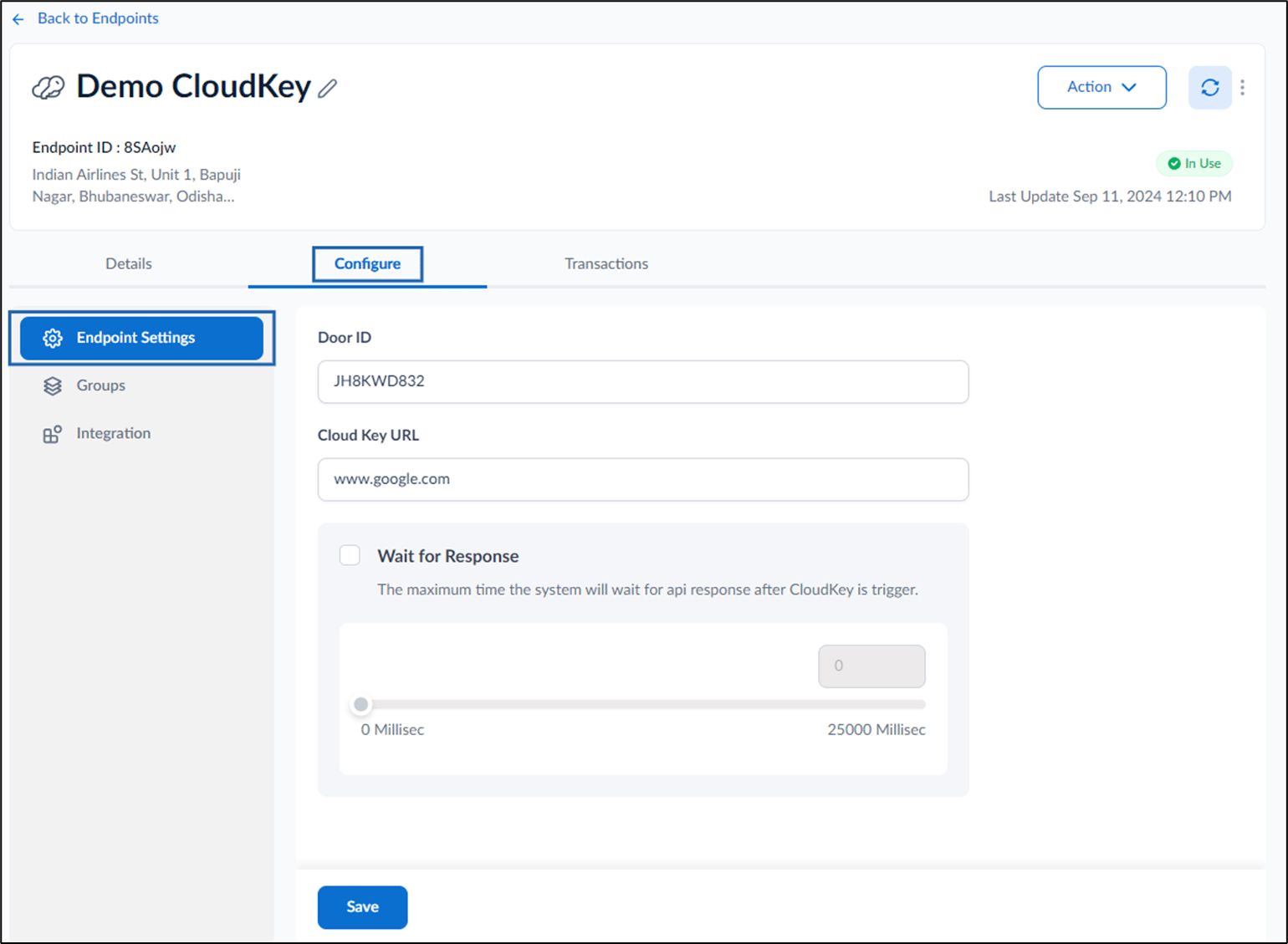
- Endpoint Settings
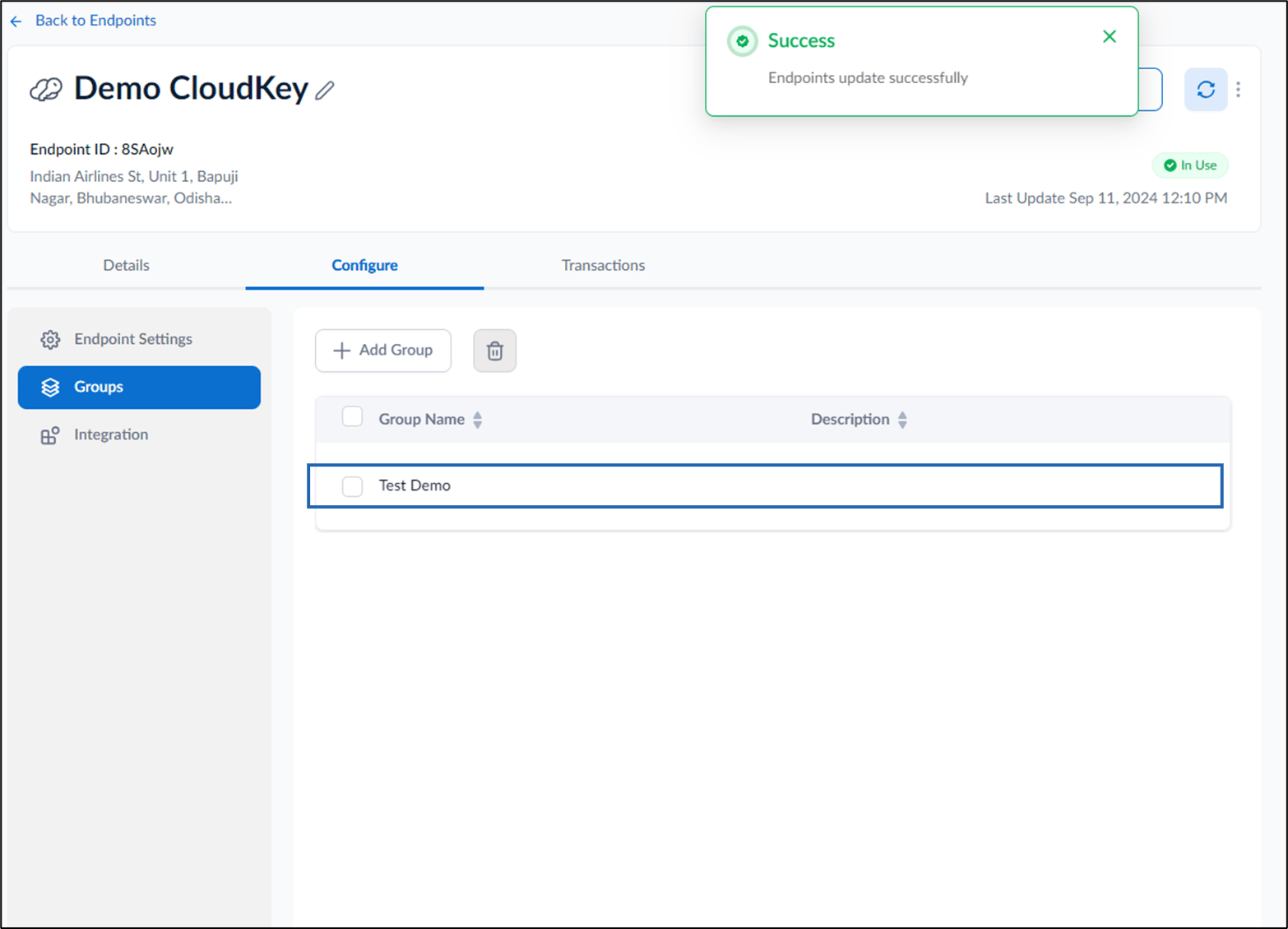
- Groups
- Integration The Configure tab is designed.
Configure Endpoint Settings
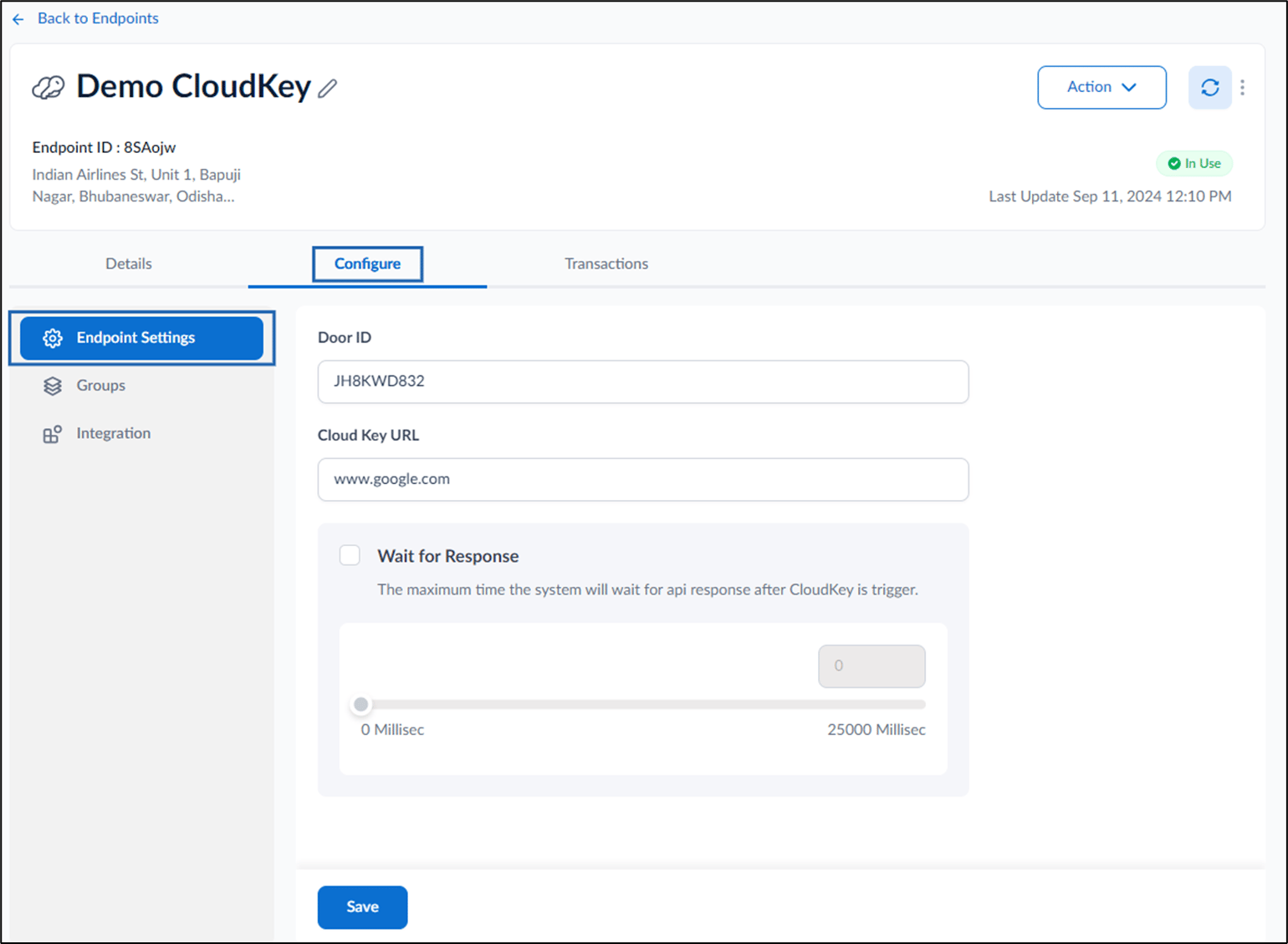
- Edit Door ID.
- Edit Cloud Key URL.
- Enable Wait for Response to allow the system wait for api response after CloudKey is triggered.
- Click Save. The Endpoint Settings is successfully configured.
Add Groups
- Click +Add Group.

- Select Group from the dropdown list.
- Click Save.
The Group is added and listed in the Groups tab.
Integration
You can check all the integrations in the Integrations tab.
Transaction Tab
