

- Log in to the Oloid Portal.
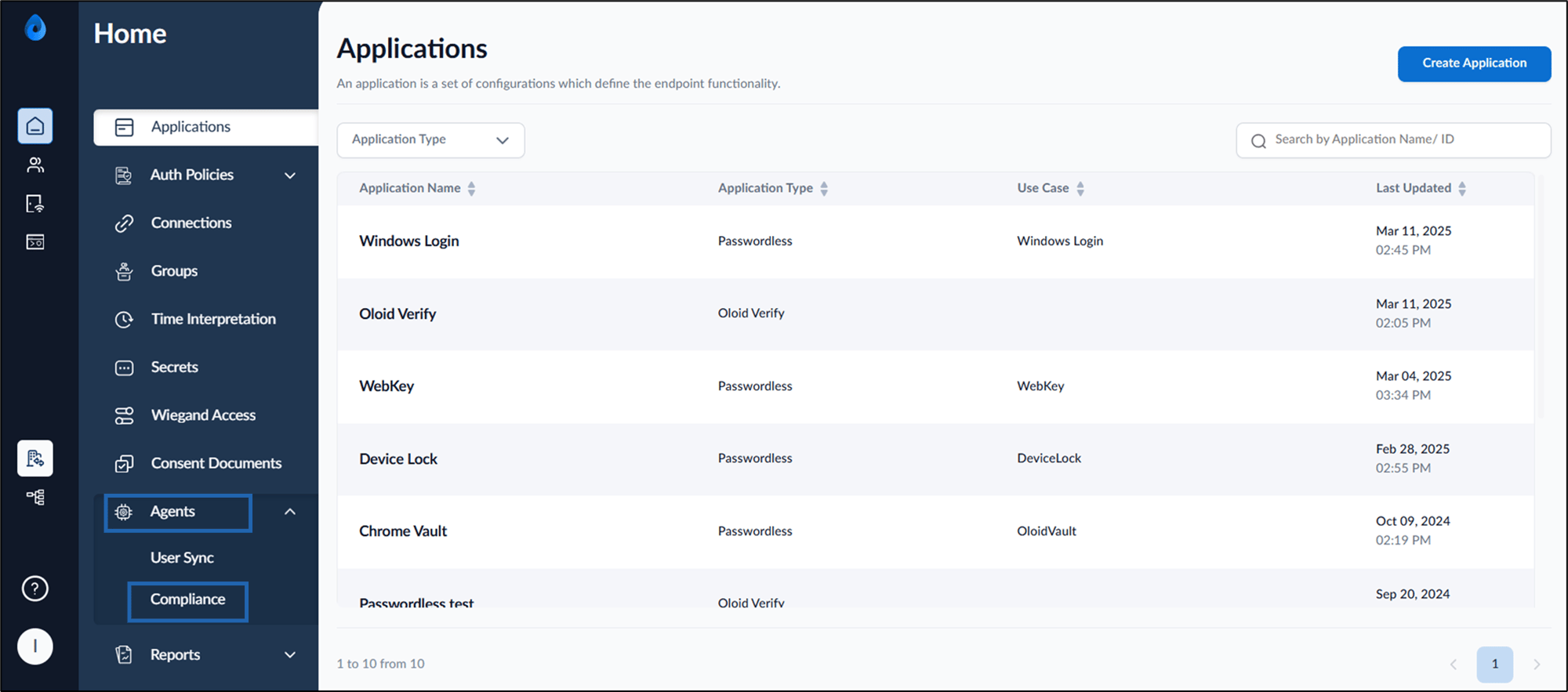
- On the homepage, select Agents tab > click Compliance.
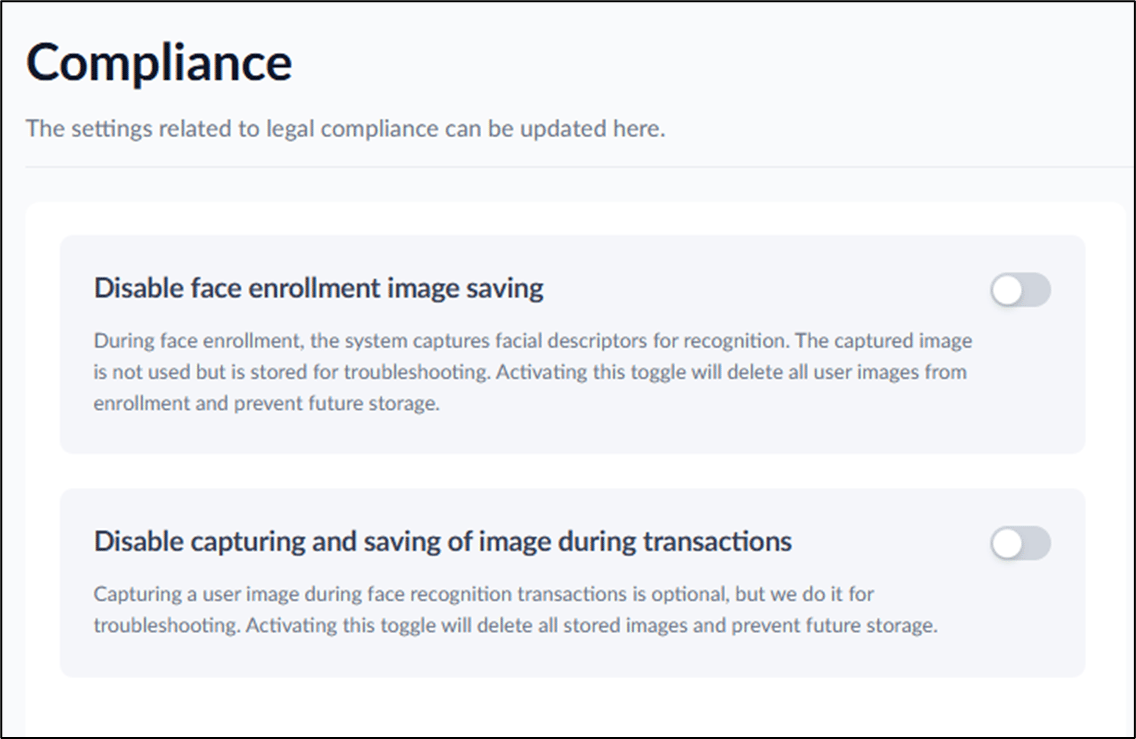
- Do the following:
- Turn on Disable face enrollment image saving: It disables capturing face of the user during face enrollment. The face is neither displayed nor can be downloaded in the user details under face tab.
To know more about enrolling face, see How to onboard face of a single user.
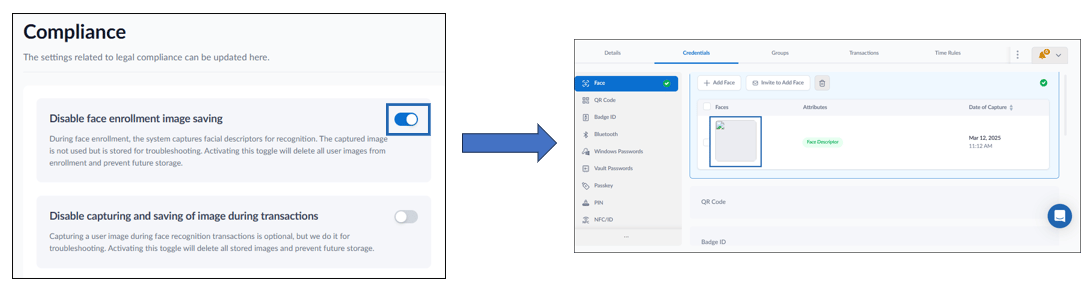
- Turn on Disable face enrollment image saving: It disables capturing face of the user during face enrollment. The face is neither displayed nor can be downloaded in the user details under face tab.
To know more about enrolling face, see How to onboard face of a single user.
How to disable Face enrollment image saving
With Disable the face enrollment image saving feature in Compliance settings, you can conceal the user’s uploaded face on the Oloid Portal and maintain its…
Short Description:
With Disable the face enrollment image saving feature in Compliance settings, you can conceal the user’s uploaded face on the Oloid Portal and maintain its confidentiality.
Steps to configure Compliance tab:
⌘I