

Introduction
This document provides a step-by-step process for deploying the Oloid Connect Beta App using Microsoft Intune Mobile Device Management (MDM) system. It covers the required XML configuration from the Oloid Admin Portal, uploading the .ipa (iOS App Store Package) file, and assigning it as a Line-of-Business (LOB) app. Additionally, it outlines the process for setting up a Managed Device Configuration policy to enable auto-pairing on enrolled iOS devices.Deployment Steps
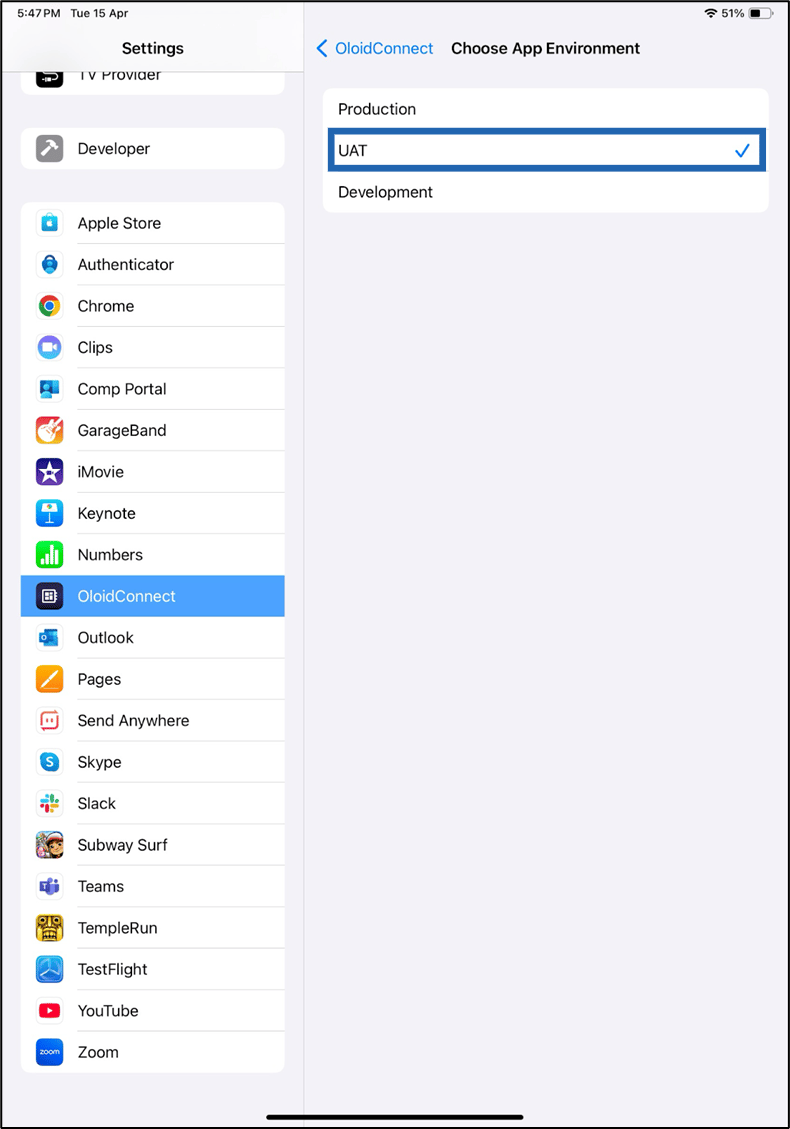
Step 1: Create the XML configuration file from the Oloid Tenant Admin Portal. Step 2: Share the .ipa file with the IT team via MDM. Step 3: Deploy the app in Intune. Step 4: Create the Configuration policy for the app. Once all the steps are performed correctly, the app appears in the enrolled iOS devices. Launch the app and pair the devices using auto-pair option to successfully install the app.Note: If you are using the UAT environment, you must manually switch the Oloid Environment configuration within the iOS settings before launching the app. This step is not required when configuring the Production environment.
- Open the Settings app on your iOS device.
- Scroll down and select OloidConnect.
- Tap Environment, and then select UAT.
Steps to generate XML Configuration File via Oloid Admin Portal
- Log in to the Oloid Tenant Admin Portal.
- On the homepage, go to user profile icon from the left panel > select Tenant Settings > select Security tab > click API Key.
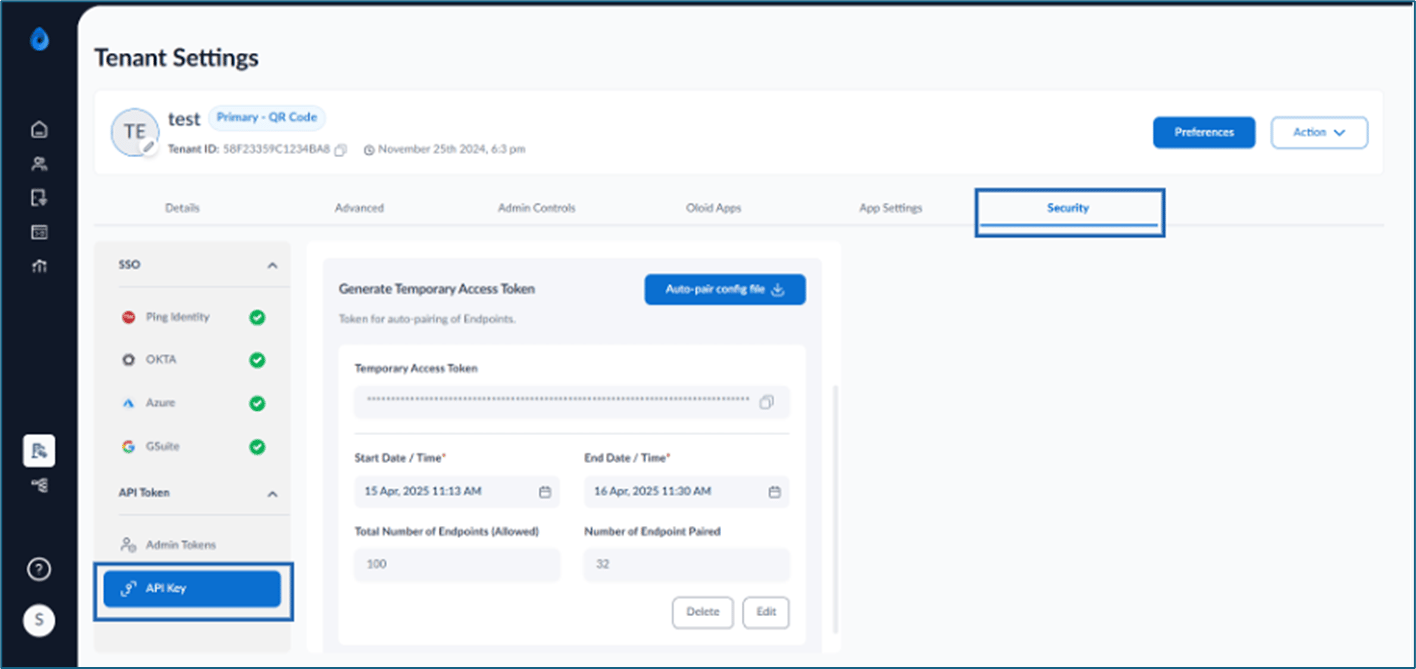
- Set Start Date/Time and End Date/Time > click Generate.
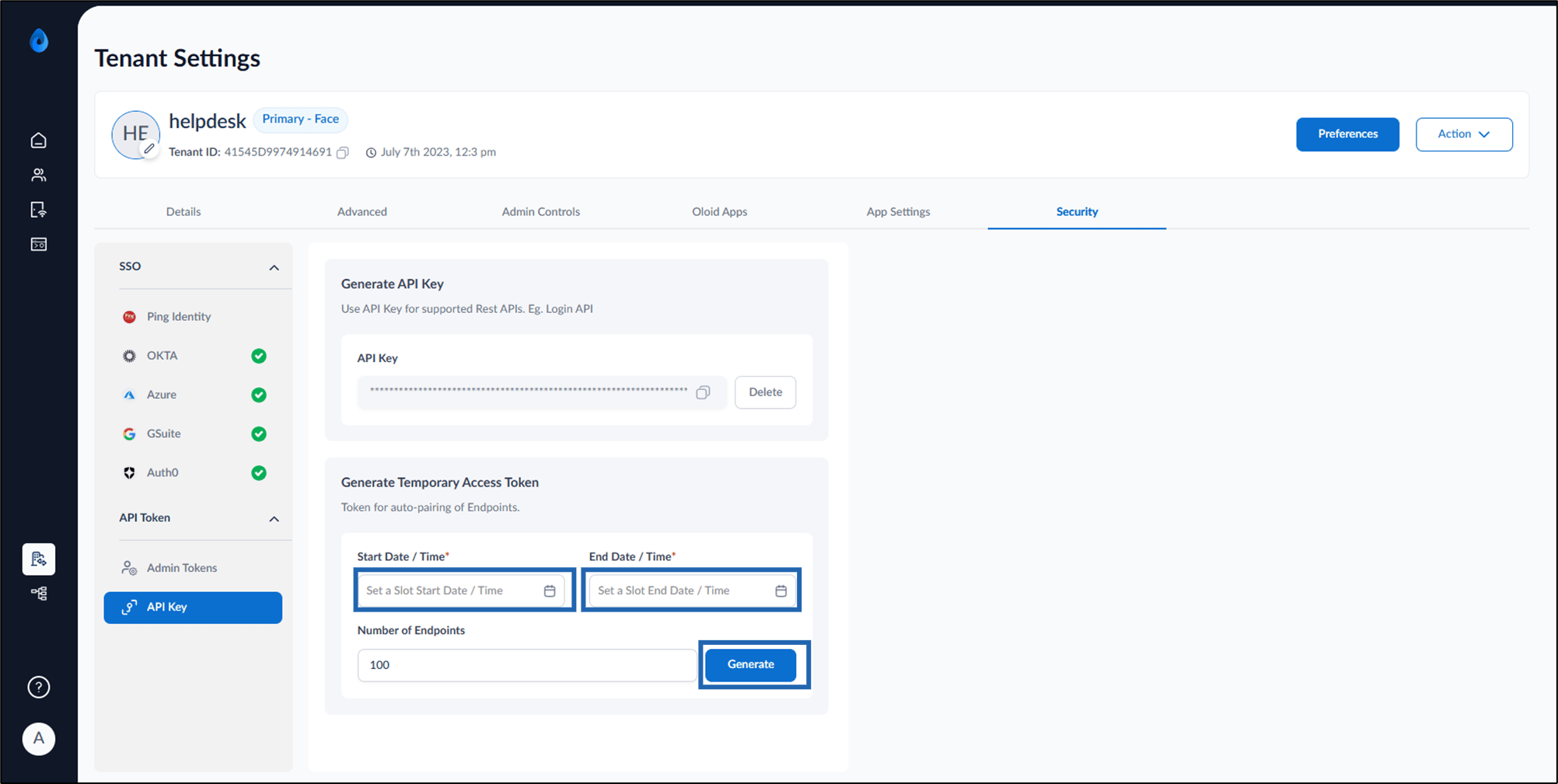
- Click Edit >set Start Date/Time and End Date/Time > enter Total Number of Endpoints and Number of Endpoints Paired.
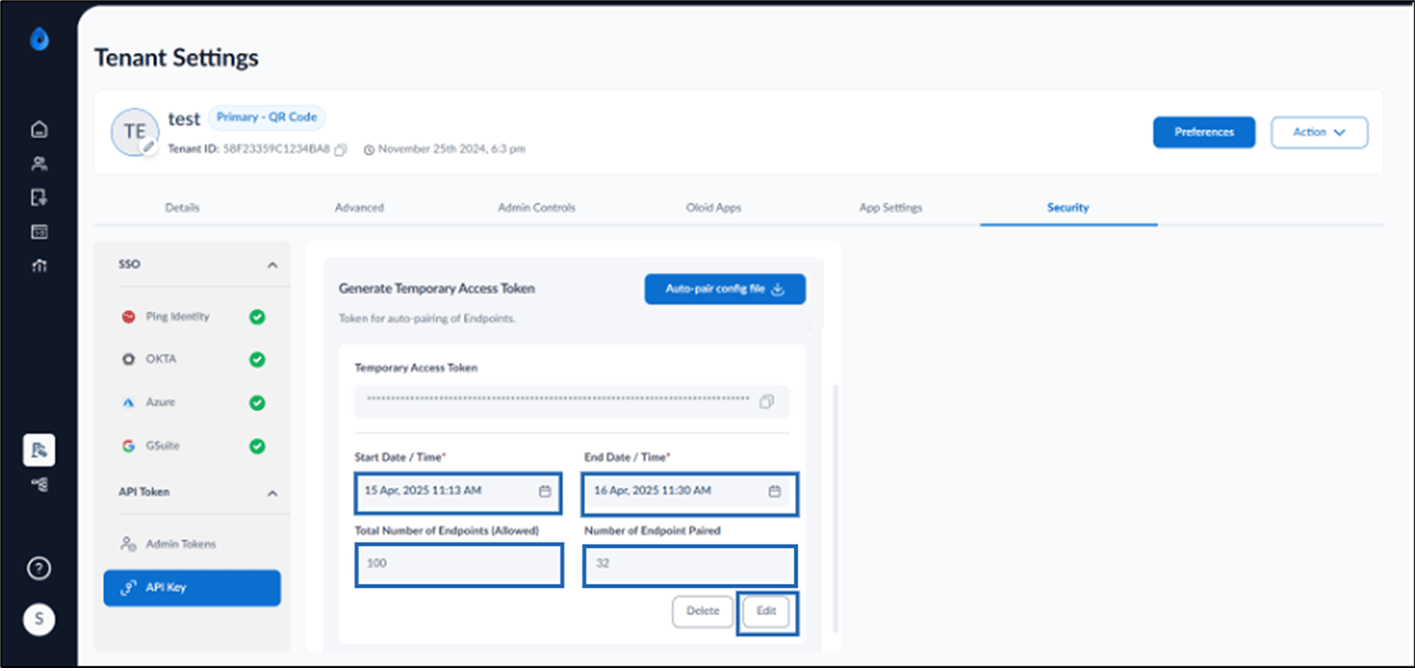
- Click Save.
- Click Auto-pair config file.

- Do the following:
- Click Application Type drop down menu> select Application Type as Oloid Verify.
- Click Application drop down menu > select the preferred Application.
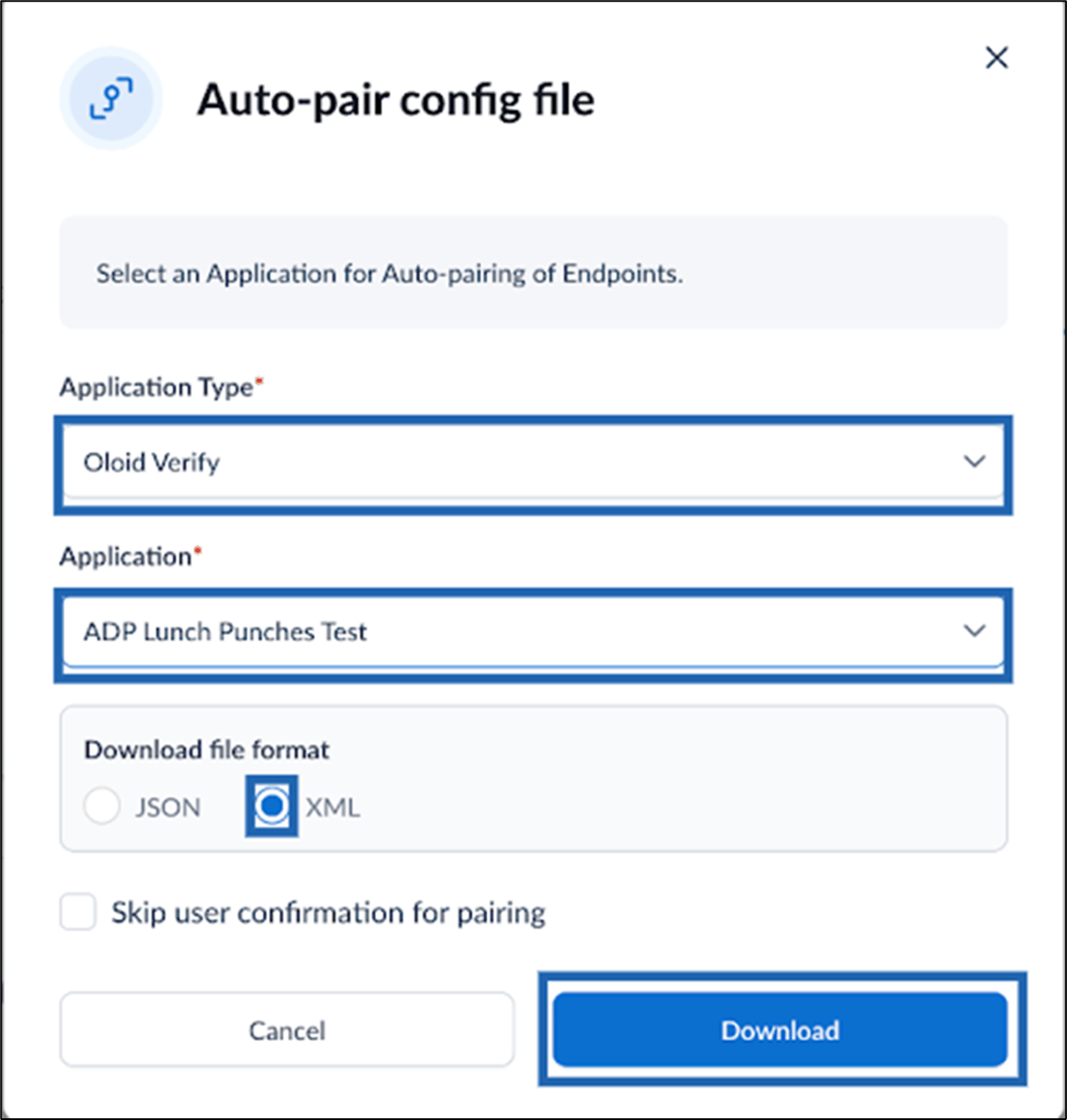
Note: If the setup is successful, the configuration XML will be generated in the following format:
Steps to Deploy the Oloid iOS App via Intune MDM
Follow the steps below to deploy the Oloid iOS app via Intune MDM:-
Click Create to create a new iOS application in Intune.
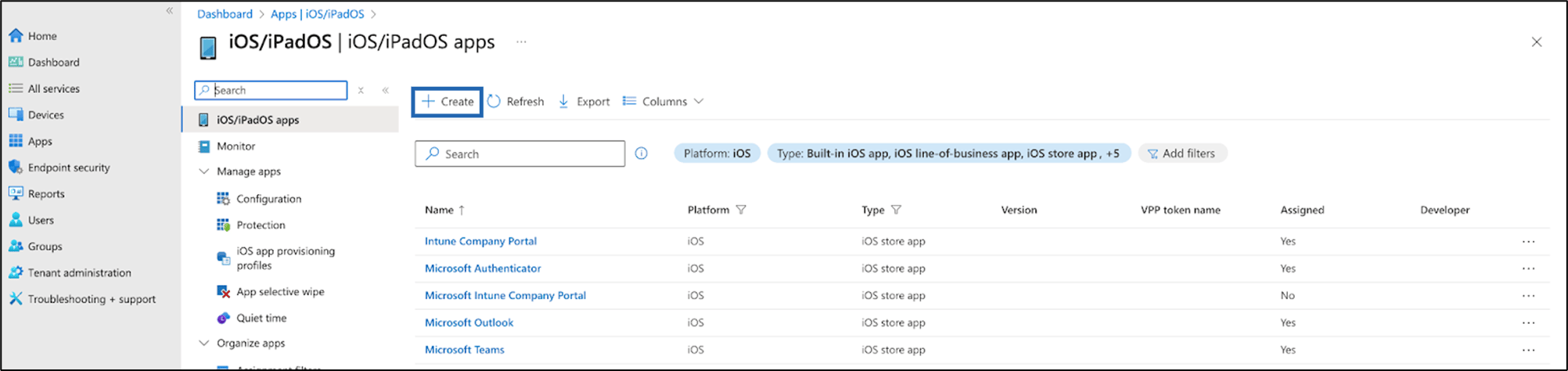
-
Click App type dropdown menu > Select ‘Line-of-business app’ as the App type > click Select.
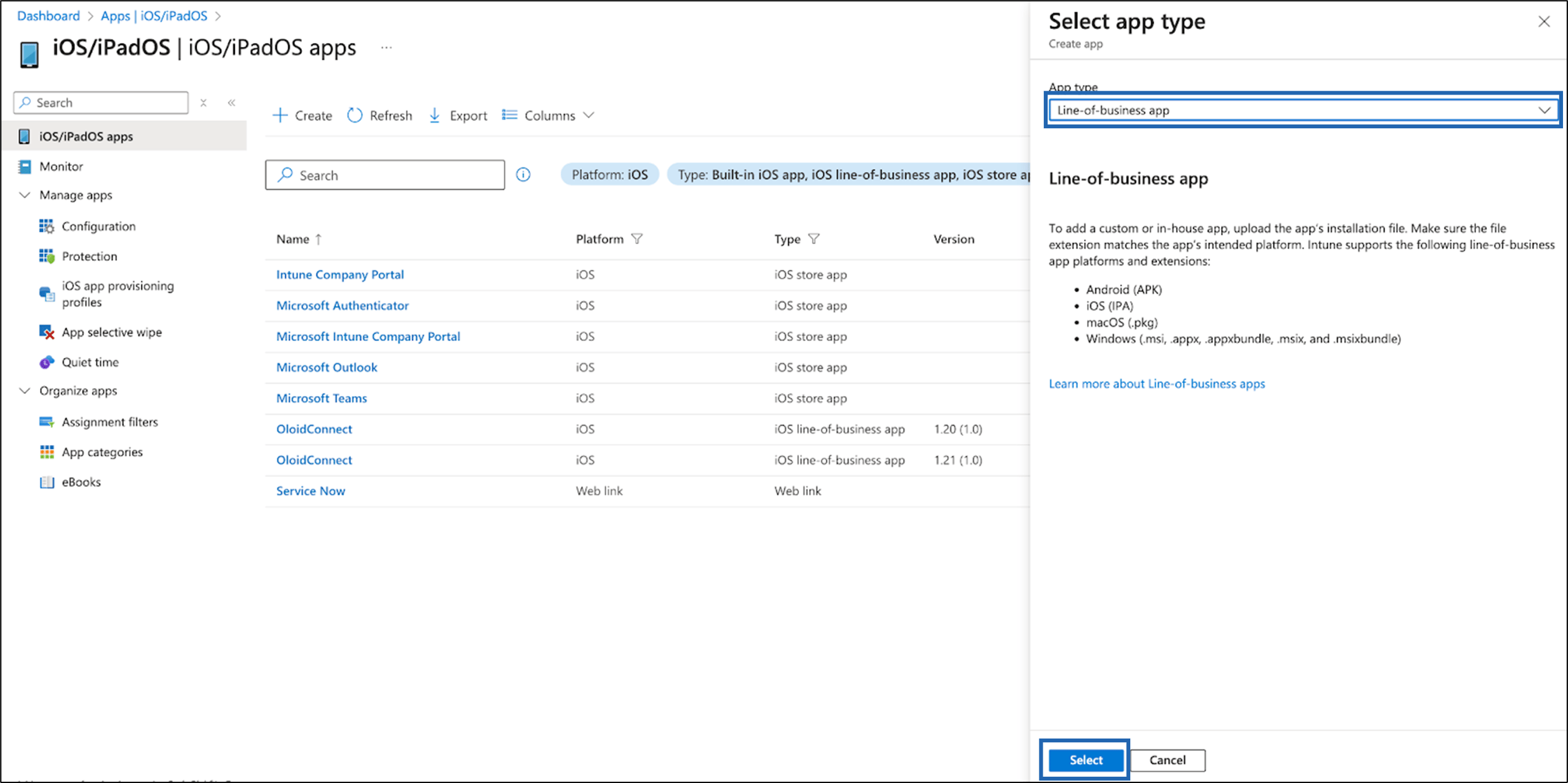
-
Go to App information tab > Click Select App package file dropdown menu > Select the .ipa file > click OK.

-
Enter ‘Oloid, Inc.’ as the Publisher name > click Next.
Note: Leave the remaining fields unchanged.
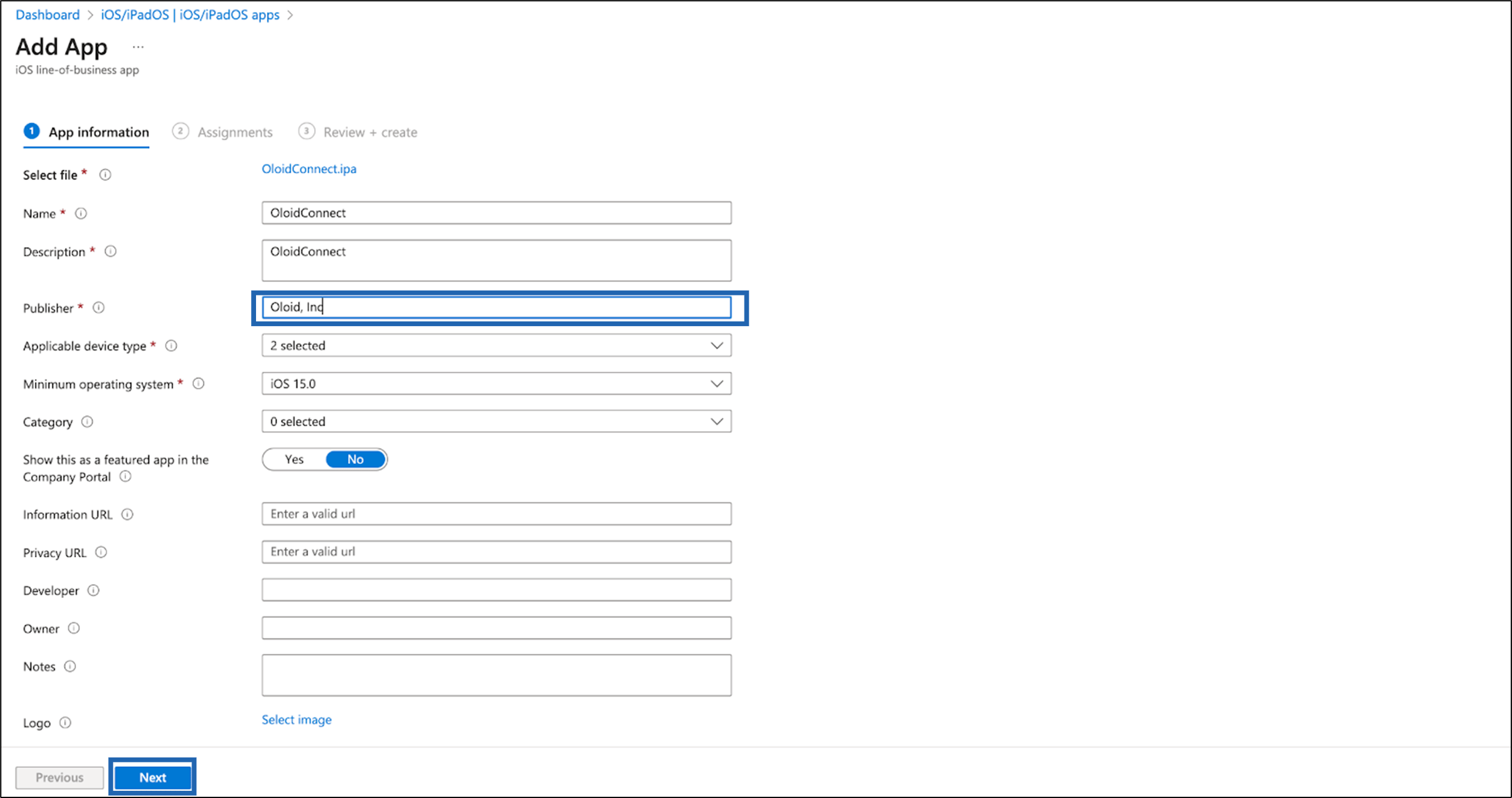
-
Go to Assignment tab > Assign groups as per the company policy > click Next.

-
Go to Review + Create tab > paste the generated XML code in the setting box > click Create.
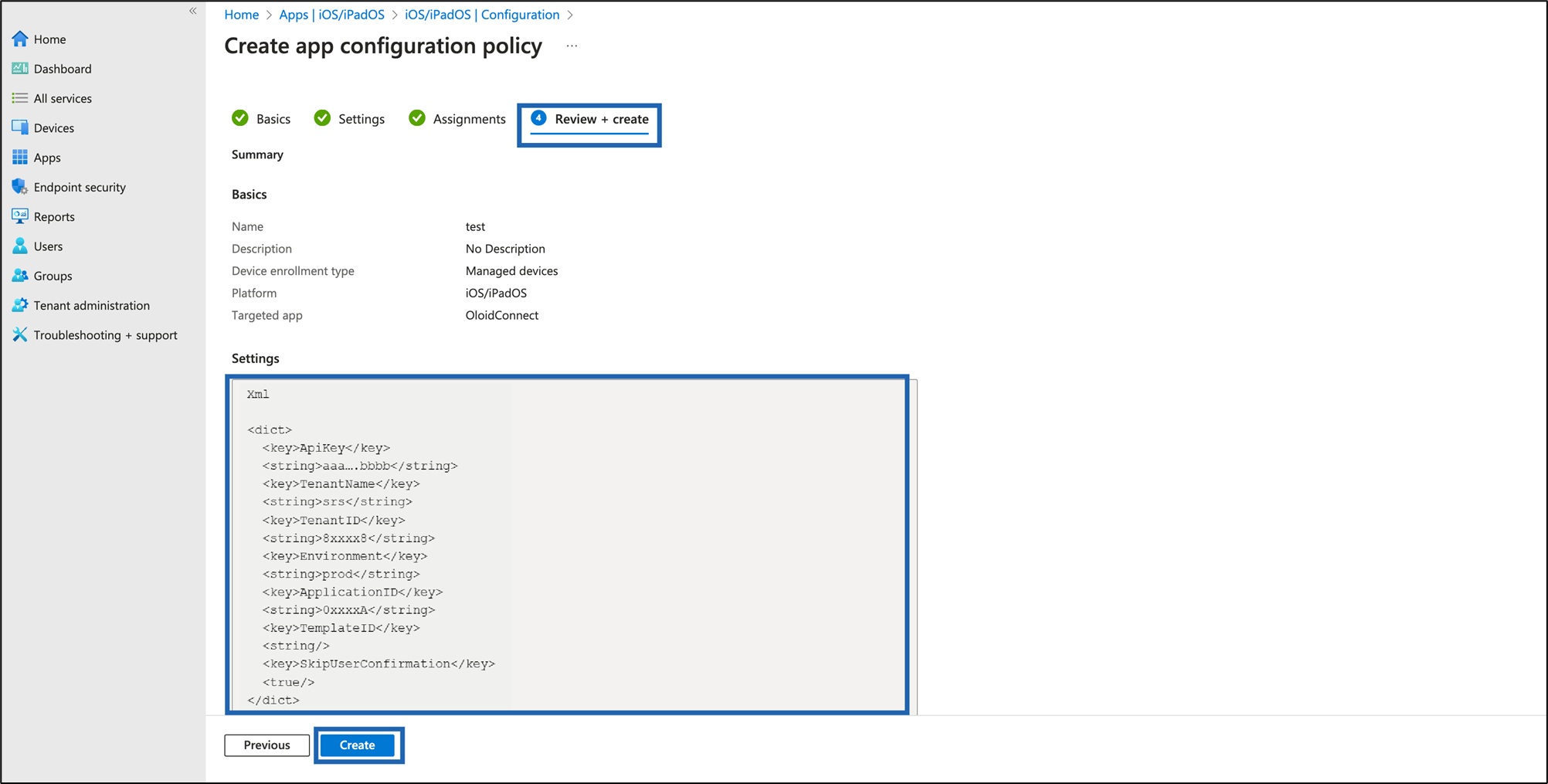
Steps to create the Configuration policy for the app.
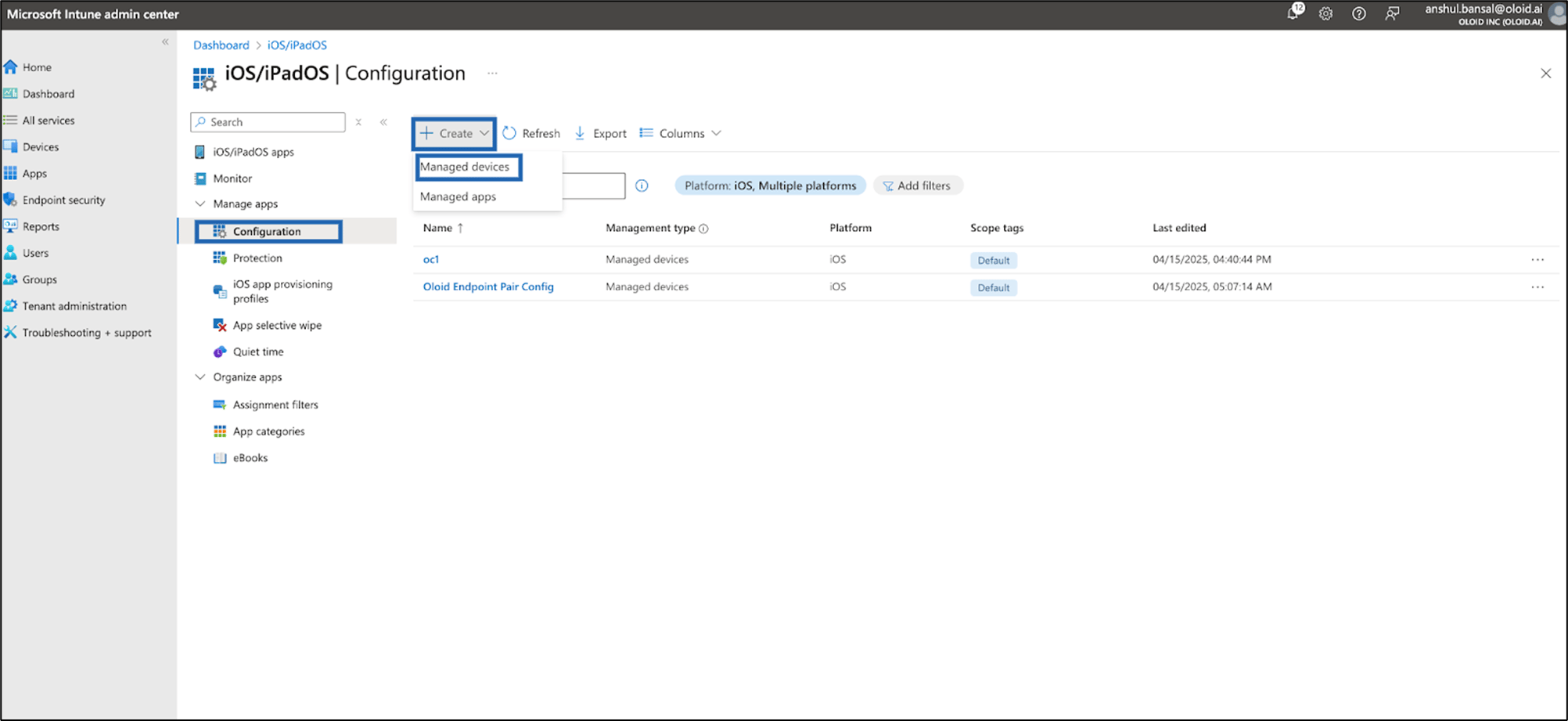
Create and assign a configuration policy to apply the necessary settings for the Oloid iOS app. Follow the steps below to configure iOS managed app deployment for automatic device pairing:- Go to Manage App > click Configuration > Create > Managed Device.
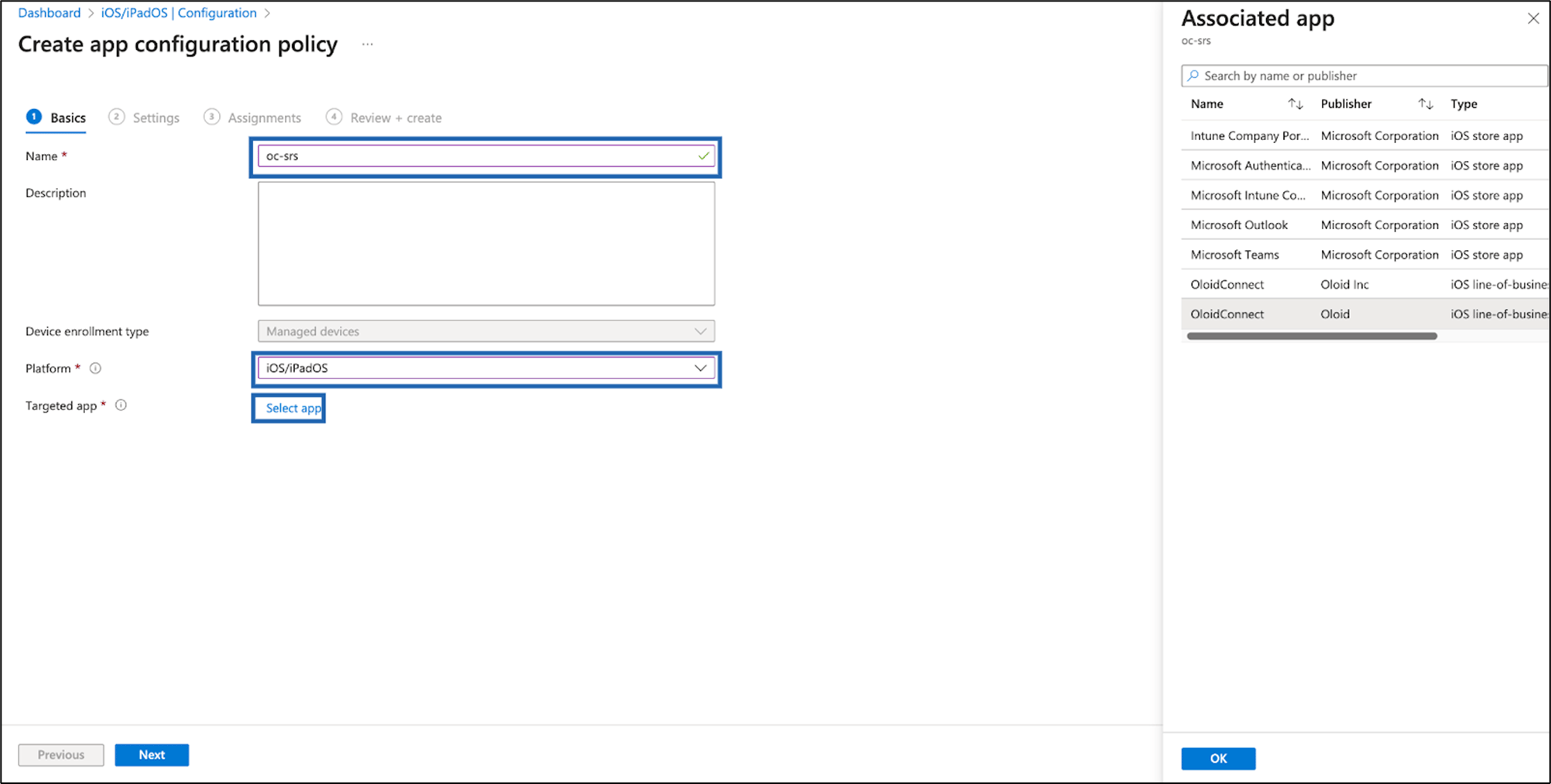
- Enter a Name of Configuration Policy.
- Click Platform drop down menu > choose iOS/iPadOS.
- Select the application created in Section 2 as the targeted app.
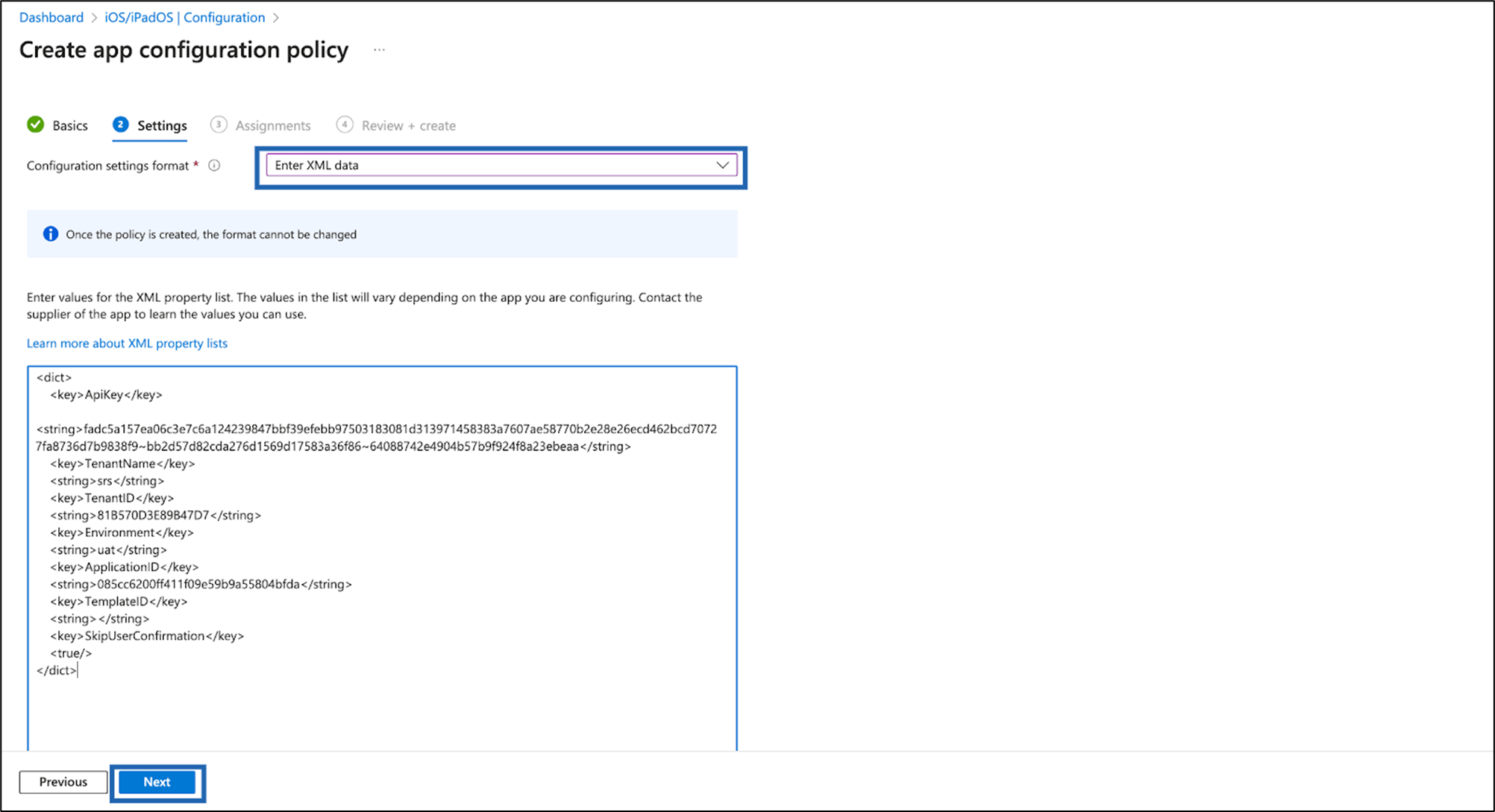
- Go to Setting tab > click Configuration setting format dropdown menu.
- Choose “Enter XML data” >Paste the XML code generated in Section 1 > click Next.
- Assign the required Groups on the next screen >create the configuration. The configuration policy is created for the App.
⚠️ Developer Mode Requirement for Ad Hoc iOS Builds
Starting with iOS 16, Apple requires Developer Mode to be enabled on devices for running apps installed via Ad Hoc, Enterprise, or other direct distribution methods (outside of TestFlight or the App Store). ✅ What to Expect- If the app is distributed via Ad Hoc builds for development or testing, users must enable Developer Mode on their iPhone or iPad to launch the app.
- Once the app is published and installed via the App Store, Developer Mode is no longer required and can be safely turned off.