Steps to add Password for Windows Domain User
-
Log in to Admin Mode in Oloid Connect.
The Users screen is displayed.Note: For more information about logging in to Admin Mode, seeHow to log into the admin mode of Oloid Connect App as a Supervisor/Admin.
-
Select user.

-
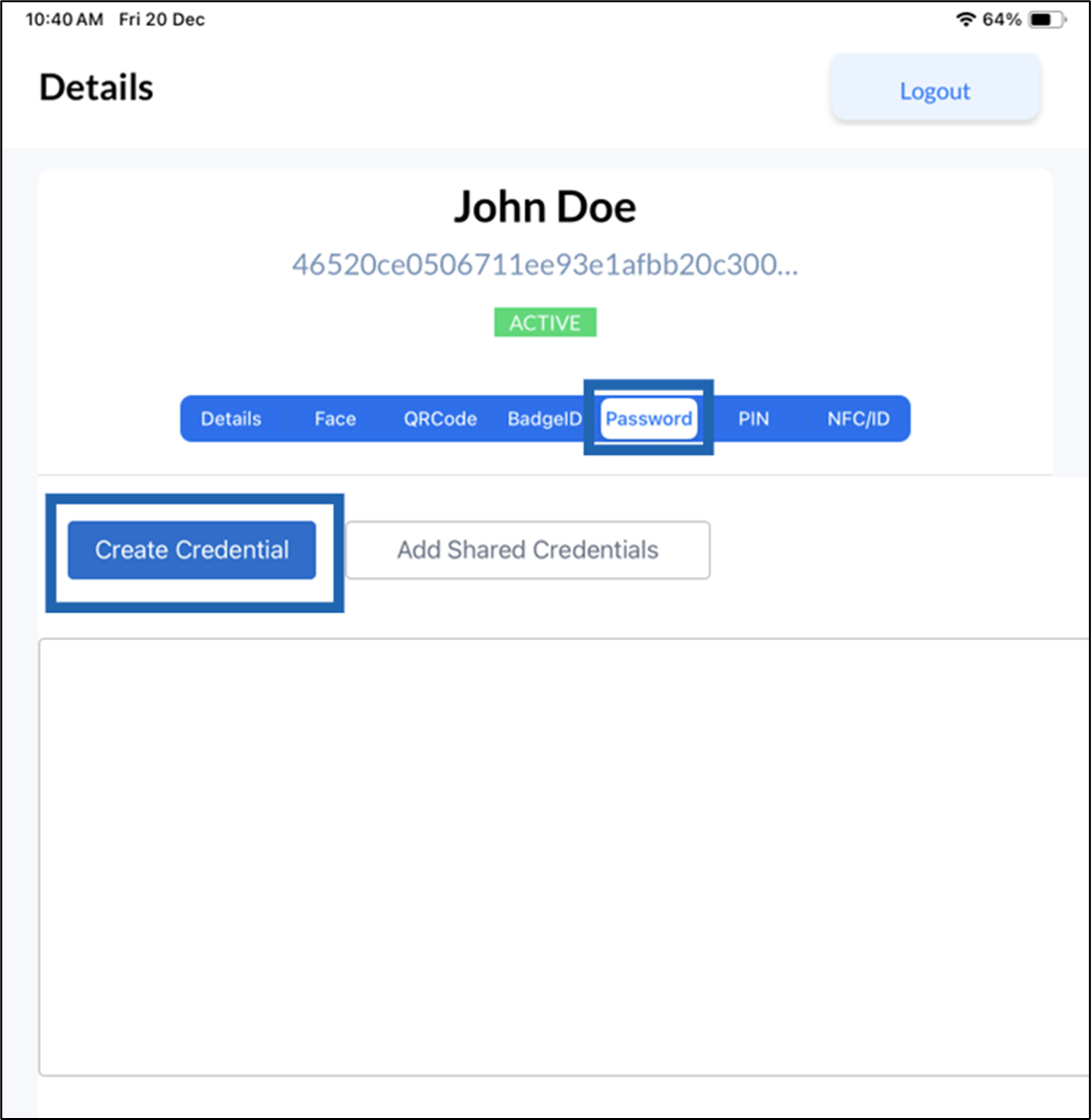
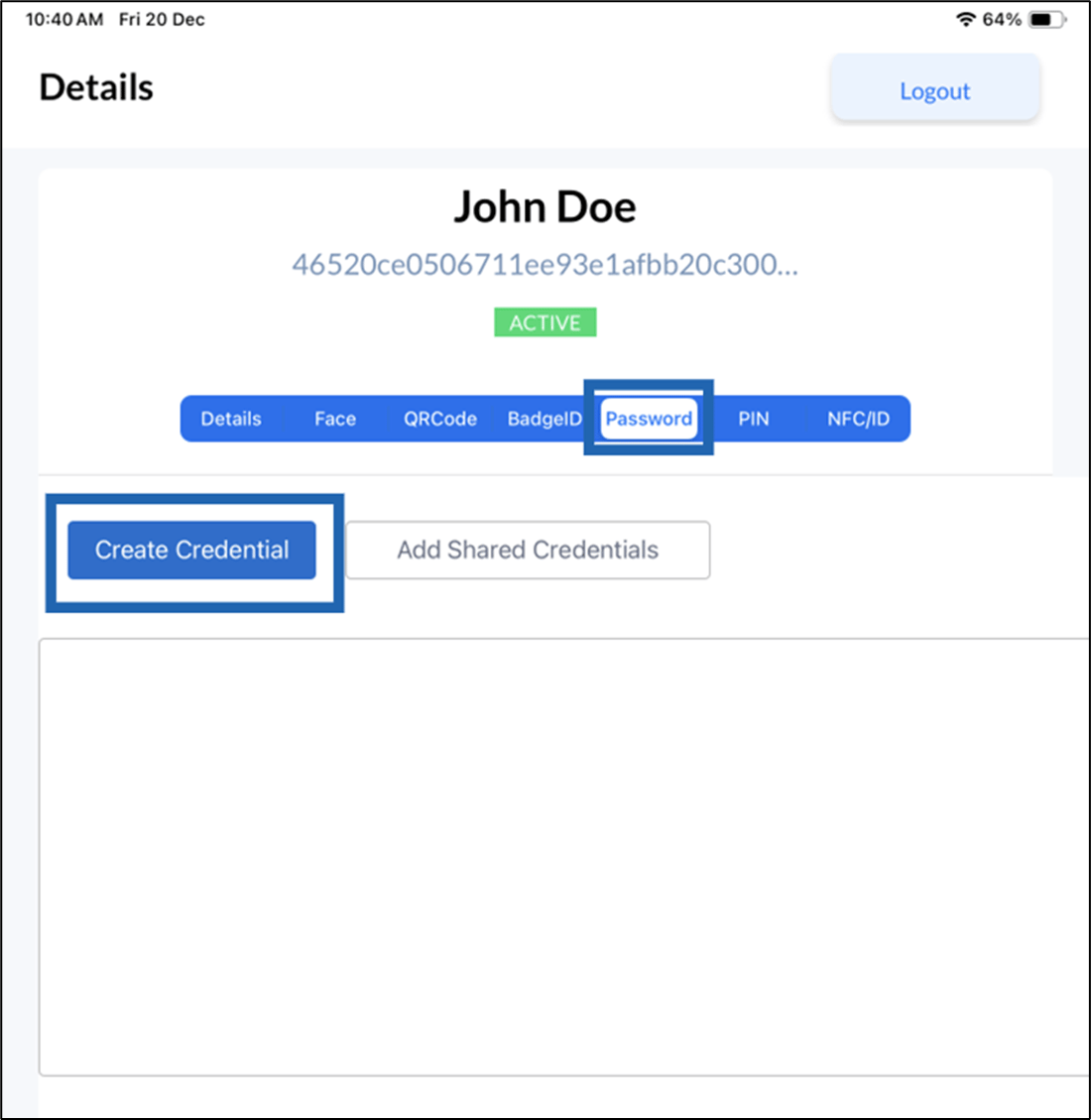
Go to Password > tap Create Credential.

-
Do the following.
- Select Windows Domain User from the User type dropdown.
- Enter Display Name.
- Enter Domain Name.
- Select Preferred Machine from the dropdown. (Optional)
- Enter User Name.
- Enter Password.(Optional)
- Click Create.
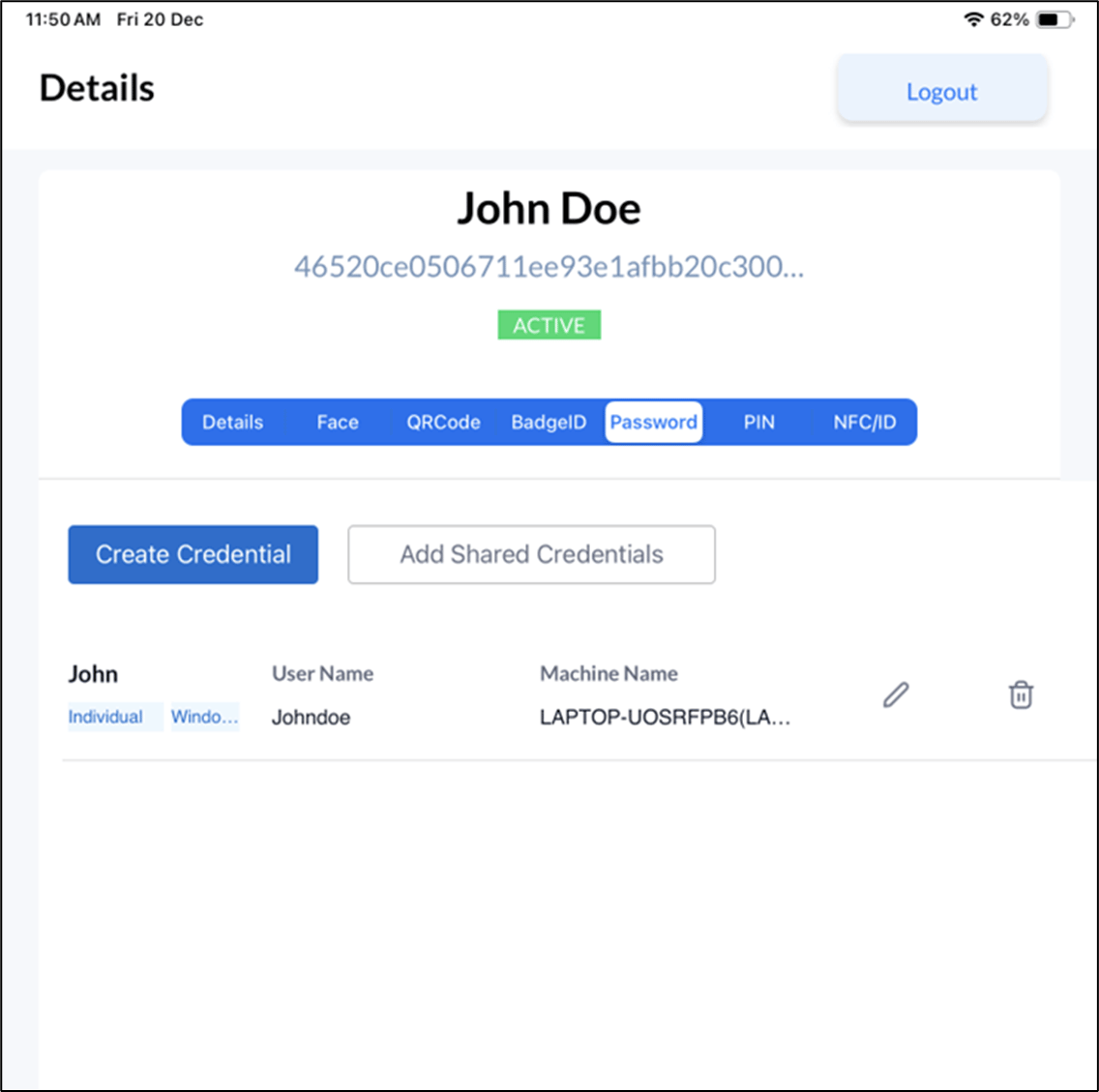
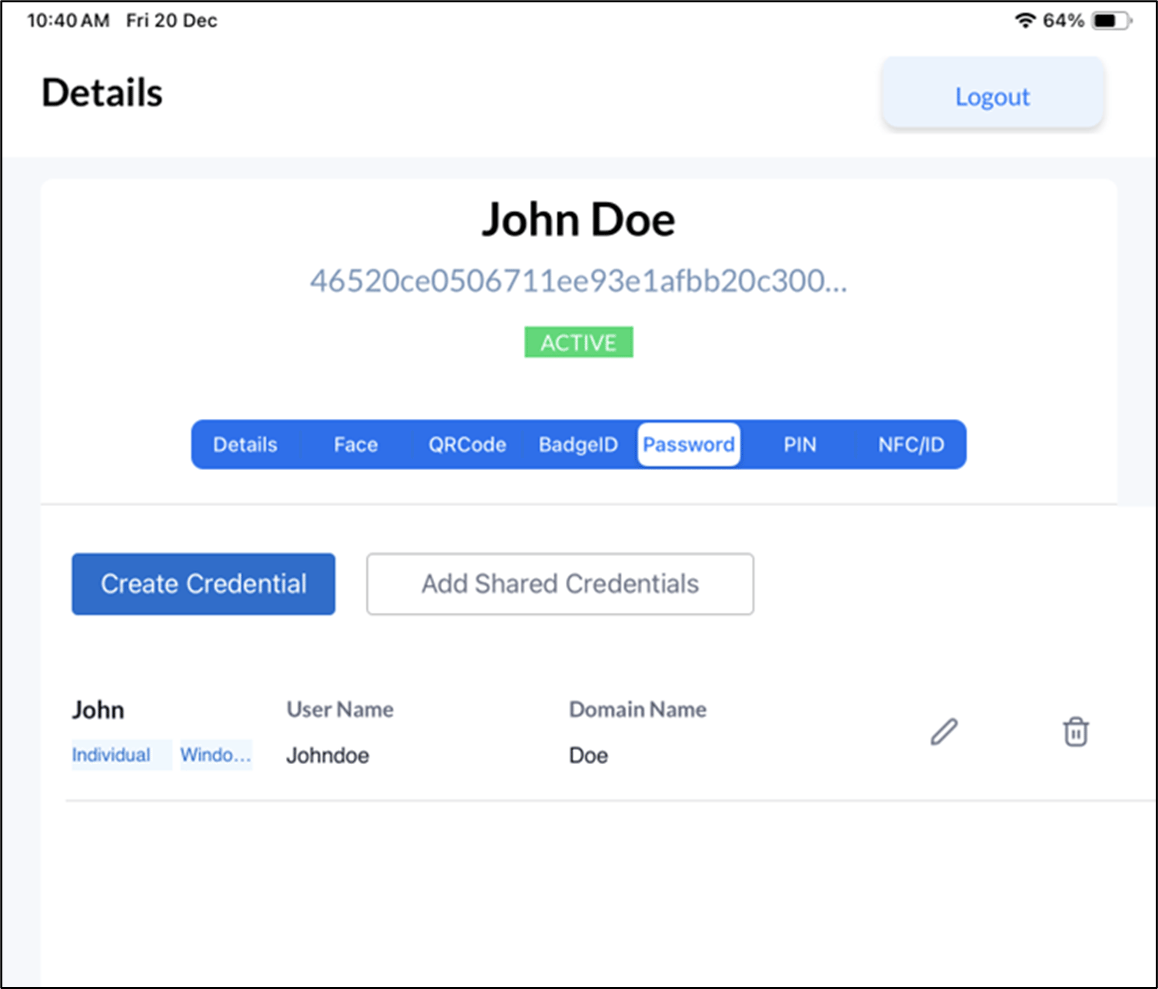
The Windows Domain Password is created for the user successfully.
Steps to add Password for Windows Local User
- Log in to Admin Mode in Oloid Connect. The Users screen is displayed.
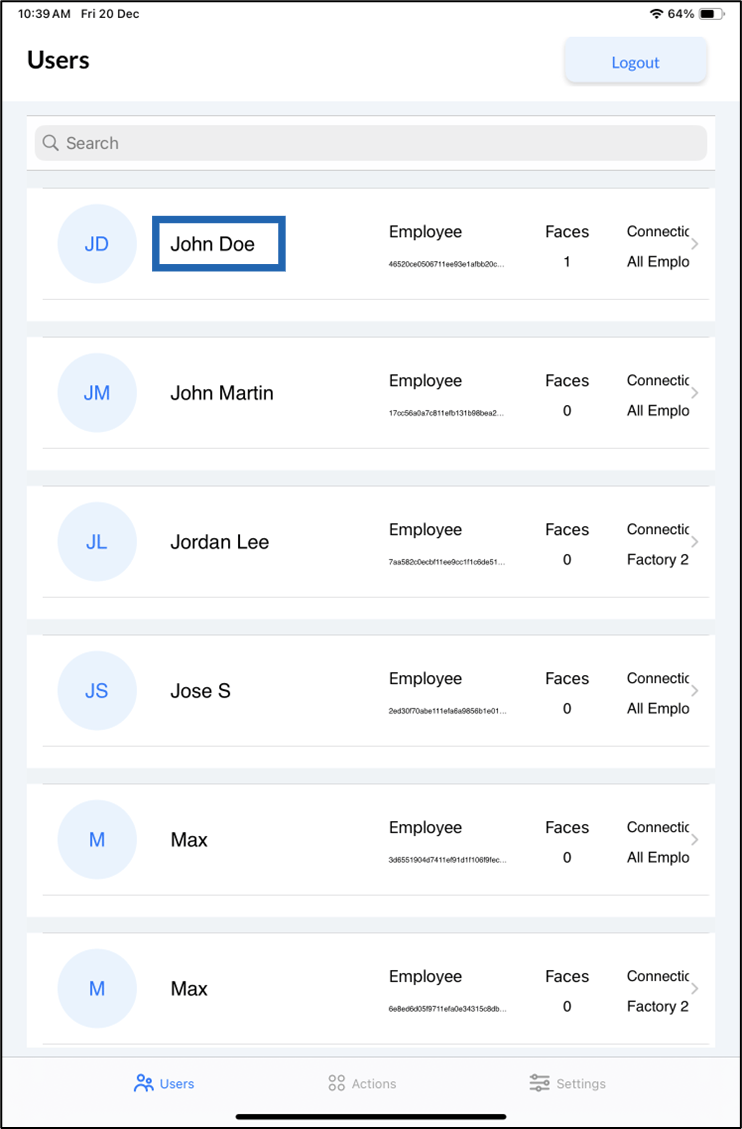
- Select user.
- Go to Password > tap Create Credential.
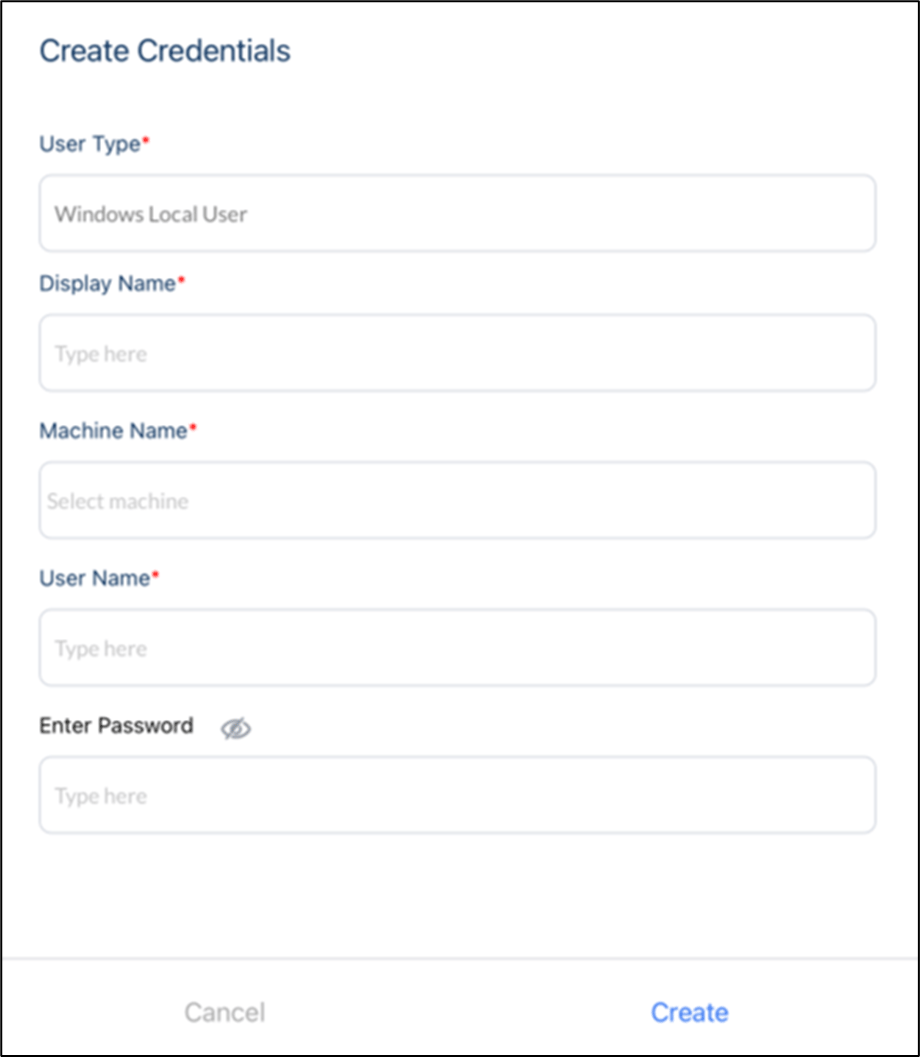
- Do the following.
- Select Windows Local User from the User Type dropdown.
- Enter Display Name.
- Select Machine Name from the dropdown.
- Enter User Name.
- Enter Password. (Optional)
- Click Create.
The Windows Local Password is created for the user successfully.