- Add Identity Provider
- Add Client Application
Add Identity Provider
Steps to add Identity Provider:-
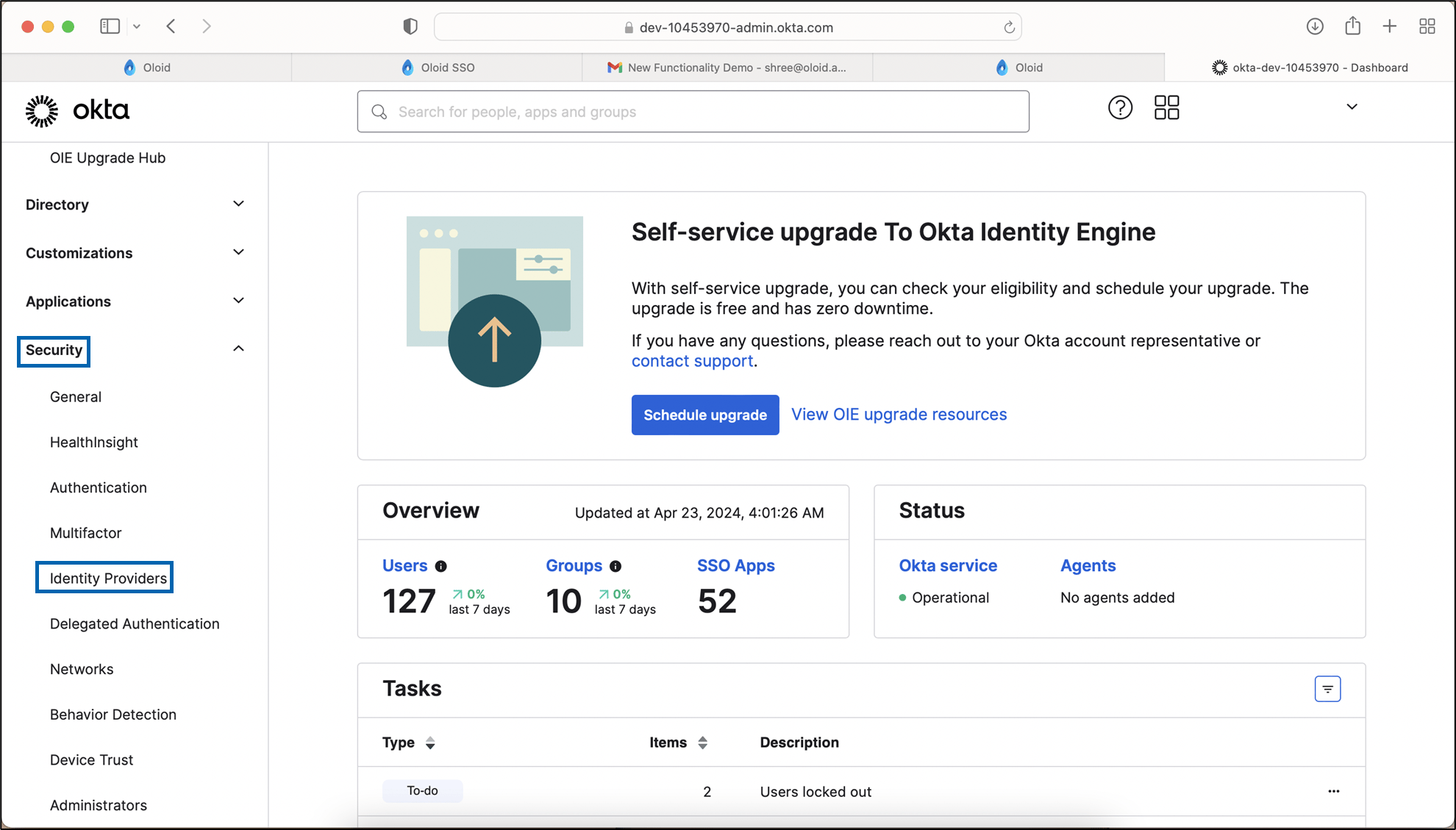
On the home page of the Okta Admin Console, in the left menu, go to Security > Identity Providers.
-
Select Add Identity Provider.

-
Select OpenID Connect and click Next.

-
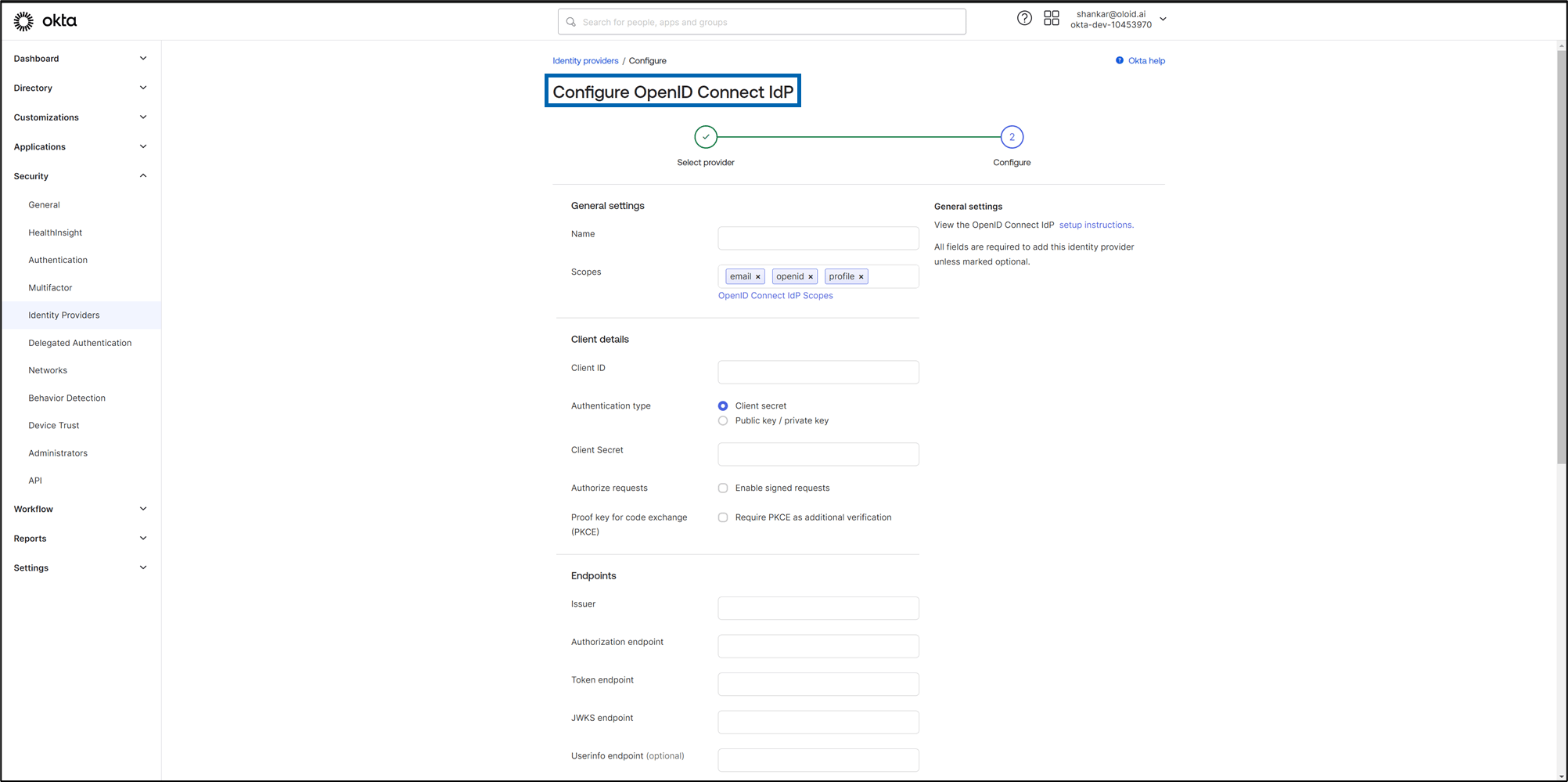
Do the following:
- Under General settings section,
- Name: Enter Name for the Identity Provider configuration.
- Scopes: Default fields should remain unchanged.
The scope options are included when Okta makes an OpenID Connect request to the Identity Provider.
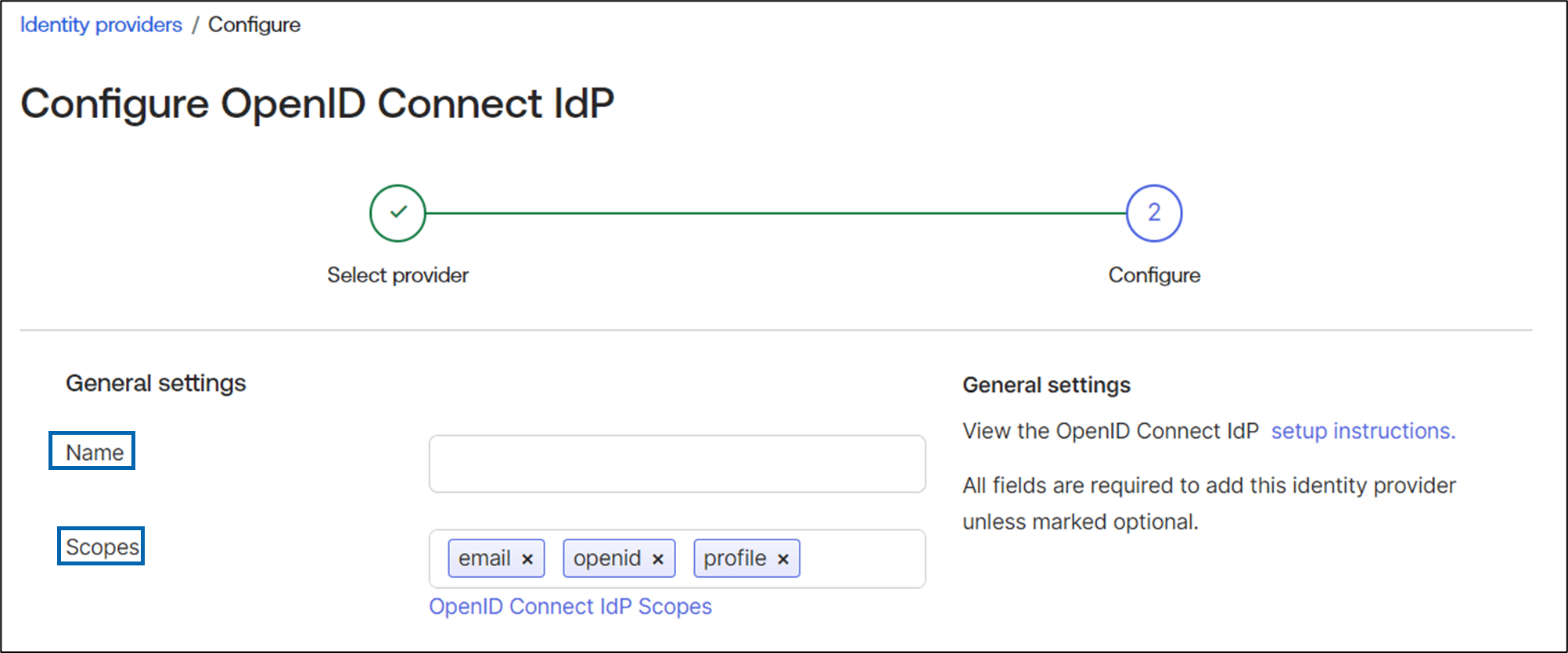
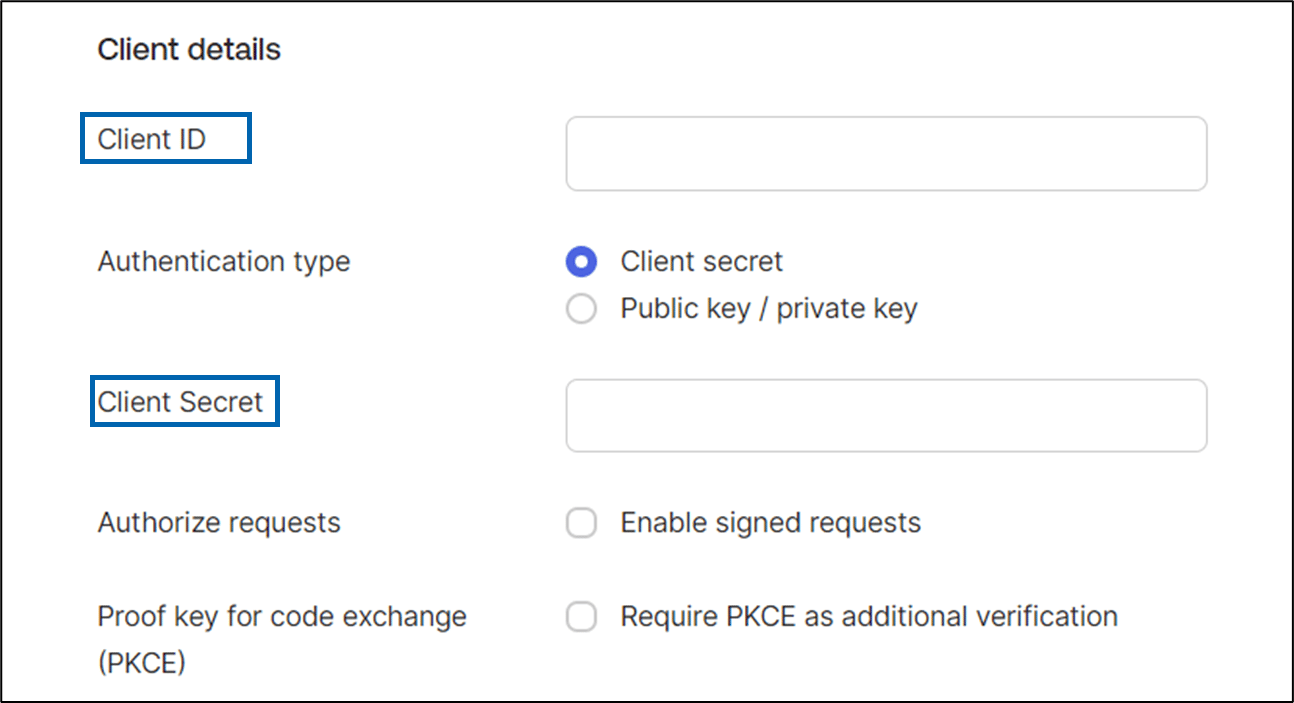
- Under Client details section,
- Client ID: Enter the Client ID.
-
Client Secret: Enter the Client Secret.
Note: See Oloid Portal > Auth Policies >Identity Provider > IDP Profile Detail page > Meta Data tab for the parameters
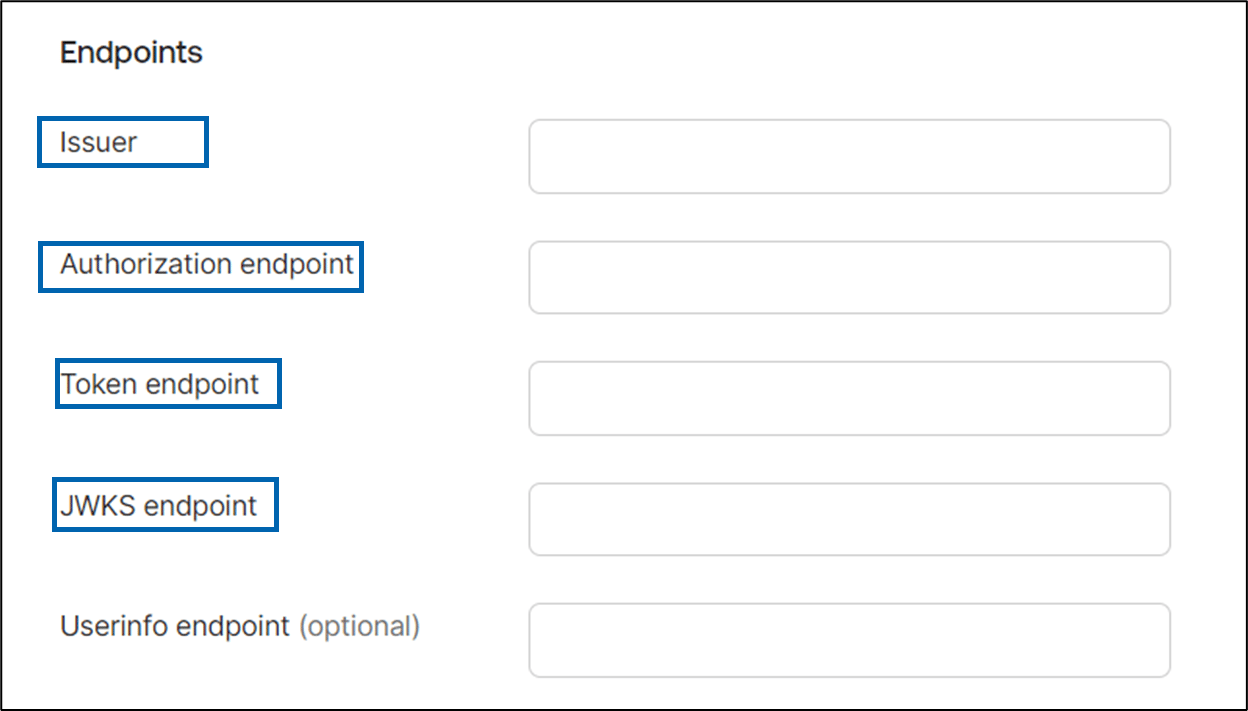
- Under Endpoints section,
- Enter Issuer.
- Enter Authorization endpoint.
- Enter Token endpoint.
-
Enter JWKS endpoint.
Note: See Oloid Portal > Auth Policies > Identity Provider > IDP Details page > Meta Data tab for the parameters
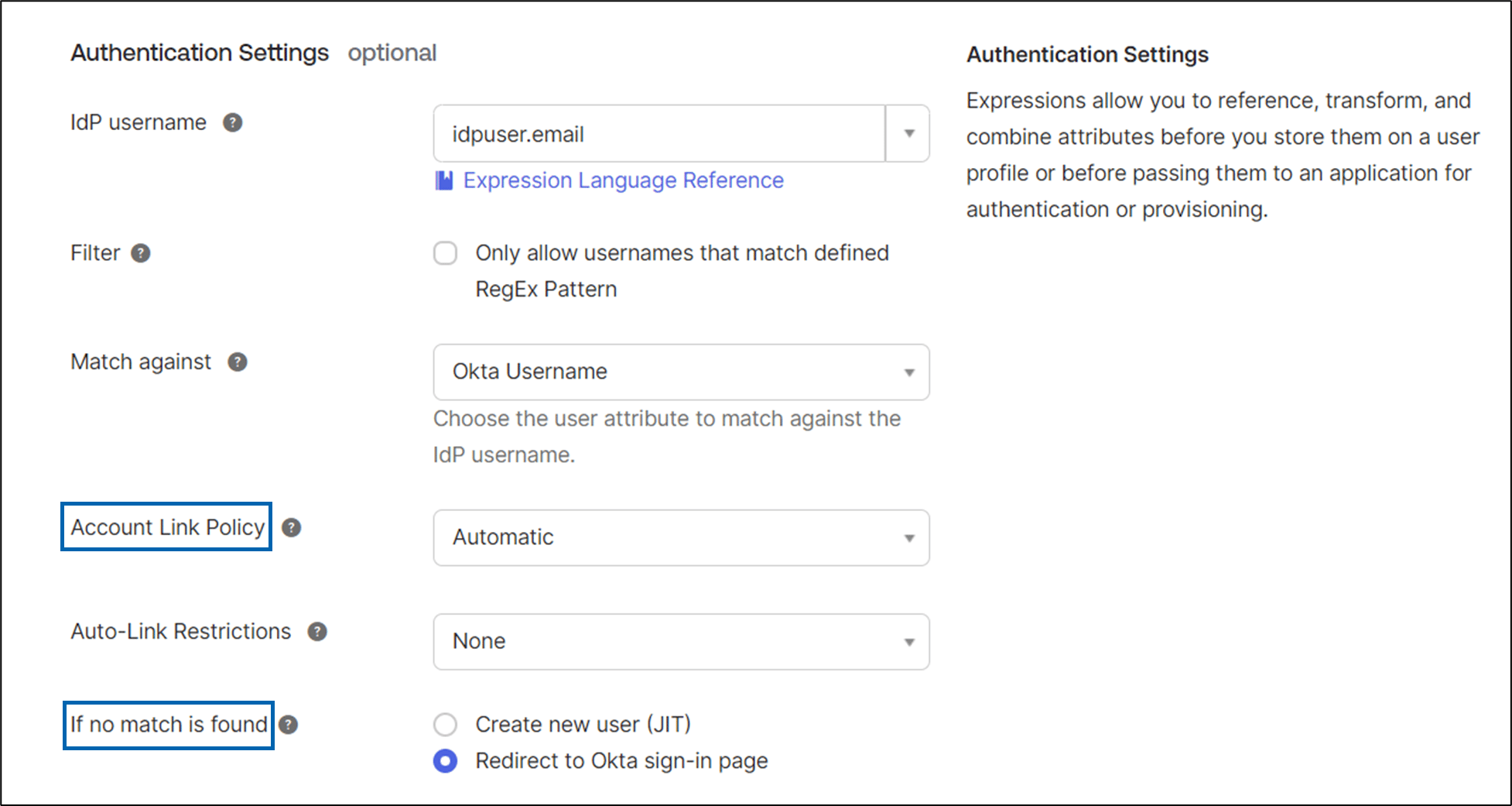
- Under Authentication Settings section,
- Select Automatic from Account Link Policy dropdown.
- If no match is found, select Redirect to Okta sign-in page option.
- Under General settings section,
-
Click Finish.
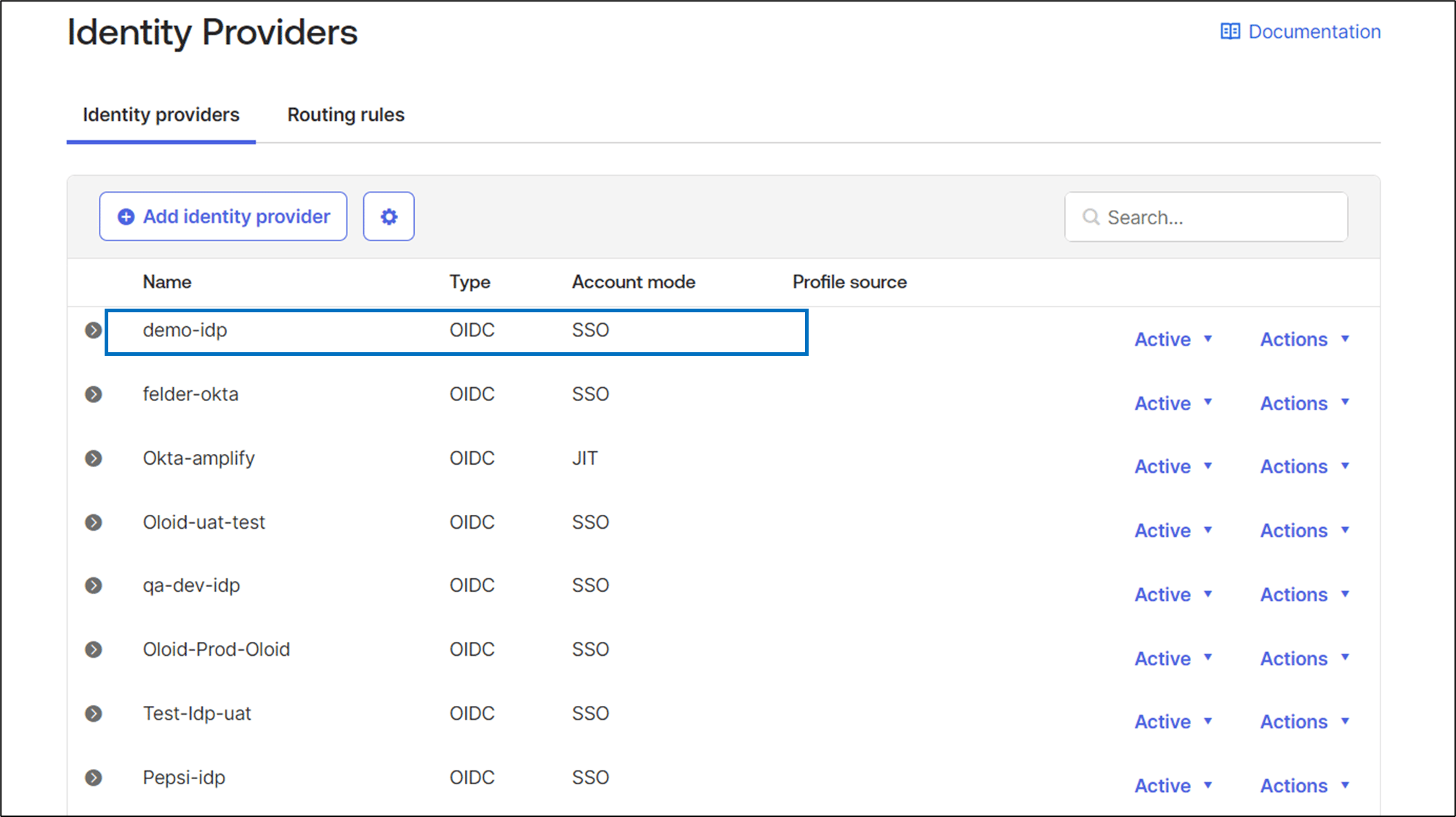
The IDP is created and listed under Identity Providers tab.
Note: In the search bar, you can search using identity provider name .
-
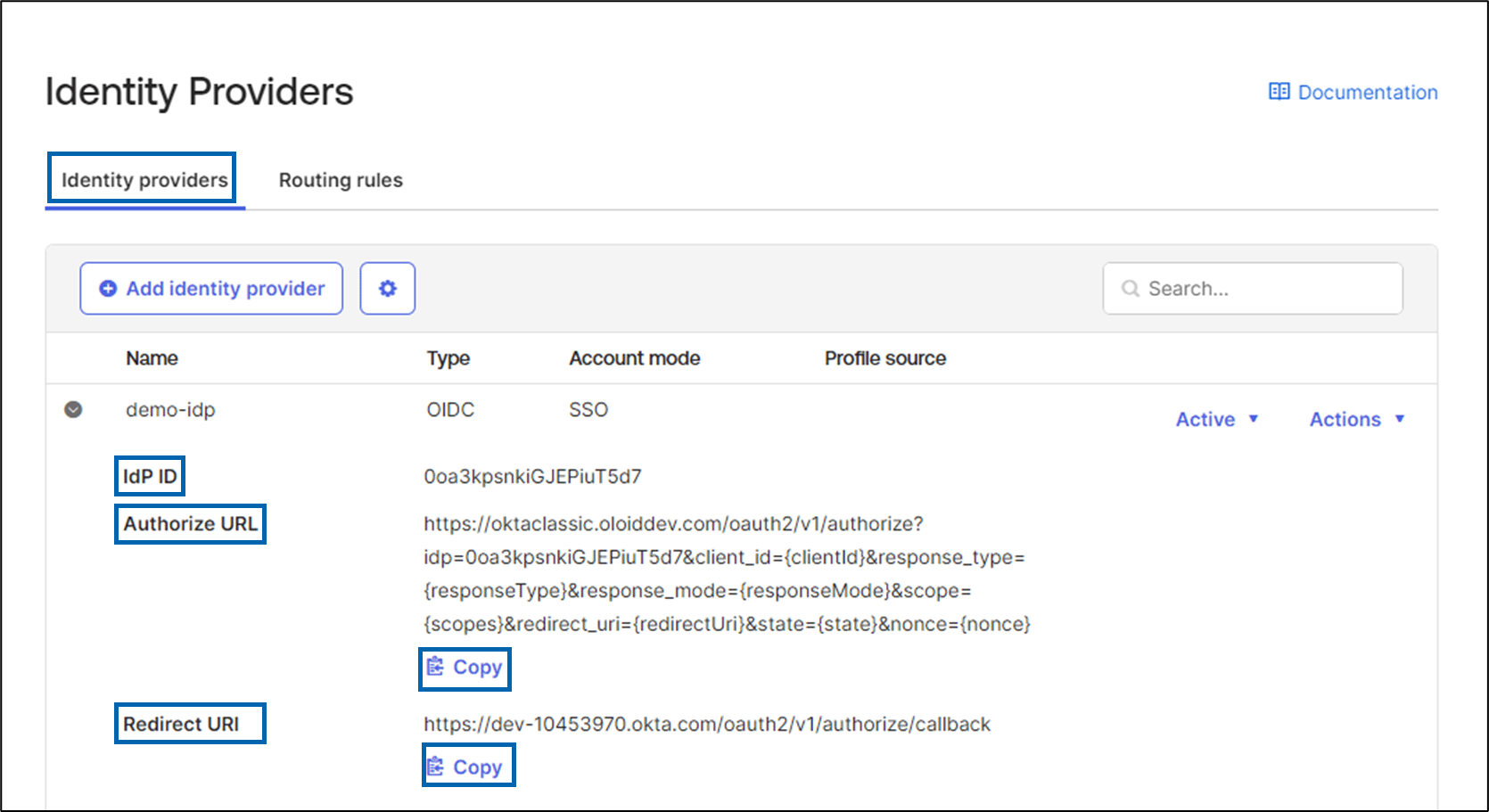
Go to IDP detail and copy IDP ID, Authorize URL, and Redirect URL to your notepad. It will be used later for the configuration of IDP Profile in the Oloid Portal.