

- Launch your browser.
-
Enter the URL provided for you in the browser’s address bar. Then, press Enter on your keyboard.
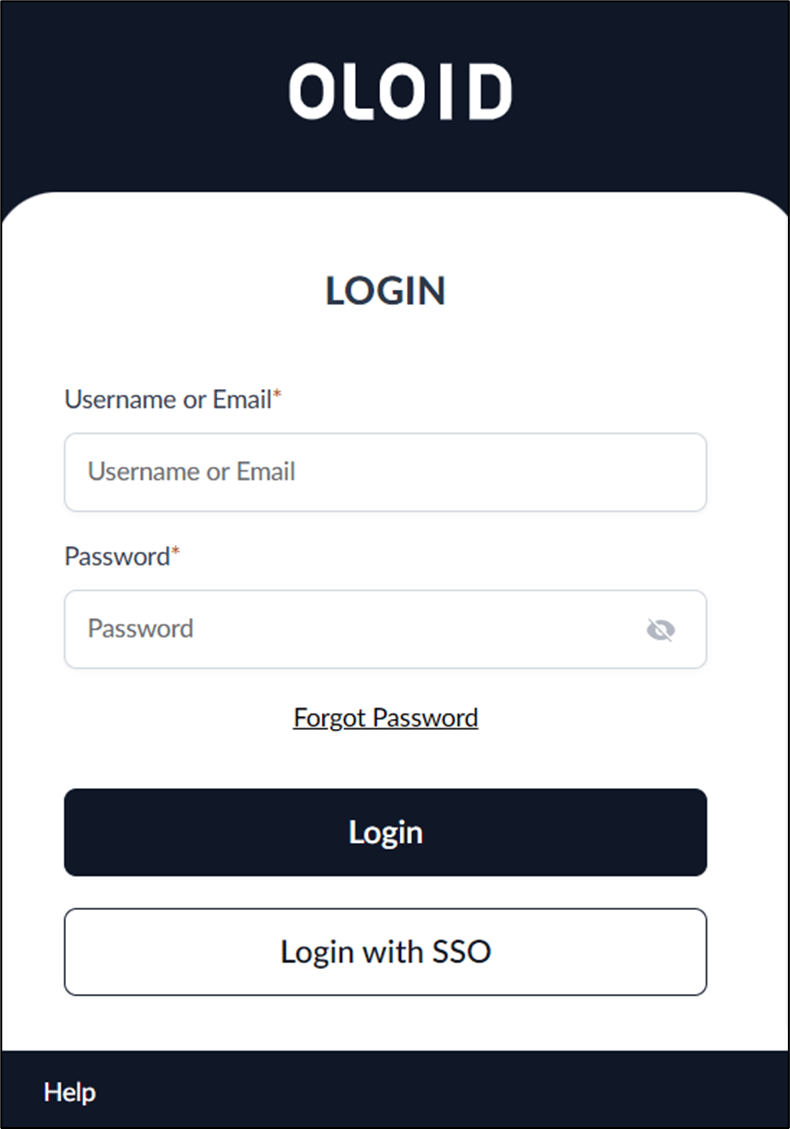
- Enter your login information in the appropriate fields as provided in the email.
-
Click LOGIN.
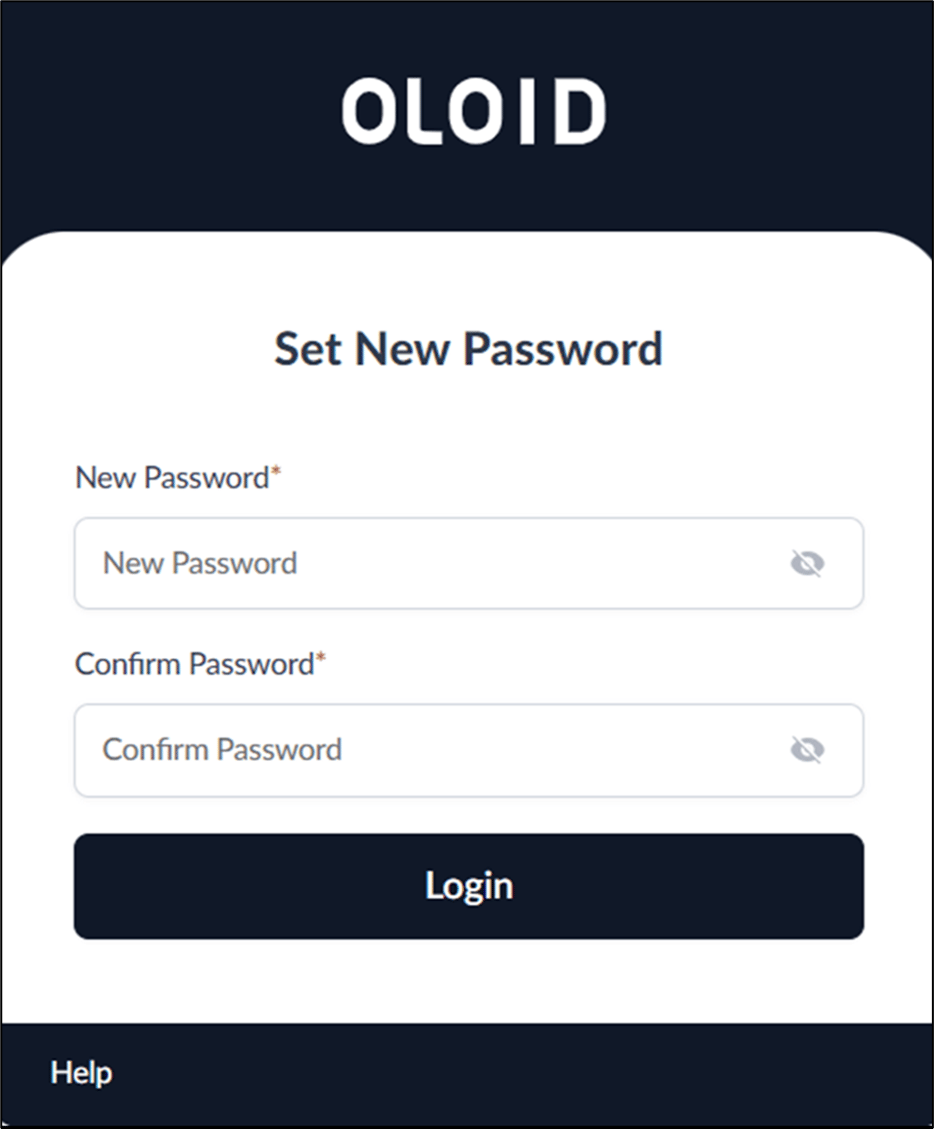
The Set New Password screen is displayed.
-
Enter New Password.
Note: Password must contain at least one uppercase, one lowercase letter, one number, no consecutive or sequence characters The password should not contain any part of username.
- Enter Confirm Password.
- Click LOGIN. The Supervisor Portal is displayed.
How to set new password on first time login to Supervisor Portal
This document provides step-by-step instructions to set new password on first time login to Supervisor Portal.
To access the Supervisor Portal, you should be a supervisor. Once the supervisor account is created, you will receive the URL and credentials (username and temporary password) for the portal on your registered email id.
Once you first login, the system prompts you to set your password.
Steps to set new password on first time login:
⌘I