

Face Enrollment Guidelines
Positioning
- Face the Camera: Look directly into the camera and ensure your face is centered in the frame.
- Frame Your Face: Position yourself so that there are 1-2 inch margins around your face, avoiding extreme angles and poses.
- Only one person should be present during face registration.
Expressions
- Neutral Expression: Keep a neutral expression, avoiding exaggerated facial movements.
- Remove Glasses: If you are wearing dark glasses or tinted lenses, remove them to ensure both eyes are clearly visible.
Lighting
- Avoid Bright Backlighting: To prevent shadows and glare, ensure the lighting is even. Avoid bright lights directly behind you.
- Optimal Lighting Conditions: Use soft, even lighting to enhance the clarity of your image.
Focus & Movement
- Image Clarity: Ensure the captured image is sharp and not blurry, as image focus is crucial for accurate recognition.
- Adjust Distance: If the camera is having difficulty focusing, you might be too close or too far from the device.
Face Login / Enrollment Error List and Mitigation Strategies
1. User Not Found
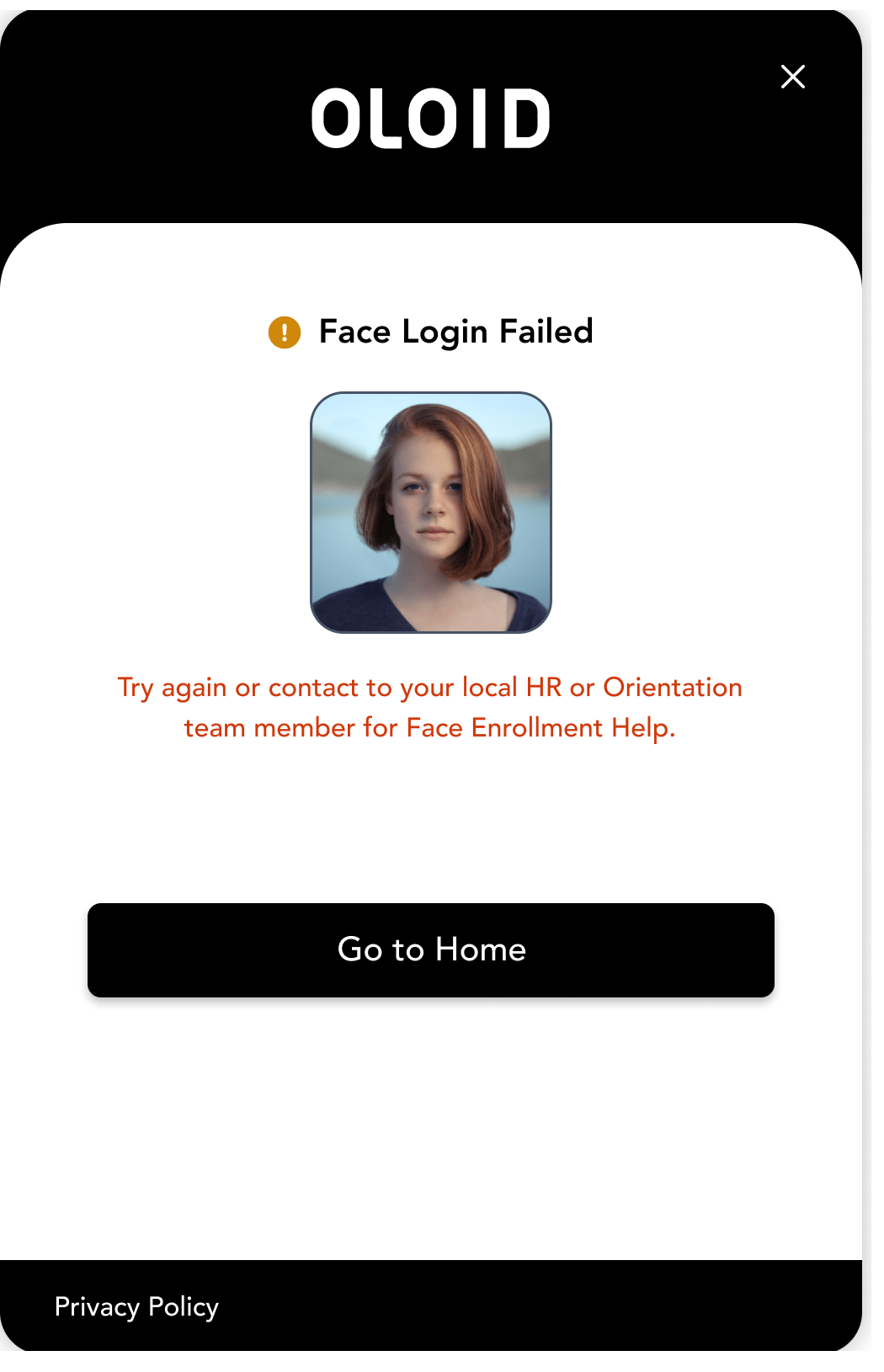
- Description: The system cannot find a matching face in the database.
- Mitigation:
- Re-enroll: If you’ve recently changed your appearance significantly, re-enroll your face data.
- Check User Account: Ensure you’re using the correct user account associated with your face data.
2. Face Close to Border
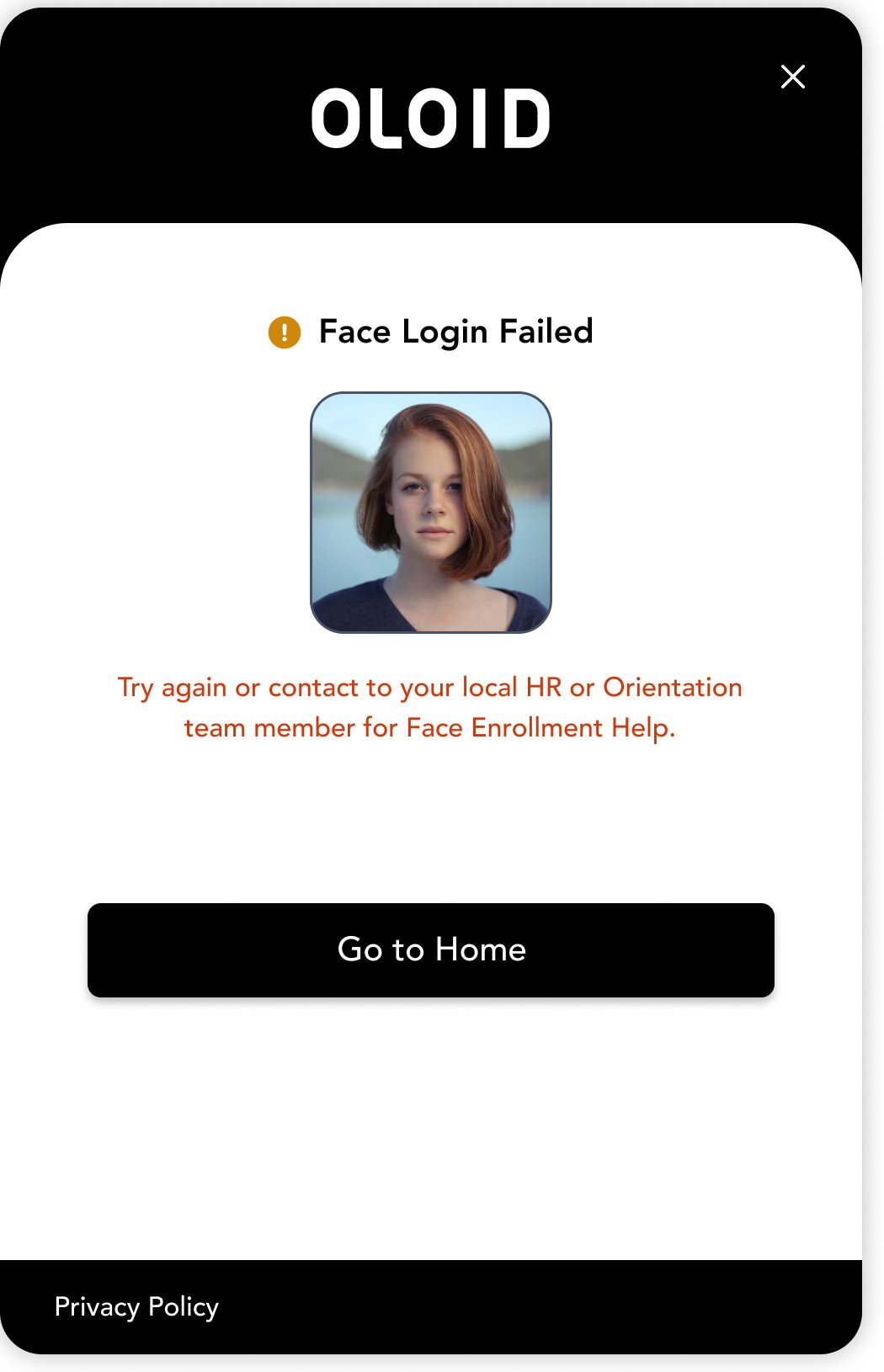
- Description: The face is too close to the edges of the camera frame, affecting recognition.
- Mitigation:
- Center Your Face: Ensure your face is centered in the frame with sufficient space around it.
- Adjust Camera Distance: Move closer or farther from the camera to fit your face properly in the frame.
3. Face Too Small

- Description: The face appears too small in the frame, making it difficult for the system to capture details.
- Mitigation:
- Move Closer: Move closer to the camera to make your face appear larger in the frame.
- Zoom In: If the camera allows, use zoom features to enlarge your face.
4. Face Angle Too Large
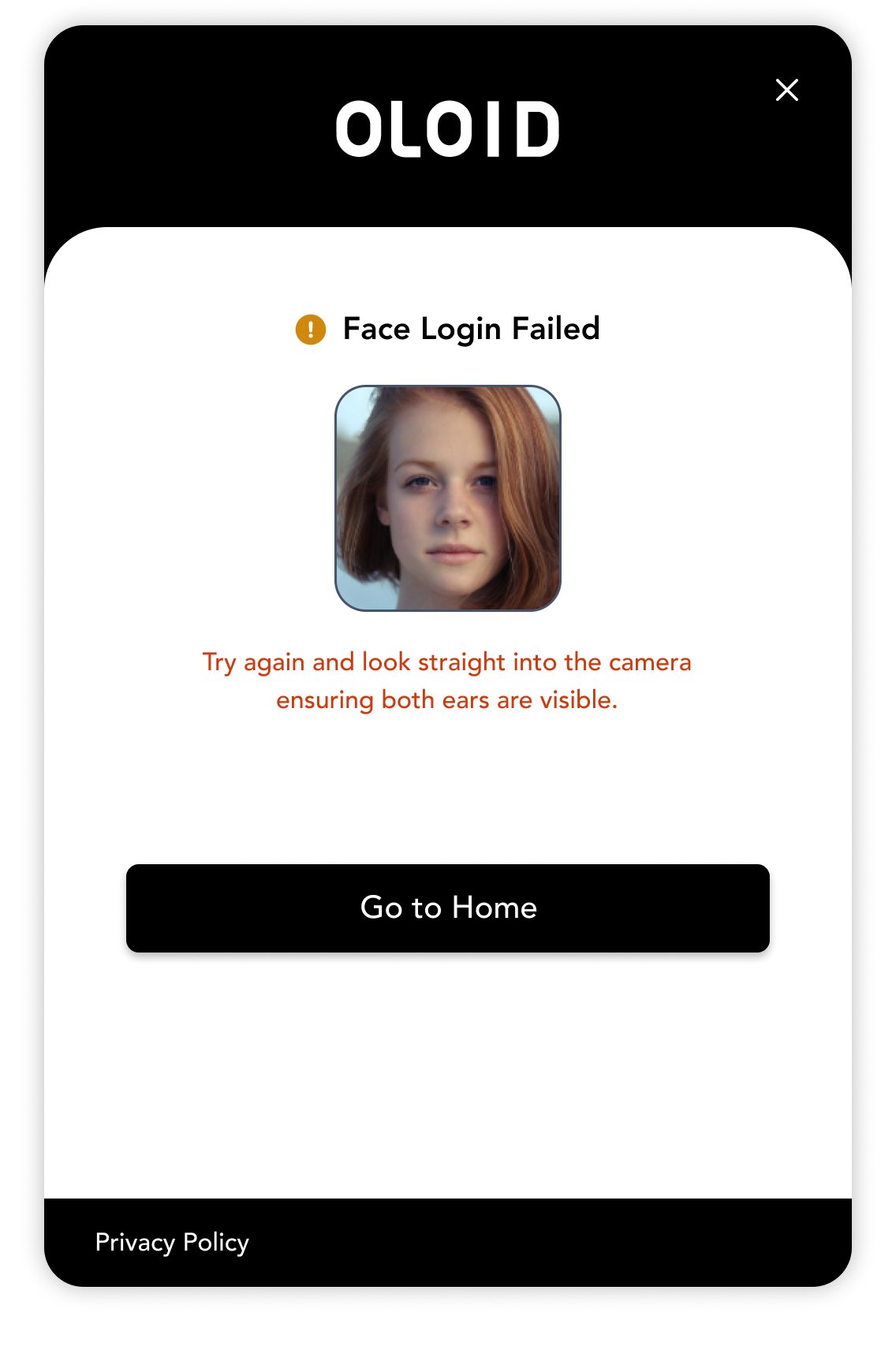
- Description: The face is captured at an extreme angle, hindering accurate recognition.
- Mitigation:
- Adjust Face Position: Look directly into the camera and keep your face straight.
- Avoid Tilting: Keep your head level and avoid tilting it excessively to the side or up/down.
5. Too Many Faces
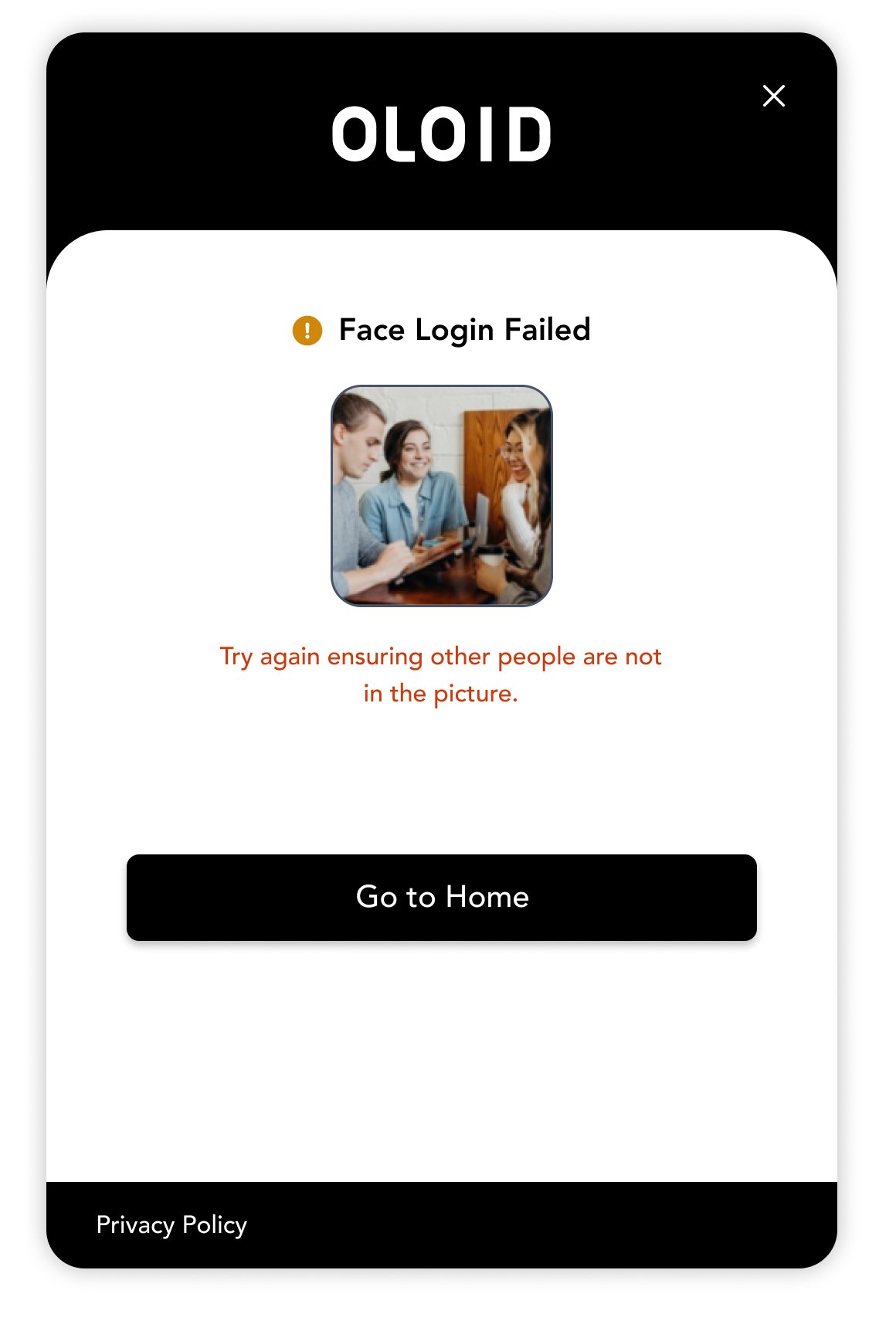
- Description: The system detects multiple faces in the frame, causing confusion.
- Mitigation:
- Ensure Single User: Make sure only your face is visible during the enrollment or login process.
- Clear Background: Avoid having other people or face-like objects in the background.
6. Face Picture Quality Error
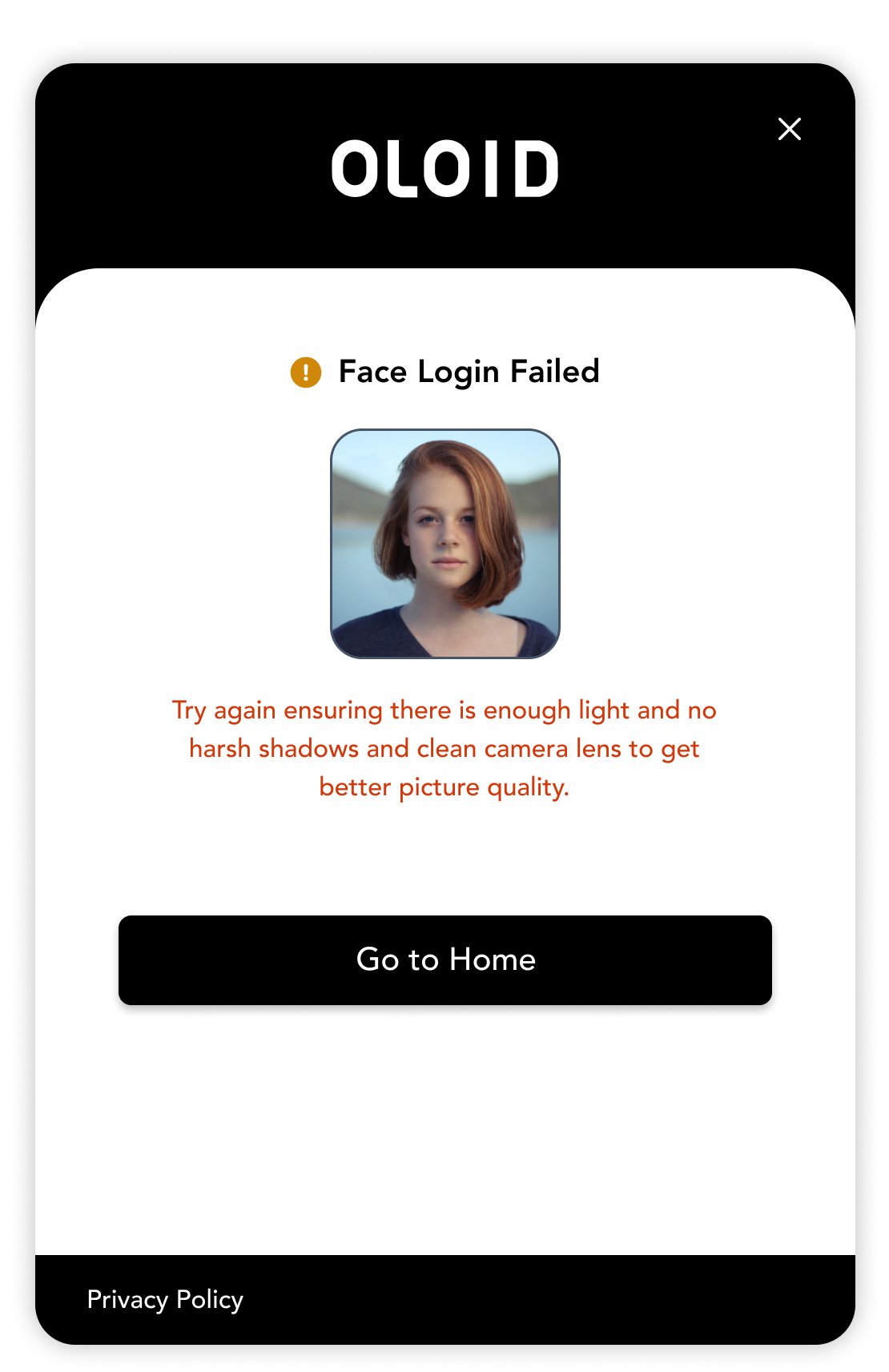
- Description: The image quality is poor, affecting the system’s ability to recognize the face.
- Mitigation:
- Check Camera Settings: Ensure the camera resolution is set to a high enough setting.
- Improve Lighting: Ensure proper lighting to avoid grainy or low-quality images.
7. Face Liveliness Error
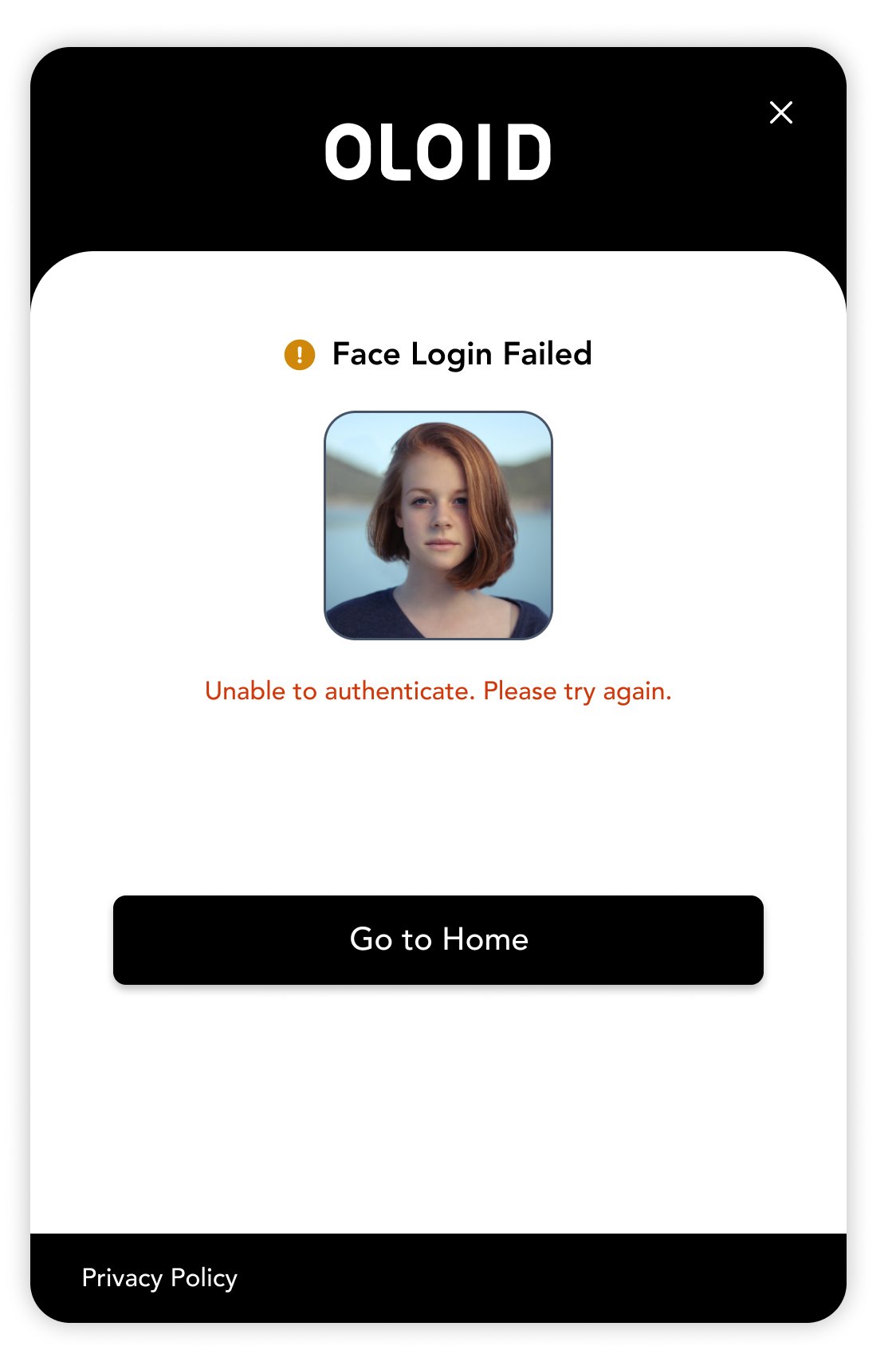
- Description: The system suspects that the face presented is not real, possibly a photo or video.
- Mitigation:
- Ensure Liveness: Move slightly during the capture process, like blinking or turning your head slightly.
- Use Real-Time Capture: Avoid using static images or videos; present your live face to the camera.
8. Internal Error

- Description: A system malfunction or software issue prevents successful enrollment or login.
- Mitigation:
- Restart System: Restart the device and the face recognition software.
- Check for Updates: Ensure the software is up-to-date.
- Contact Support: If the problem persists, contact technical support.
9. Face is Occluded
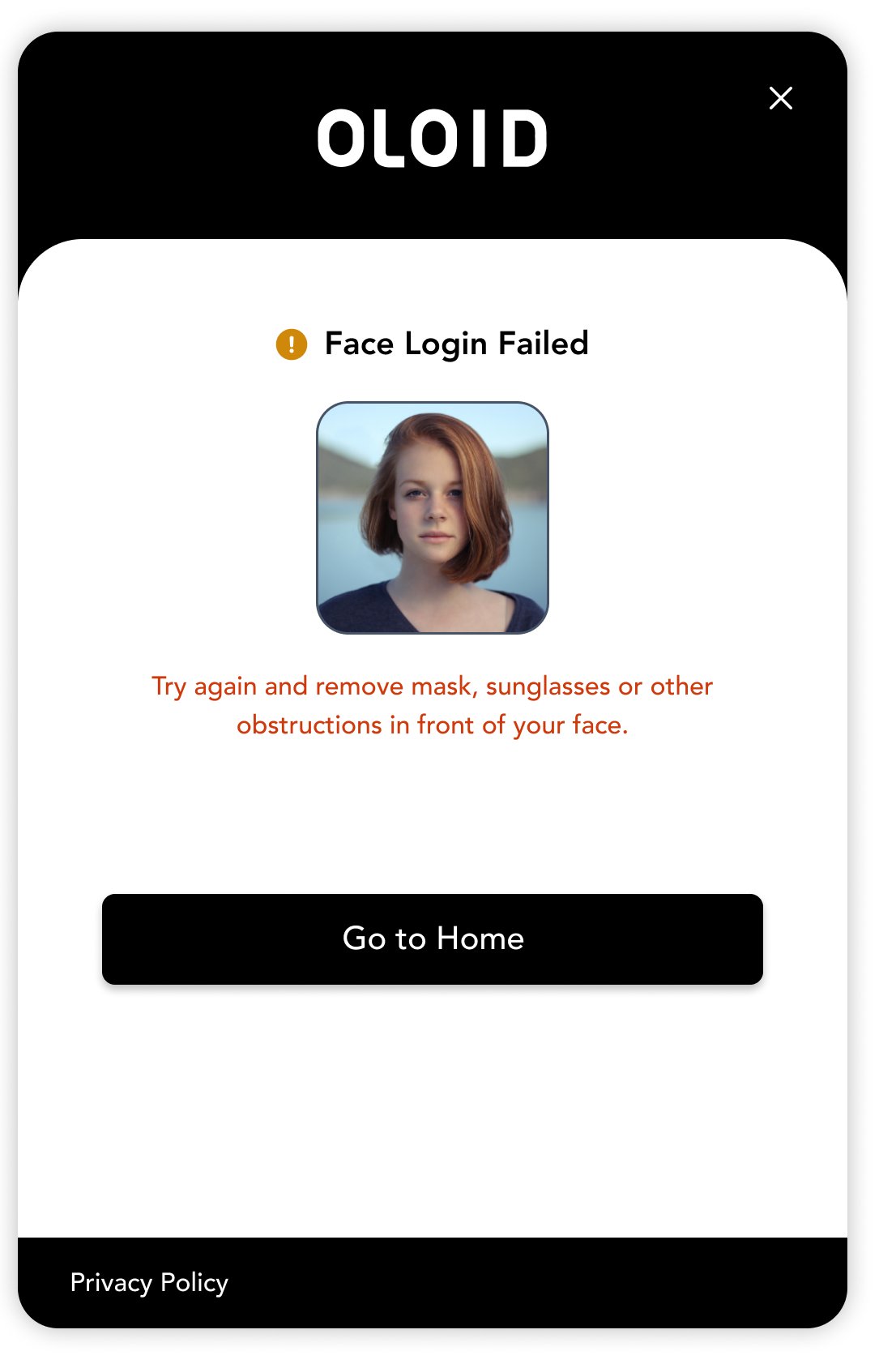
- Description: The face is partially covered or obscured, preventing full recognition.
- Mitigation:
- Remove Obstructions: Remove hats, glasses, masks, or anything that may cover part of your face.
- Ensure Clear Visibility: Ensure your entire face is visible and well-lit.
10. Best Shot Validation Failed

- Description: The system could not capture an optimal image for recognition.
- Mitigation:
- Retake Image: Follow the system prompts to retake the image, ensuring good lighting and a clear view of your face.
- Check Positioning: Make sure your face is centered and at an appropriate distance from the camera.
11. Face is Cropped
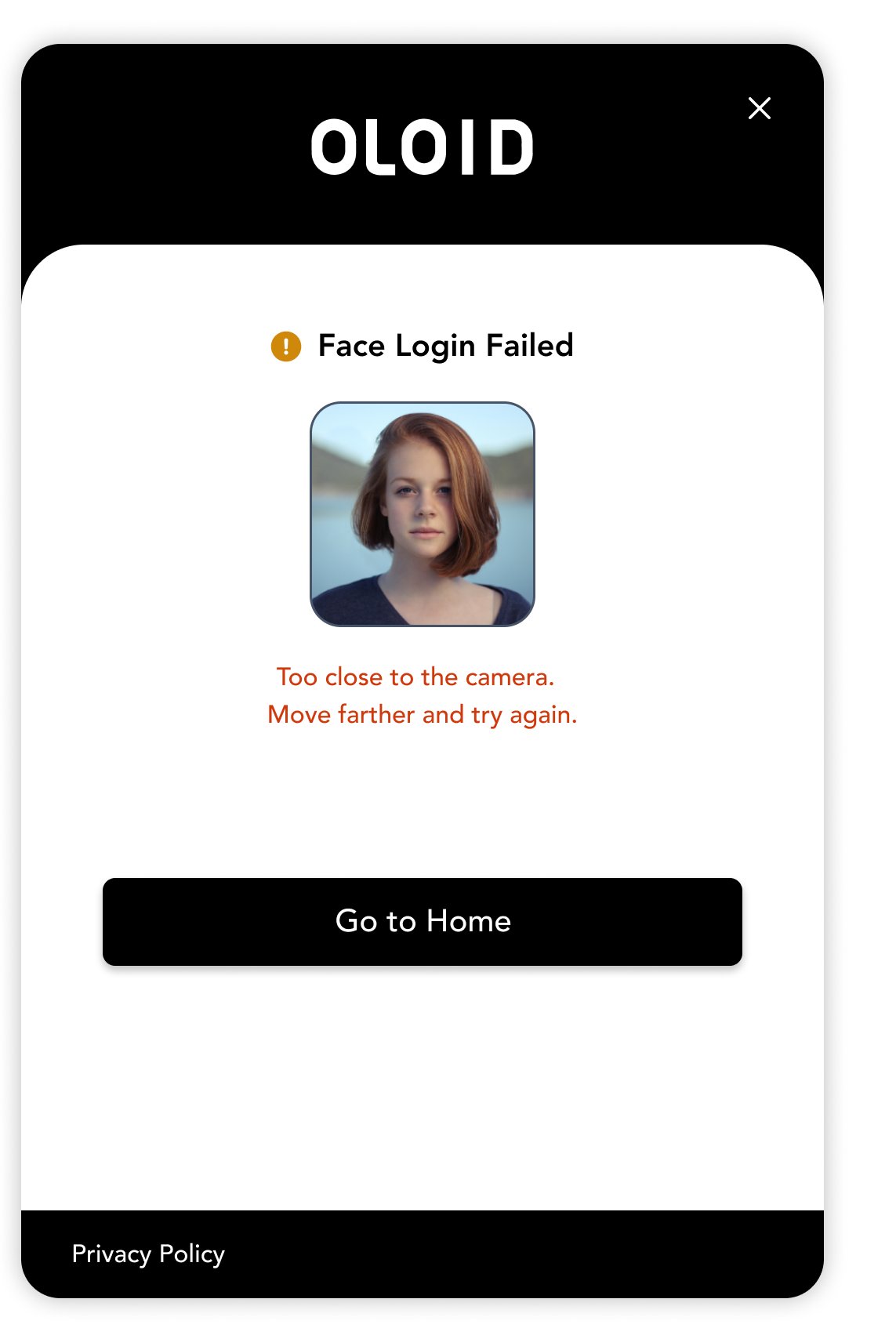
- Description: The face is not fully captured in the frame, leading to incomplete data.
- Mitigation:
- Center Your Face: Ensure your entire face fits within the frame, with some space around the edges.
- Adjust Camera or Position: Reposition yourself or adjust the camera to avoid cropping.
12. Face Not Found

- Description: The system cannot detect a face in the frame.
- Mitigation:
- Ensure Proper Lighting: Use adequate lighting to ensure your face is visible.
- Position Yourself Correctly: Ensure you are in the camera’s field of view and your face is unobstructed.
13. Online Face and User Not Found

- Description: The system cannot find a matching face or user profile in the online database.
- Mitigation Strategies:
- Verify User Account Details: Ensure that you are using the correct username or account details. Double-check that your account is active and properly linked to your facial data.
- Re-enroll Your Face Data: If your appearance has changed significantly since the last enrollment (e.g., new hairstyle, facial hair, etc.), consider re-enrolling your face data.
- Check Network Connection: Ensure your device has a stable internet connection to access the online database. If connectivity issues persist, try switching networks or restarting your device.
14. Offline Trying to Face Login
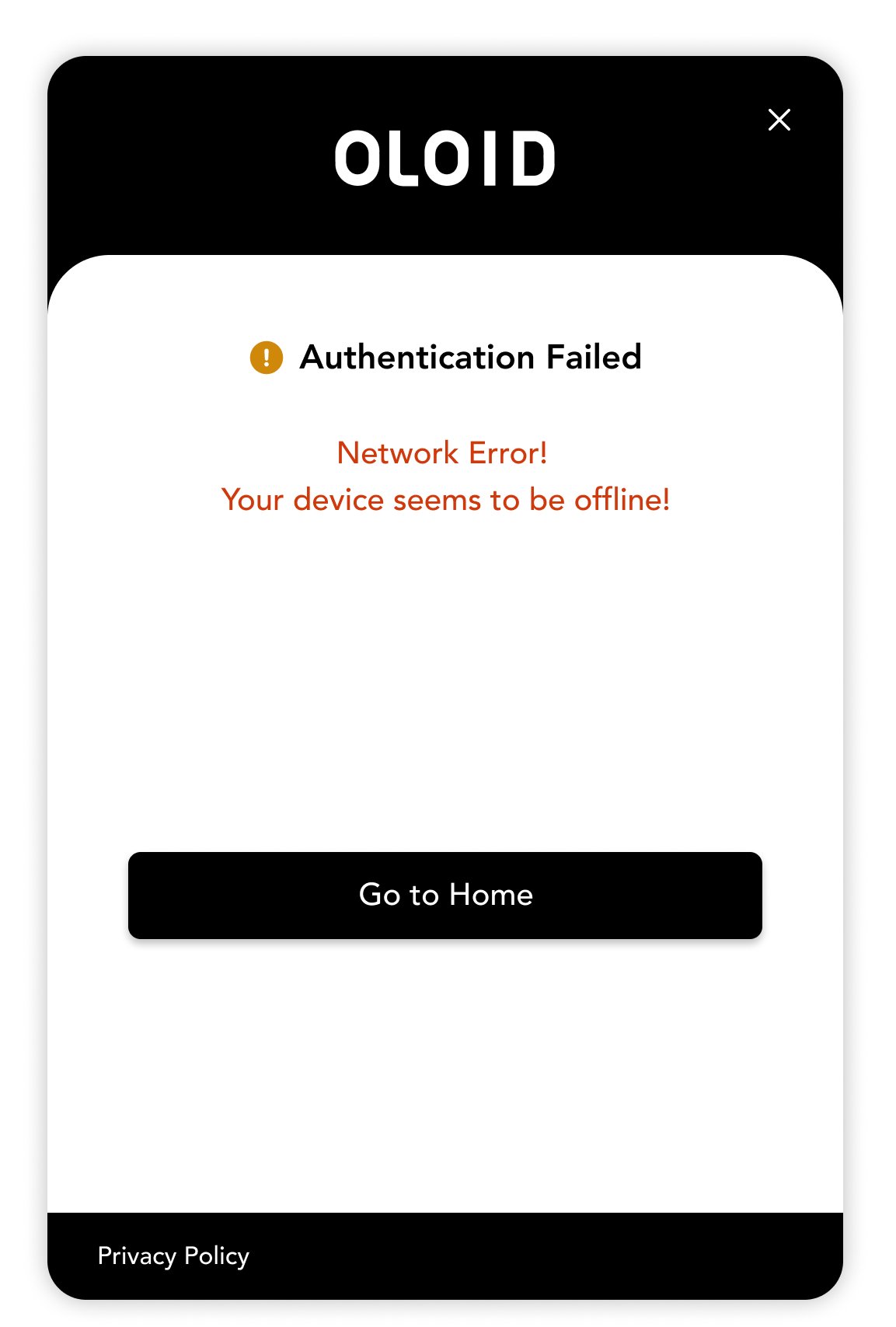
- Description: The system is attempting to perform a face login without an internet connection, which may be required for authentication.
- Mitigation Strategies:
- Connect to the Internet: If the face login system requires an internet connection for authentication, ensure your device is connected to a stable network.
- Use Offline Mode (if available): Some systems may support offline face recognition. Check if this option is available and if your facial data is stored locally on the device.
15. Face Not Matching Reference Image
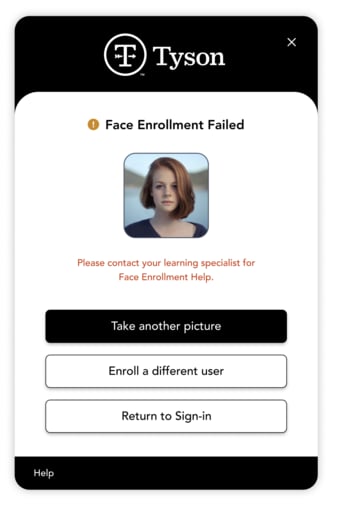
- Description: The captured face image does not match the reference image stored in the system, possibly due to changes in appearance or image quality issues.
- Mitigation Strategies:
- Match Reference Conditions: Try to replicate the conditions under which the reference image was taken. This includes similar lighting, facial expressions, and camera angles.
- Update Reference Image: If your appearance has significantly changed (e.g., wearing glasses, new facial hair), consider updating your reference image in the system.
- Ensure High-Quality Image Capture: Make sure the image captured during login is clear and well-lit. Avoid blurry or low-quality images by keeping the camera steady and ensuring proper lighting.
16. Max Limit Reached (Already Added Maximum Number of Images for Face Login)
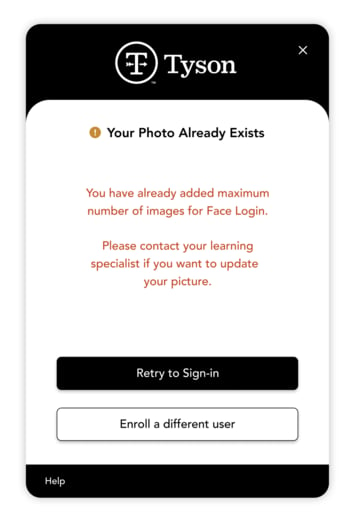
- Description: The system has reached the maximum number of stored facial images for face login.
- Mitigation Strategies:
- Review System Limits: Check the system’s documentation to understand the maximum number of facial images allowed.
- Delete Outdated or Unnecessary Images: If possible, remove old or unnecessary facial data to free up space for new images. Prioritize keeping the most recent and accurate images.
- Contact Support: If you cannot manage the images yourself or if the limit has been reached unexpectedly, contact technical support for assistance.