

- Sign in to the Ping Identity Administrator Console with your PingOne account credentials.
-
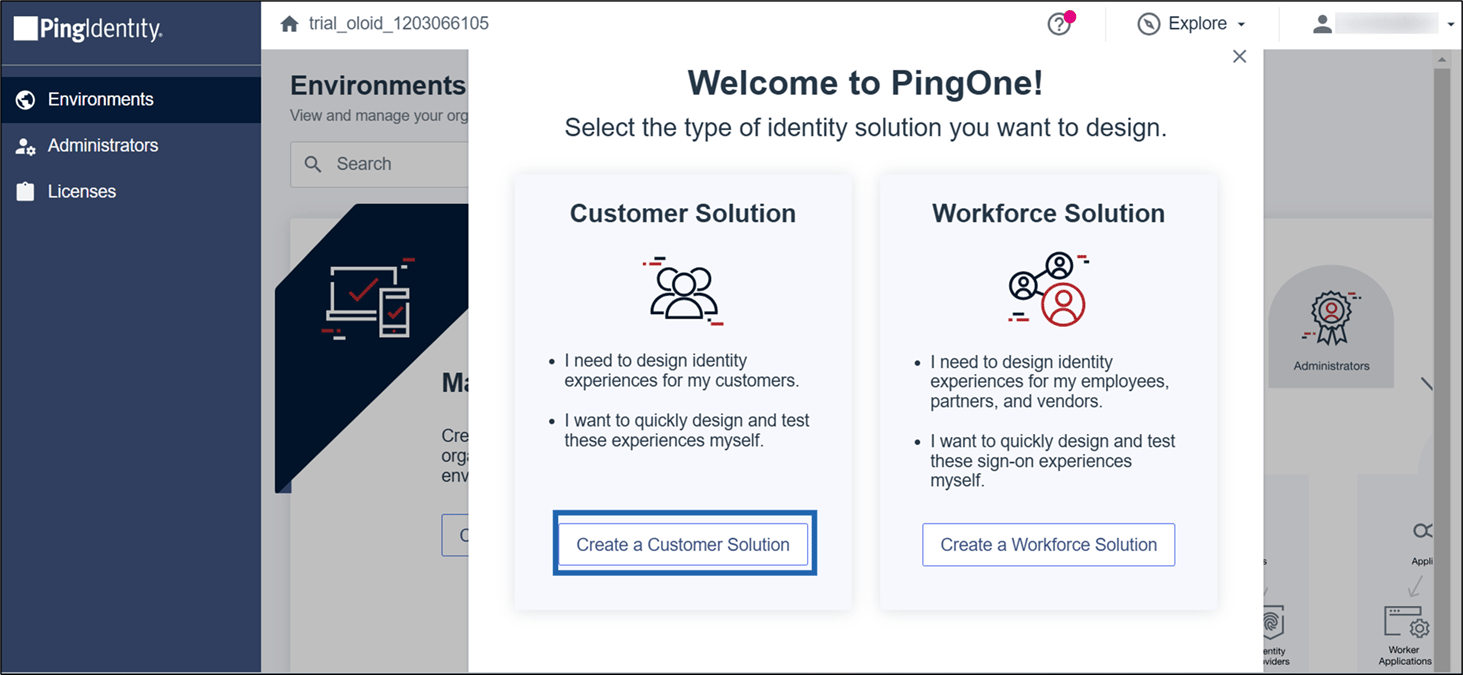
Select Create Environment, then select Create a Customer Solution.

-
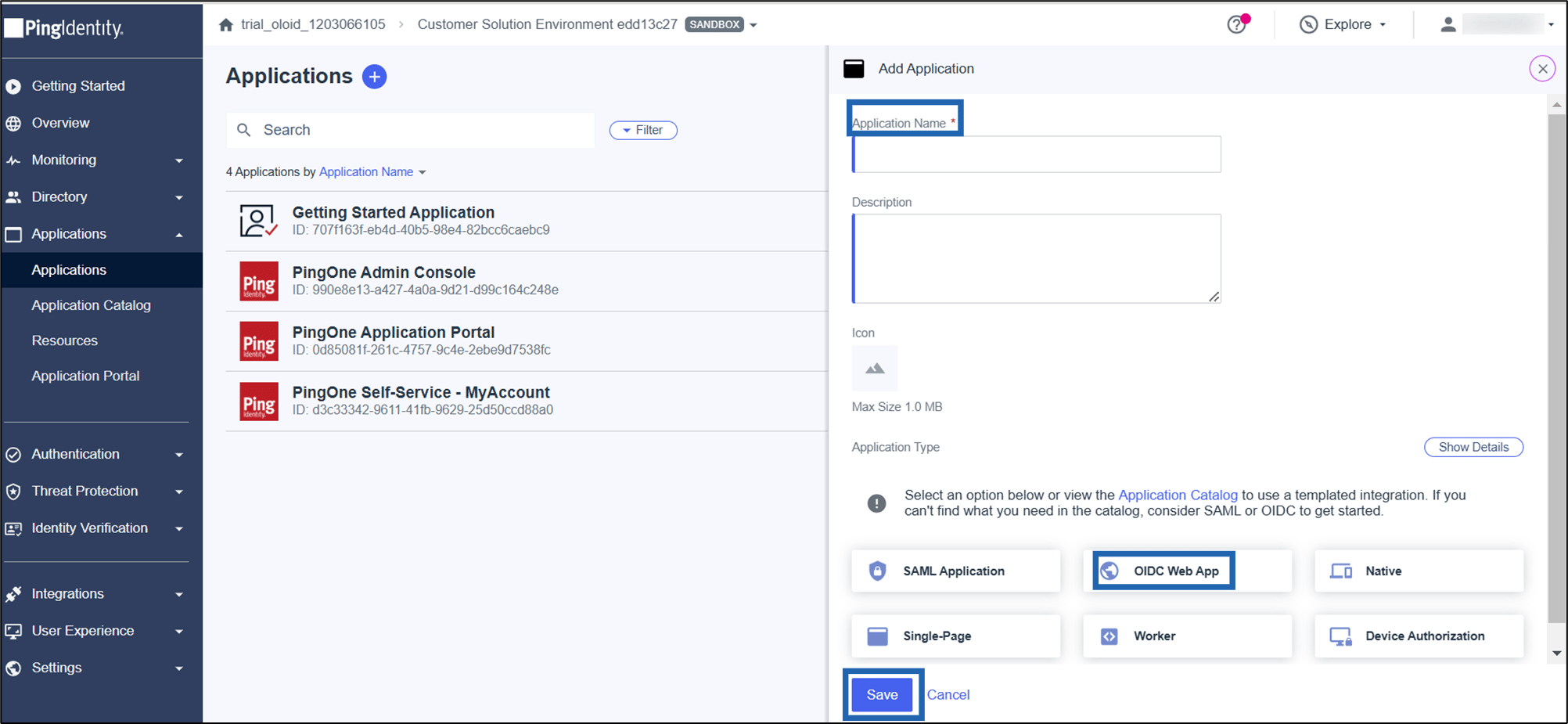
Go to the newly created environment, select Applications from the left menu, and click the Add
 icon to add a new application.

-
Do the following:
- Enter Application Name, then select OIDC Web App from Application Type.
- Click Save.
-
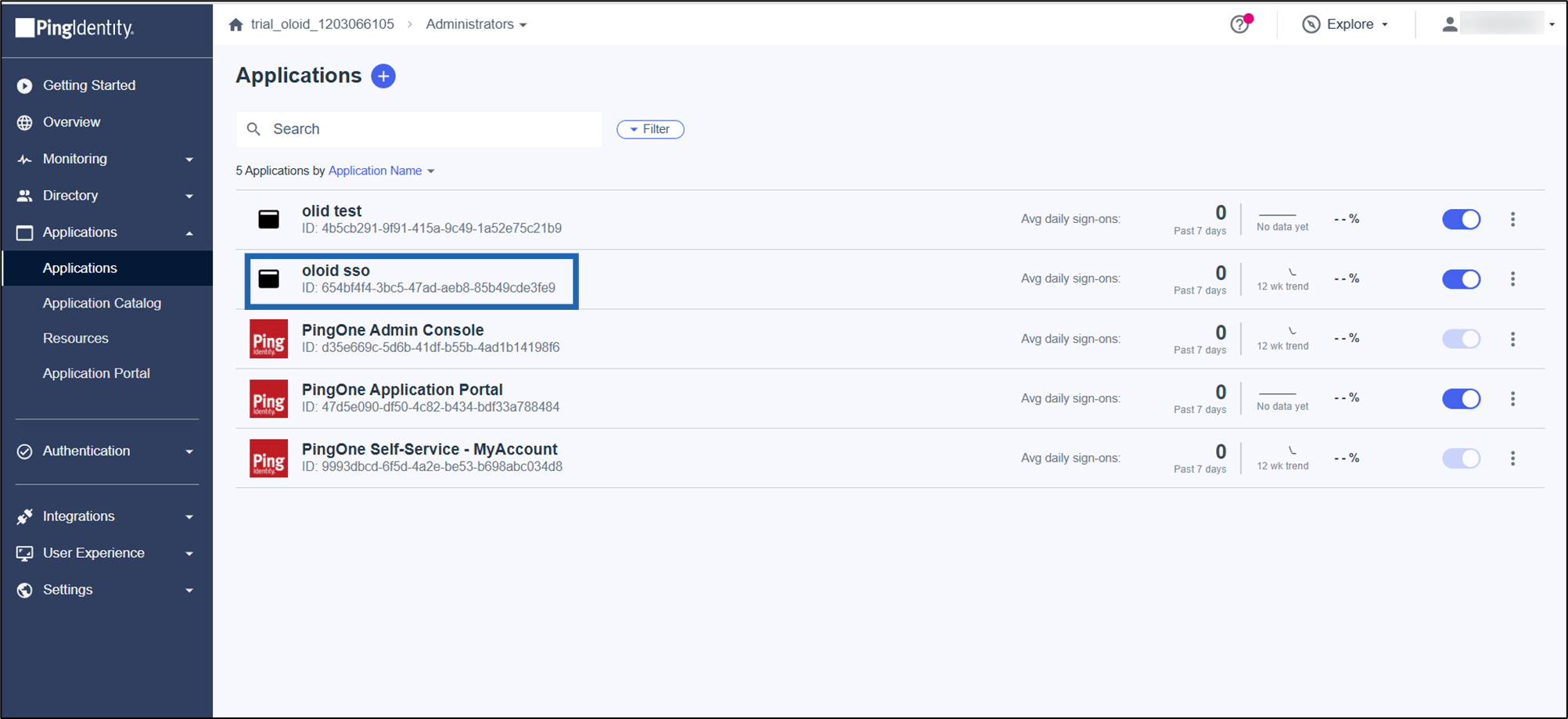
Select the newly created application from the application list to edit.
-
On the application Profile page, enable the app using the toggle button next to the application name.

-
Select Overview tab > OpenID Connect settings and add the Redirect URL.
Note: Please contact Oloid Support for the Redirect URL.


-
Go to Configuration tab, and do the following:
- Select URLs section:
- Copy Authorization URL.
- Copy Token Endpoint URL.
- Copy User Info Endpoint URL.
- Select General section:
- Copy Client ID.
- Copy Client Secret.
- Copy Environment ID.

- Select URLs section:
-
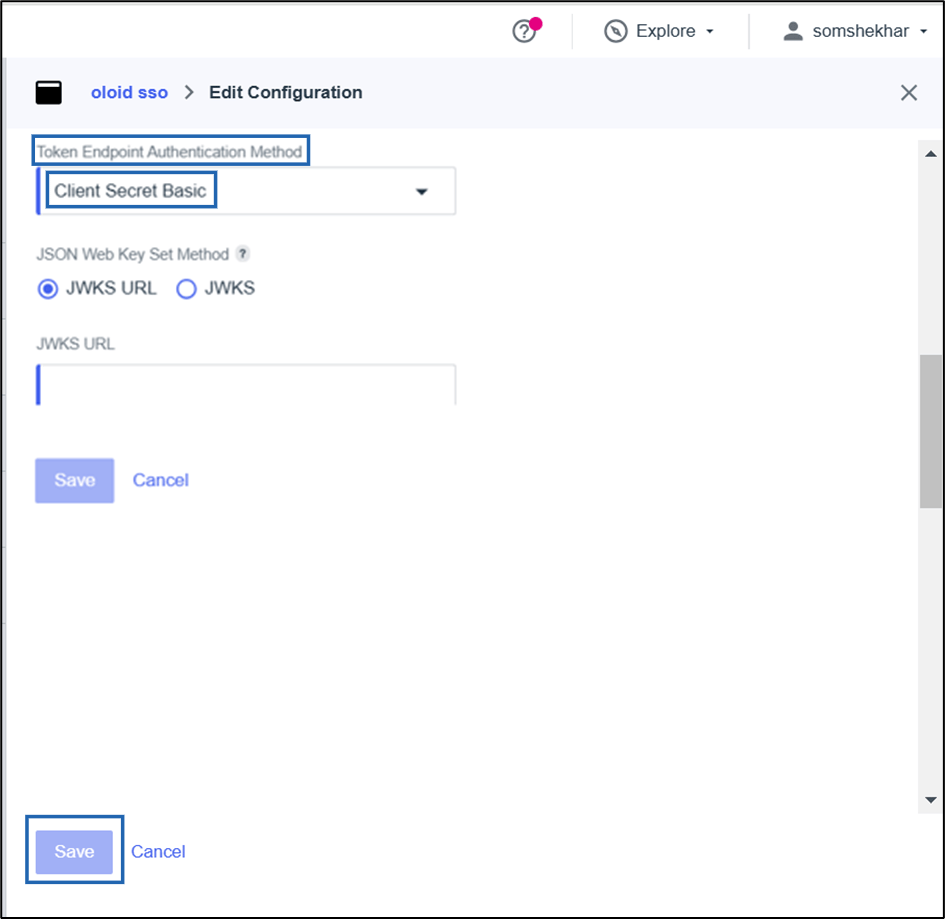
Under the Token Endpoint Authentication Method select Client Secret Basic from the drop-down list, and select Save.
-
Select Resources tab and enable openID, email and profile scopes.


- Share ClientID and Client secret with Oloid Support
ping
Steps to configure log in with PingOne for Oloid Portal:
Steps to configure log in with PingOne for Oloid Portal:
⌘I