Introduction
The Configure tab for the Chrome Vault application in the Tenant Admin portal allows Admins control vault behavior, security settings, session timeouts, and user experience options. From here, you can enable features like auto-submit, password copy, face camera in a new tab, passkey saving, and customize authentication button labels.Prerequisite
You must create a Chrome Vault application in the Tenant Admin Portal. To create refer How to Create and Configure Chrome Vault Application in the Tenant Admin Portal.Steps to Setup Configure Tab
- Log in to the Tenant Admin Portal.
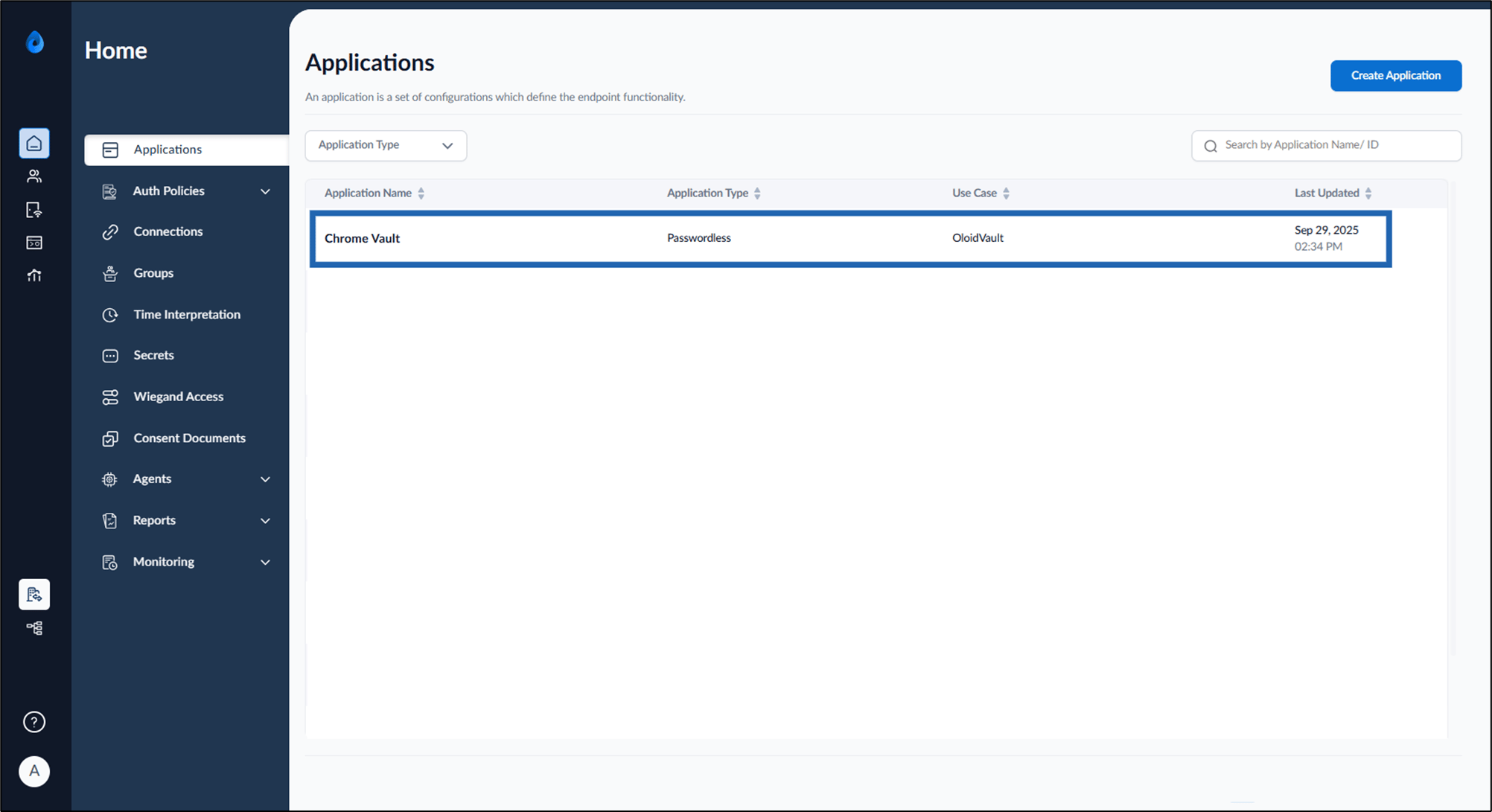
- On the Home page of the portal, click on the preferred Oloid Vault application.
- Go to Configure tab and do the following:
Configure Settings
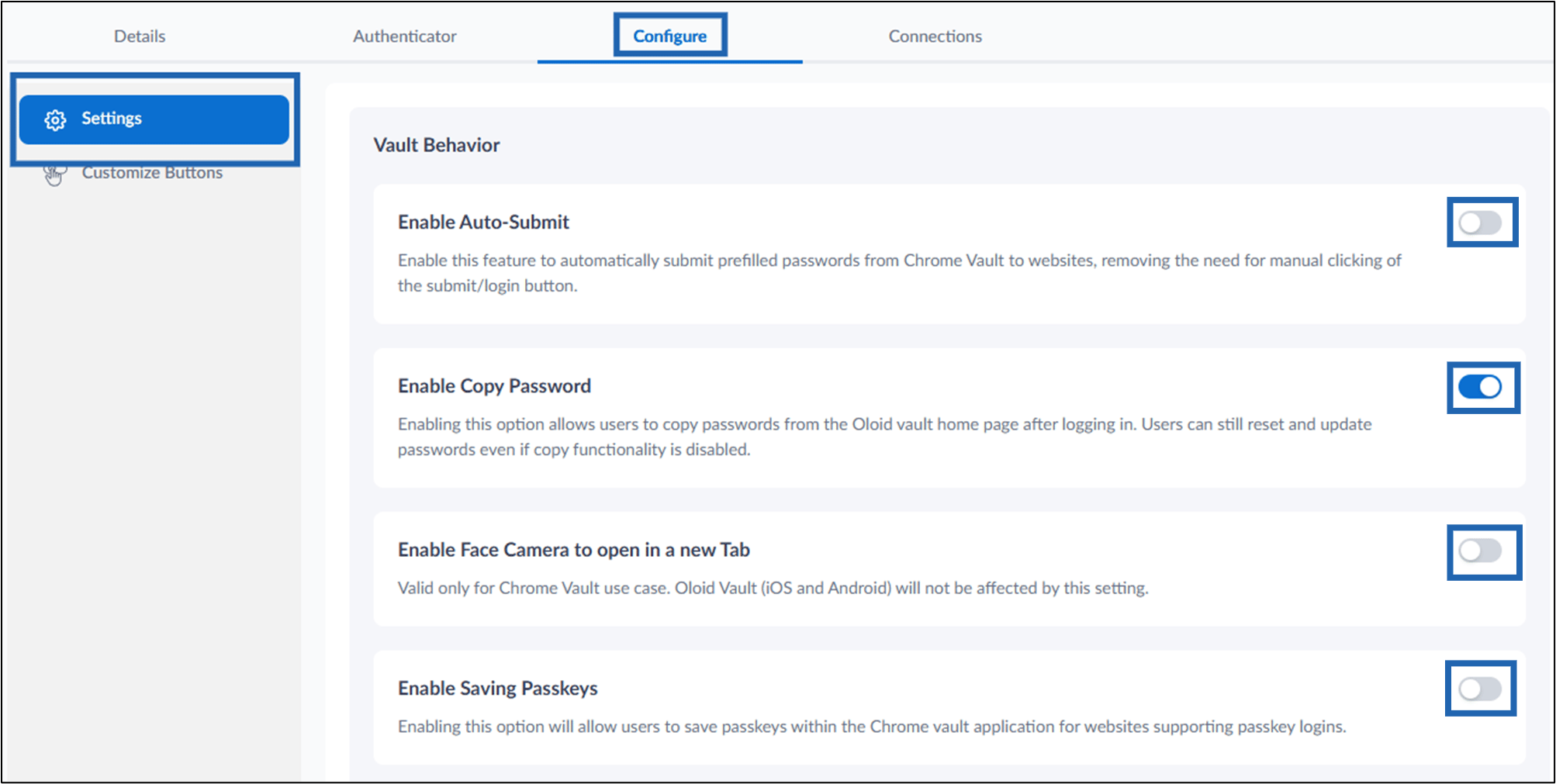
Vault Behavior
- Enable Auto-Submit: Turn on this toggle toautomatically submits credentials after successful authentication, streamlining the login process for users.
- Enable Copy Password: Turn on this toggle to allow users to copy passwords from the Oloid Vault home page after logging in.
- Enable Face Camera to open in a new Tab: Turn on this toggle to open the face camera in a new tab for Chrome Vault users.
- Enable Saving Passkey: Turn on this toggle to allow users to save passkeys within the Chrome vault application for websites supporting passkey logins.
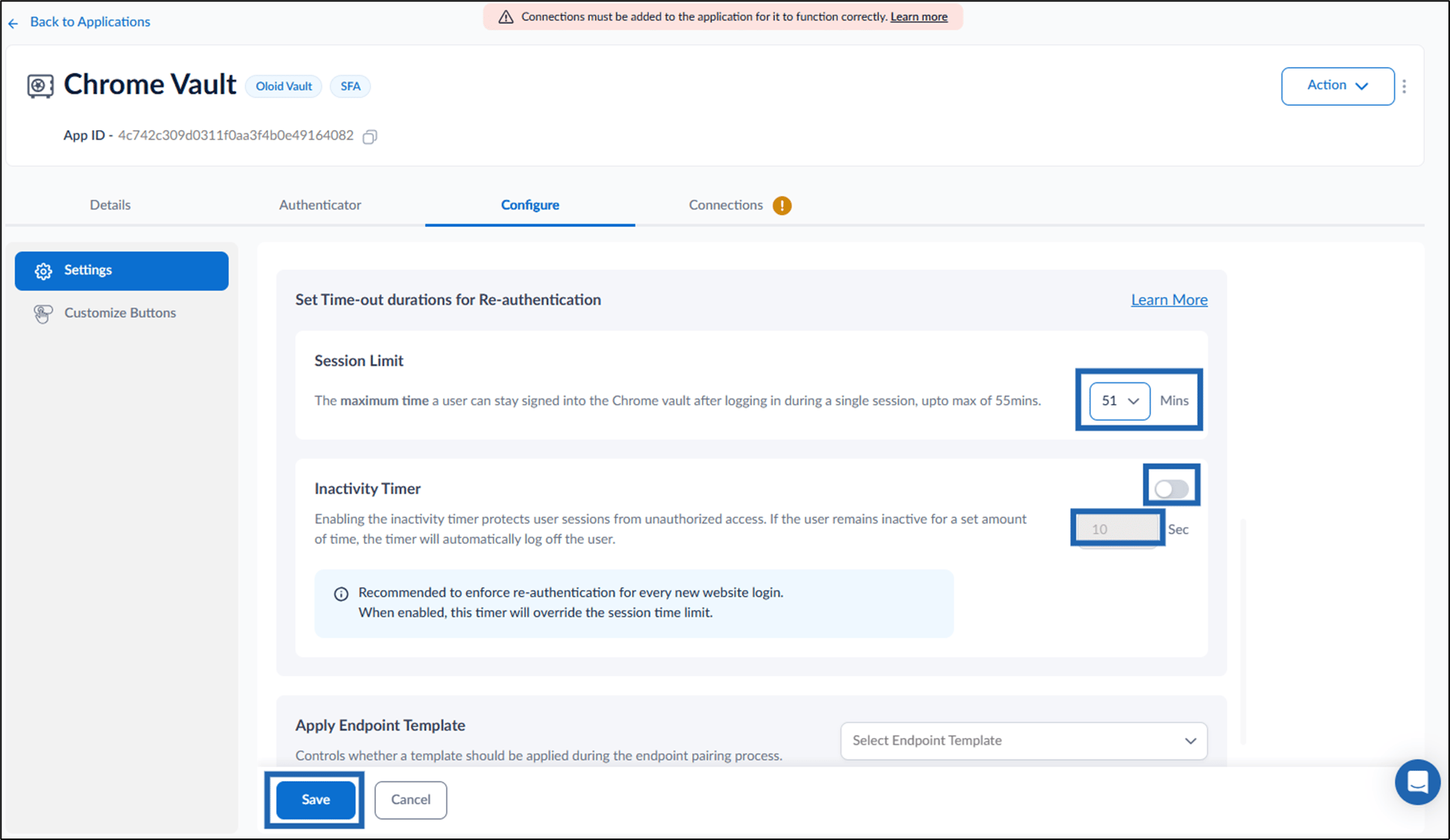
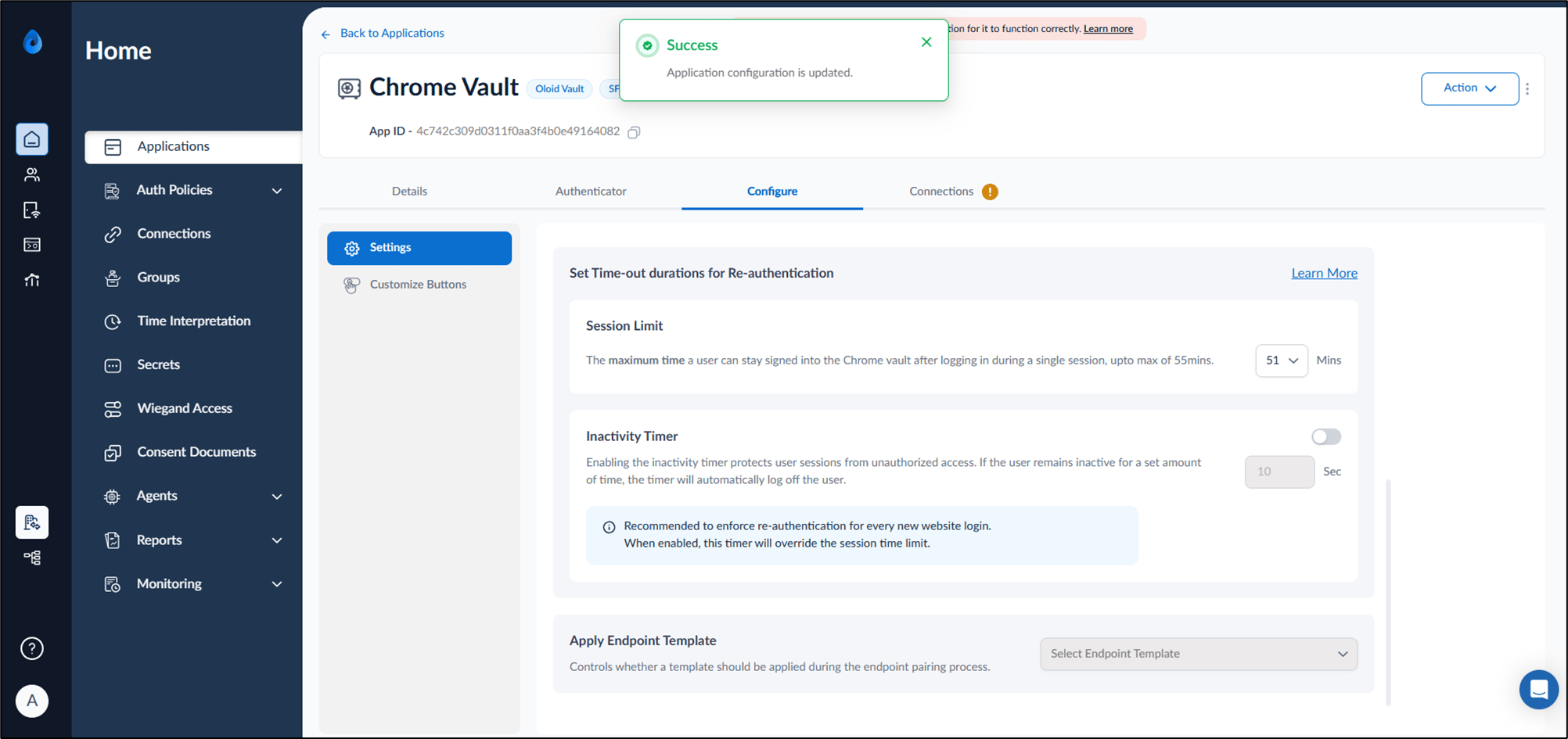
Set Time-out durations for Re-authentication
-
Session Limit: Set the maximum duration a user can remain signed into the Chrome Vault per session.
Note: The maximum session duration that can be set is 55 minutes.
-
Inactivity Timer: Turn on this toggle to protect user sessions from unauthorized access. Set the timer to automatically log off the user after a specified period of inactivity.
Note: When this option is enabled, re-authentication will be enforced for every new website login, overriding the session time limit.
- Click Save.
-
Apply Endpoint Template: Coming Soon
Customize Buttons
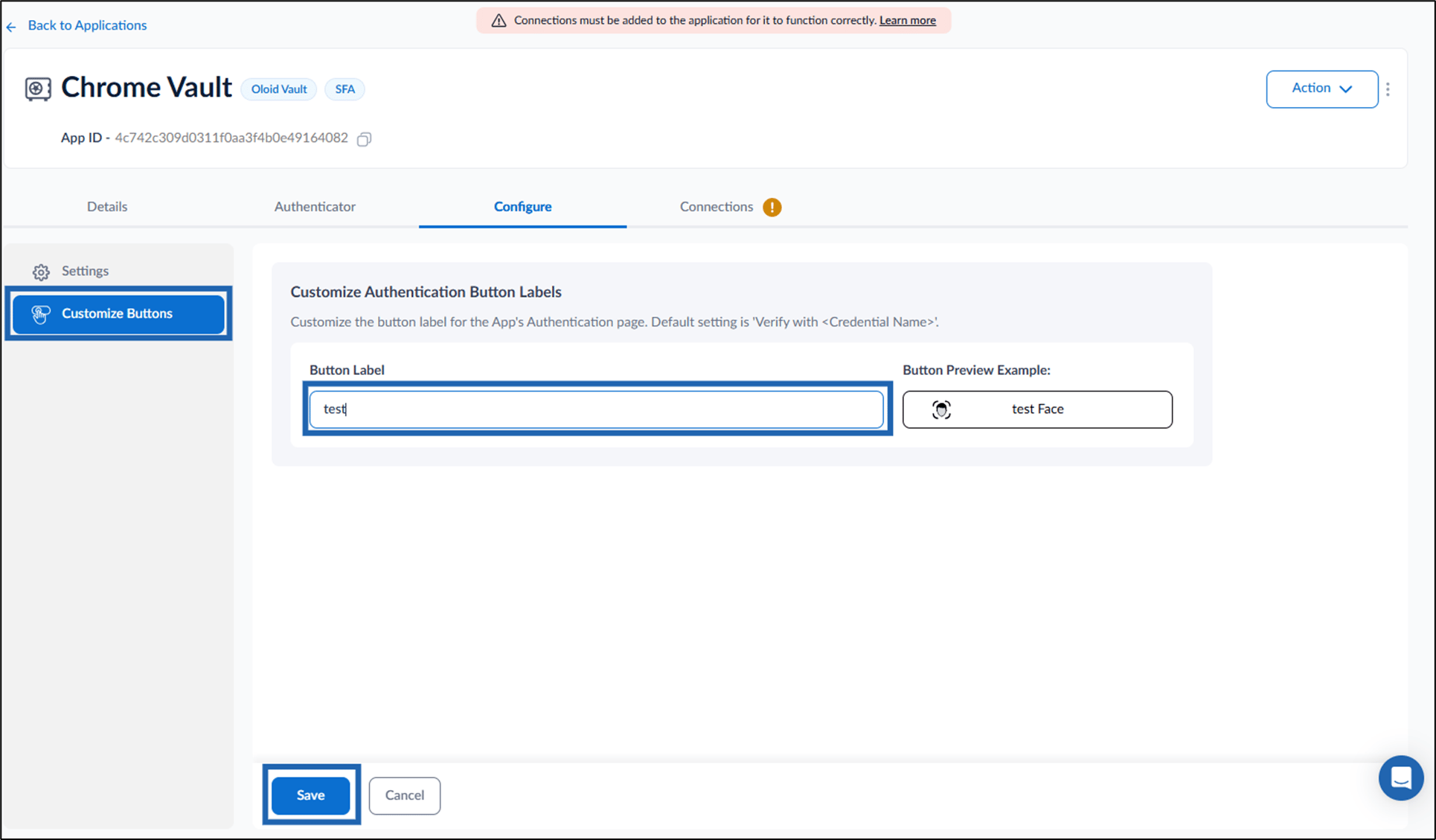
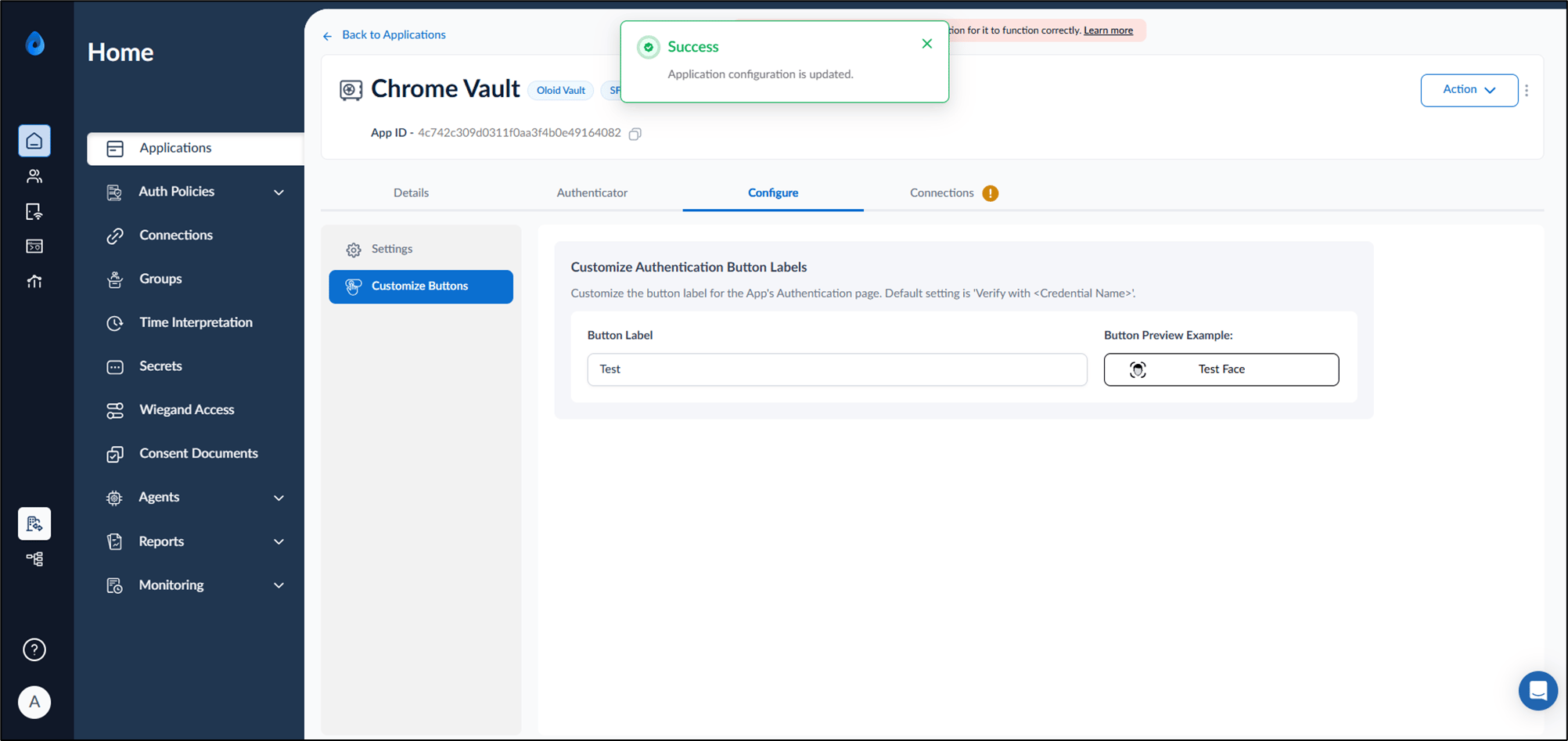
- Select Customize Buttons from the left menu panel.
-
Enter the Button Label in the text field.
Note: Default setting is ‘Verify with <Credential Name>’.
-
Click Save.