

- Log in to the Oloid Portal.
- On the Applications page, click on the Webkey application to edit.

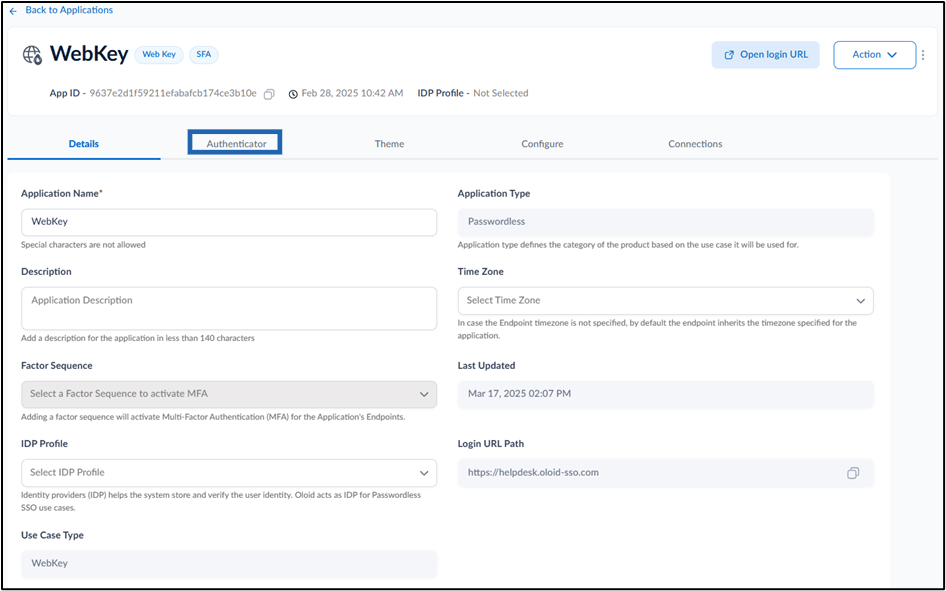
- Go to Authenticator tab:
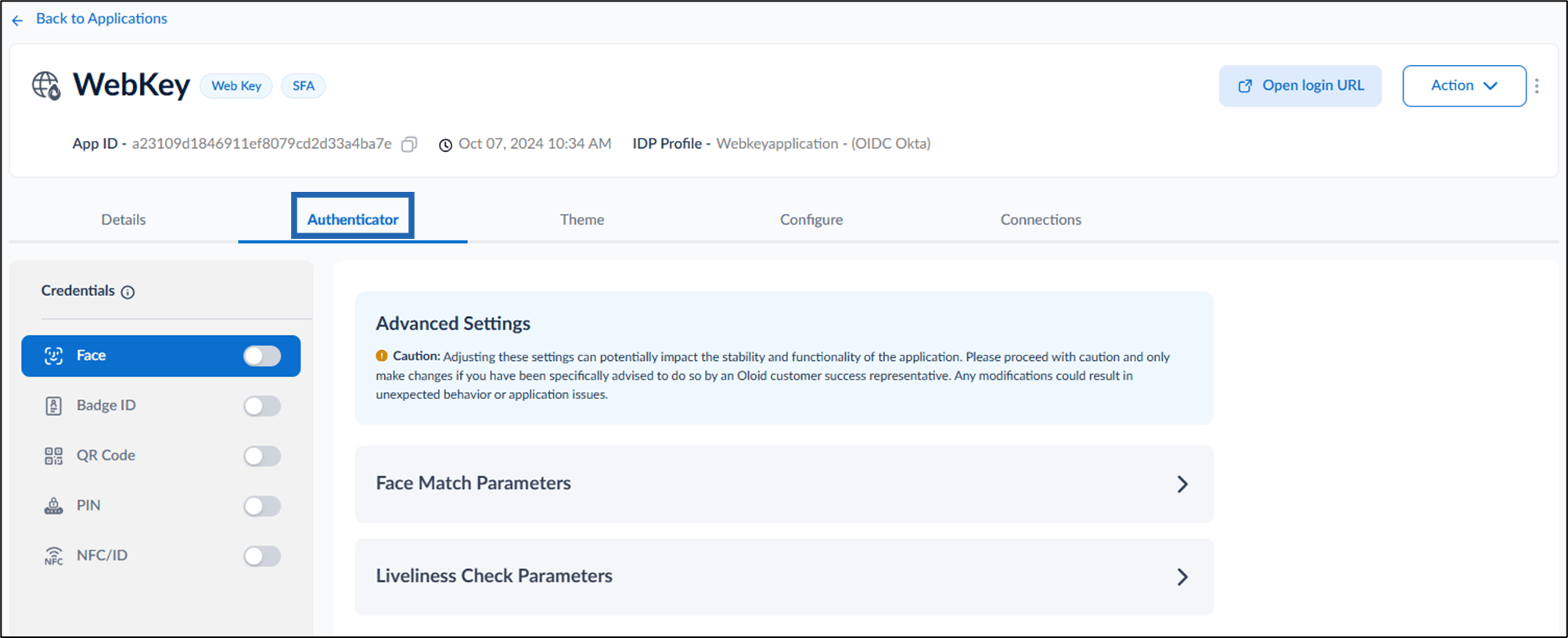
Face
- To use face as credential, enable Face option.
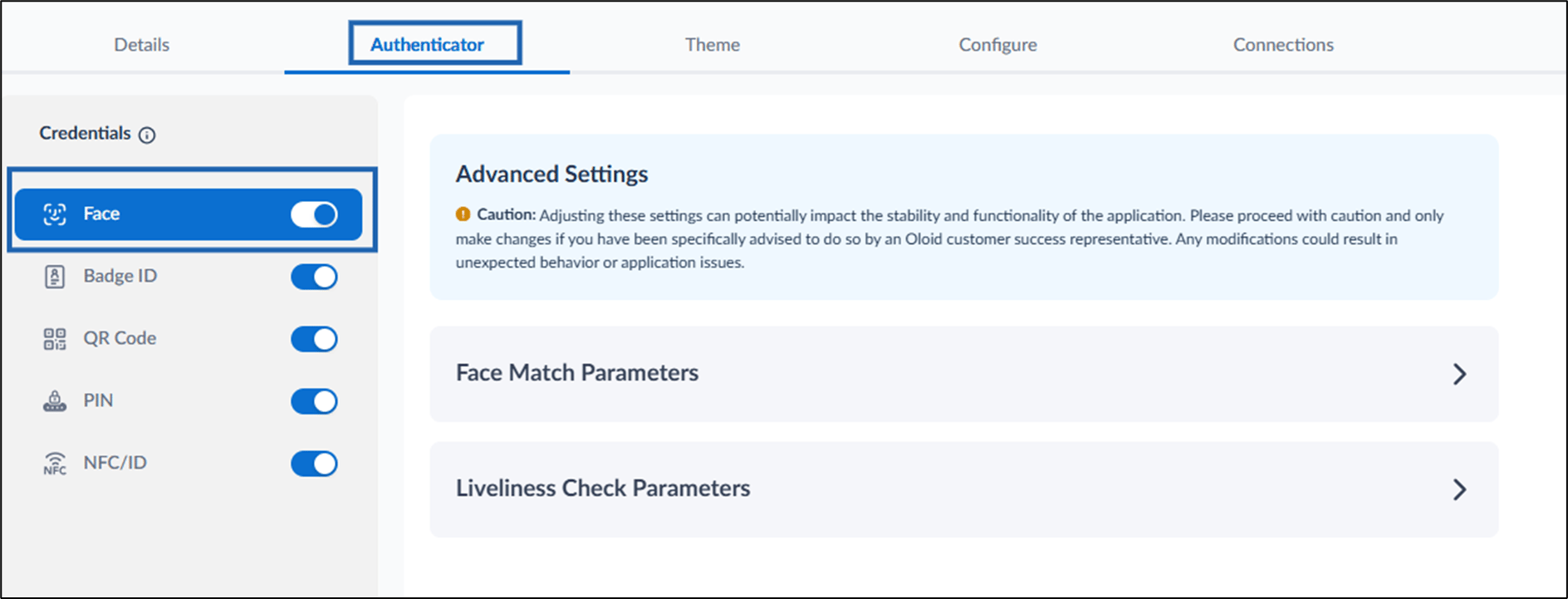
- Face Match Parameters
- Liveliness Check Paraments
Face Match Parameters
Turn on Enable Virtual Camera to allow third-party virtual camera app to be used for face capture. If a user attempts to spoof the system using a third-party app, this feature helps detect and flag potential spoofing attempts.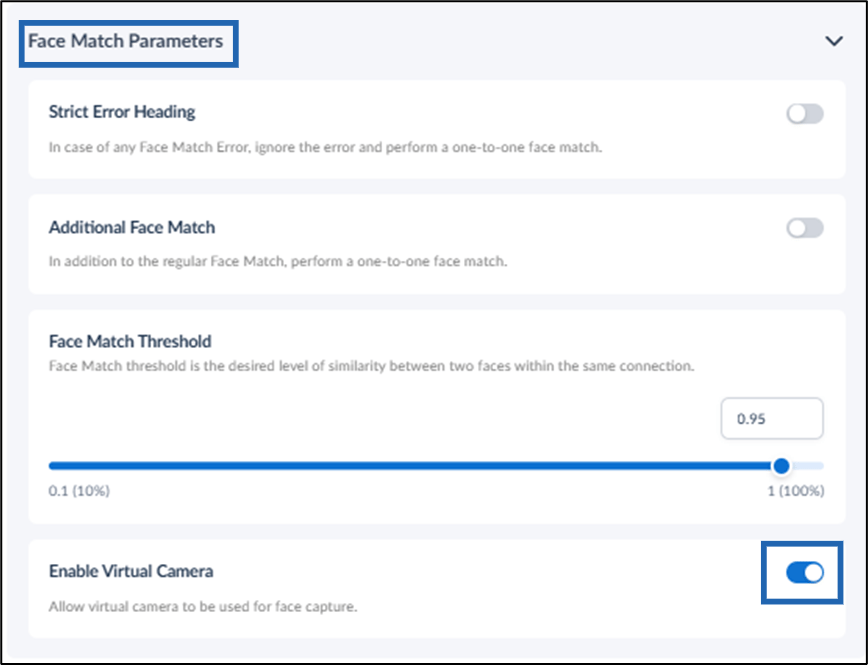
Liveliness Check Parameters
-
Set Min. Liveliness Probability level to decide if the image is live and not spoofed.
Note: Set the value of Min. Liveliness Probability 0.5 for the images to be considered live.
-
Set Min. Liveliness Quality level to define how appropriate the image is for the liveliness check.
Note: Set the value of Min. Liveliness Quality 0.5 for good image.
 Note: For auto capture of Face, DisableFaceDetection option should be configured. This is done by Oloid Admin.
Badge ID
To use Badge ID as credential, enable Badge ID. Select a Badge Type from the dropdown list.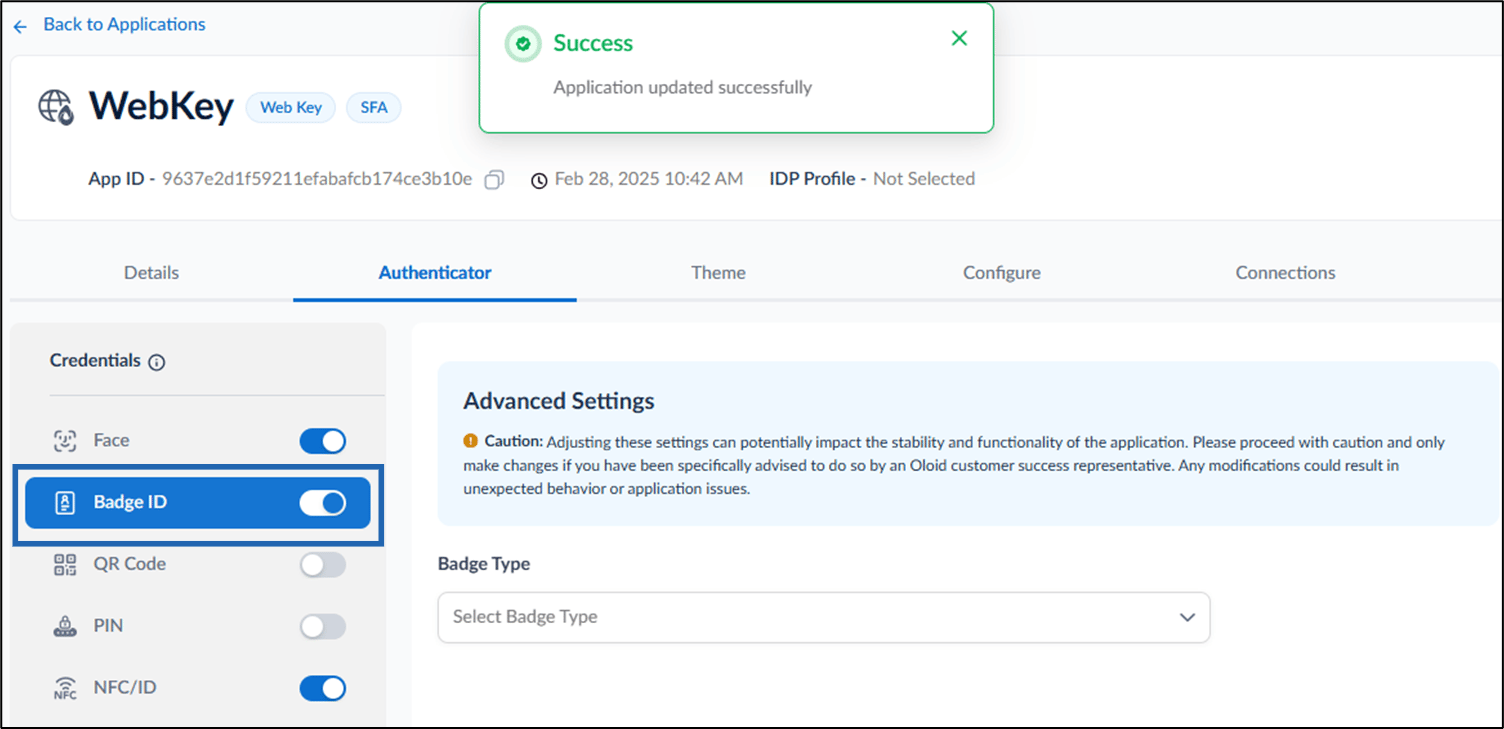
Note: Enable Badge ID, then enable PIN for multi-factor authentication.
QR Code
- To use QR Code as credential, enable QR Code option to sign in to Webkey application. By default, the front camera opens for QR code scanning.
- Enable Show Camera Flip button to allow users to switch between the front and rear cameras. This option displays a camera flip button on the preview screen during QR code scanning.
- Under Default camera selection, select a camera option:
- Front Camera (default)
-
Rear Camera
Note: This feature is available only for Android phones, tablets, and dual-camera laptops and laptops with external cameras.

PIN
To use PIN credential, enable PIN for multi-factor authentication to sign into WebKey application.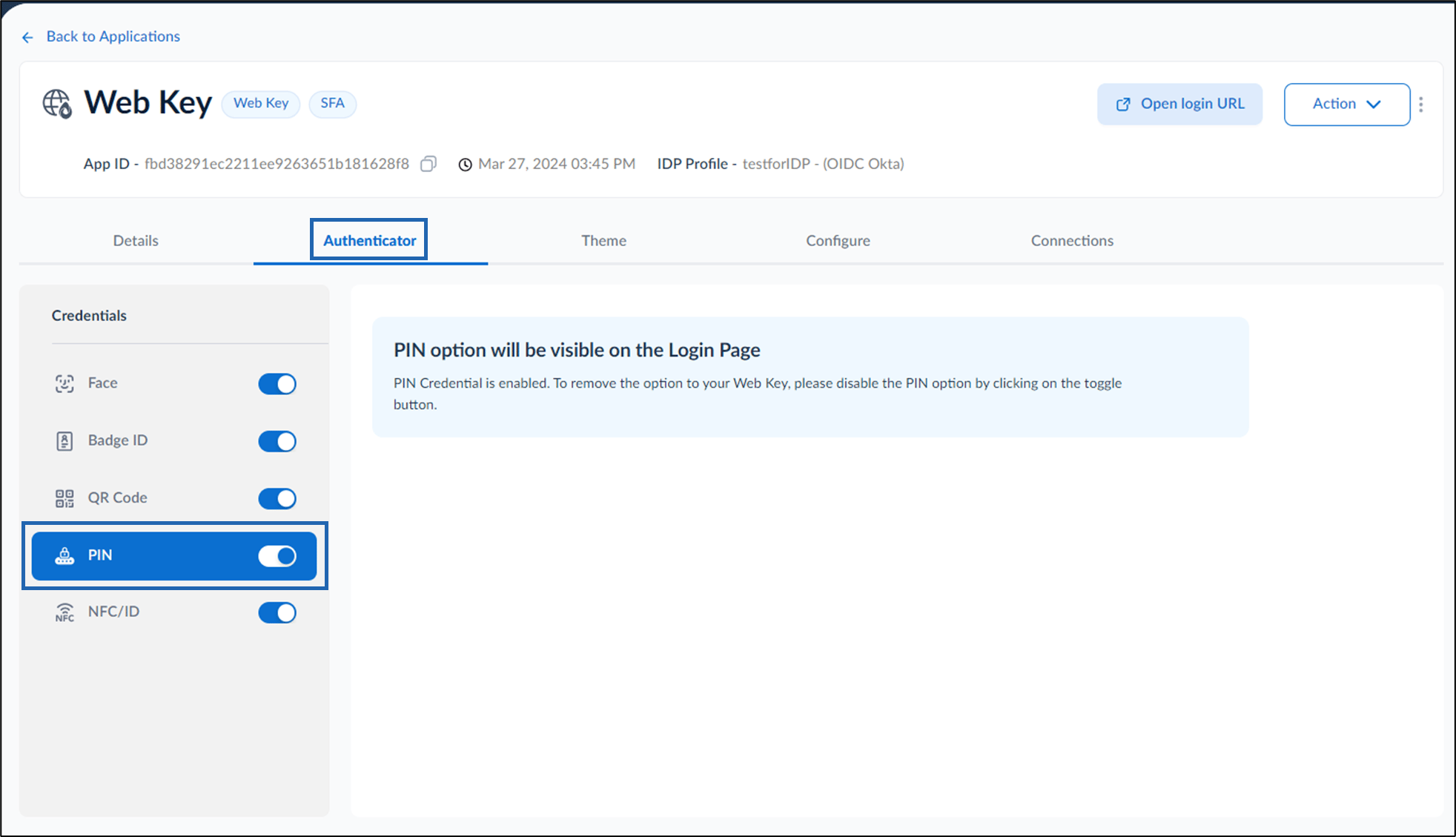
NFC/ID
To use NFC/IDcredential, enable NFC/ID to sign in to WebKey application from your desktop/laptop. The NFC/ID option section is displayed. Do the following:- Enable Use Web-NFC to allow NFC Login from the Mobile Phone and Tablet browser that supports NFC (such as Google Chrome on Android)
- Enable Replace the Credential Label - NFC Tag to replace the default “NFC” or “NFC Tag” label with a custom name.
- Enter the new label in the Replace label with field. Example: Replace NFC Tag with RFID.
- Provide NFC Scan Instruction to guide users on scanning their NFC badge for login.
- Authentication Success Message: Enter a message to display when authentication is successful.
-
Authentication Failure Message: Enter a message to display when authentication fails.
 Note: Enable NFC/ID, and then enable PIN for multi-factor authentication.