

- Login to the Oloid Portal.
- On homepage, click Directory on the left menu panel.
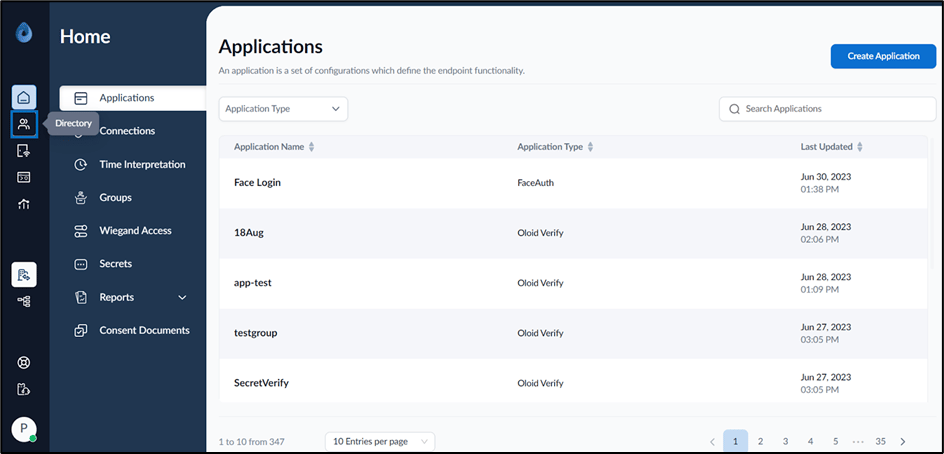
- Click on user name to edit.

- Select Transactions tab and click Export to excel on the top right corner.

- Do the following:

- Select From Date & Time from the calendar. (optional)
- Select Time Zone from the drop down list. (optional)
- Select Application name from the drop down list. (optional)
- Select Mode from the drop down list. (optional)
- Select To Date Time from the calendar. (optional)
- Select Transaction Status from the drop down list. (optional)
- Select Endpoint Name from the drop down list.
- Select Face Match Status from the drop down list. (optional)
-
Click Download.
The transaction is exported to excel successfully.Note: If the filters under Export to Excel page is not selected then all transactions of the user will be exported to excel.
How to Export Transactions of a user
This document provides step-by-step instructions to export transactions of a user
Steps to export transactions:
⌘I