Introduction
This document provides instructions to configure the Browser Inactivity Timer for Oloid Vault. The inactivity timer automatically performs the configured action when the browser remains inactive for the specified duration.Prerequisite
You must have admin access to the Tenant Admin Portal.Steps to Configure Browser Inactivity Timer
- Log in to the Tenant Admin Portal.
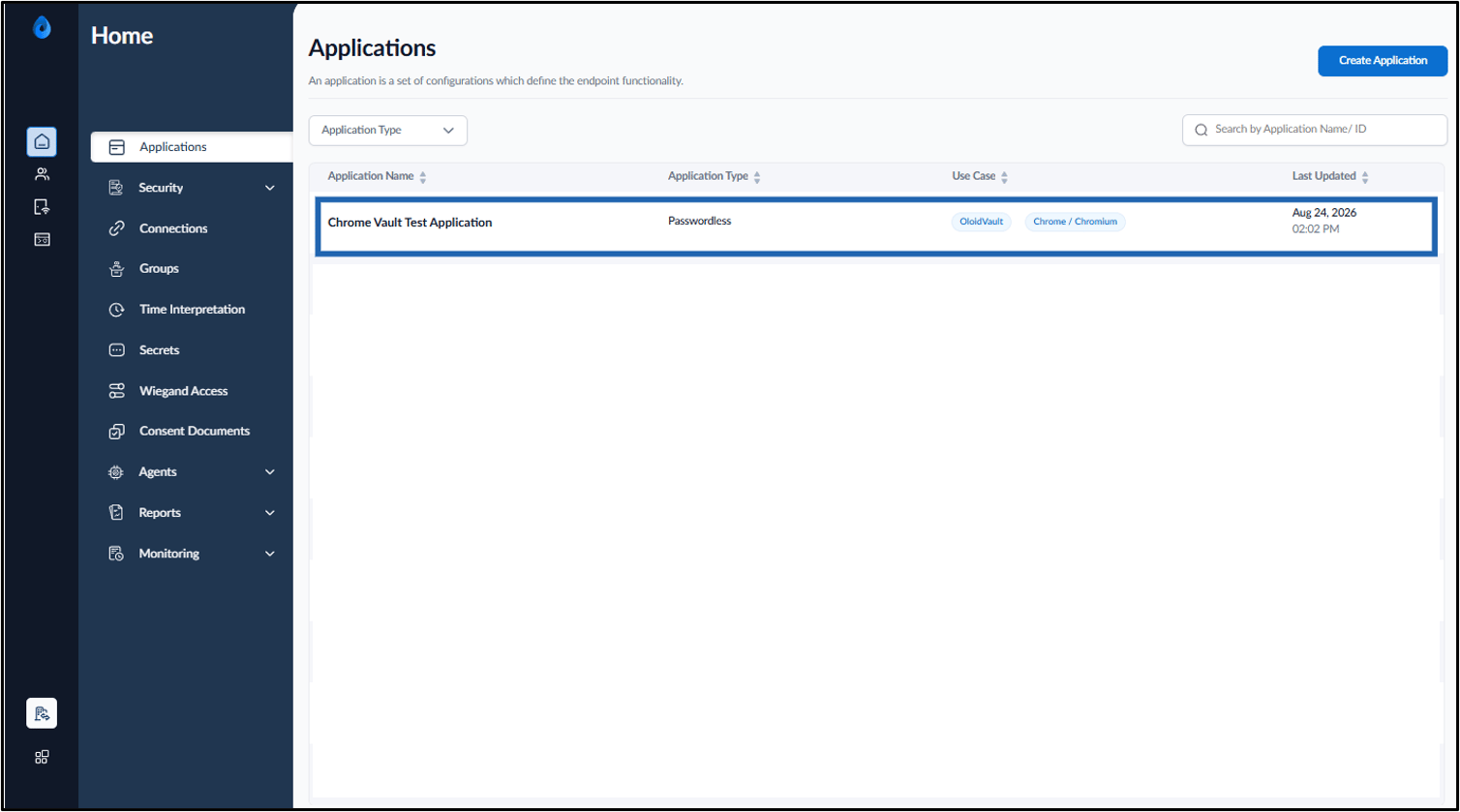
- On the Home page, click on the preferred Oloid Vault application.
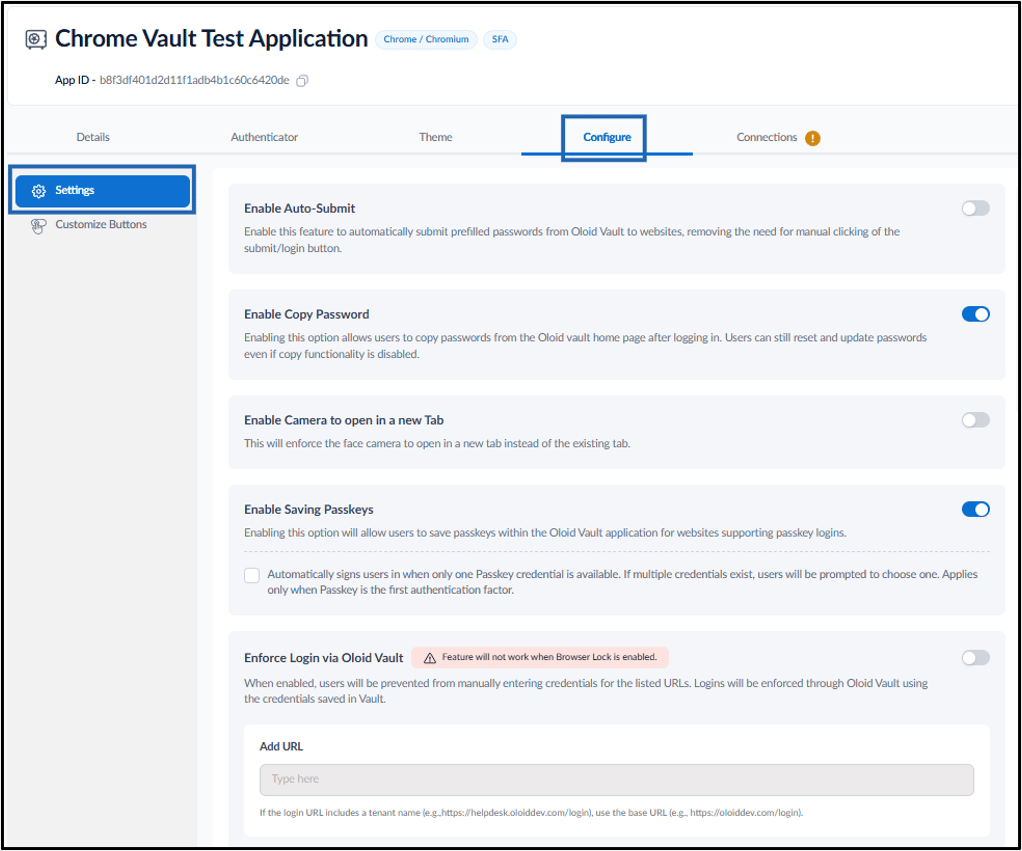
- Go to Configure > Settings.
- Do the following:
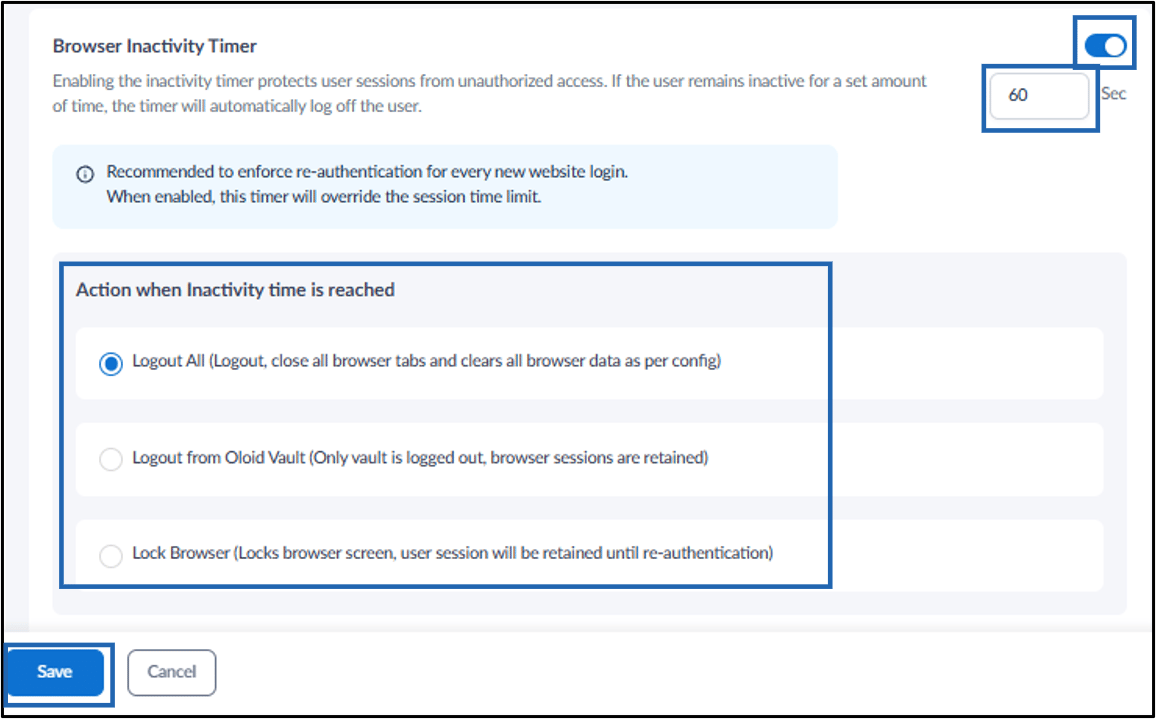
- Enable Browser Inactivity Timer toggle.
-
Enter the inactivity duration in seconds.
Note: It is recommended to configure the inactivity timer to enforce re-authentication for each new website login. When enabled, the timer overrides the session time limit.
-
In Action when Inactivity time is reached section, select one of the following:
- Logout All: Logs out the user, closes all browser tabs, and clears browser data according to the configured browser settings.
Sample Screen: If Logout All is Selected.

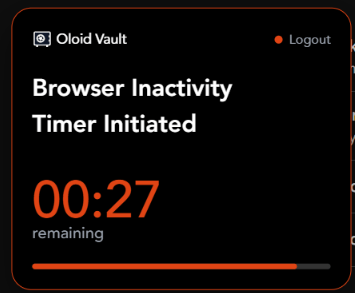
- Logout from Oloid Vault: Logs out the user from Oloid Vault while retaining the existing browser sessions.
Sample Screen: If Logout from Oloid Vault is Selected.
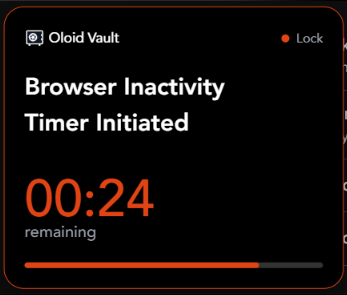
- Lock Browser: Locks the browser and retains the user session until the user re-authenticates.
Sample Screen: If Lock Browser is Selected.
- Logout All: Logs out the user, closes all browser tabs, and clears browser data according to the configured browser settings.
Sample Screen: If Logout All is Selected.
-
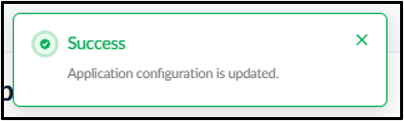
Click Save.