

- Log in to the Oloid Portal.
- On the Applications page, click on the Chrome Vault application to edit.

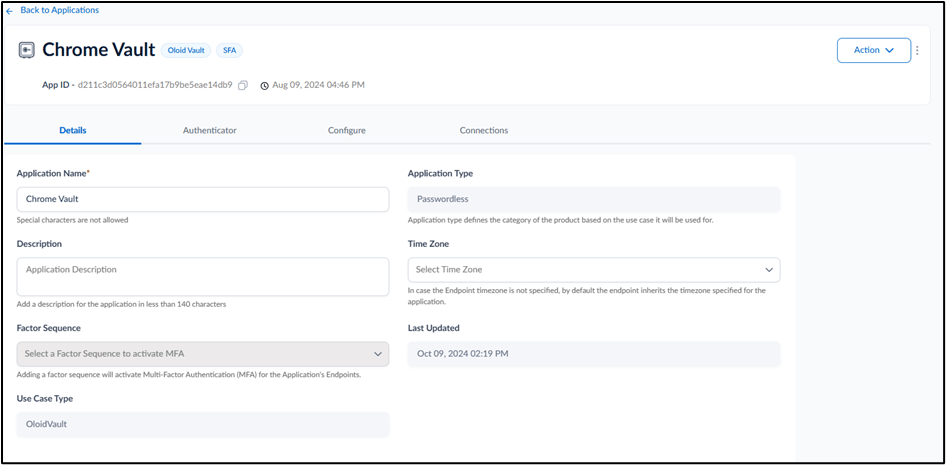
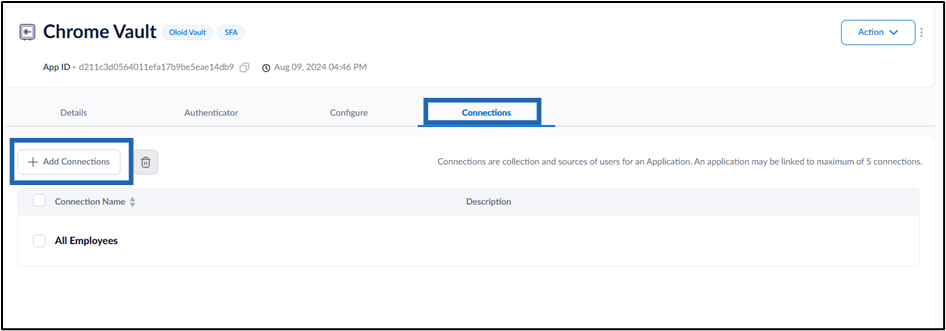
- Go to Connections tab > Select + Add Connections.
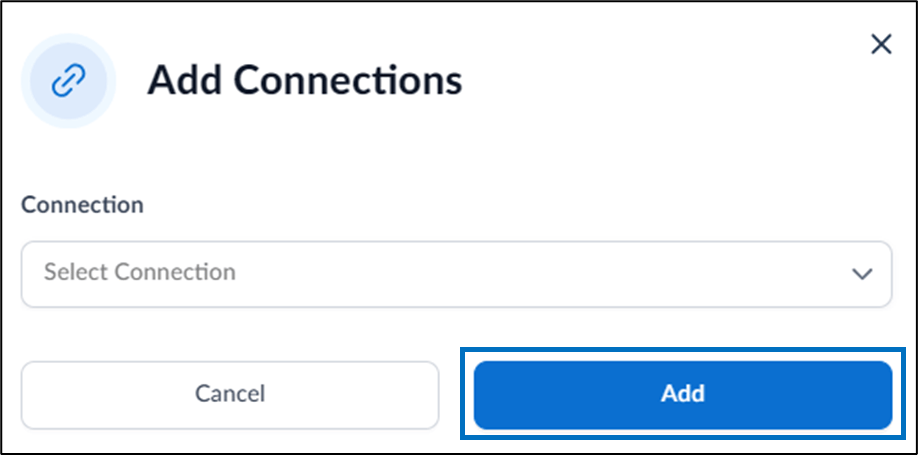
- On the Add Connections pop-up box, select connection name(s) from the Select Connection dropdown list and click Add.
How to edit Connections tab in Chrome Vault Application
This document provides step-by-step instructions to edit Connections tab in Chrome Vault Application.
Pre-requisite:
You must create a Passwordless application of type Chrome Vault. For further details, refer How to create How to create and configure Chrome Vault application
Steps to edit Connections tab:
⌘I