

Introduction
This feature of Oloid Connect app allows the Tenant Admin/Supervisor to create shared credential using the app. To create shared credential:- Tap Actions on the menu at the bottom of the screen.
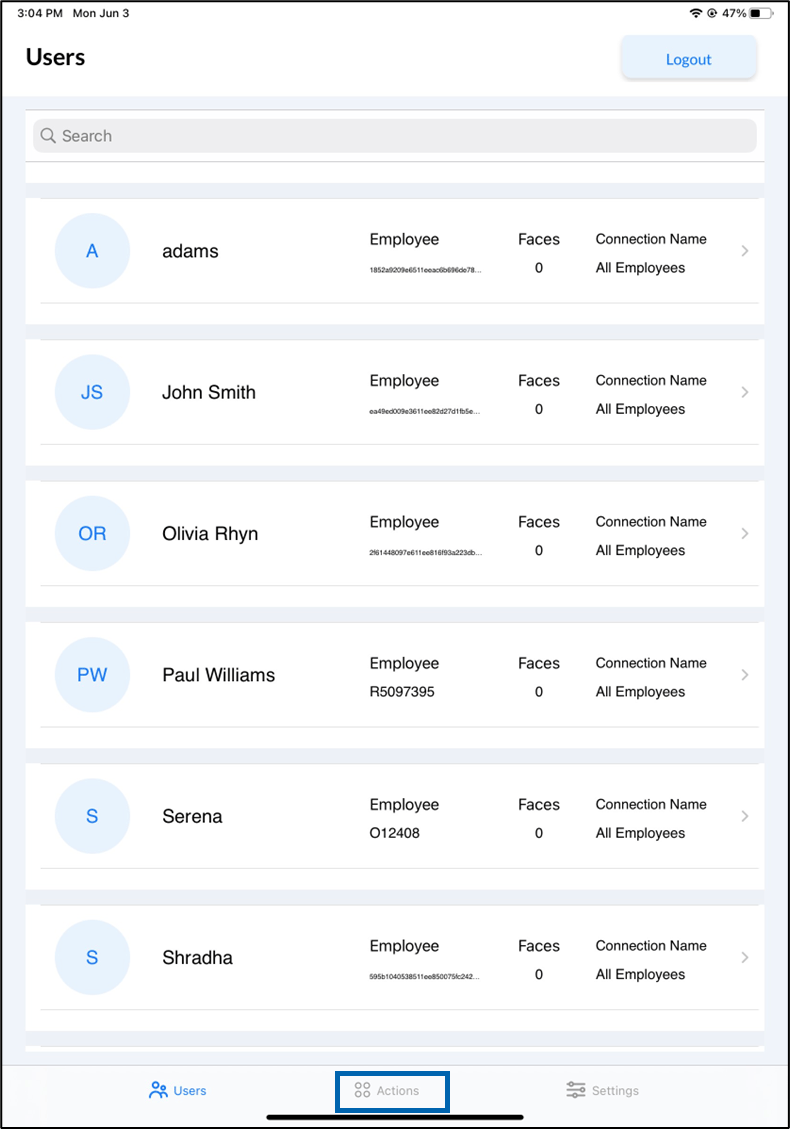

- Select Shared Credentials. The Shared Credential screen is displayed.
- Select Create Credentials.
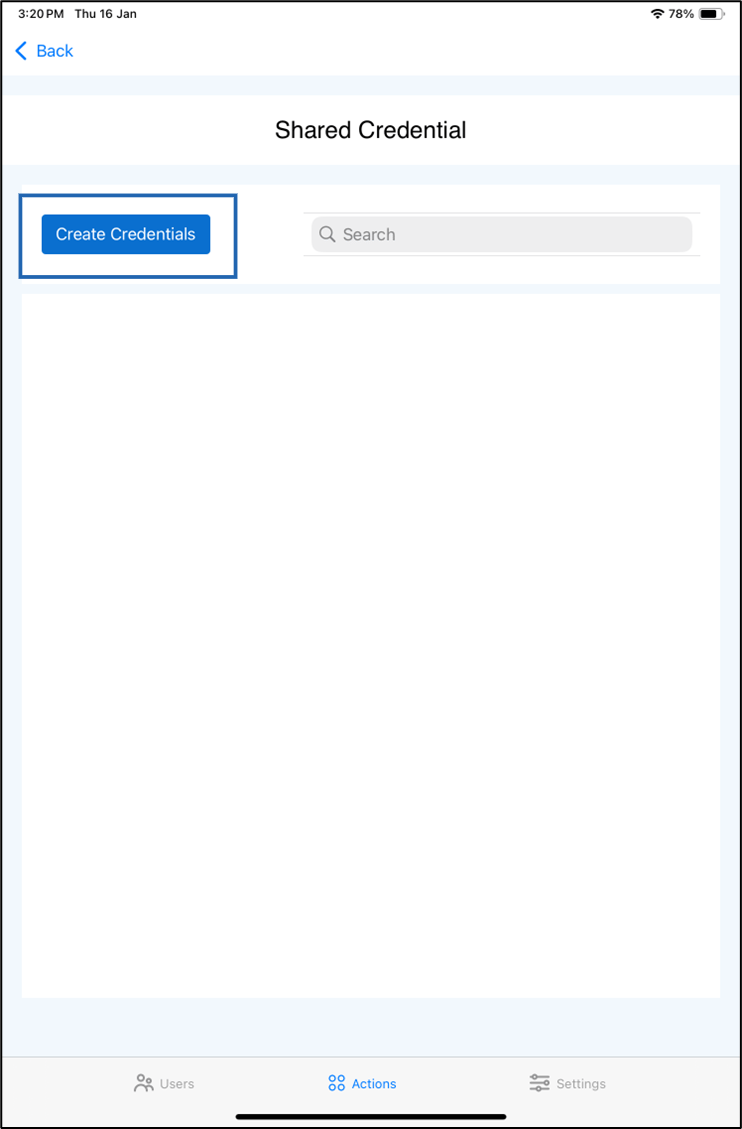
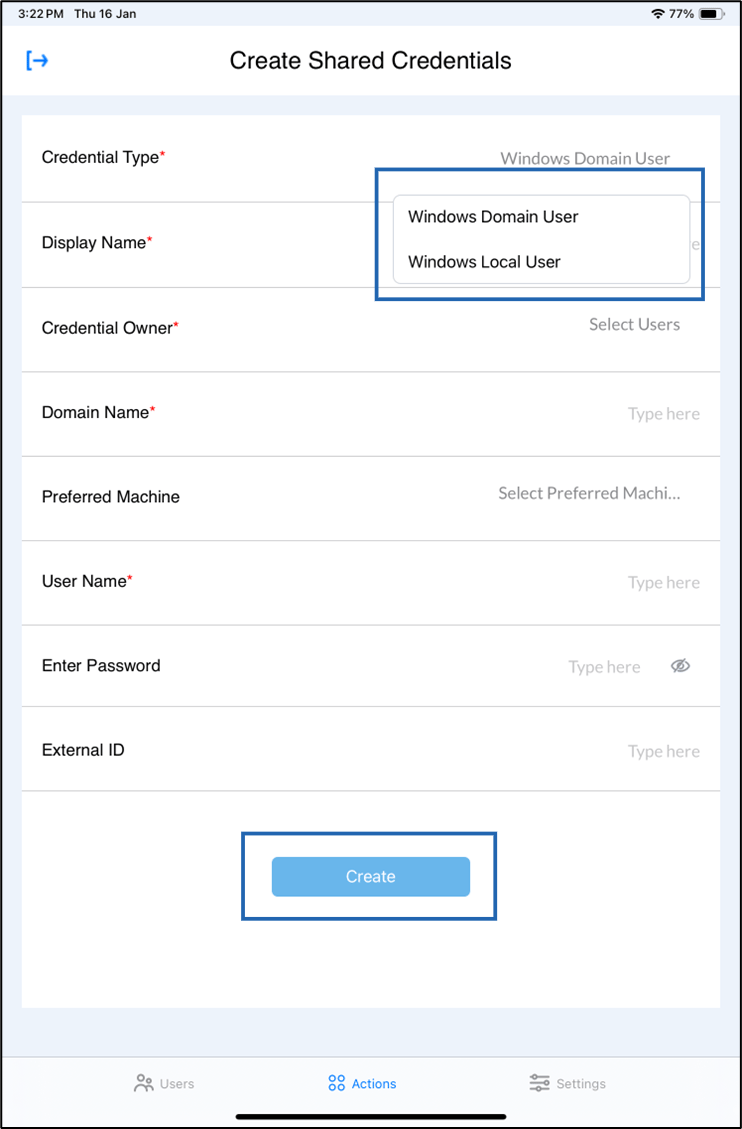
- Do any of the following
- Tap Create. The Shared Credential is created and list under Shared Credential tab
Windows Domain User Credential
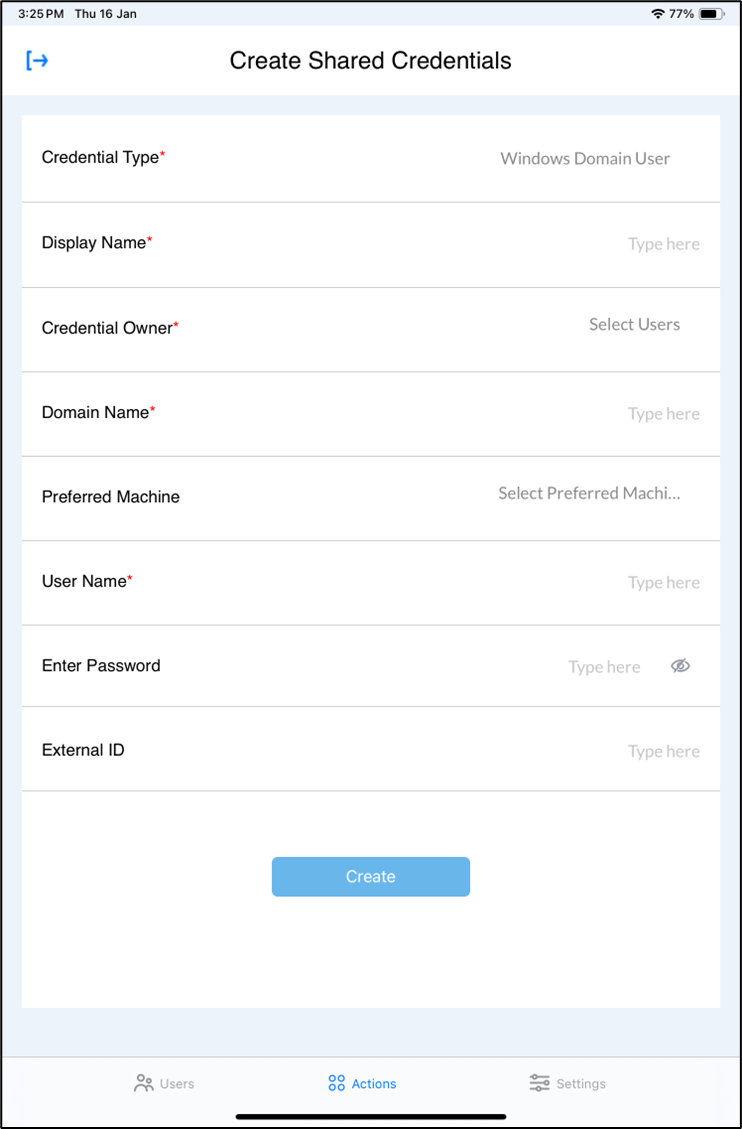
- Select Windows Domain User in Credential Type.
- Enter Display Name.
- Select Credential Owner from the list.
- Enter Domain Name.
- Select Preferred Machine(s) from the list. (Optional)
- Enter User Name for the account.
- Enter Password. (Optional)
- Enter External ID. (Optional)
- Tap Create.
Windows Local User Credential
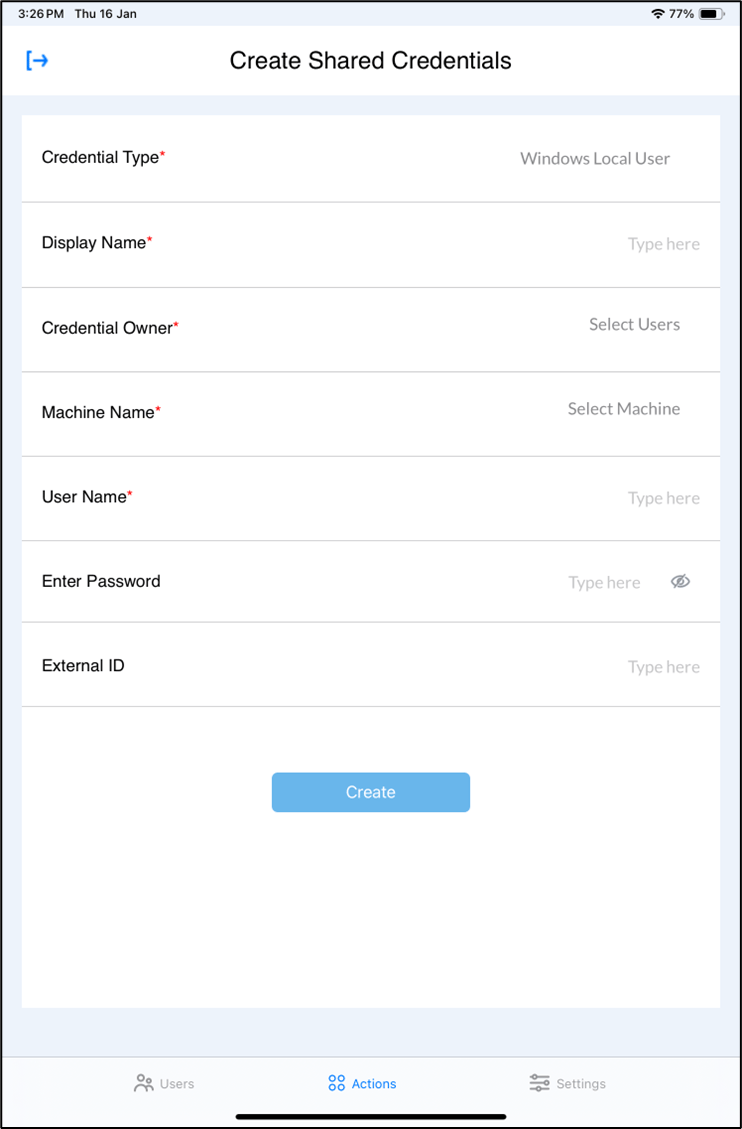
- Select Windows Local User in Credential Type.
- Enter Display Name.
- Select Credential Owner from the Users’ list.
- Select Machine Name.
- Enter User Name for the account.
- Enter Password. (Optional)
- Enter External ID. (Optional)
- Tap Create.