Pre-requisite
- The user should be added in the Oloid portal.
- Endpoint should be configured.
- Launch the Windows Login app.
-
On the home page of the app, enter the registered login credentials.
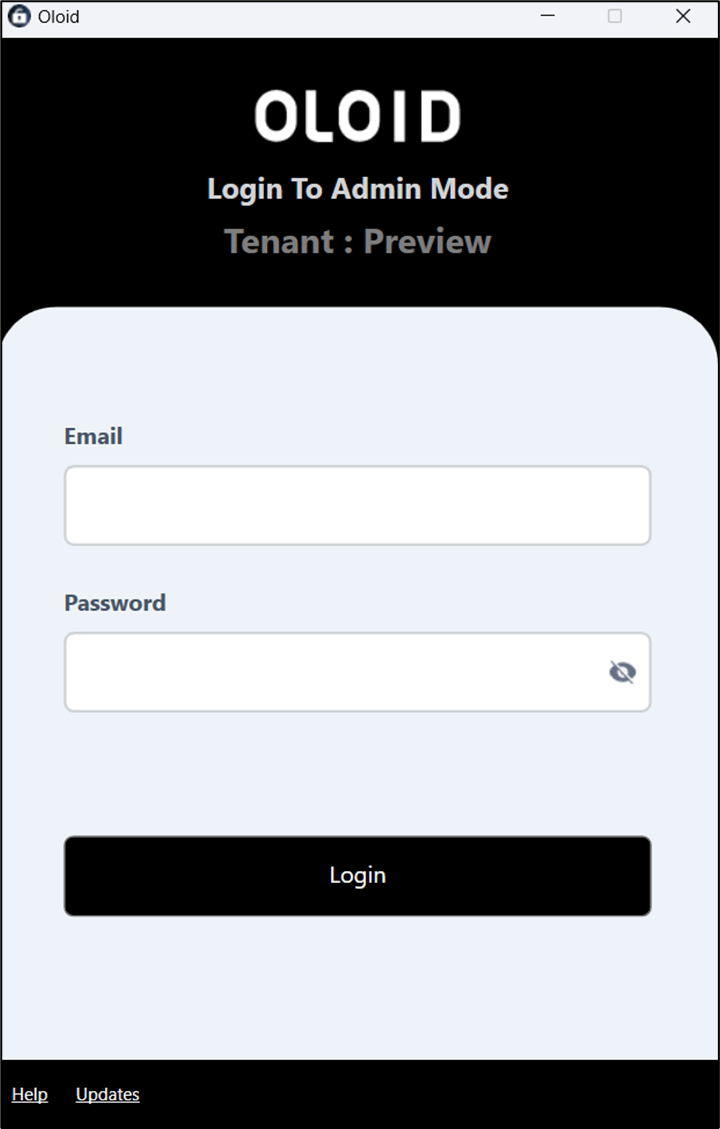
- Click Login. The paired endpoint details are displayed.
-
Select Enroll Badge.

-
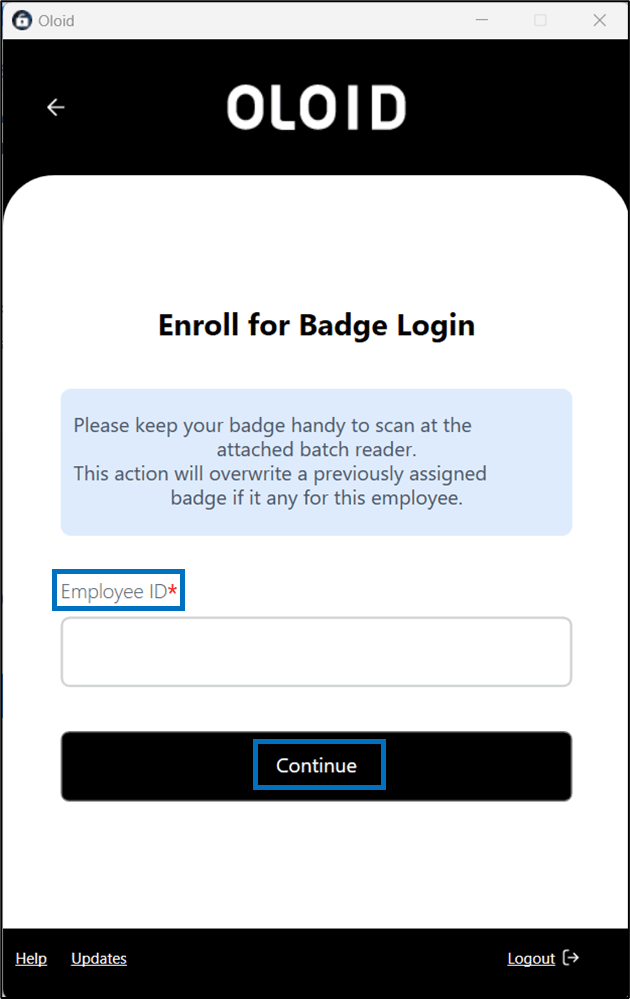
Enter the Employee ID and click Continue.
Note: Employee ID is the Primary ID of the user in the Oloid Portal.
-
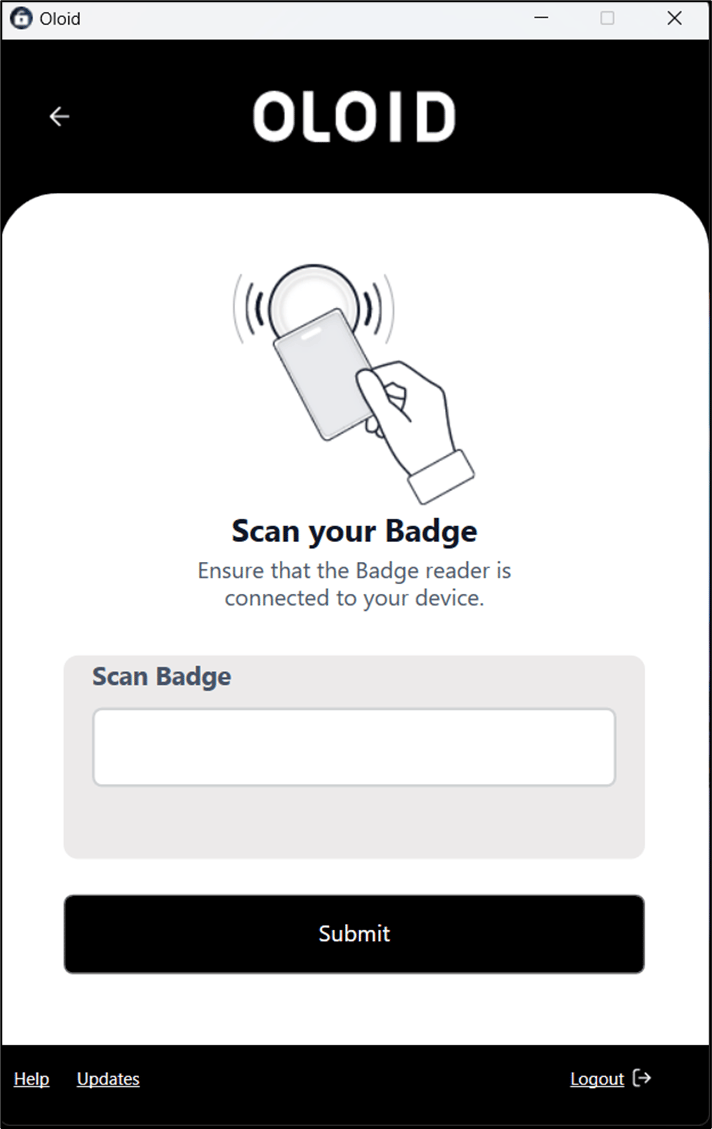
Scan your badge in the Badge Reader.
The scanned badge number is auto-populated on the Scan Badge field.

-
Click Submit.
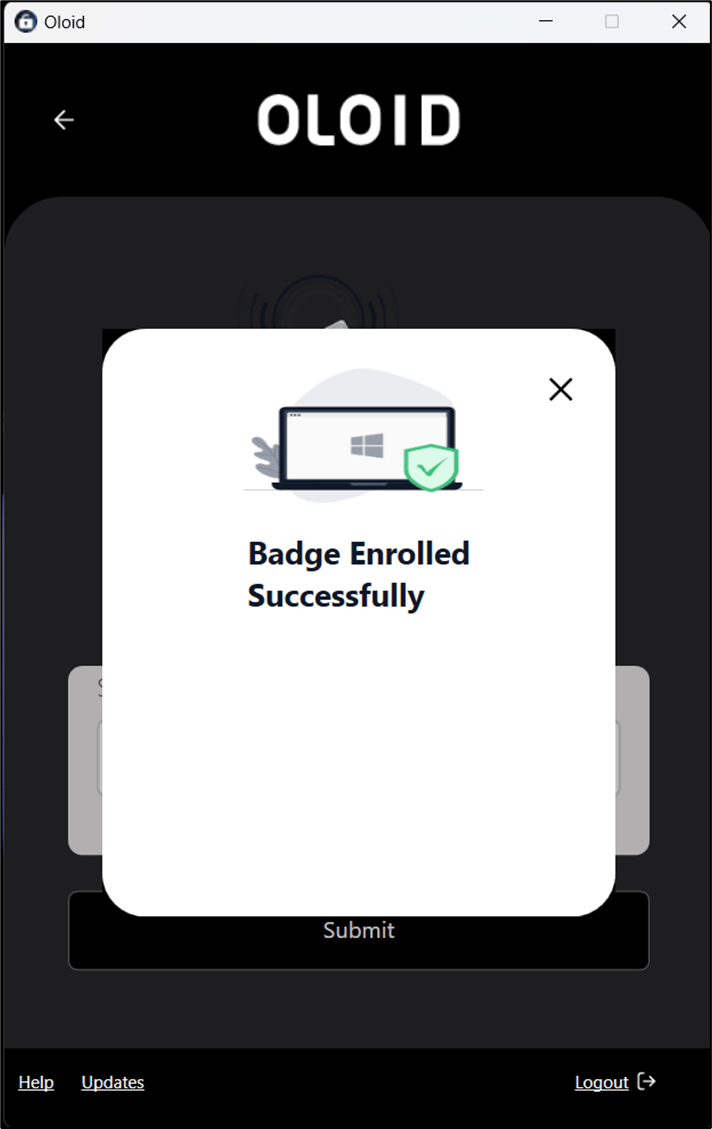
The badge is enrolled successfully.