

- Download Windows Device Login installer files
- Complete the Windows Device Login Setup by installing the files
- Configure Windows Device with Tenant
- Pair Windows Device Login endpoint
- Enroll Badge
How to download Windows Device Login installer files
To install Windows Device Login you need to download and install the following from the Oloid portal:- .Net SDK
- C++ Redistributable
- Oloid Windows Device Login
- Log in to the Oloid Portal.
- On the homepage of the portal, click User profile icon on the bottom left corner of the menu panel.

- Select File Sharing.
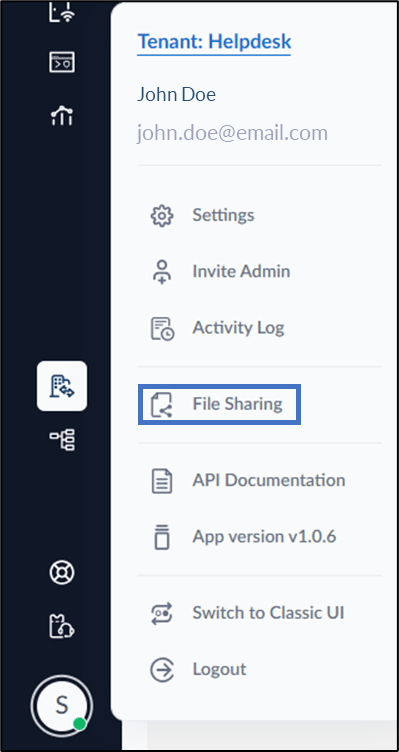
- Do the following:
- Select .Net SDK file to download.

- Select Microsoft Visual C++ redistributable file to download.
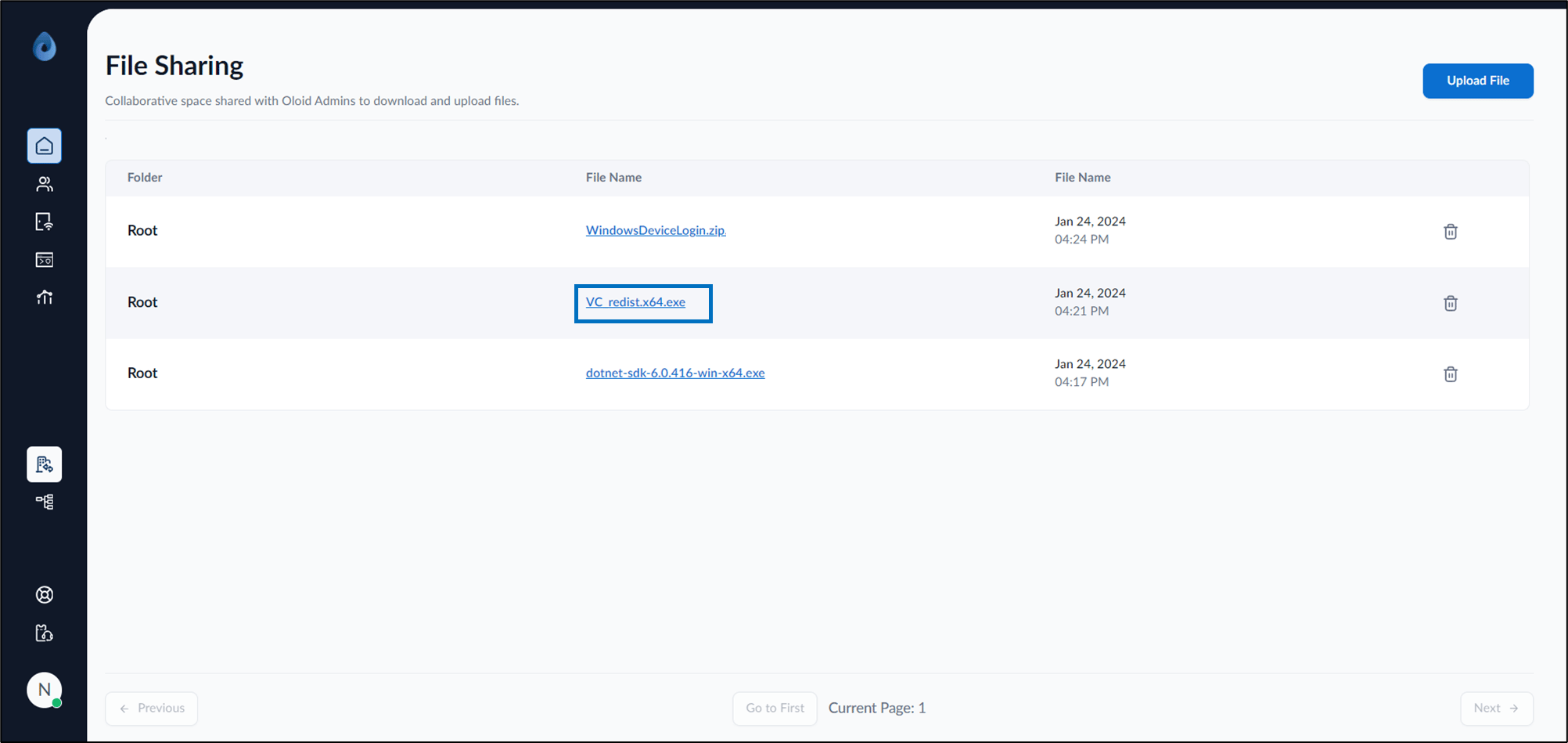
- Select WindowsDeviceLogin.zip to download.
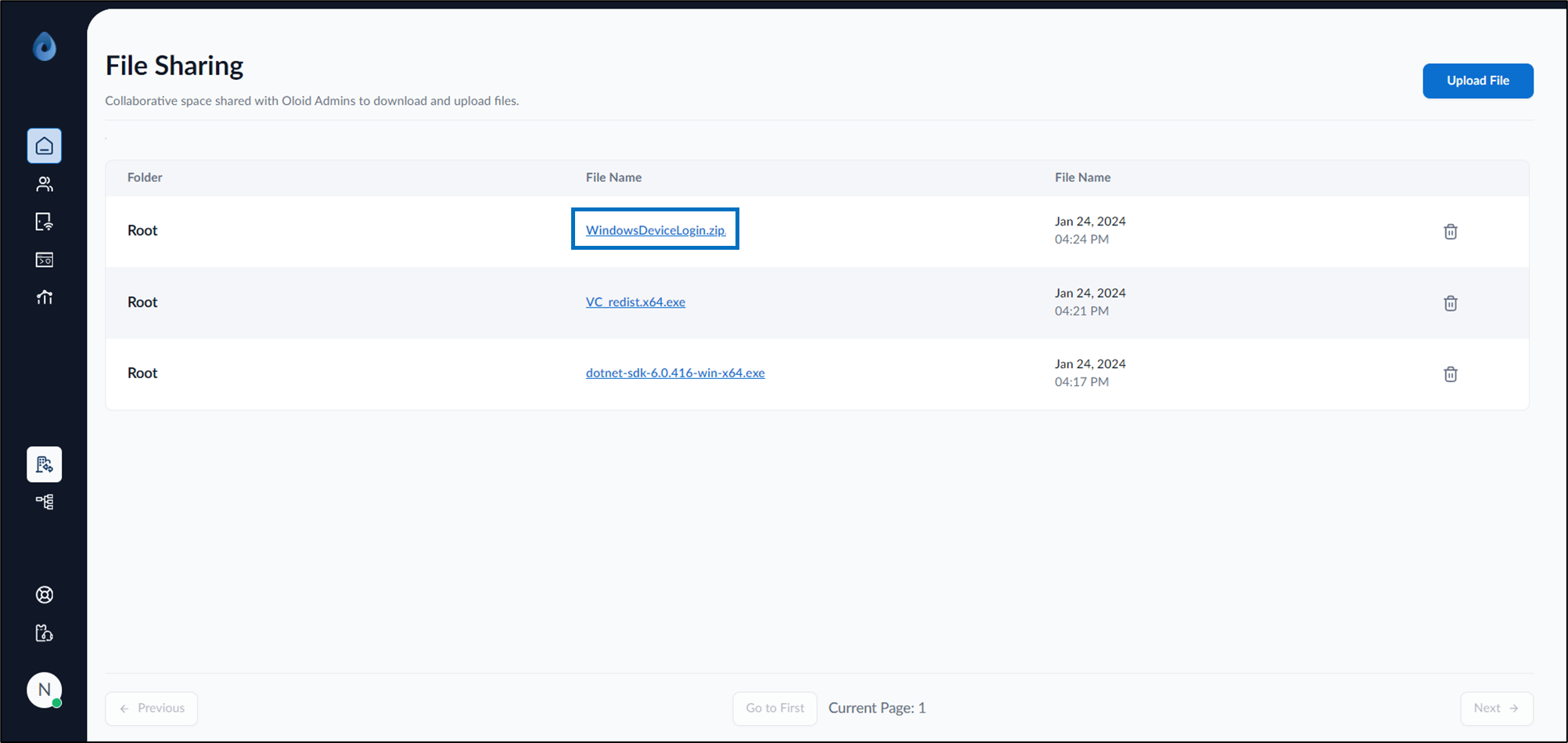
- Select .Net SDK file to download.
Windows Device Login Setup
Applications to be installed
- .Net SDK (prerequisite)
- C++ Redistributable (prerequisite)
- Oloid Windows Device Login
Installation Procedure
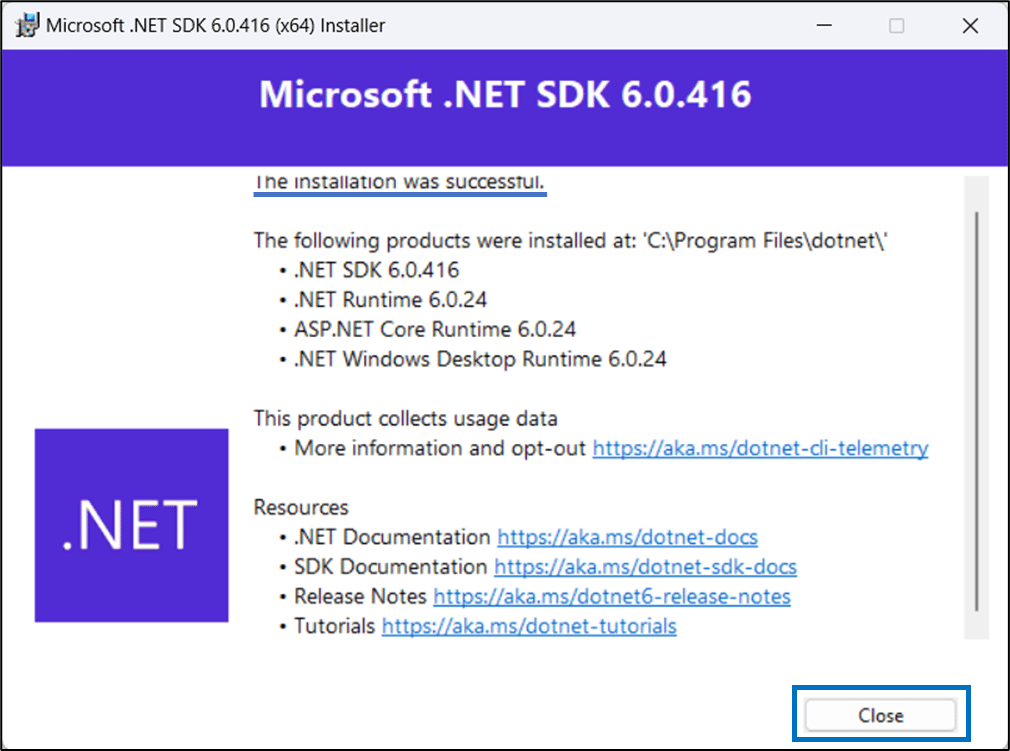
Steps to install .Net SDK
- Download the dotnet-sdk-6.0.416-win-x64 file on your system.
- Click dotnet-sdk-6.0.416-win-x64 file to open.
- Click Install.
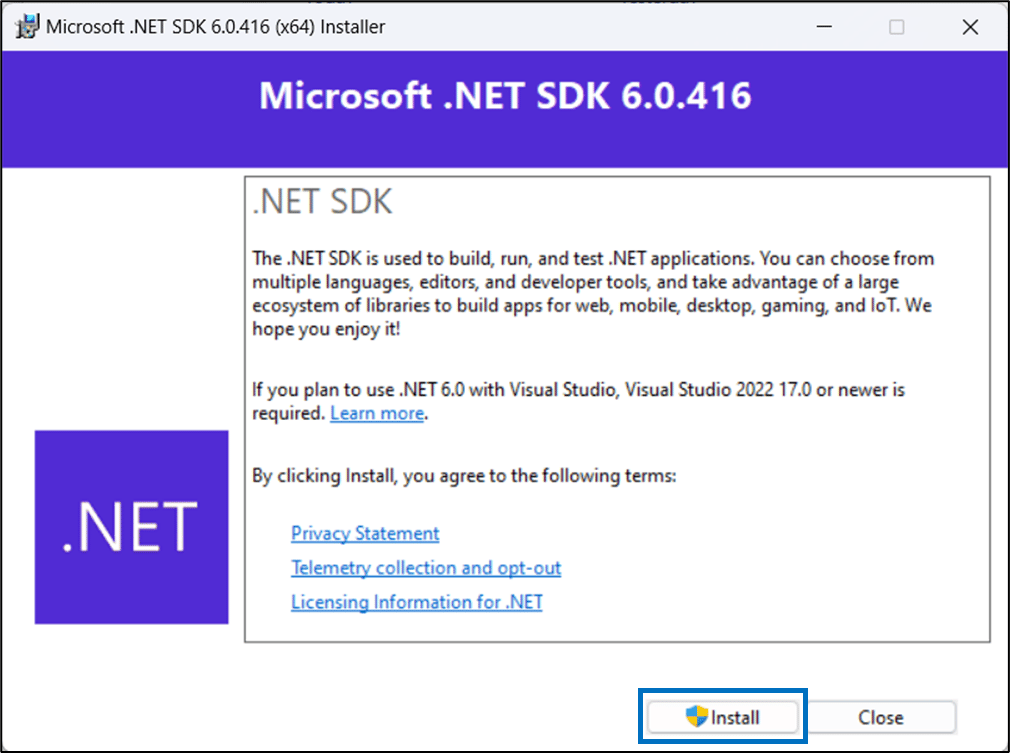

- On successful installation, click Close.
Steps to install Microsoft Visual C++ Redistributable
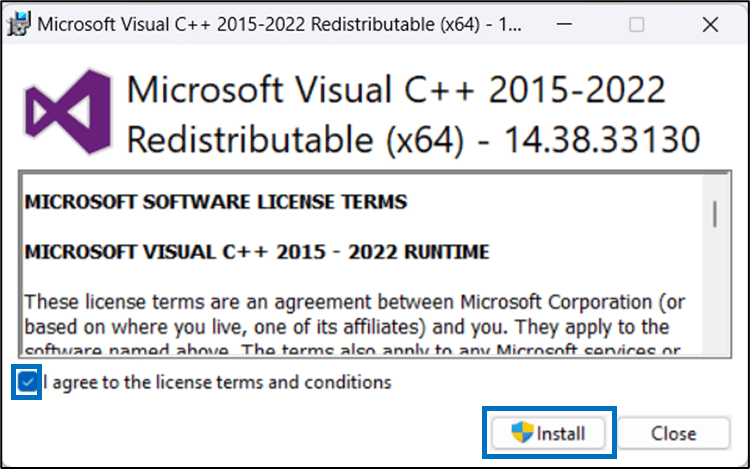
- Download the VC_redist.x64 file on your system.
- Click VC_redist.x64 file to open.
-
Select the license agreement checkbox and click Install.
The installation begins.
-
On successful installation, restart your system.
 Note: You must install the Windows installer file before restarting your system.
Steps to install Windows Installer file
- Download the WindowsDeviceLogin.zip file on your system.
- After the download is complete, unzip the WindowsDeviceLogin folder, and right-click to select Extract All.
- Select OloidPasswordlessAdmin.Setup and run it to install the application.
- On the OloidPasswordlessAdmin Setup wizard, click Next.

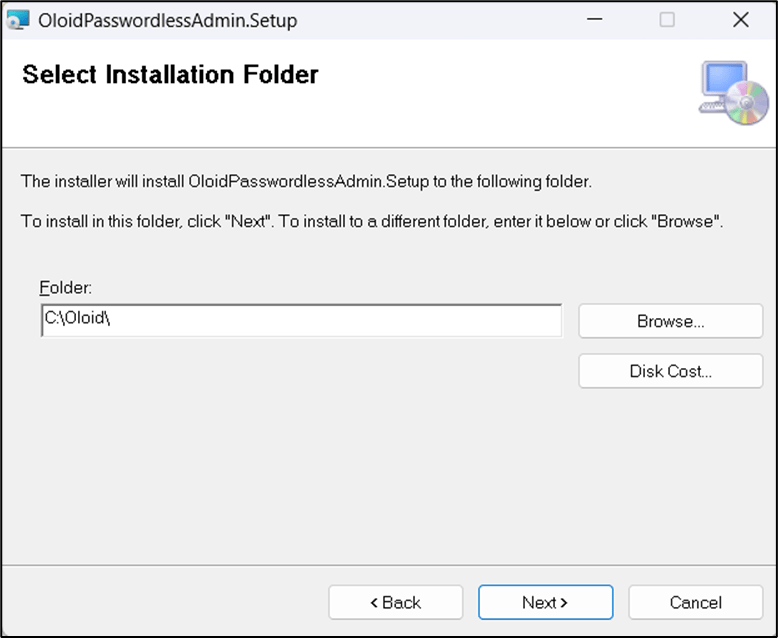
- Use the default path to install the application and click Next.
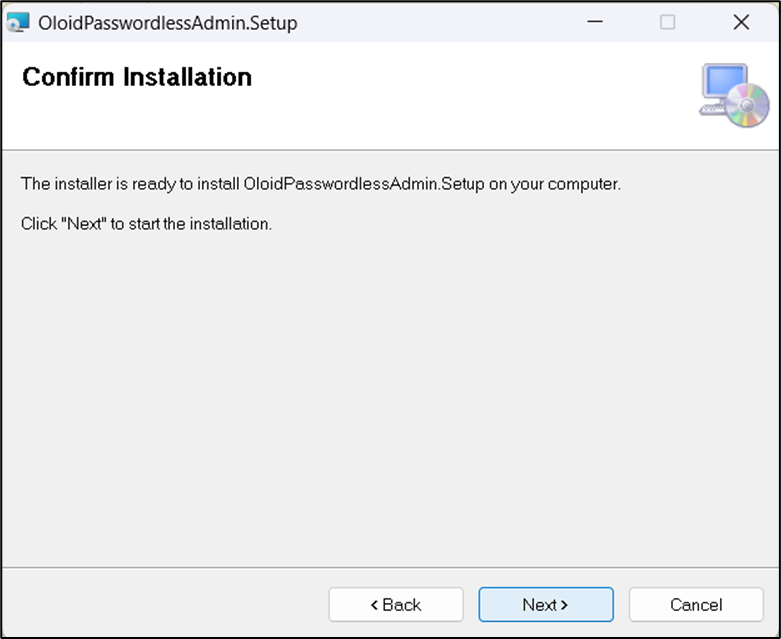
- Click Next to confirm the installation.
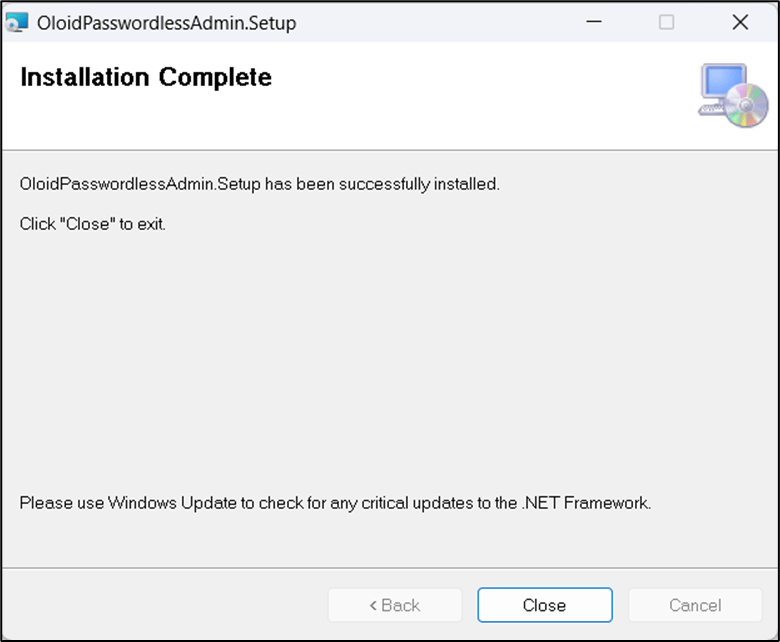
- Click Close after the installation is complete.
Configuring Windows Device app with Tenant
Steps to configure Windows Device app
- Double-click on the Windows Device app to open.
The Welcome page is displayed.
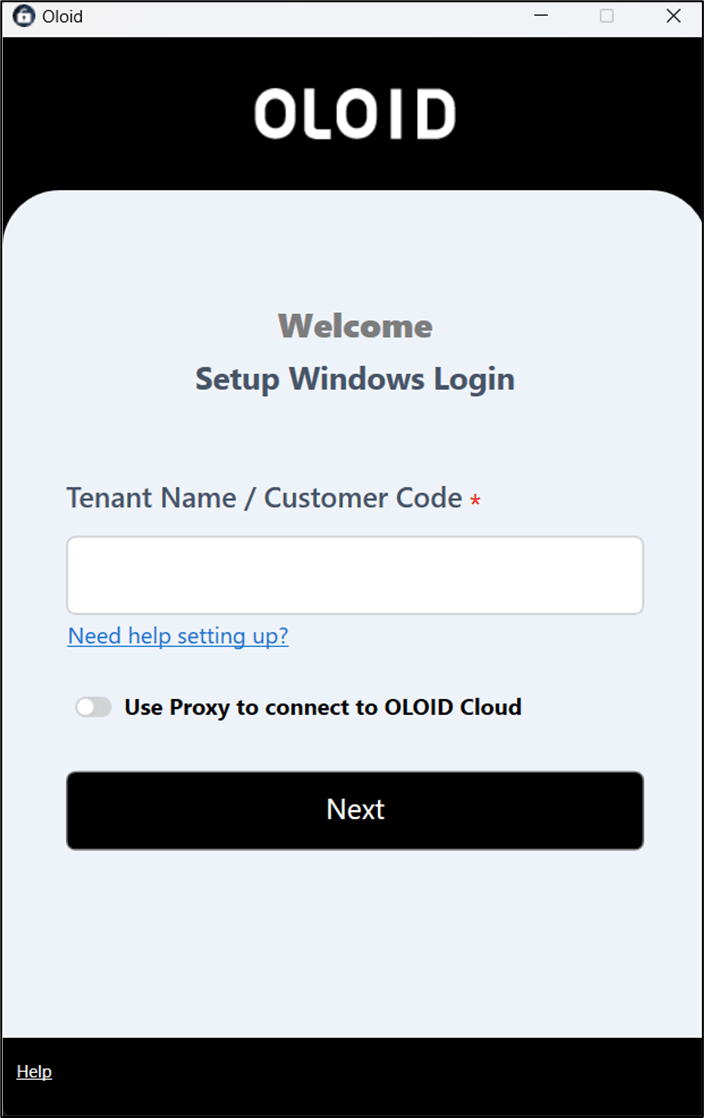
- Enter tenant name in the Tenant Name / Customer Code field.
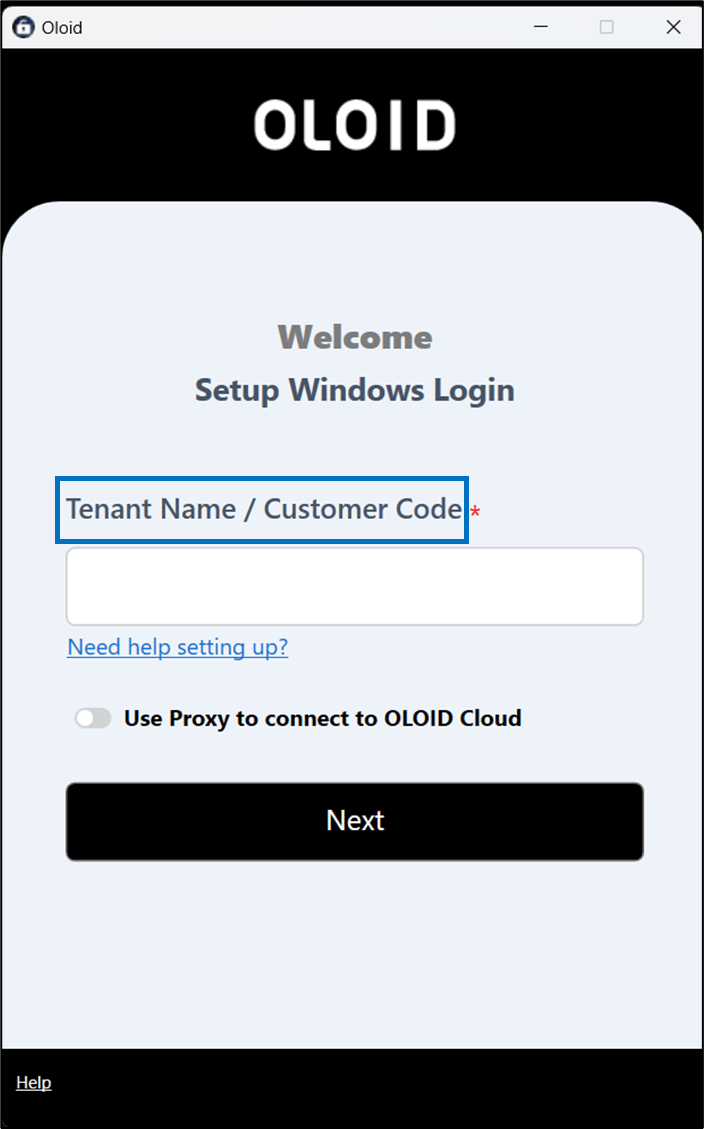
- Click Next.
If the tenant name is available in different environments then Select Environment page is displayed.
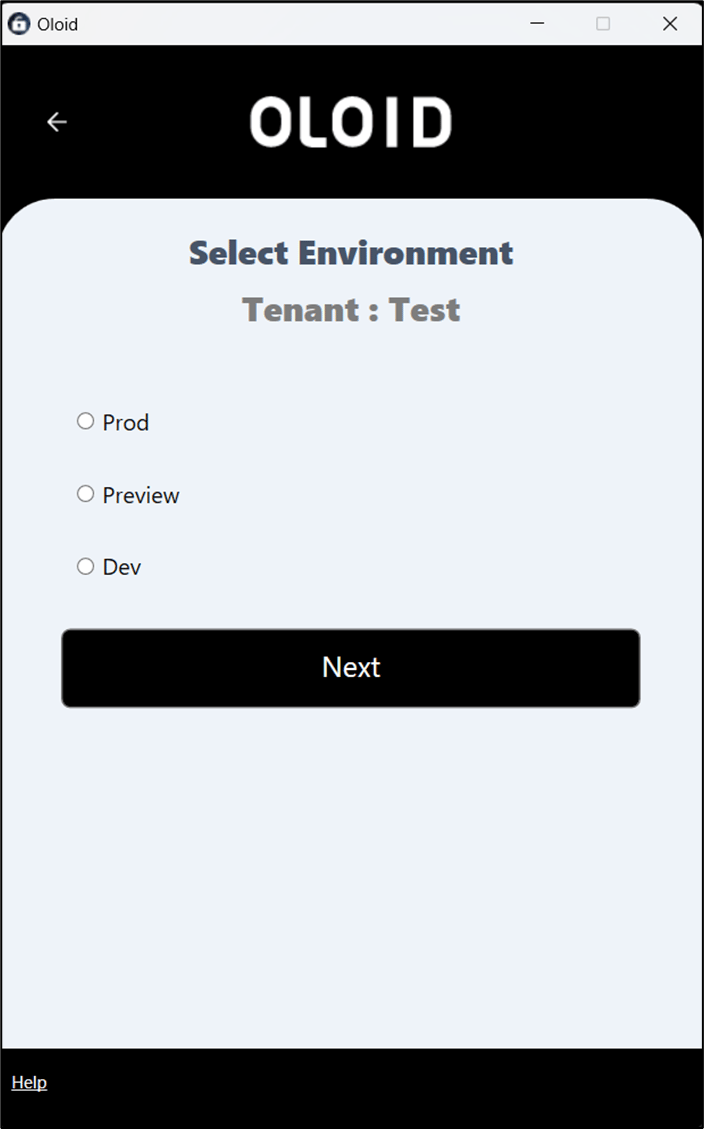
- Select an environment and click Next.

How to pair Windows Device endpoint
There are three ways to pair windows device. You may choose any of the following three methods:- Share code with Tenant Admin (Coming Soon) Reach out to Oloid support for more details
- Pair device using Config file
- Pair as Supervisor
Pair device using Config file
Pre-requisite
You must download the config file of the preferred endpoint from the Oloid Portal. For details, refer How to download endpoint config file for Windows Login?To pair an endpoint
- Double-click on the Oloid Windows Device Login App to start. The Pair Endpoint page is displayed.
- Select Pair Device Using Config File.

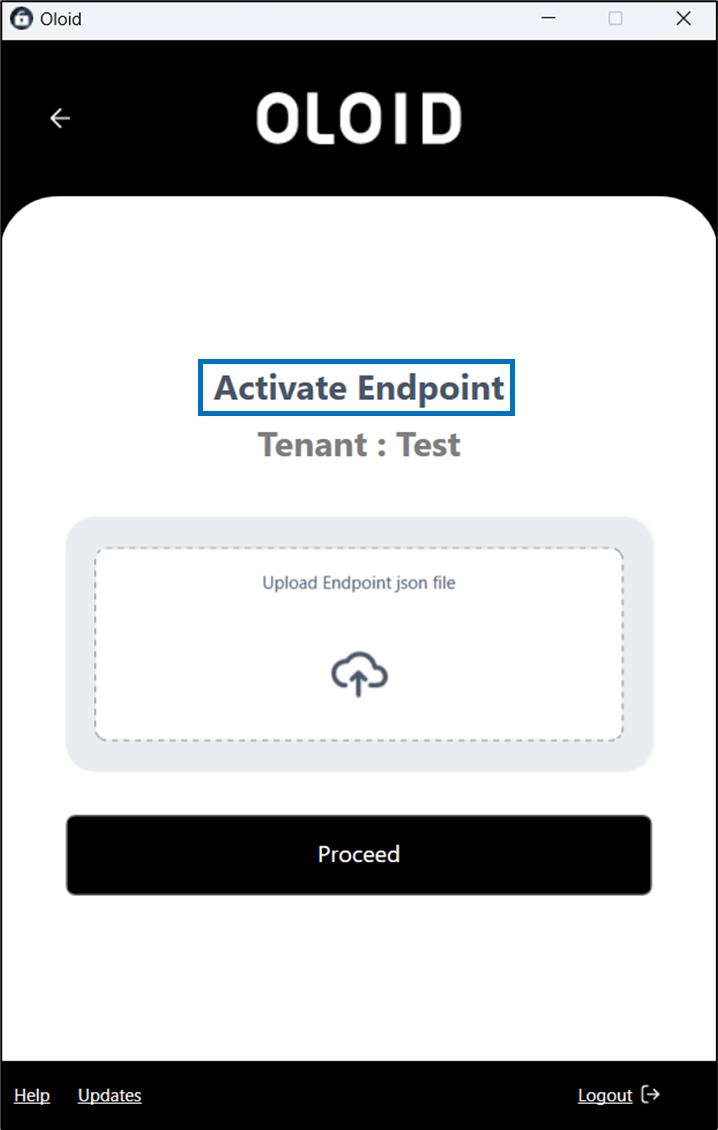
- Click to upload the endpoint json file.
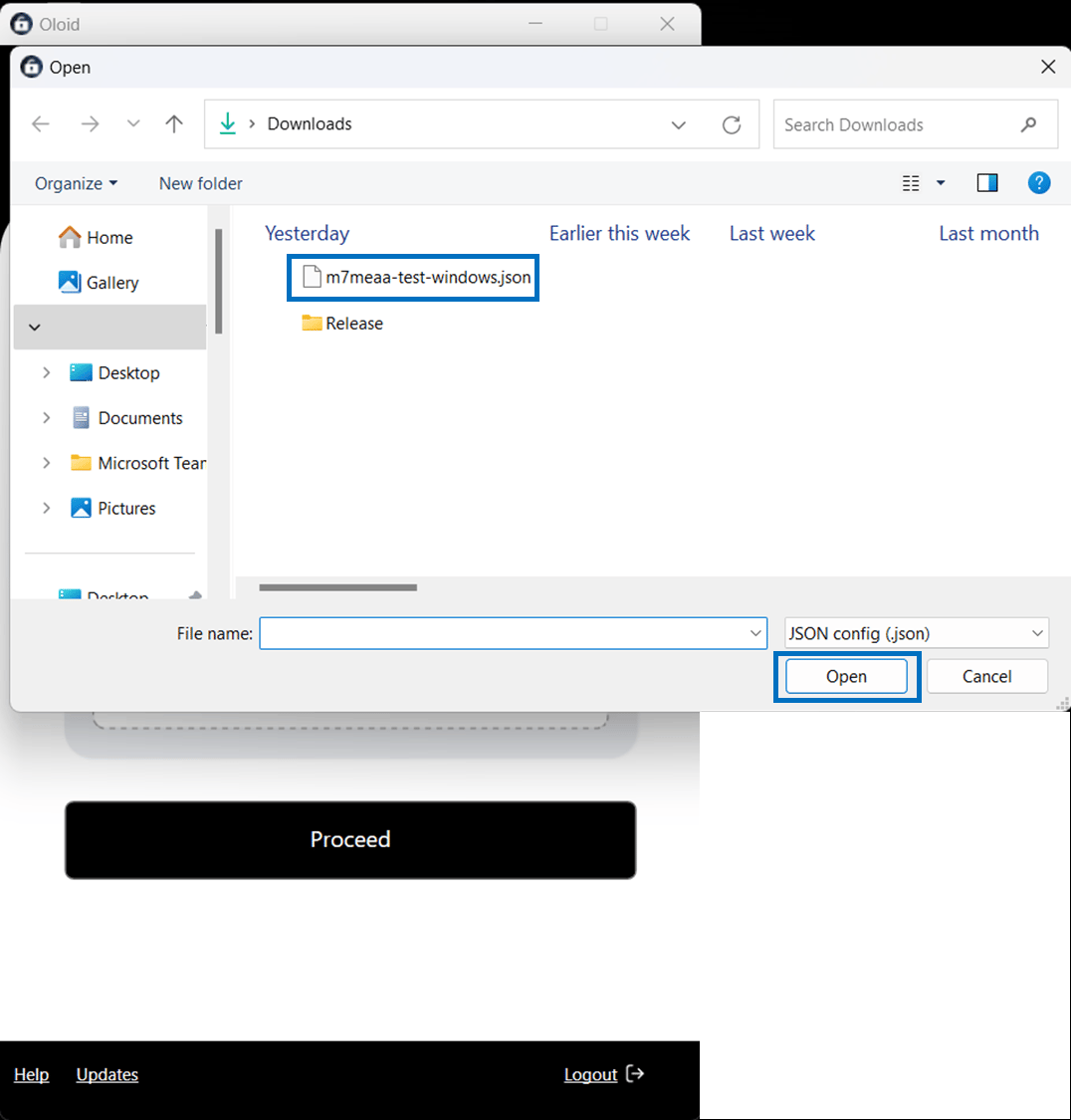
- Select the json file you want to upload and click Open.
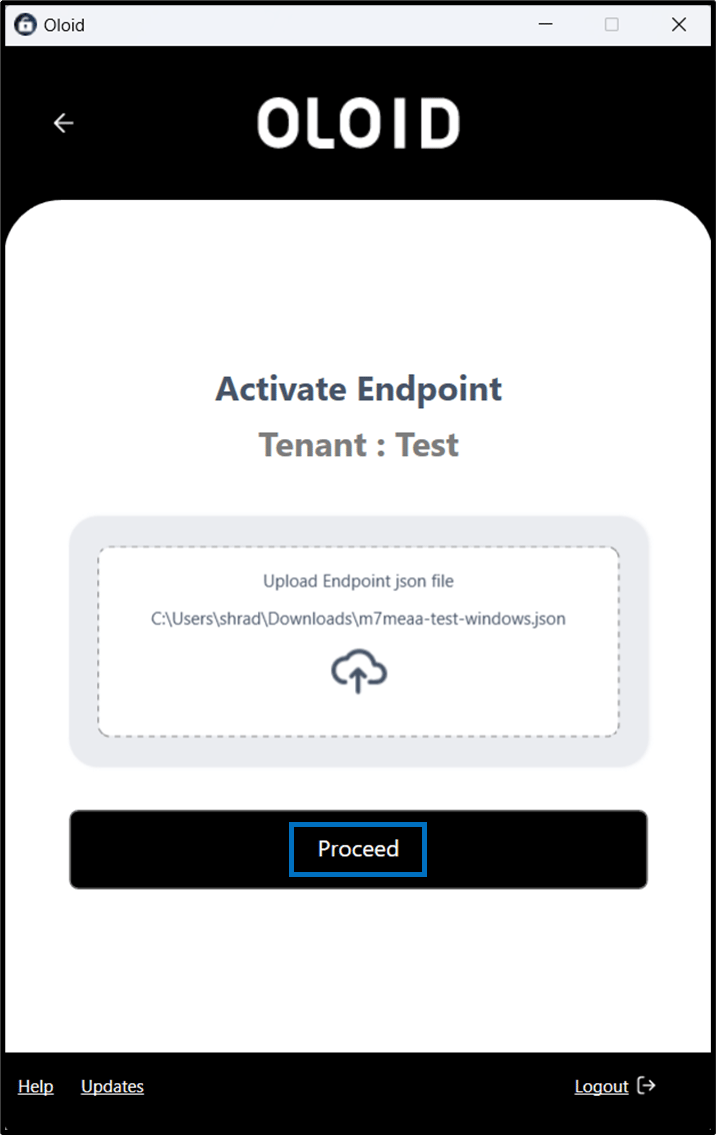
- Select Proceed.
- The Endpoint Name is auto-populated.

- Select Publish.
The endpoint is paired successfully.

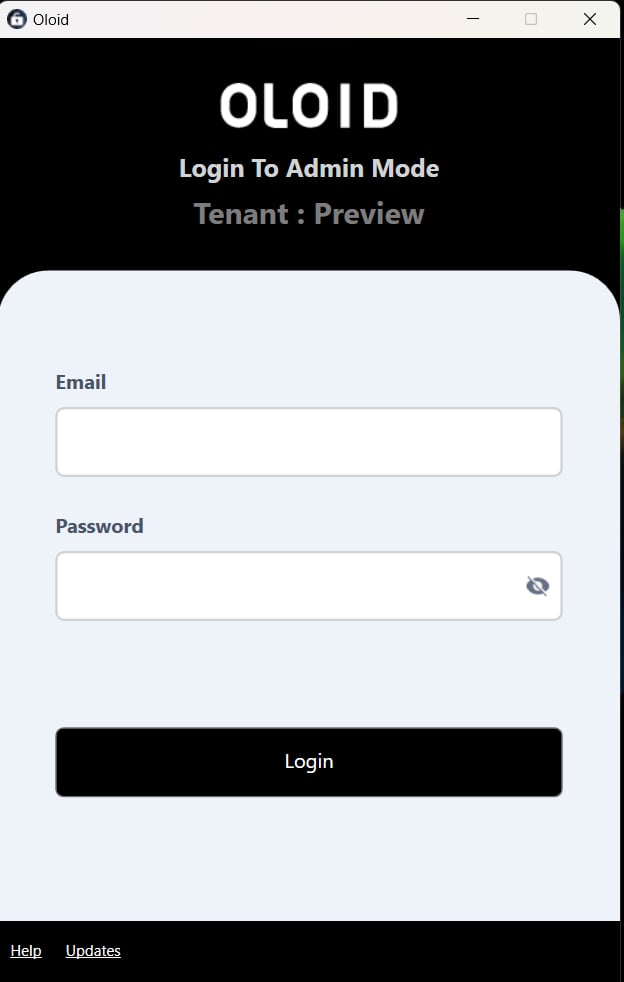
Pair as Supervisor
To pair an endpoint
- Double-click on the Oloid Windows Device App to start. The Pair Endpoint page is displayed.
- Select Pair as Supervisor.


- Log in with admin / supervisor credentials.
The Activate This Device page is displayed.
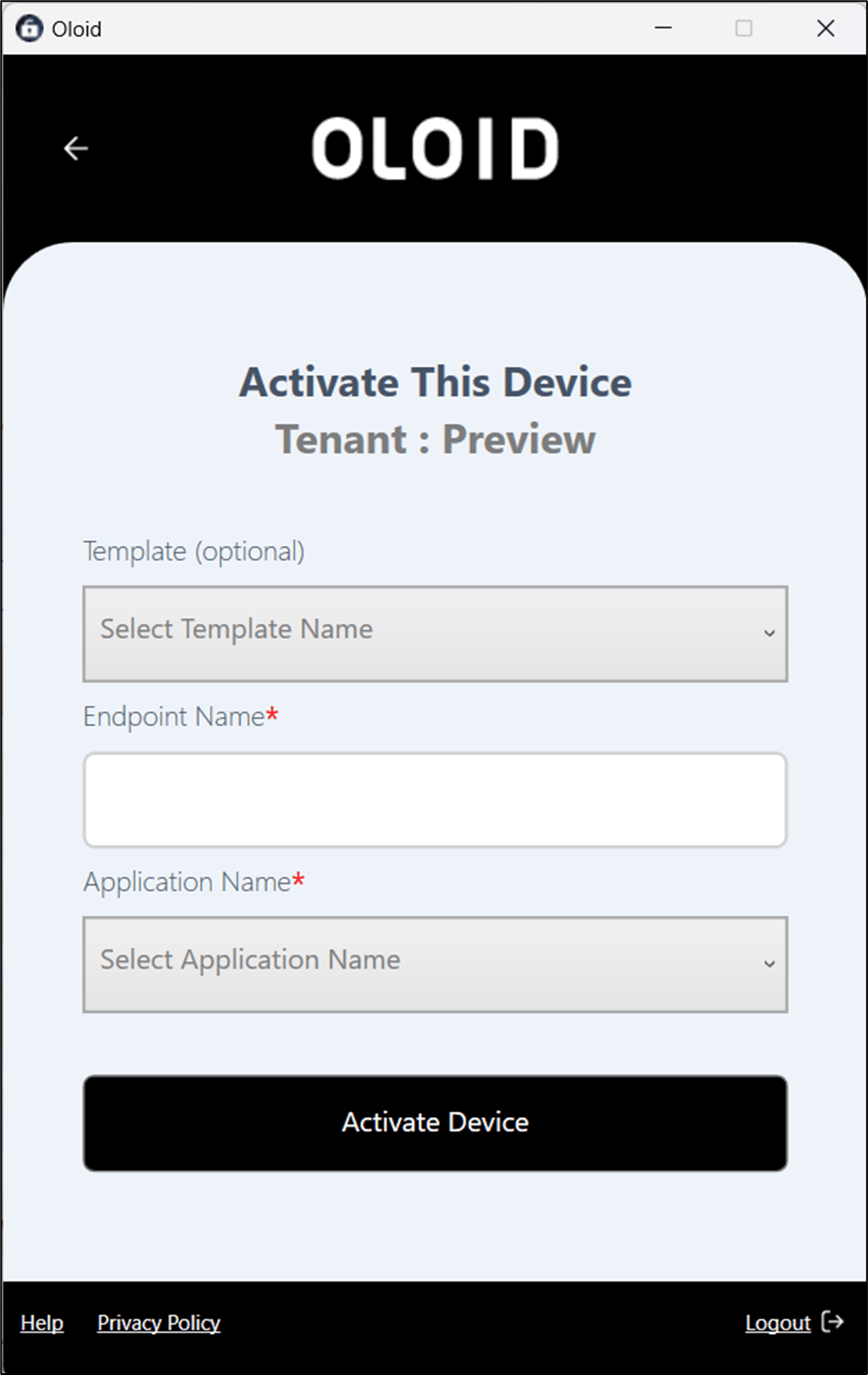
- Do the following:
- Enter Template name. (Optional)
- Enter Endpoint Name.
- Select Application Name from the dropdown list.
- Select Activate Device. The Windows Device app is configured as an endpoint and ready for use.
How to enroll badge as credential using Windows Device Login App?
Pre-requisite
- The user should be added in the Oloid portal.
- Endpoint should be configured.
- Launch the Windows Device app.
-
On the Login To Admin Mode page of the app, enter the admin/supervisor login credentials.
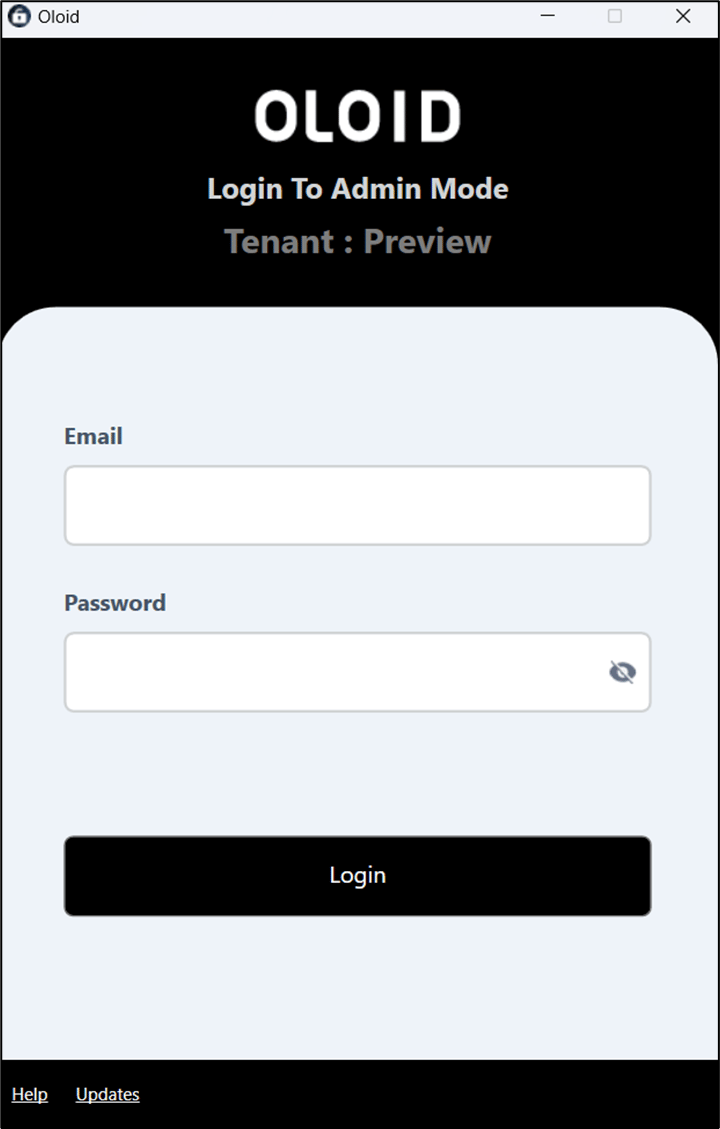
- Click Login. The paired endpoint details are displayed.
-
Select Enroll Badge.
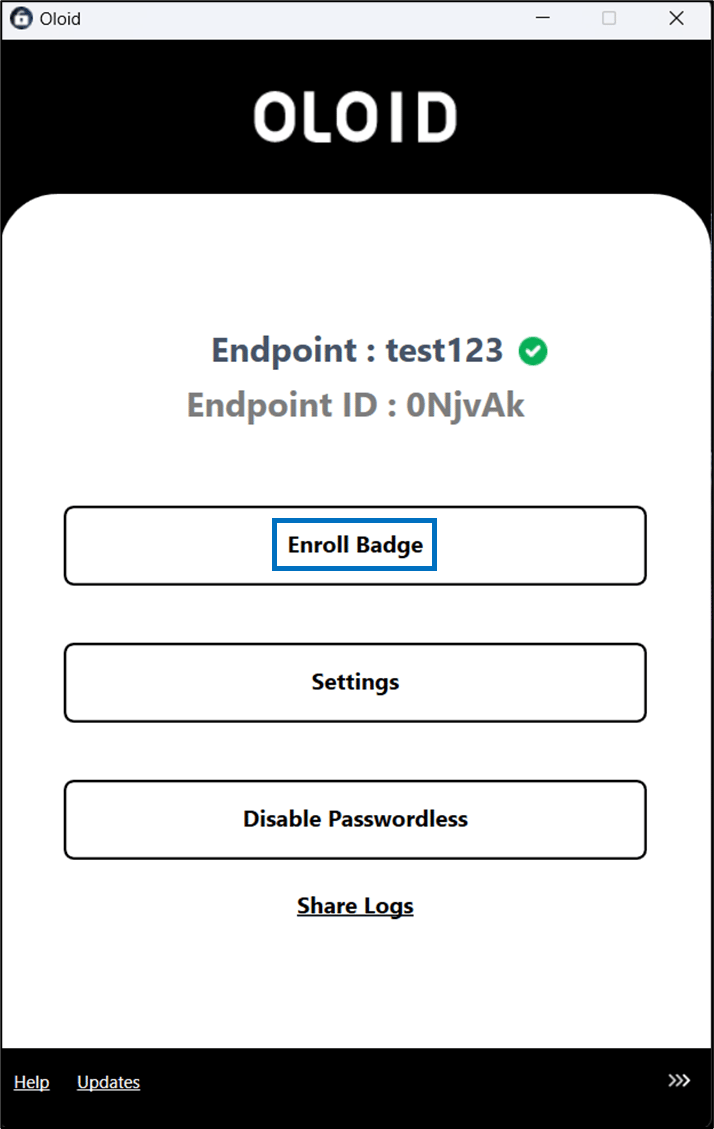
-
Enter the Employee ID and click Continue.
Note: Employee ID is the Primary ID of the user in the Oloid Portal.
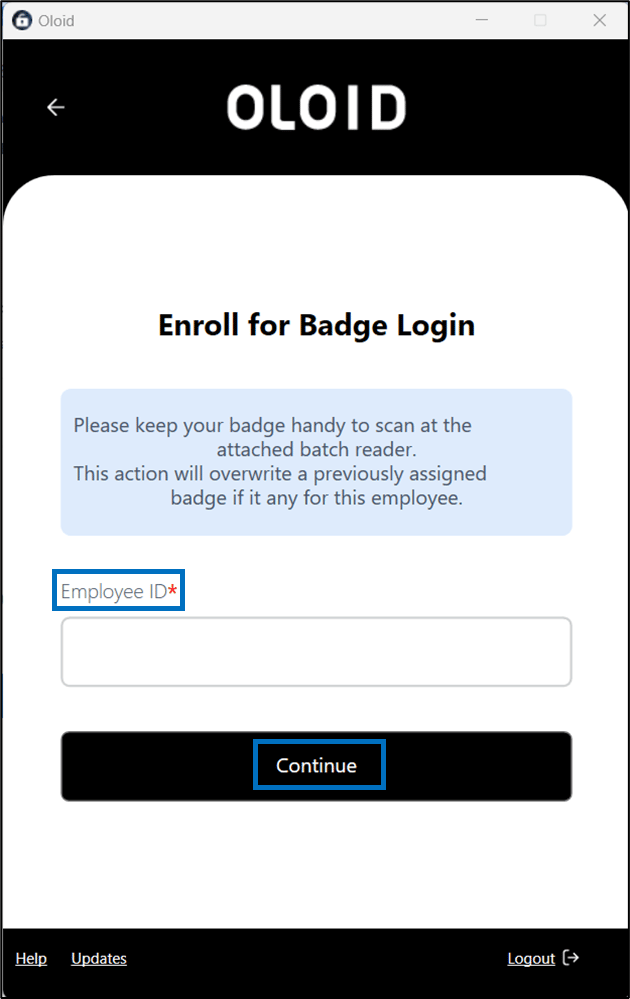

-
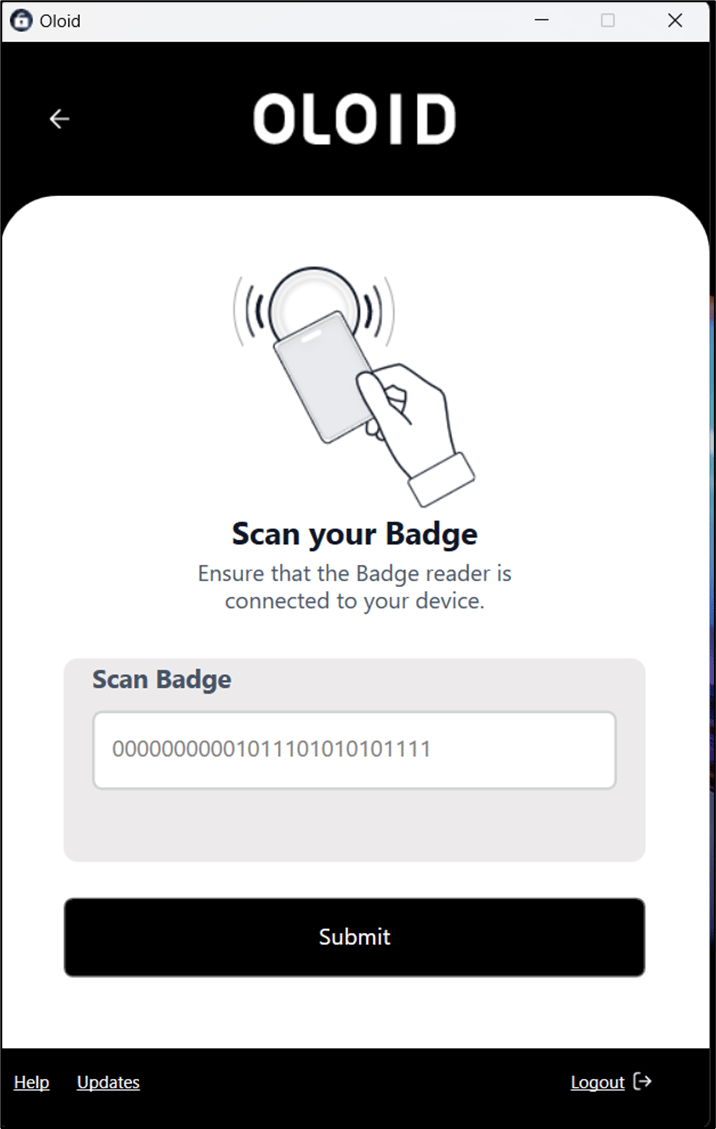
Scan your badge in the Badge Reader.
The scanned badge number is auto-populated on the Scan Badge field.
-
Click Submit.
The badge is enrolled successfully.
