Introduction
This document explains how to onboard a Face credential using Okta Single Sign-On (SSO) with Custom URL. It guides you through the login process using Okta and the steps required to access the Face Credential page.Prerequisites
- Ensure that the Custom URL is available.
- Ensure that valid Okta user credentials are available.
Steps to Onboard Face using Okta SSO
-
Lauch the Custom URL.
Note: Refer to the following custom URL:
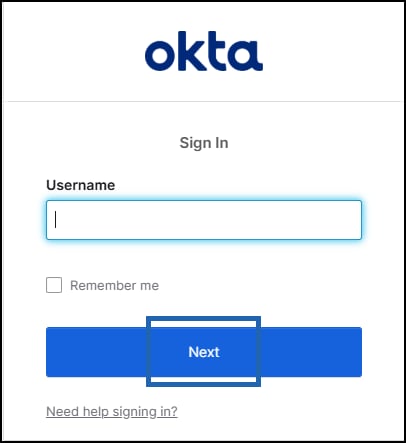
https://**tenantname.myoloid**.com/ssologin?sso=okta§ion=faceThe Okta Sign In screen is displayed. -
Enter Okta Username and click Next.
-
Enter Okta Password and click Sign In.

-
Click Submit Consent.
Note: Submit Consent is available only when consent is enabled.

-
Click Agree.

-
Click Add Face > Click Allow to provide camera permission if prompted.
Note: Steps 4 sand 5 applicable only when consent is enabled.

-
Position your face in front of the camera and tap the Capture button to enroll your face.
Note: If you do not tap the Capture button, the app automatically captures your face after a few seconds.

-
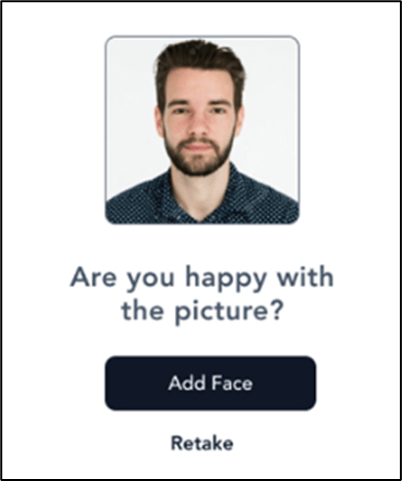
Do one of the following:
- Select Add Face to submit the image. The face is submitted successfully and is assigned as a face credential.
-
Select Retake to take your photo again.
The camera turns on to retake the photo.
Your face should be visible in the camera, or else it might get rejected. It is recommended to avoid wearing things that cover your facial features such as sunglasses, masks, headbands, etc.Note: You can add a maximum of five faces per user.