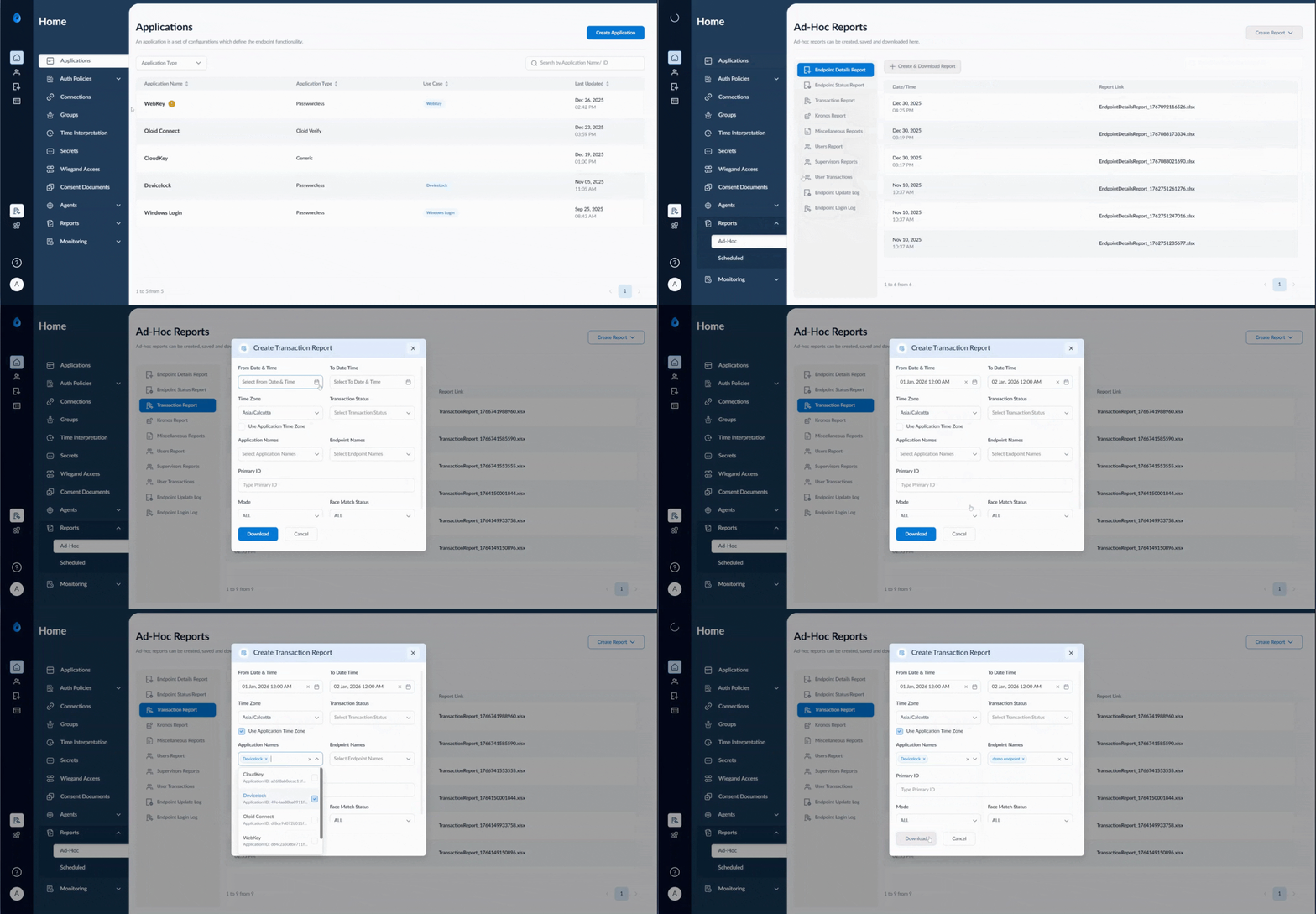
Steps to create transaction Ad-Hoc Report
- Log in to the Tenant Admin Portal.
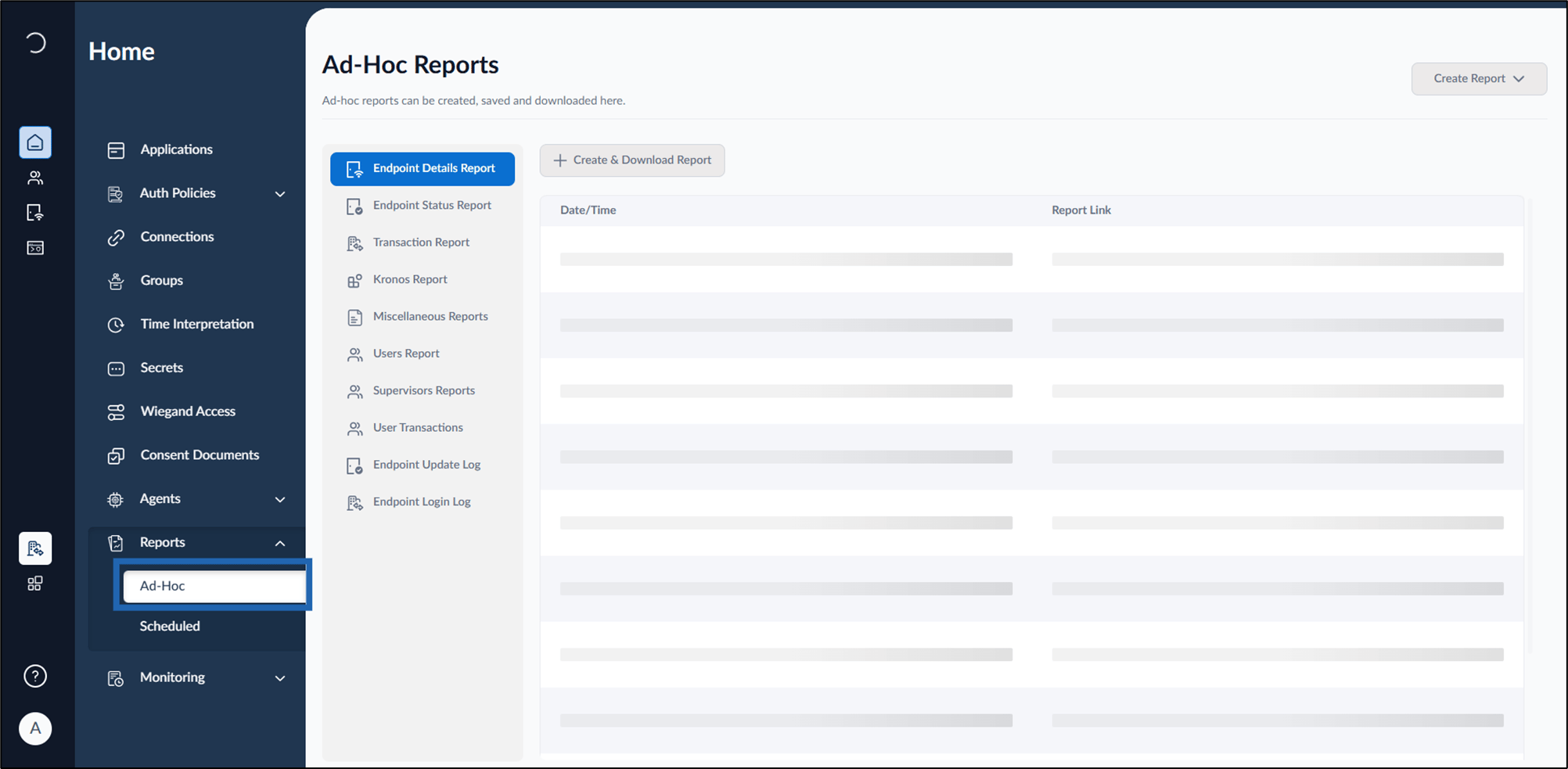
- Click Report from the left menu panel > click Ad-Hoc report.
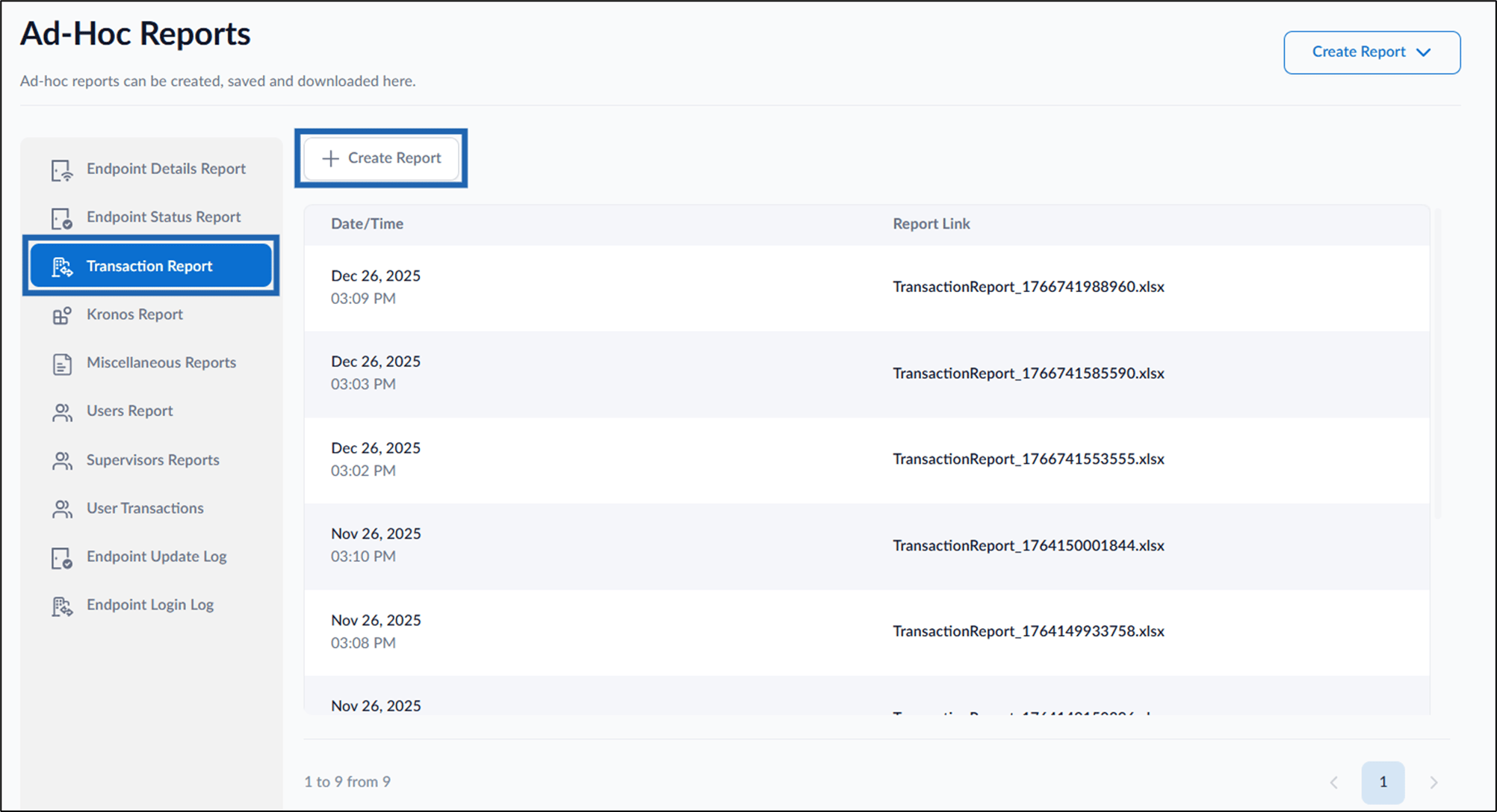
- Click transaction report > click create report.
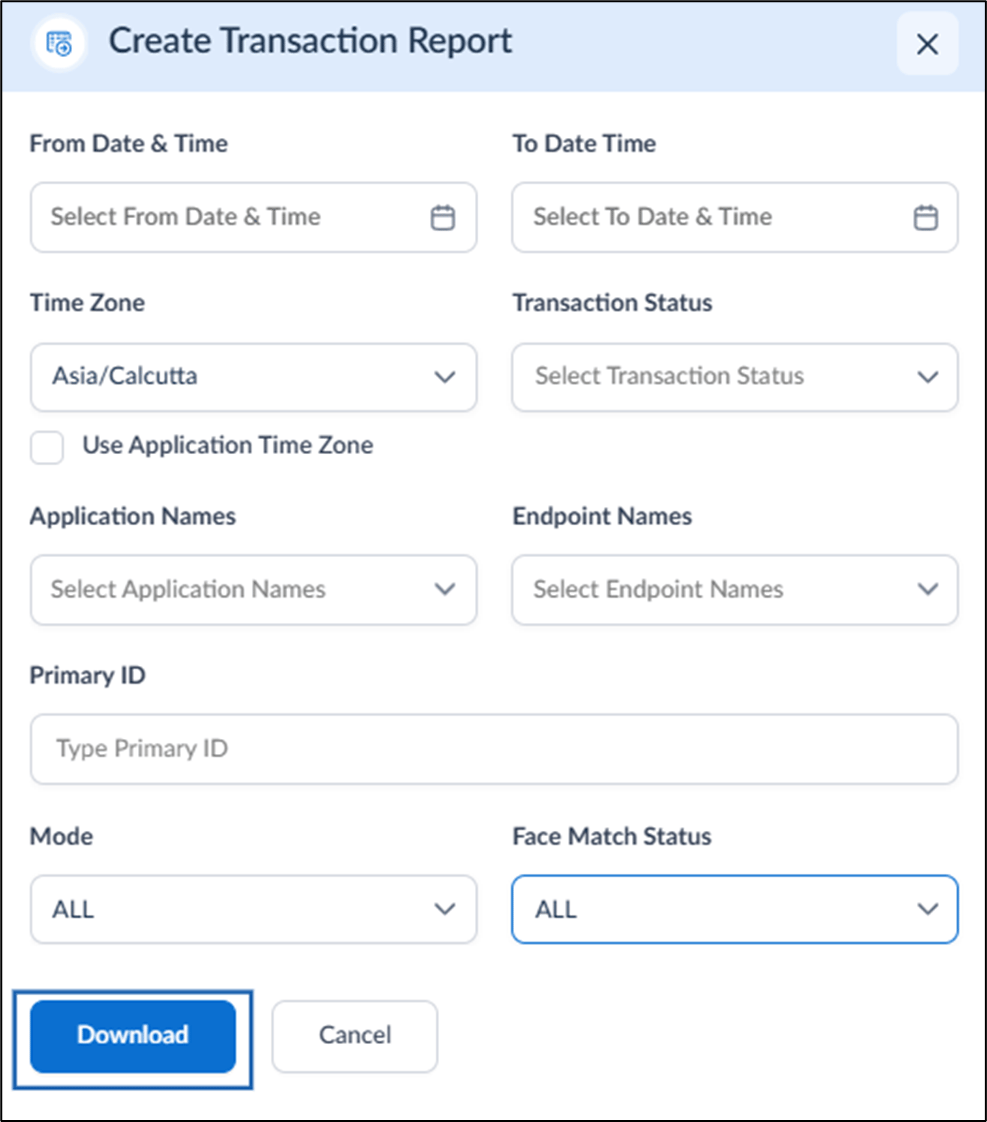
- Do the following on the pop-up box:
- Select the date and time from the calendar for From Date & Time and To Date Time. (optional)
- Select time-zone from Time-zone drop-down list.(optional)
- Select transaction status from Transaction Status drop-down list.(optional)
-
Select application names from Application Names drop-down list.(optional)
Note: Click the Use Application Time checkbox to show transactions based on the time-zone set in the application.
- Select endpoint names from Endpoint Names drop-down list.(optional)
- Enter Primary ID.(optional)
- Select Mode from Mode drop-down list.(optional)
- Select face match status from Face Match Status drop-down list.(optional)
-
Click Download.