Introduction
This document provides instructions to onboard faces in bulk in the Tenant Admin Portal.Prerequisites
- Collect clear facial images of the employees. Employees can capture the images using their mobile phones and share them with the Admin for upload.
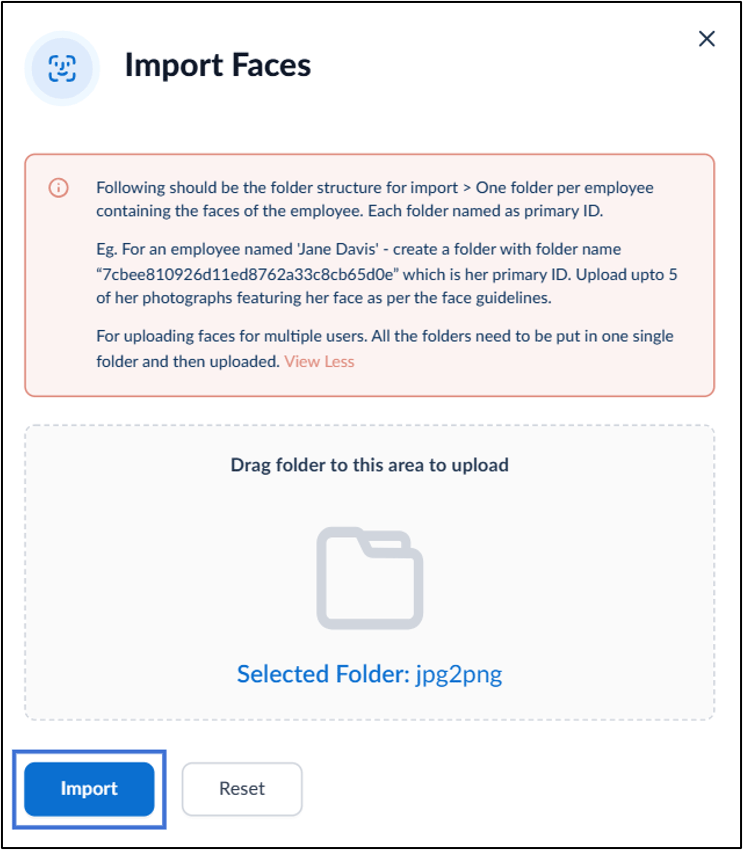
- Create a separate folder for each employee and name the folder using the employee’s Primary ID. Each folder can contain a maximum of five facial images.
- To upload facial images for multiple employees, place all employee folders in a single folder and upload the folder.
Steps to onboard faces in bulk
- Log in to the Tenant Admin Portal.
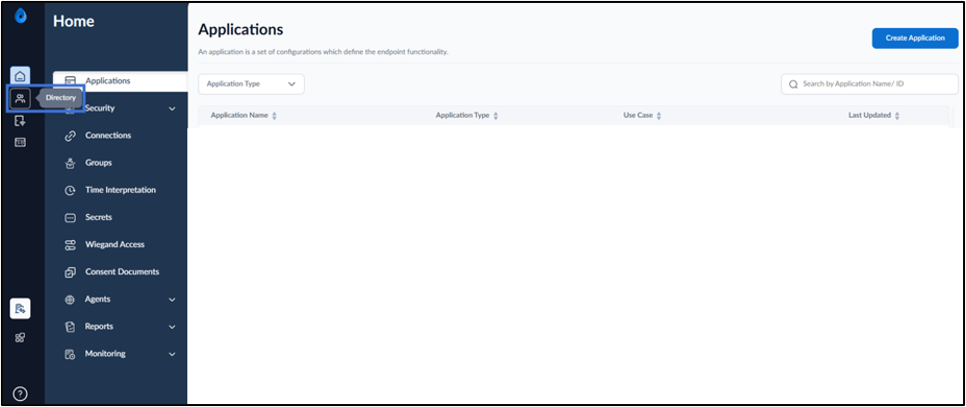
- On the home page of the portal, click Directory on the left panel menu.
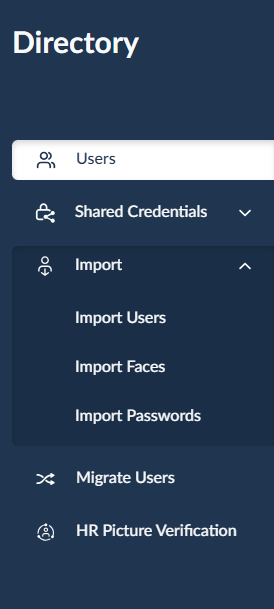
- Select Import > Import Faces from Directory menu panel.
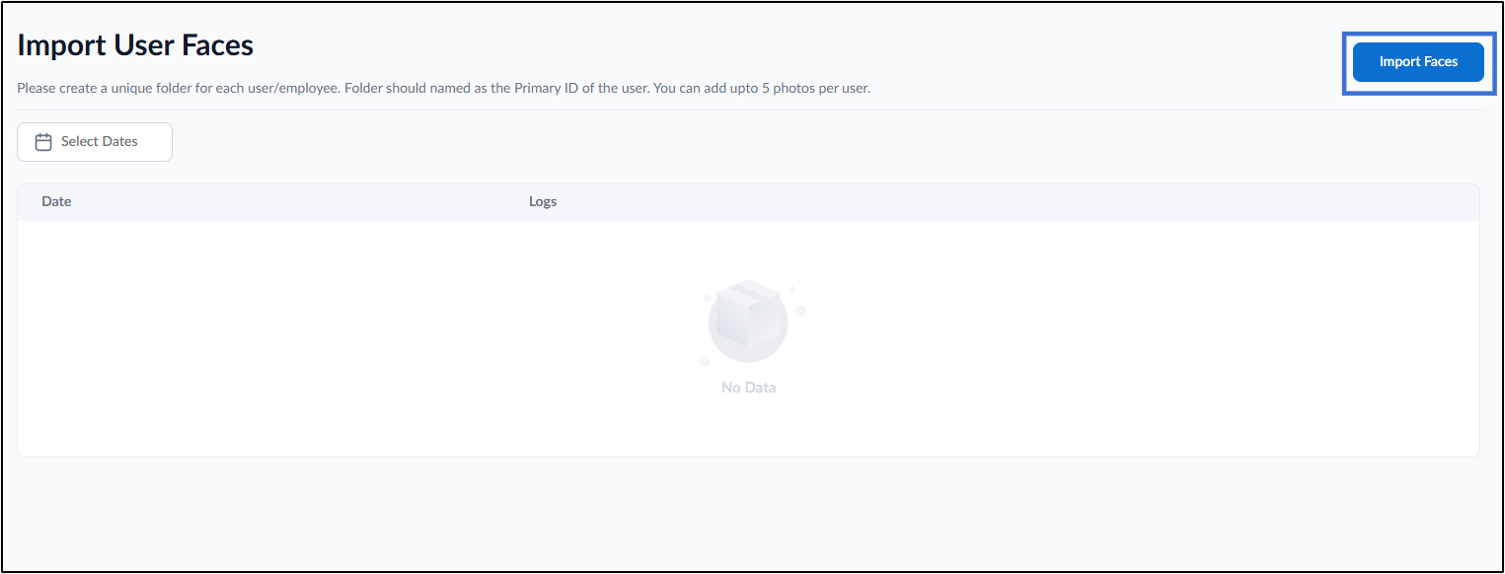
- Click Import Faces.
- Drag and drop the file to upload.
- Click Import.
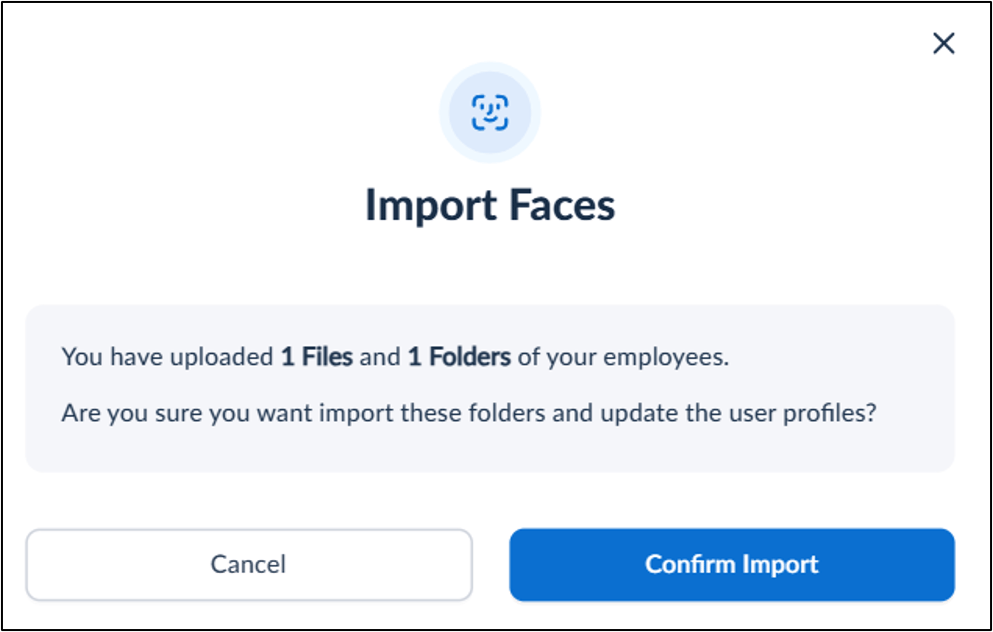
- Click Confirm Import.