

Introduction
Users need to provide consent to store and use their face for different applications within the workplace during face onboarding.Prerequisite
- You must have a Tenant Admin account
- Legal Document must be created. Refer How to create Legal Document.
To create a consent template
- Log in to the Tenant Admin Portal.
- On the home page of the portal, click Consent Documents on the left menu panel.
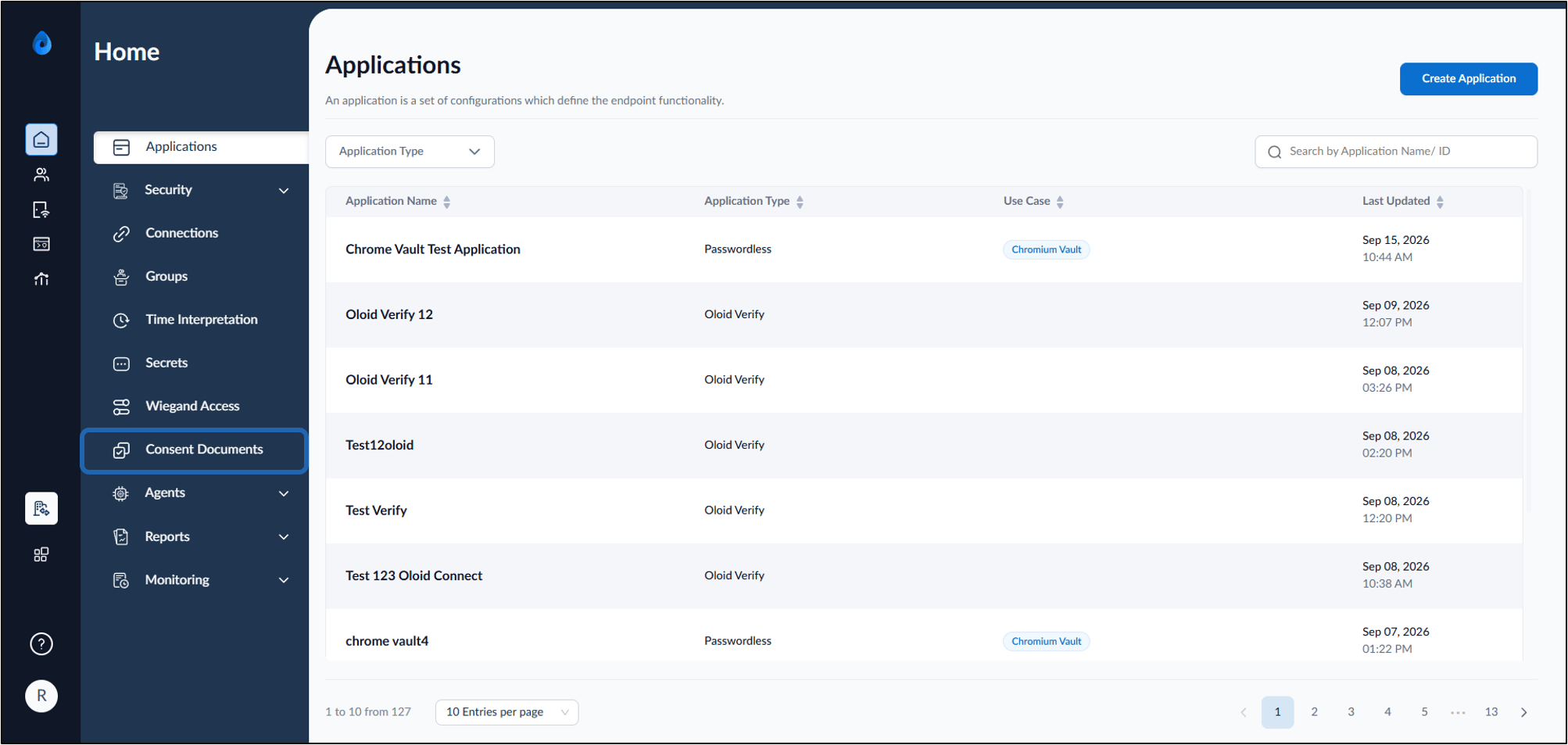
- On the top right, select Create Consent Template.
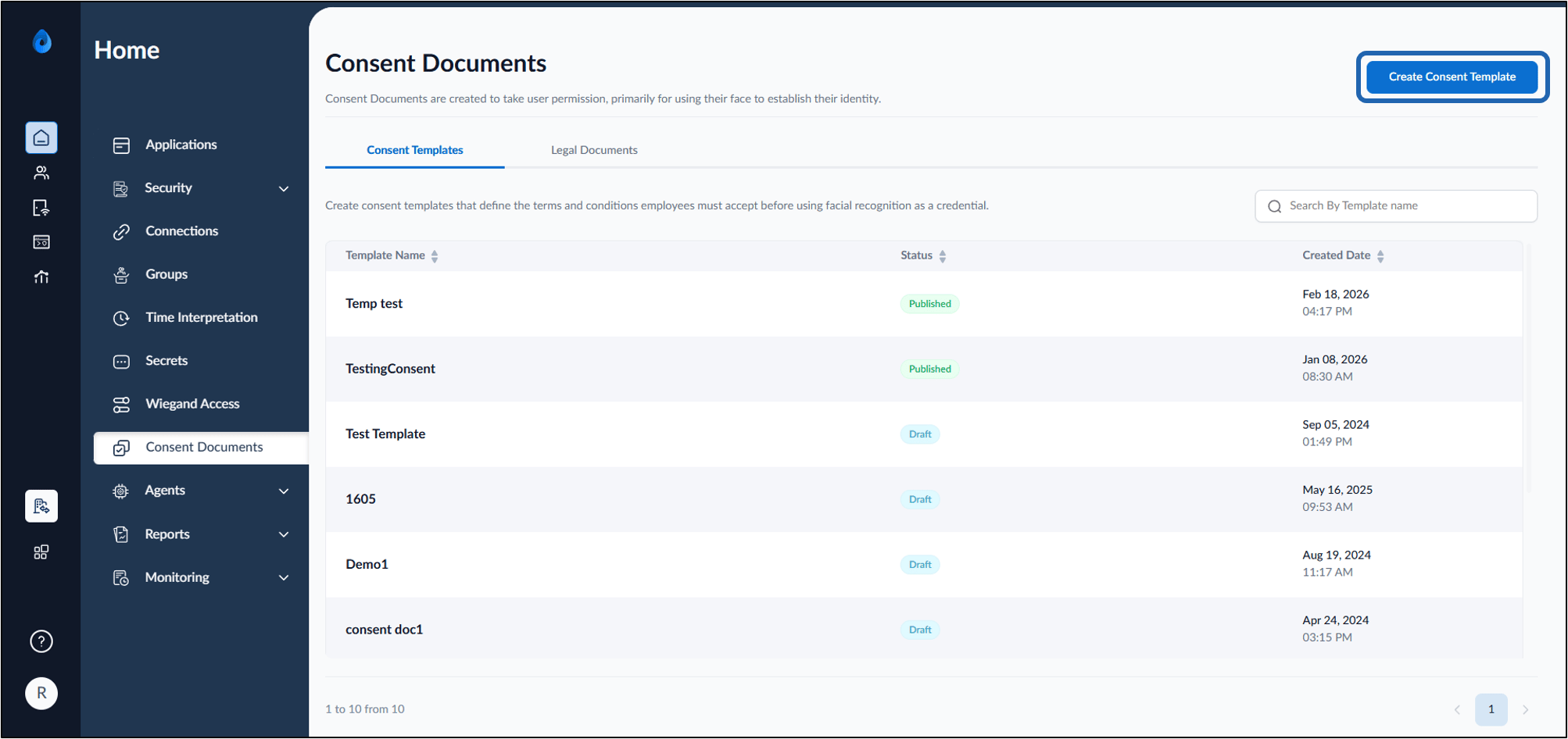
- On the pop-up dialog box, provide the Template Name.
- Click Create Template.
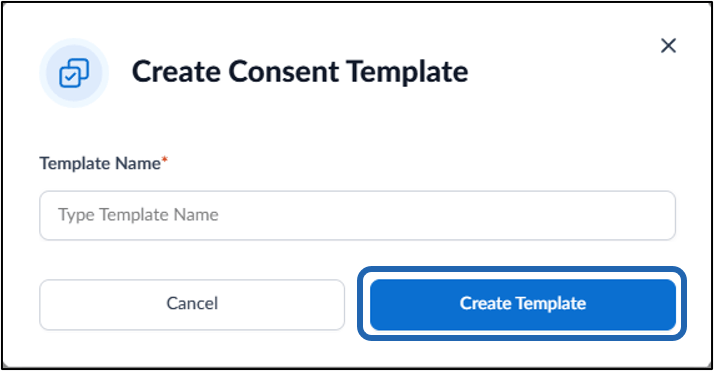
- On the template detail page, do the following:
- Enter Consent Document Heading. (Required)
- Edit Version number. (Required)
- Edit Section Heading. (Required)
- Edit Consent Description. (Required)
-
Select template status from Status dropdown.
Note: The consent document can not be added to a connection unless it is in the published status. A Consent template in draft status cannot be added to connections.
-
Select language from Preferred Language dropdown. (Optional)
Note: The selected language will appear in consent documents across all apps during face onboarding. Language Version for the Consent Document can be created. Refer: Tenant Admin Portal - How to Create and Configure Language version for Consent Template
- Change Legal Document Heading. (optional)
-
Select legal document(s) from Legal Document dropdownlist. (Required)
Note: If unavailable, click Create Legal Document to upload a new legal document. Refer How to create Legal Document.
-
Enable Show Scope toggle.
Note: Enabling this toggle displays the consent form’s scope, indicating whether it applies to all applications or only the visitor application.
-
Click Save.

- On the template detail page, do the following:
