

Introduction
This document provides step-by-step instructions to invite a user to add their face via email or SMS in the Tenant Admin Portal.Prerequisites
- You must have Tenant admin access to the Tenant Admin Portal.
- User must be created. For more, refer toTenant Admin Portal - How to Create User
- The registered email ID must be added to the user’s profile on the Tenant Admin Portal.
Steps to Send an Invite to Add a Face via Email
- Log in to the Tenant Admin Portal.
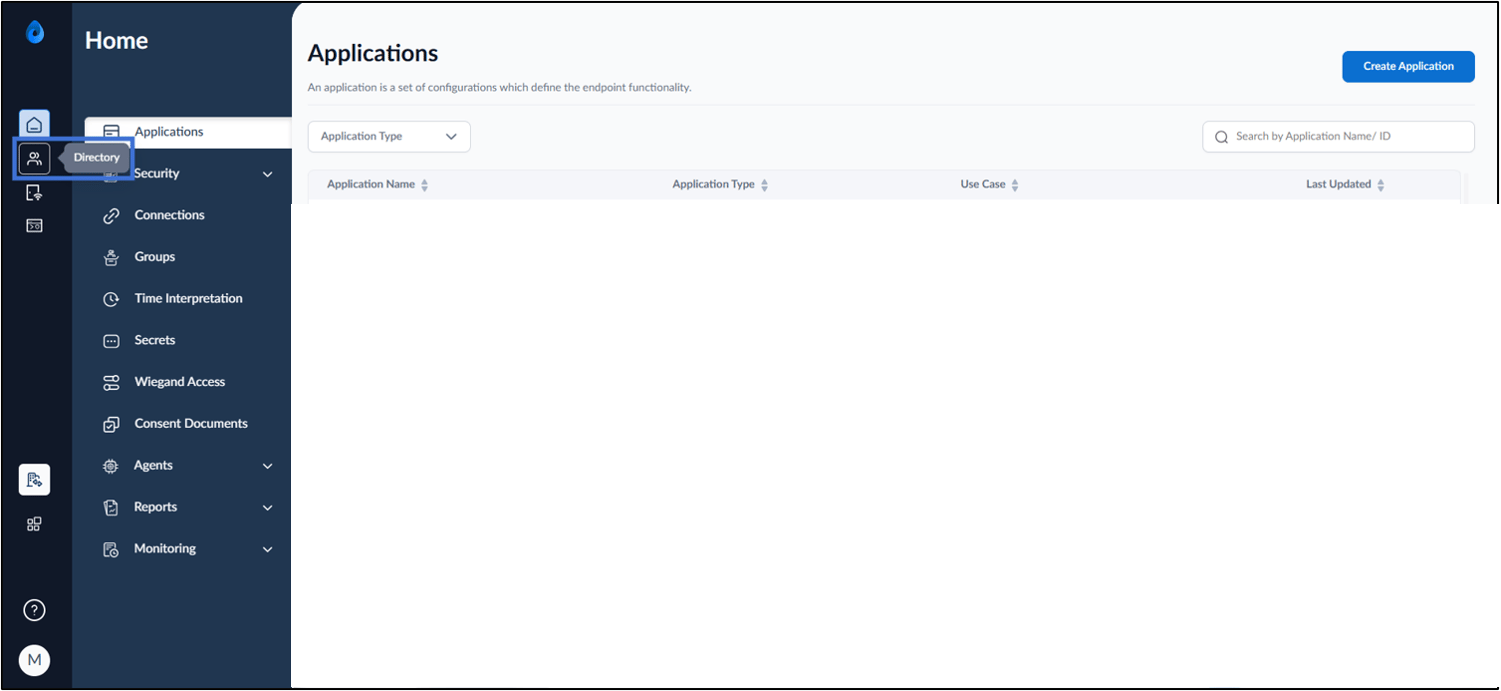
- On the home page of the portal, click Directory on the left menu panel.
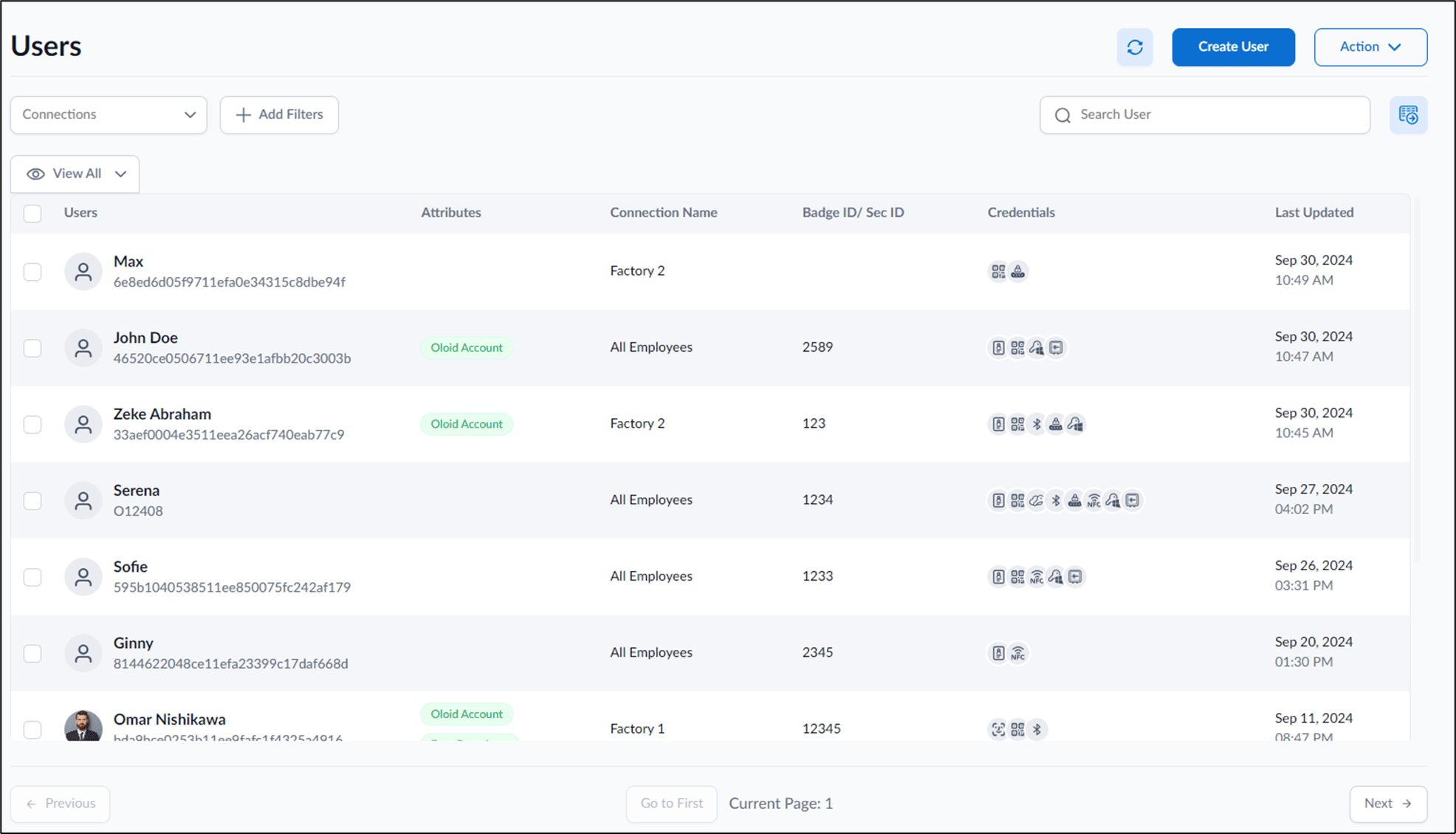
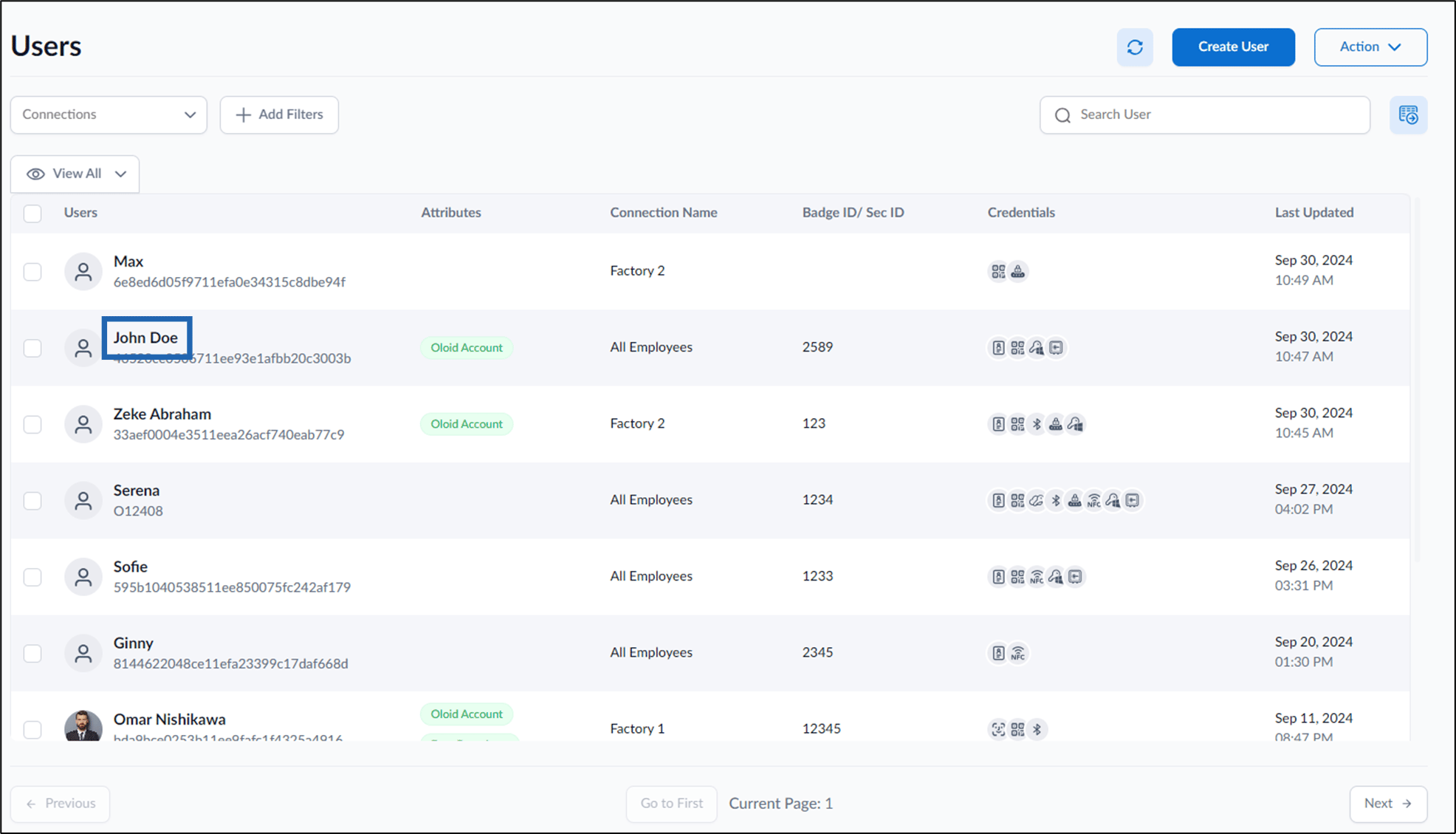
- Click username to edit.
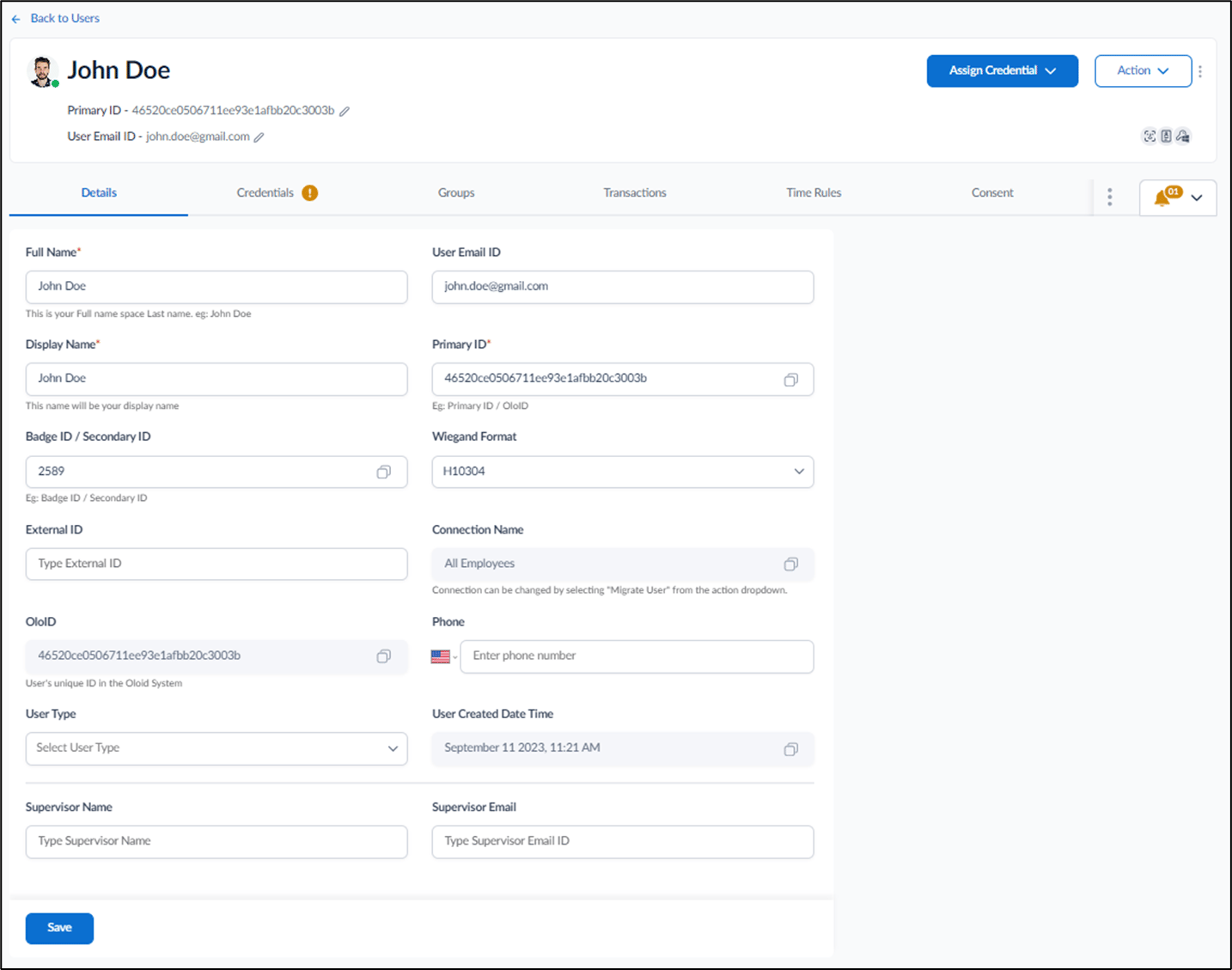
- Go to Credentials > Face > Invite to Add Face.
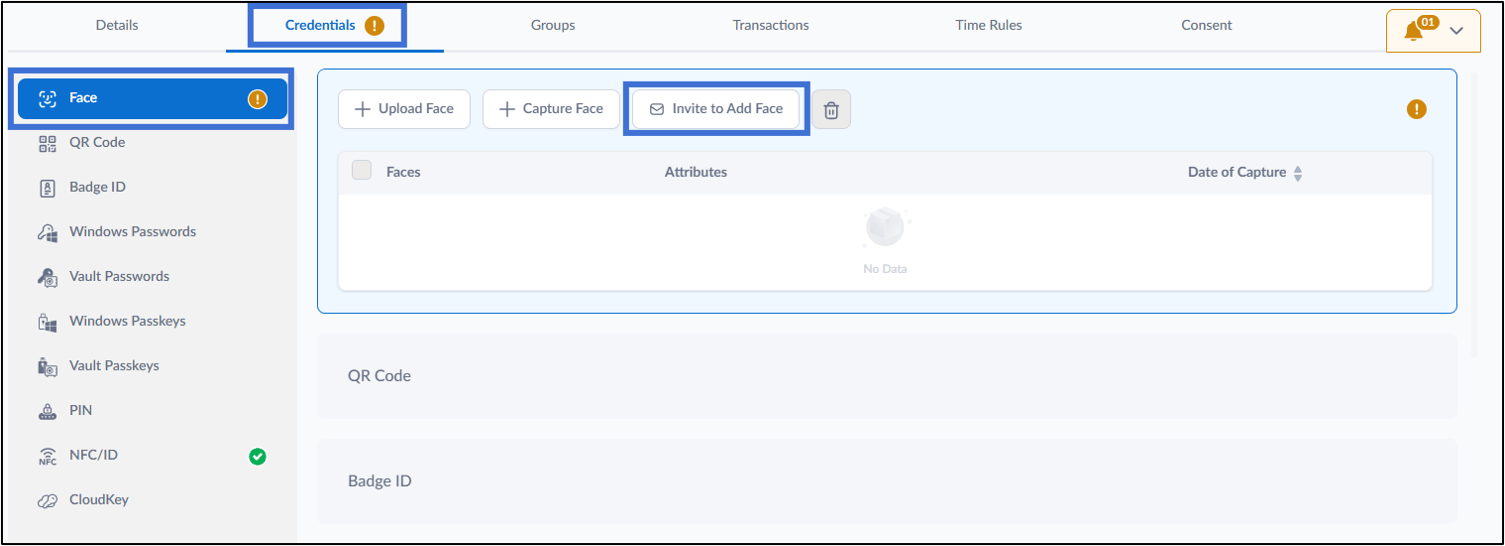
- Select Send via Email optionfrom the dropdown list.

- Do the following:
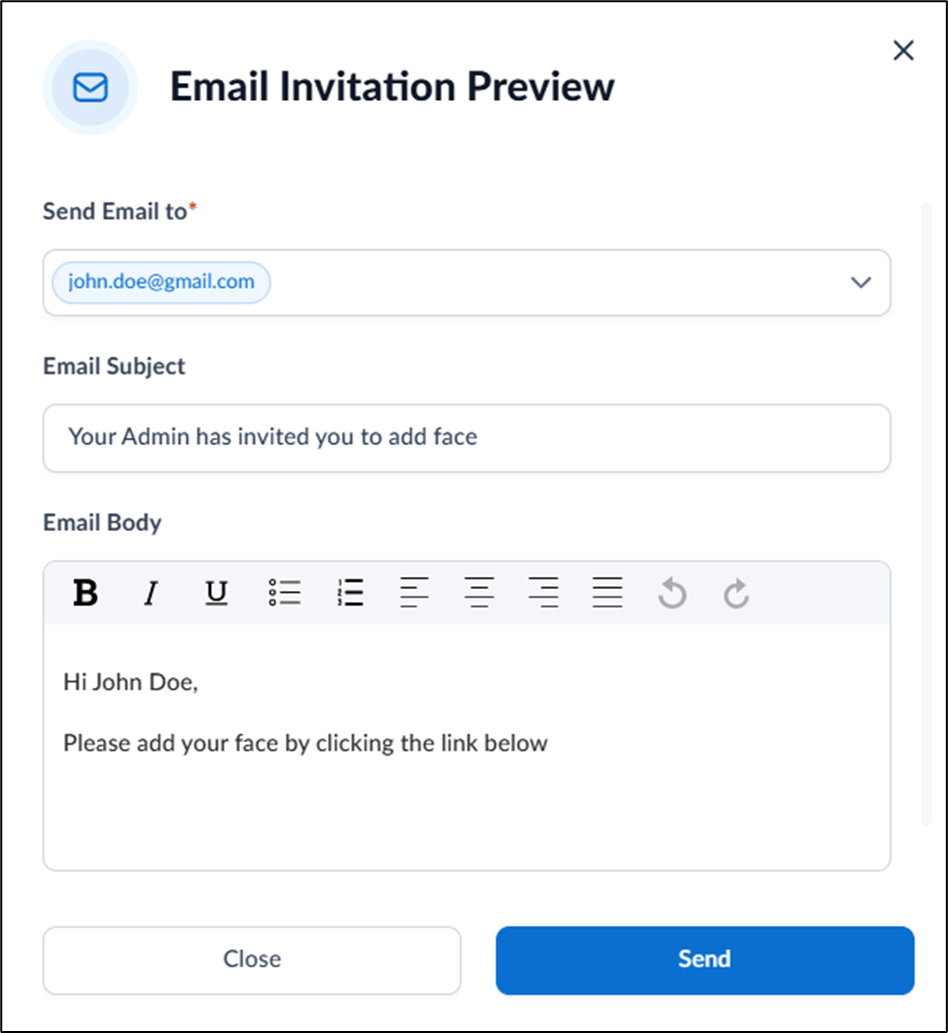
- Enter the recipient’s email ID(s) in the Send Email to field.
- Edit Email Subject field.(Optional)
- Edit Email Body field.(Optional)
- Click Send.
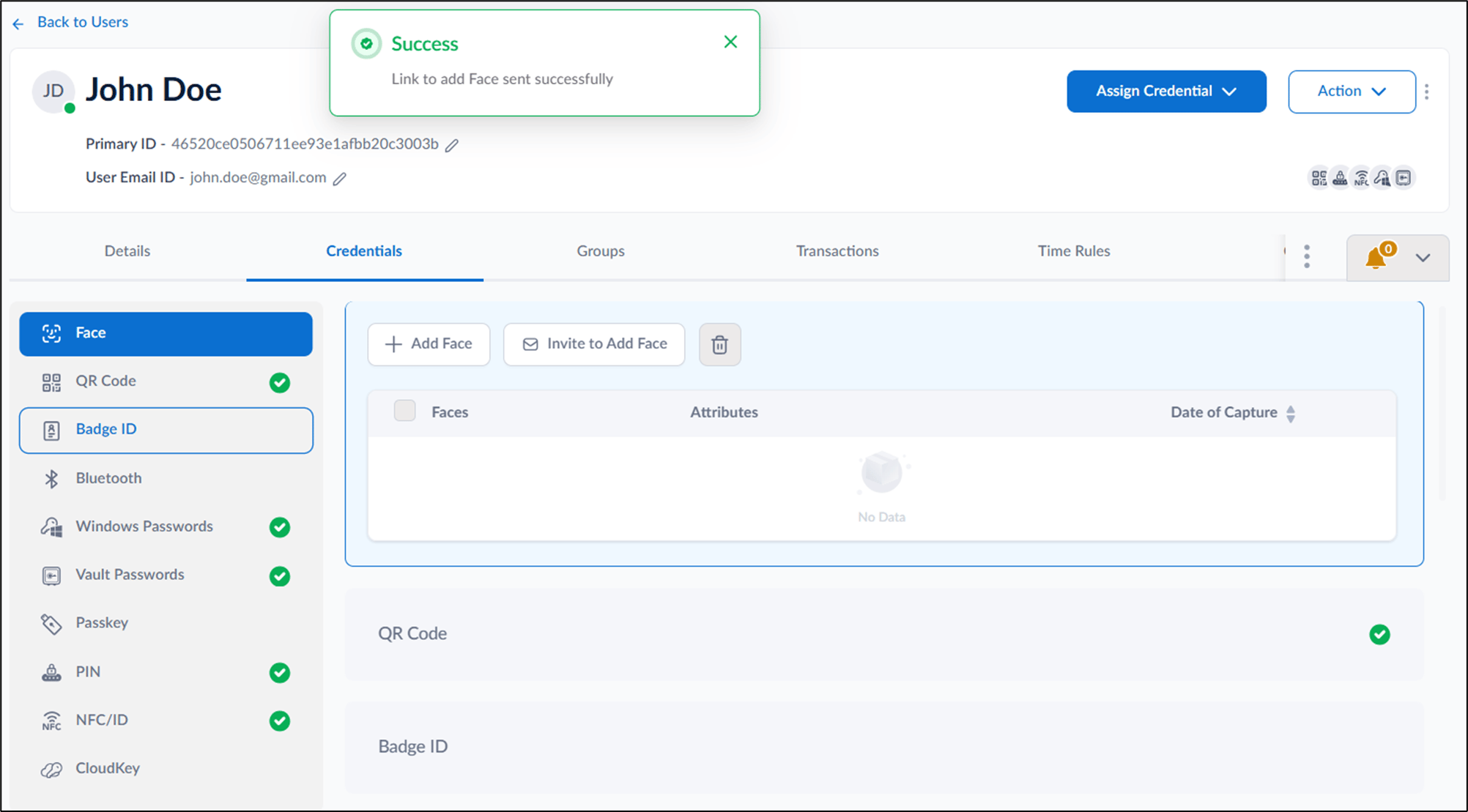
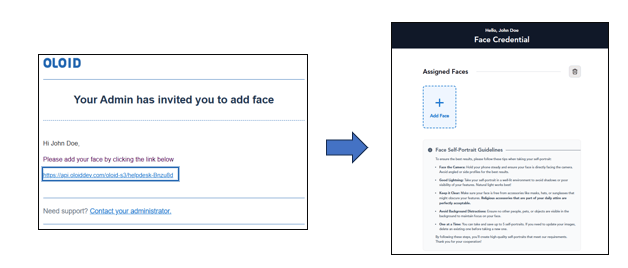
An email with invite link is sent to user to upload their face.
Steps to Send an Invite to Add a Face via SMS
- Log in to the Tenant Admin Portal.
- On the home page of the portal, click Directory on the left menu panel.
- Click username to edit.
- Go to Credentials > Face > Invite to Add Face.
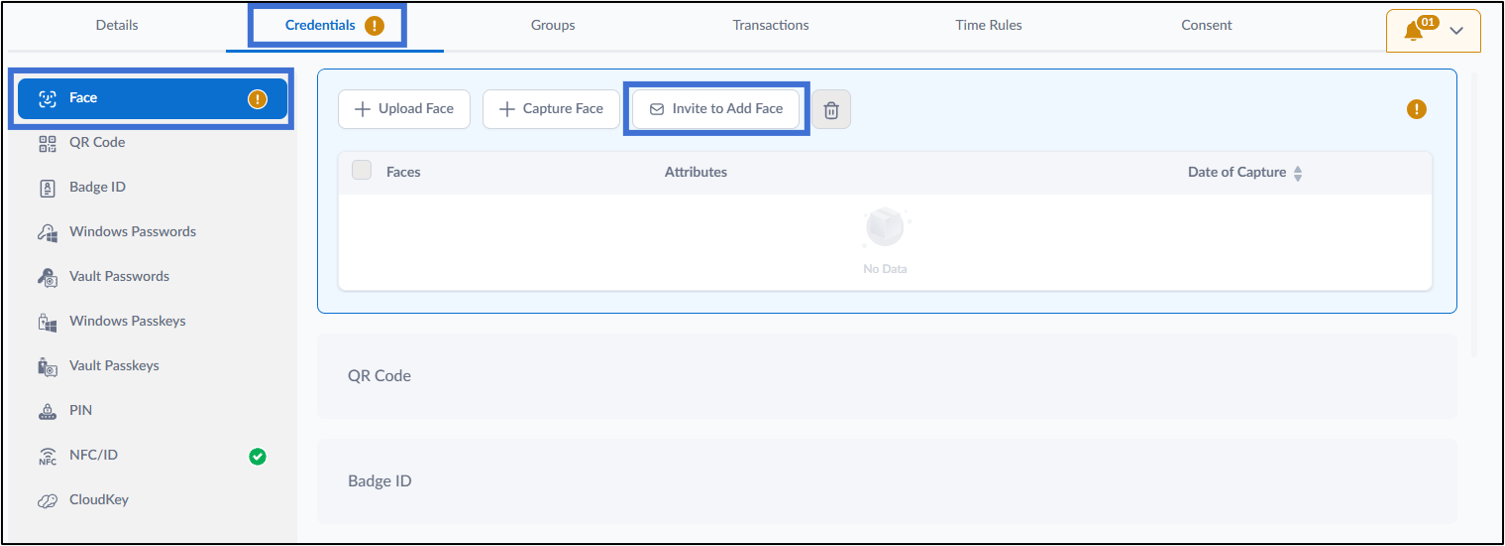
- Select Send via SMS.

- Do the following:
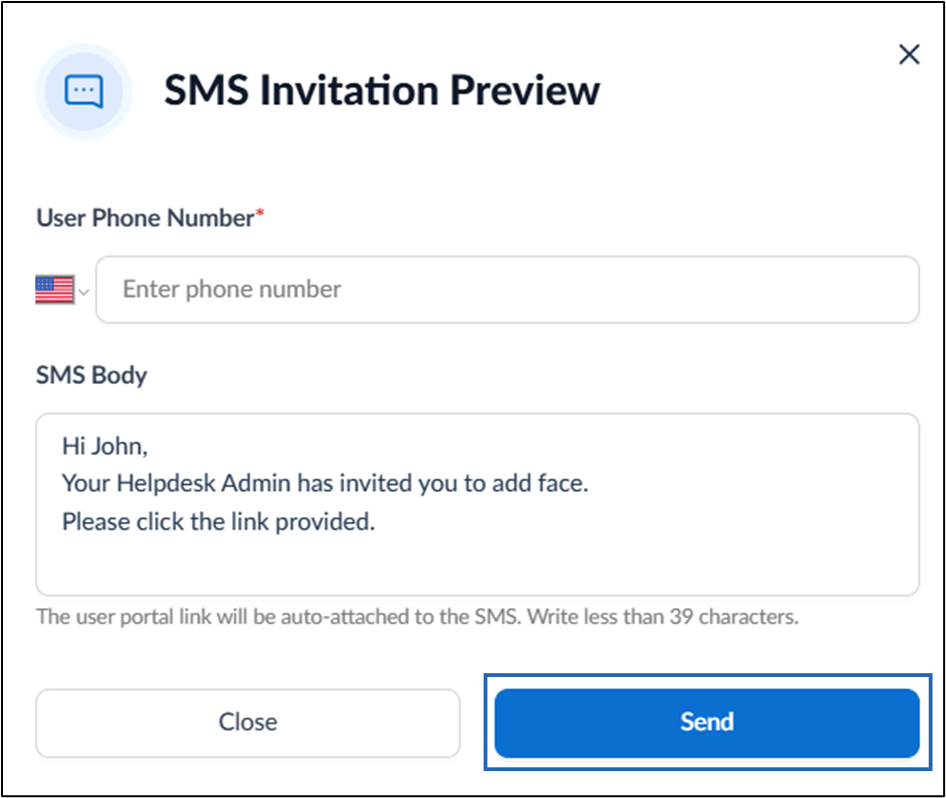
-
Enter the User’s Phone Number in the Enter Phone Number field.
Note: Select the country icon to change the country code prefix.
-
Click Save.
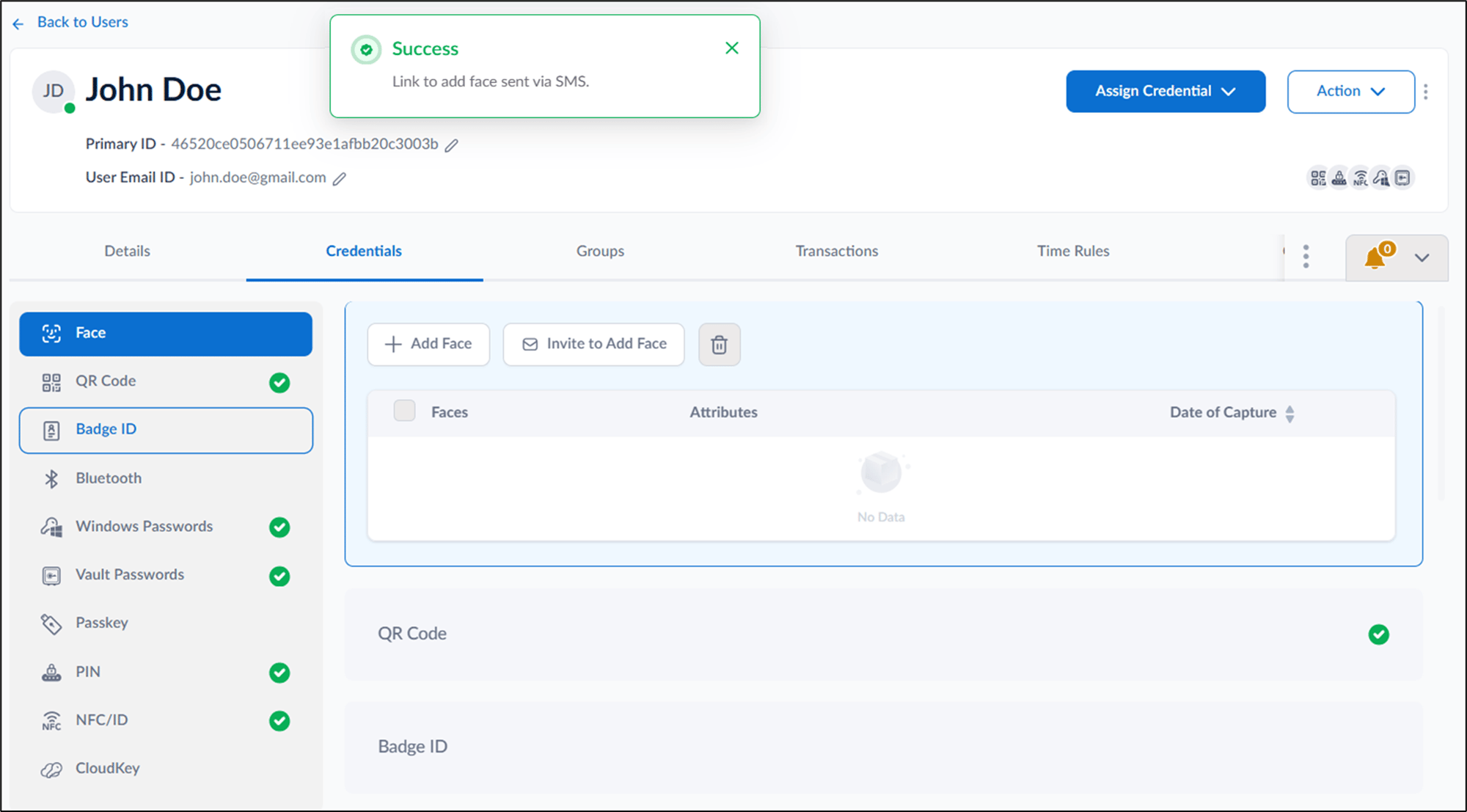
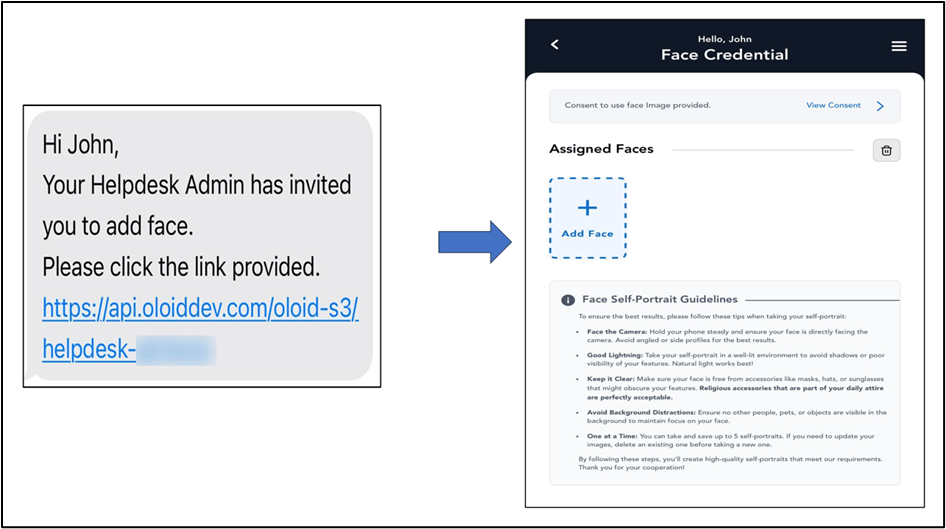
An SMS with invite link is sent to the user to upload their face.
-
Enter the User’s Phone Number in the Enter Phone Number field.