

Introduction
This document provides instructions to configure Okta (OIDC) as an Identity Provider for Oloid Single Sign-On (SSO).Prerequisites
- You must have admin access to the Okta Admin Console
- Okta OIDC (OpenID Connect) support enabled.
Steps to Add Identity Provider
-
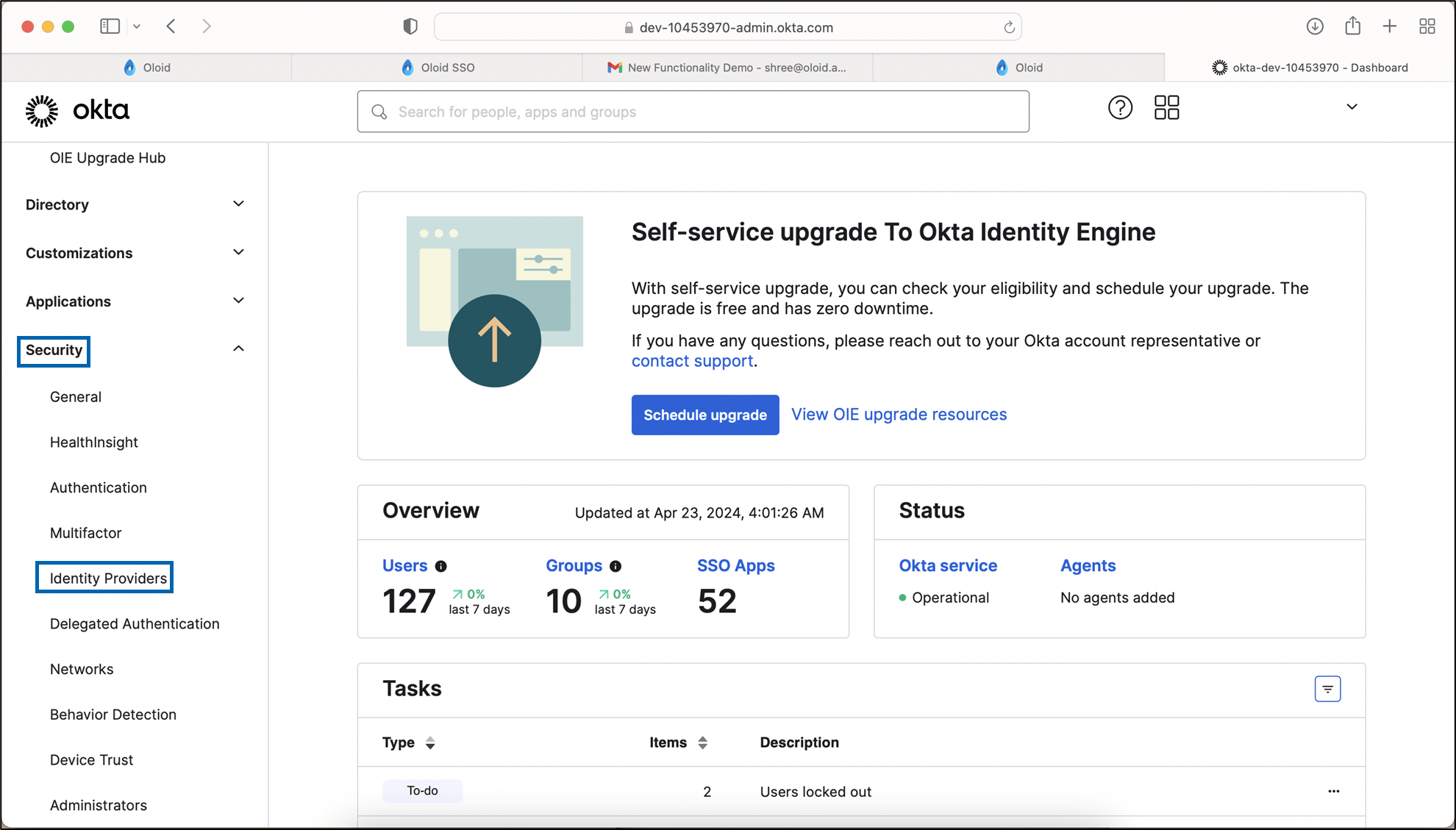
On the home page of the Okta Admin Console, go to Security > Identity Providers.
-
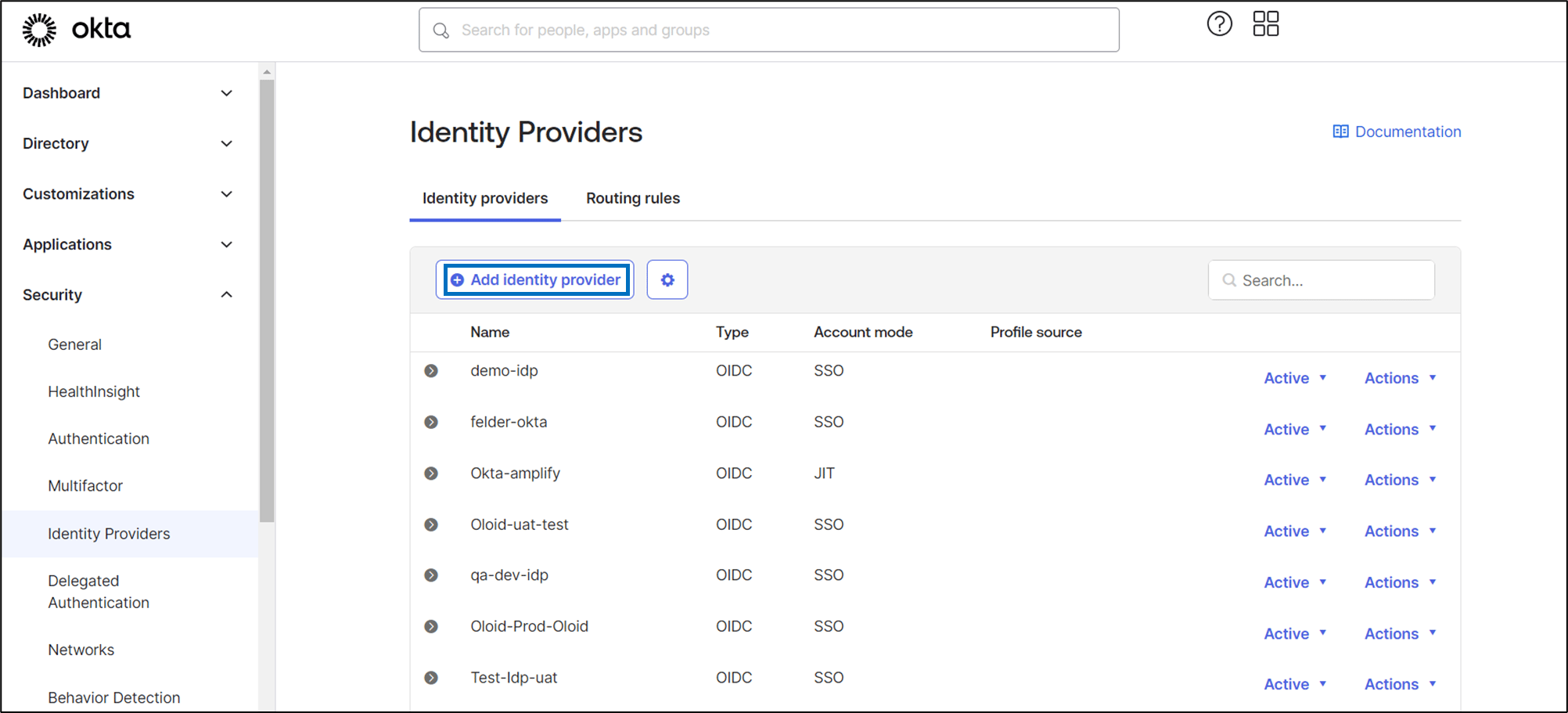
Select Add Identity Provider.
-
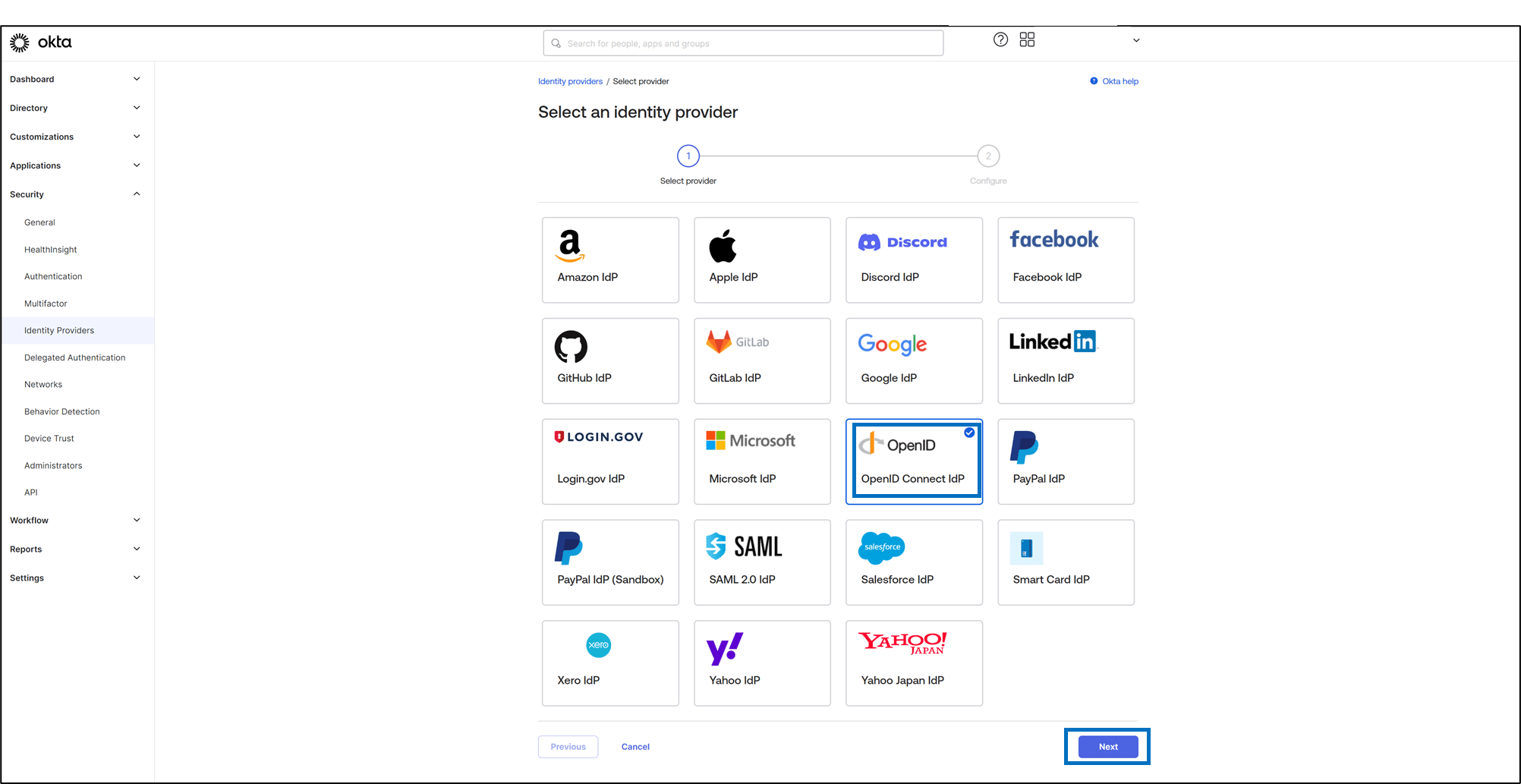
Select OpenID Connect and click Next.
-
Do the following
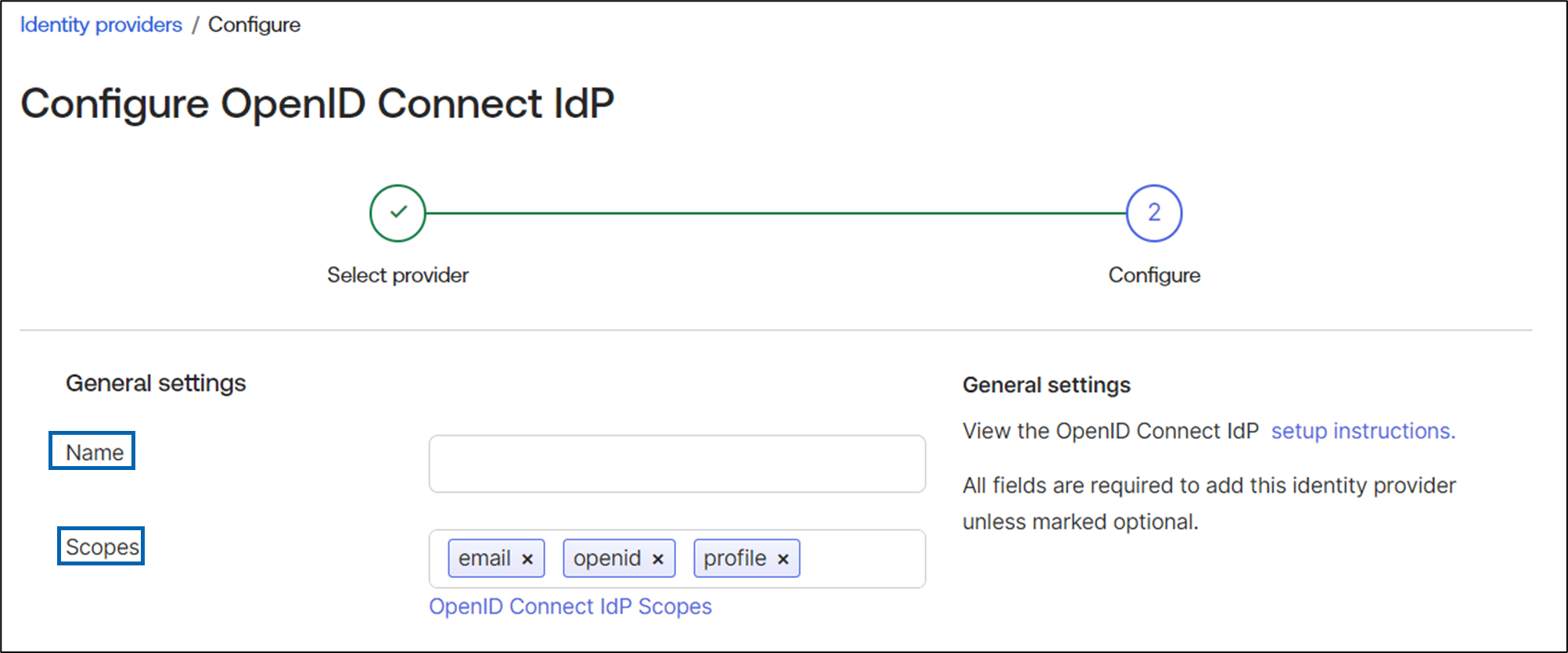
- Under General settings section:
- Name: Enter a namefor the Identity Provider configuration.
- Scopes: Leave the defaults. These scopes are included when Okta makes an OpenID Connect request to the Identity Provider.
- Under Client details section:
- Enter Client ID.
-
Enter Client Secret.
 Note: You can find the Client ID and Client Secret in your Oloid portal. On the Tenant Admin Portal, go to Identity Provider > IDP Details > Meta Data tab.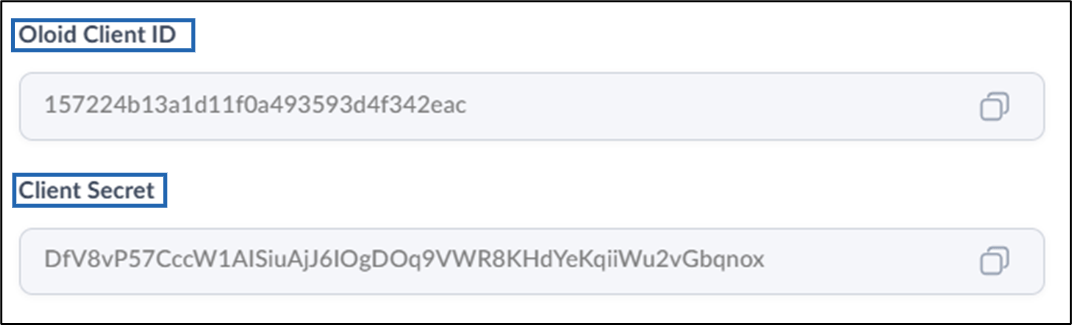
- Under Endpoints section:
- Enter Issuer.
- Enter Authorization endpoint.
- Enter Token endpoint.
-
Enter JWKS endpoint.
 Note: You can find the Issuer, Authorization Endpoint, Token Endpoint and JWKS Endpoint in your Oloid Portal. On the Tenant Admin Portal, go to Identity Provider > IDP Details > Meta Data tab.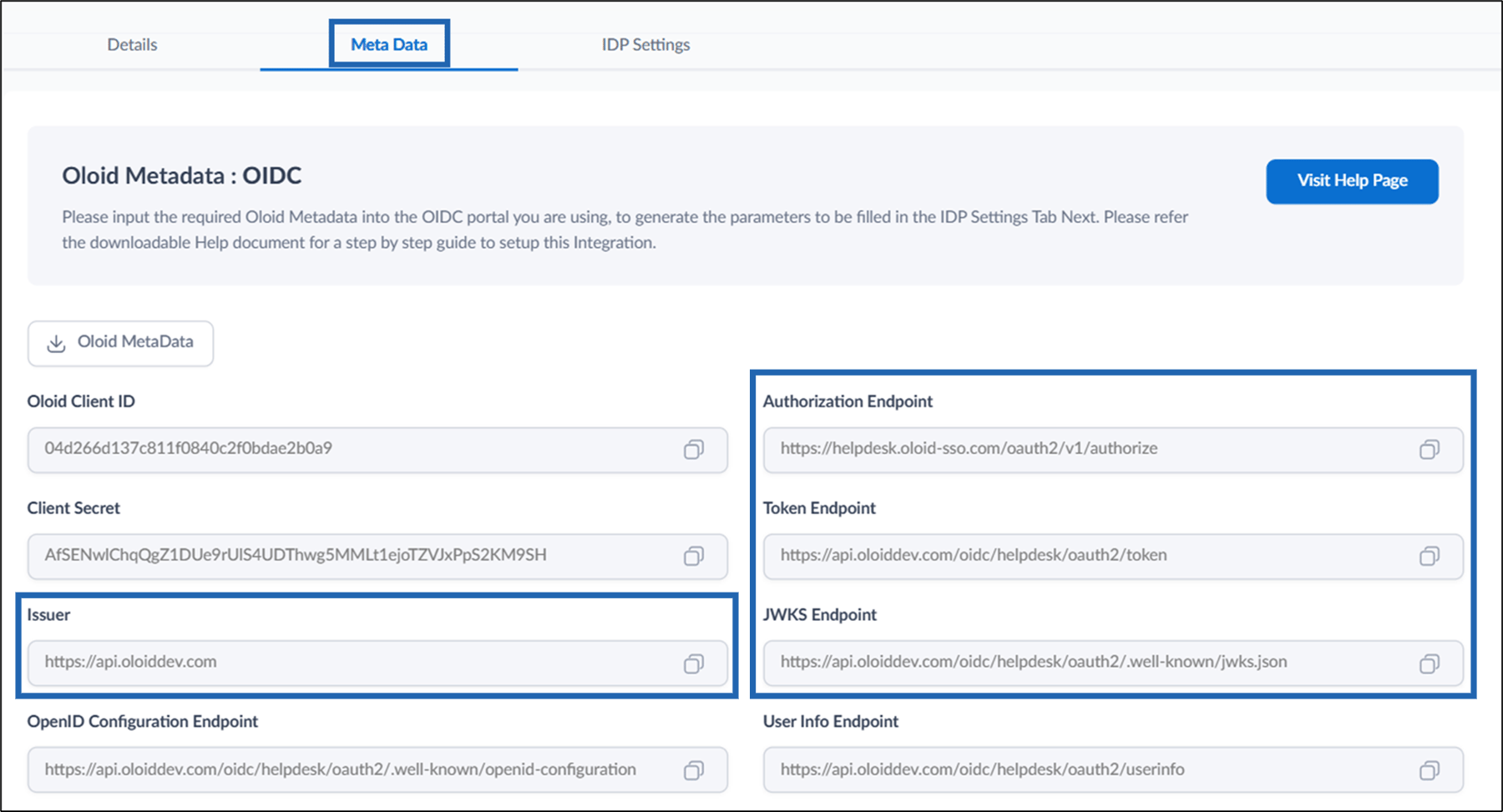
- Under General settings section:
-
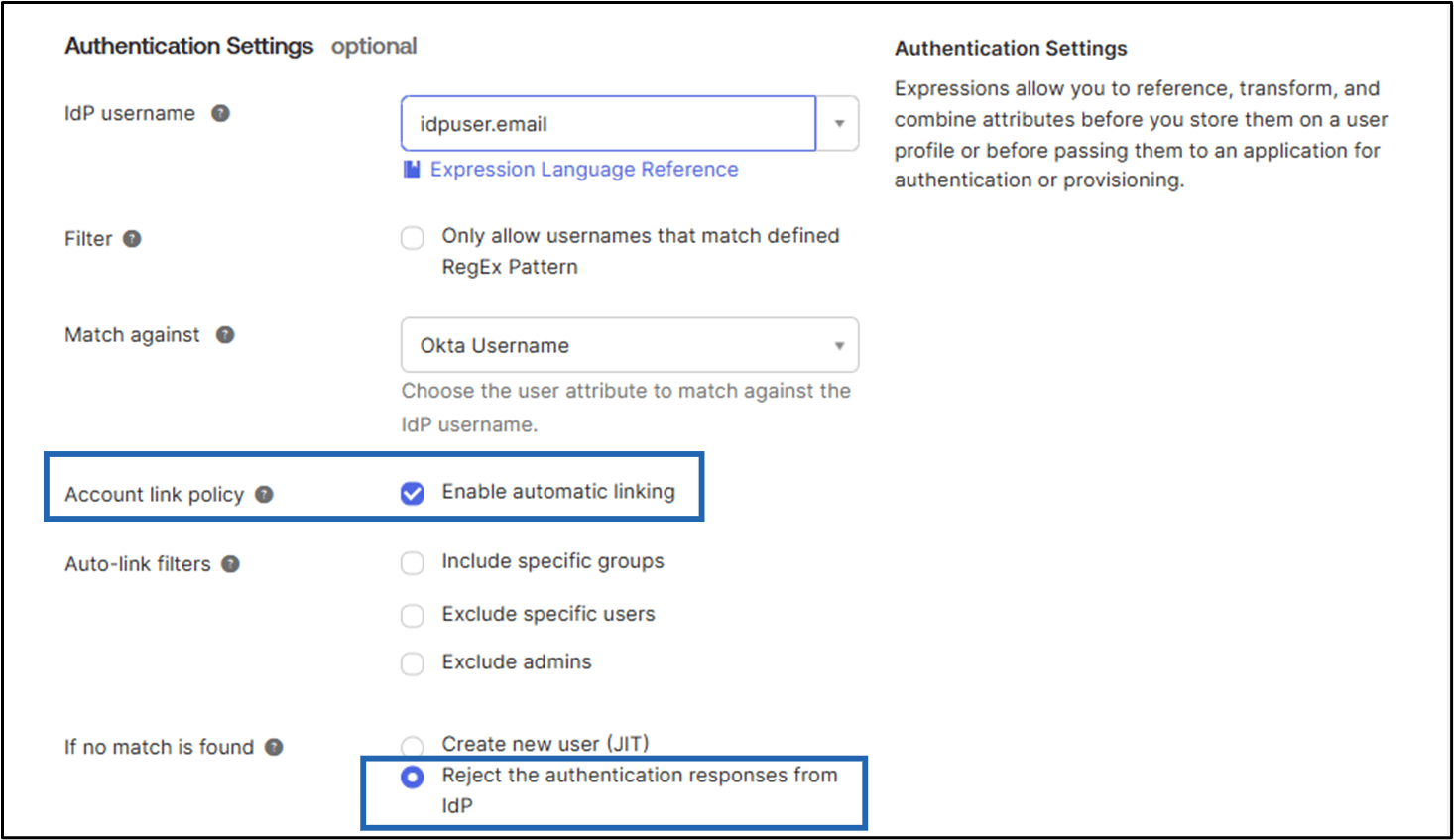
Under Authentication Settings section,
- Select Enable automatic linking from Account Link Policy.
- If no match is found, select Reject the authentication responses from IdP.
-
Click Finish.
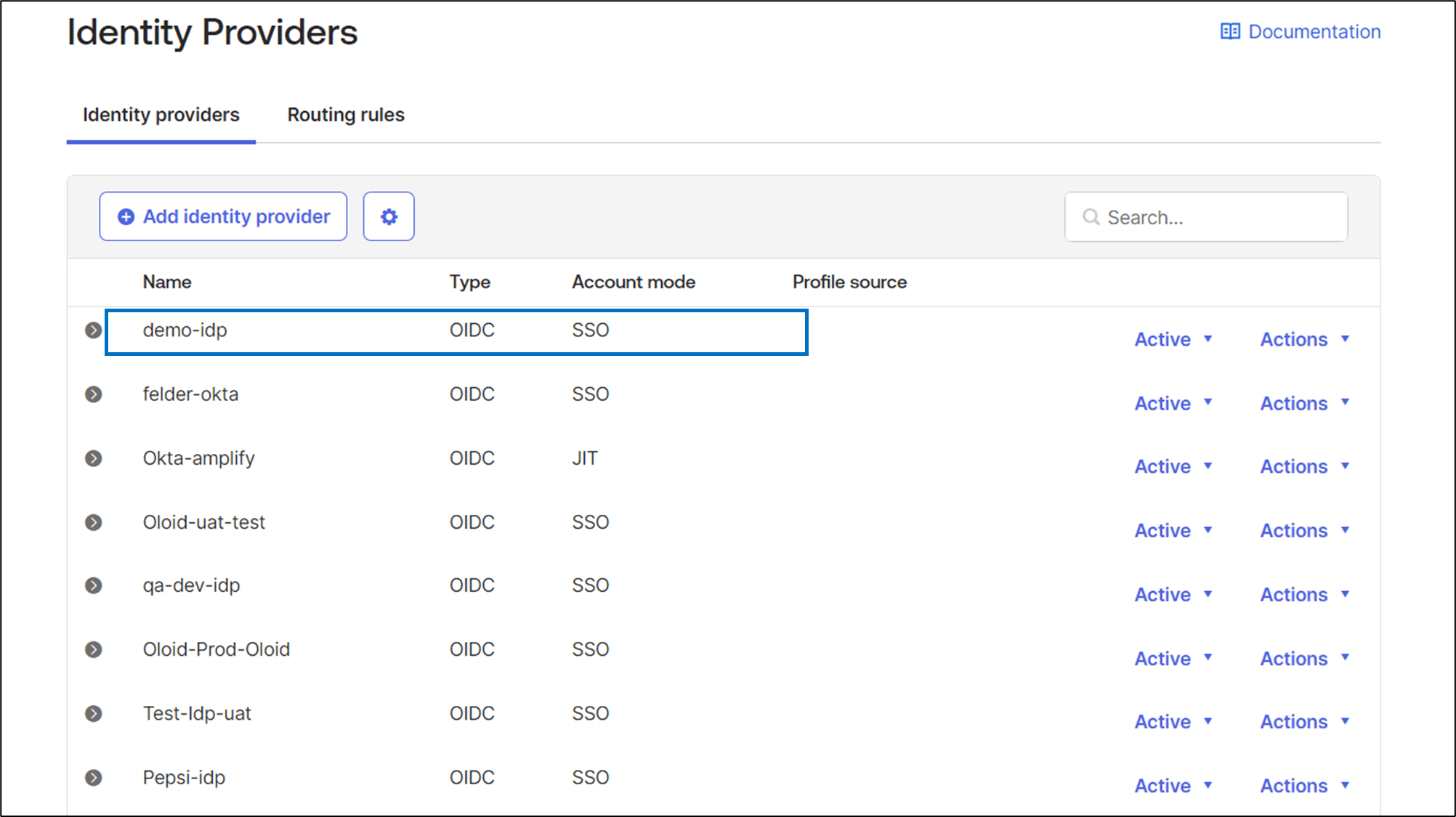
The newly created IDP is listed under Security > Identity Providers.
Note: In the search bar, you can search using identity provider name.
-
Go to IDP details and do the following:
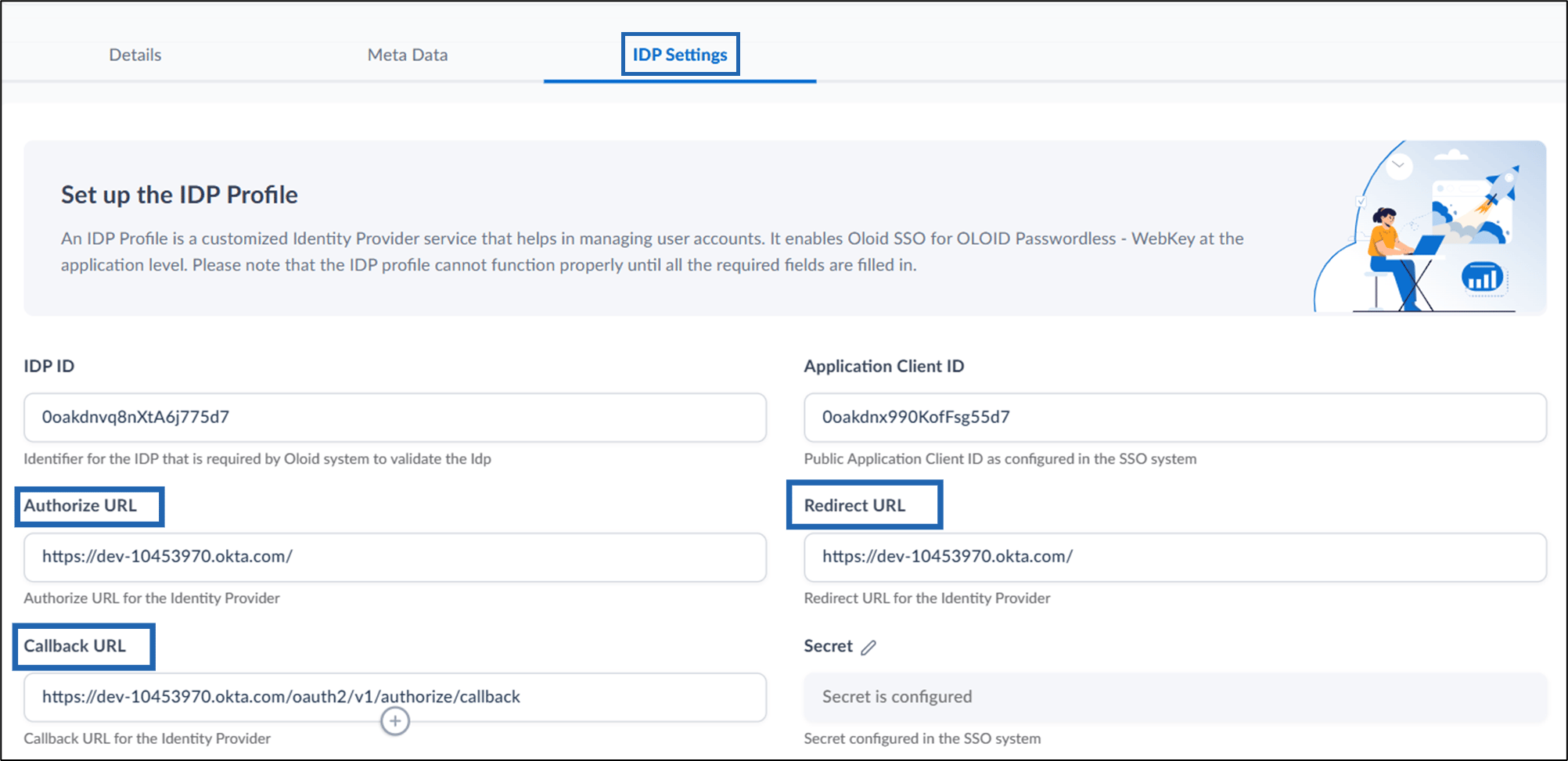
- Copy IDP ID and enter it in Tenant Admin Portal > Identity Provider > IDP Settings > IDP ID.
- Copy Redirect URl and enter it in Tenant Admin Portal > Identity Provider > IDP Settings > Callback URL.
- Enter https://{user-id}.okta.com/ in the Authorize URL and Redirect URL fields under Tenant Admin Portal > Identity Provider > IDP Settings. For example,
https://dev-10453970.okta.com/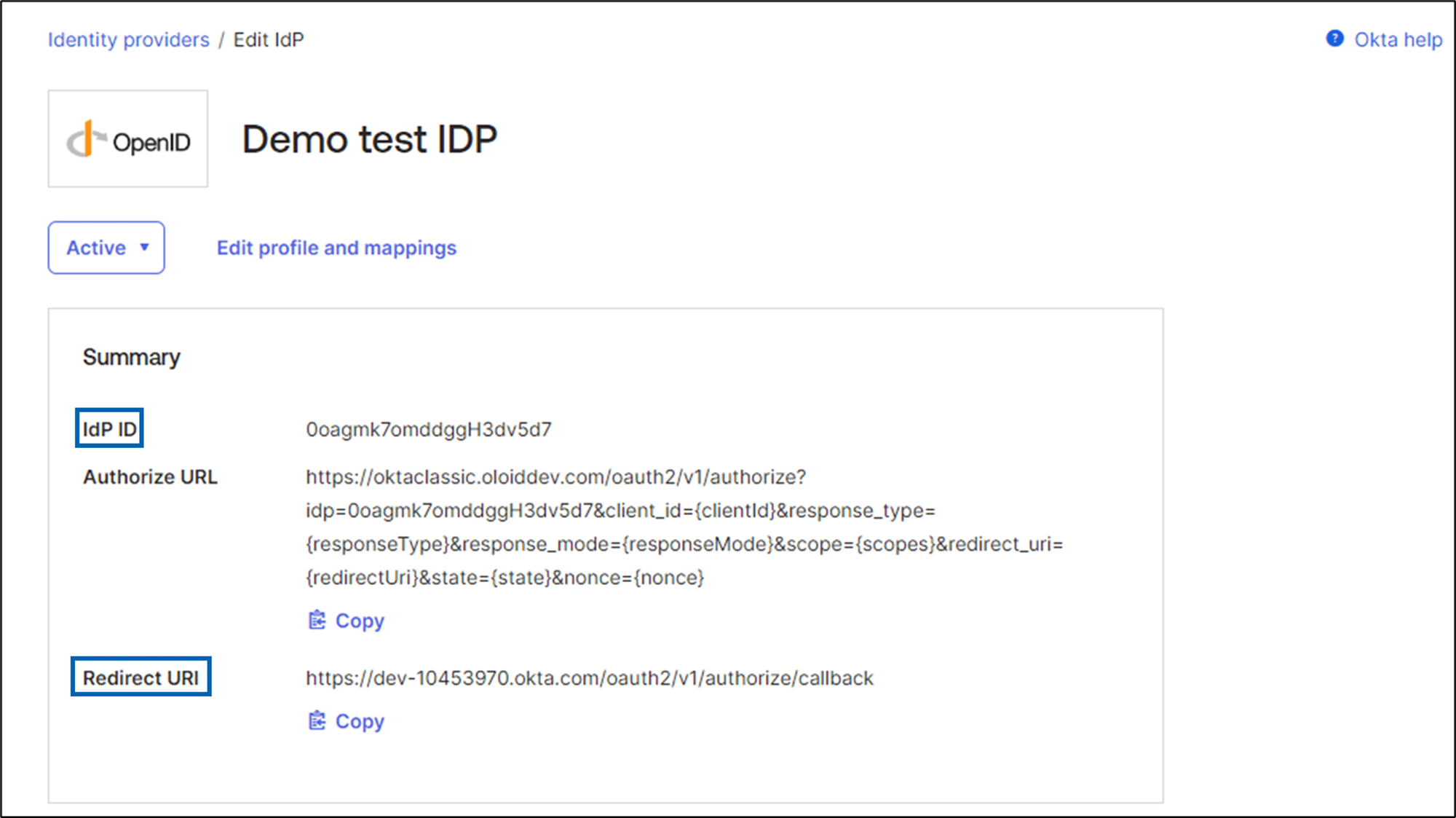
Add Client Application
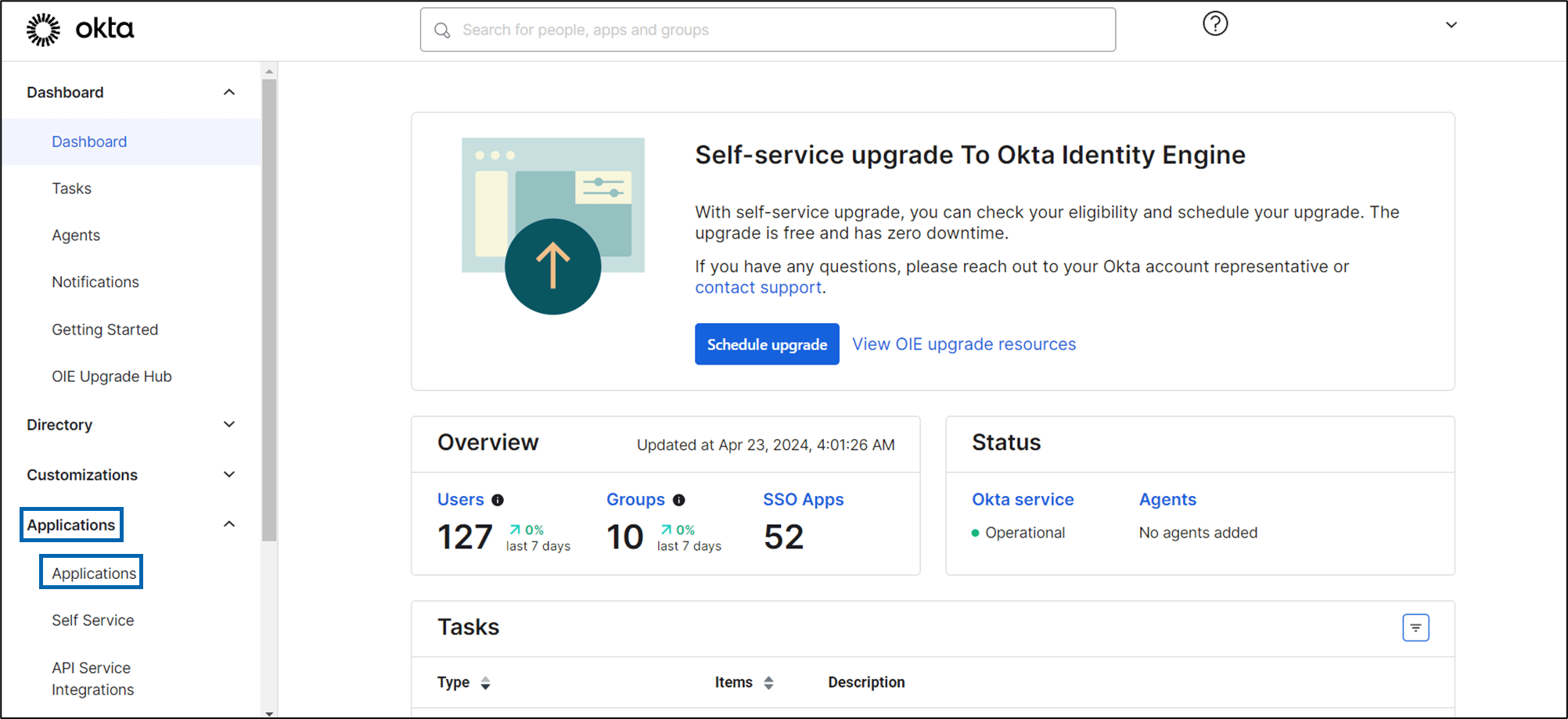
- In the Okta Admin Console, go to Applications > Applications.
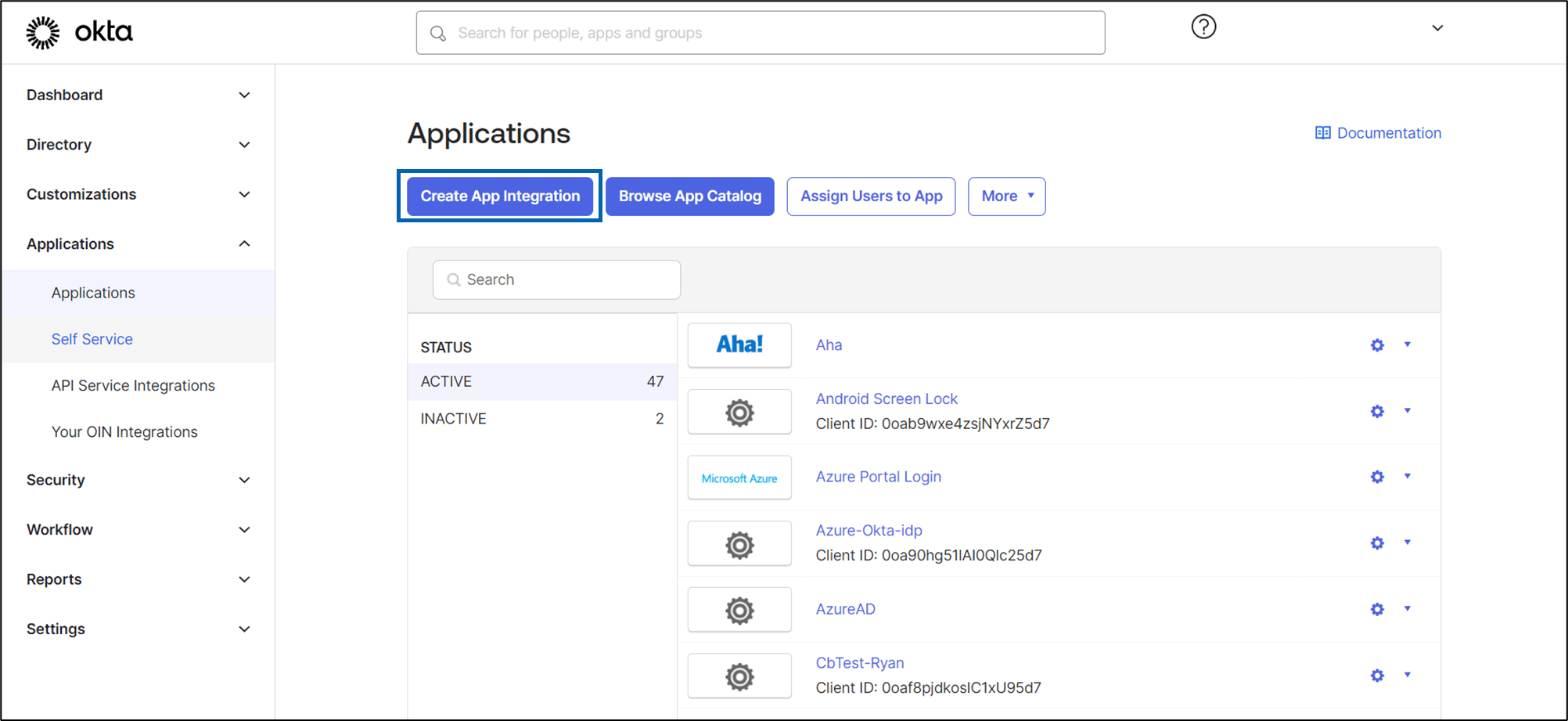
- Select Create App Integration.
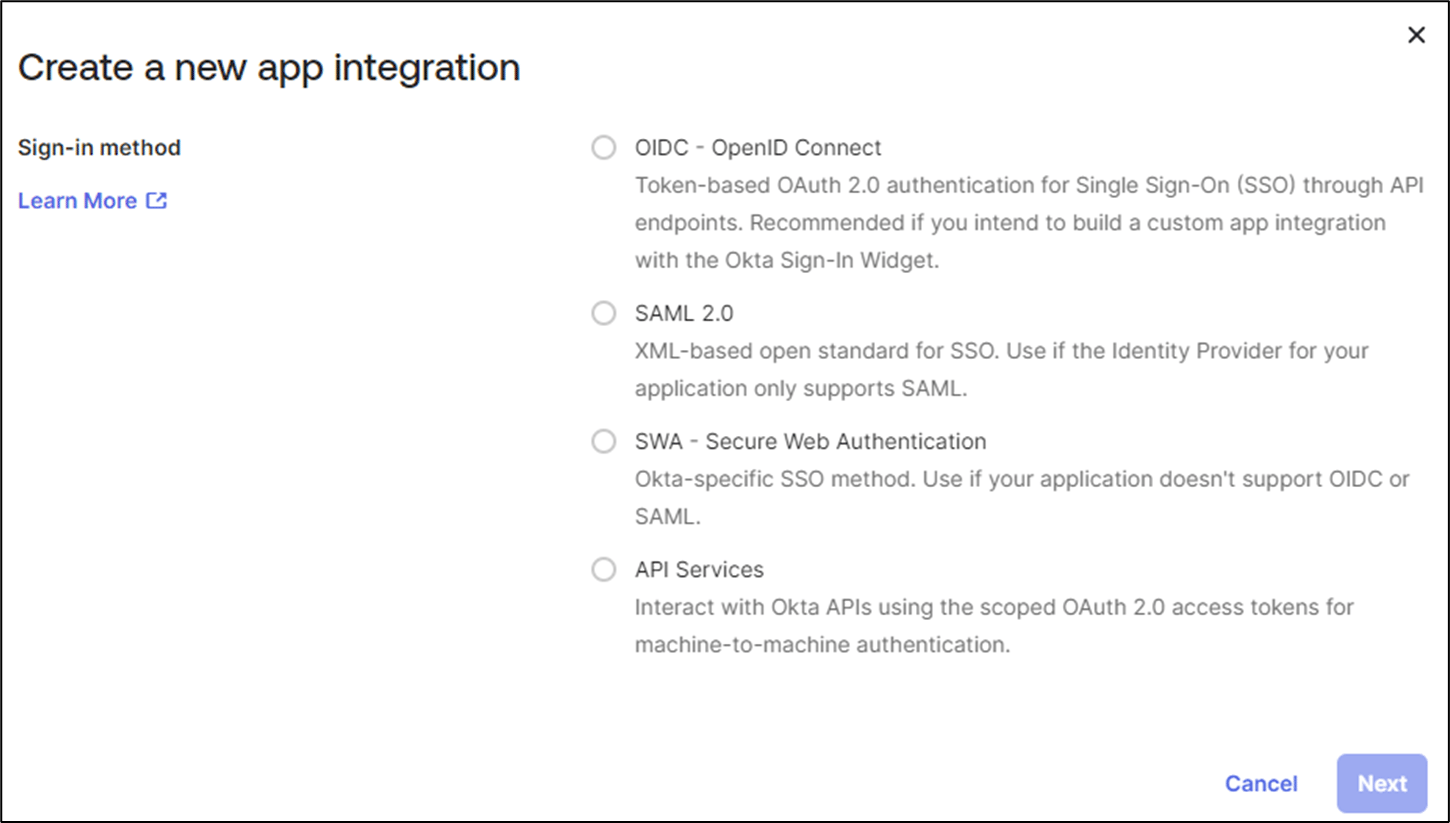
- Do the following:
- Select OIDC - OpenID Connect as the Sign-in method and Web Application as Application type.
- Select Next.
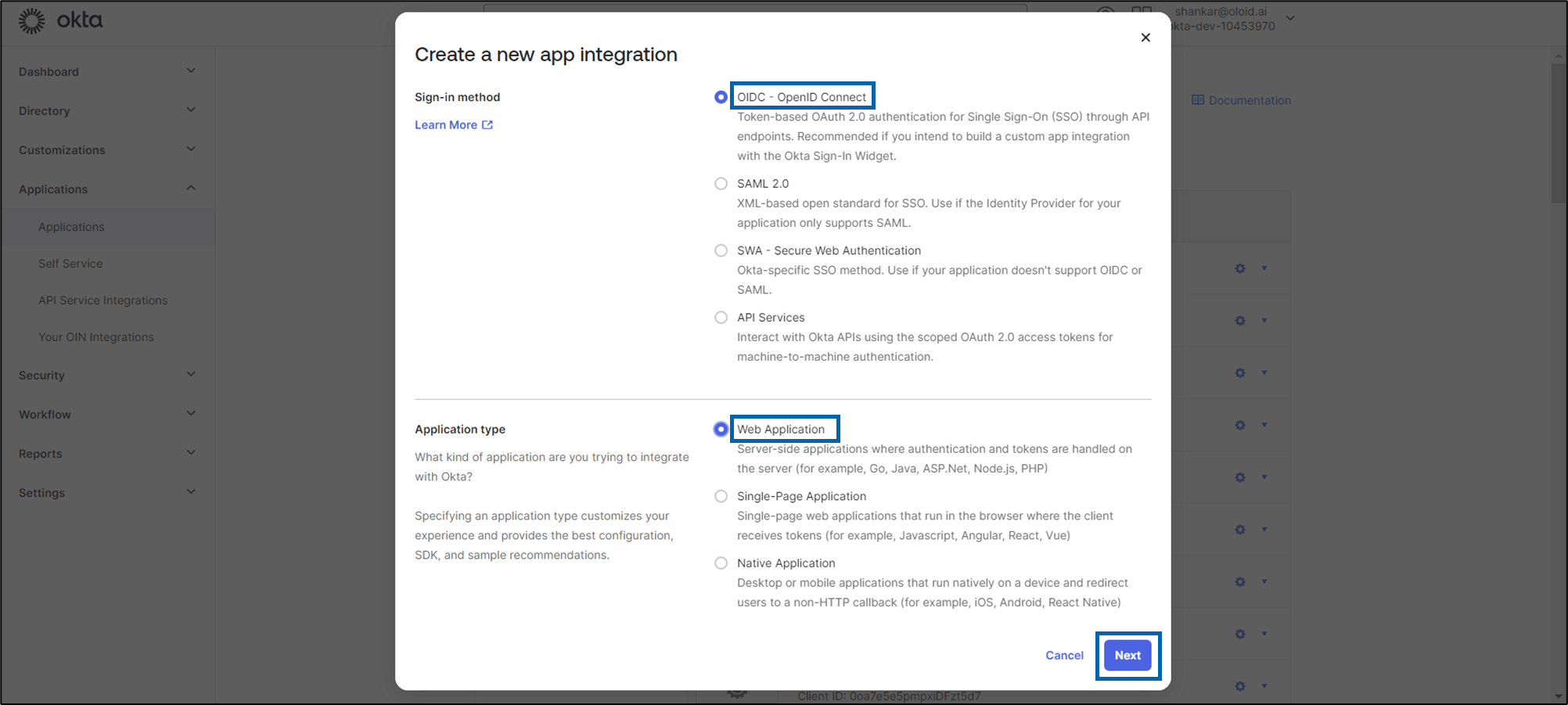
- In the next screen, configure the application.
-
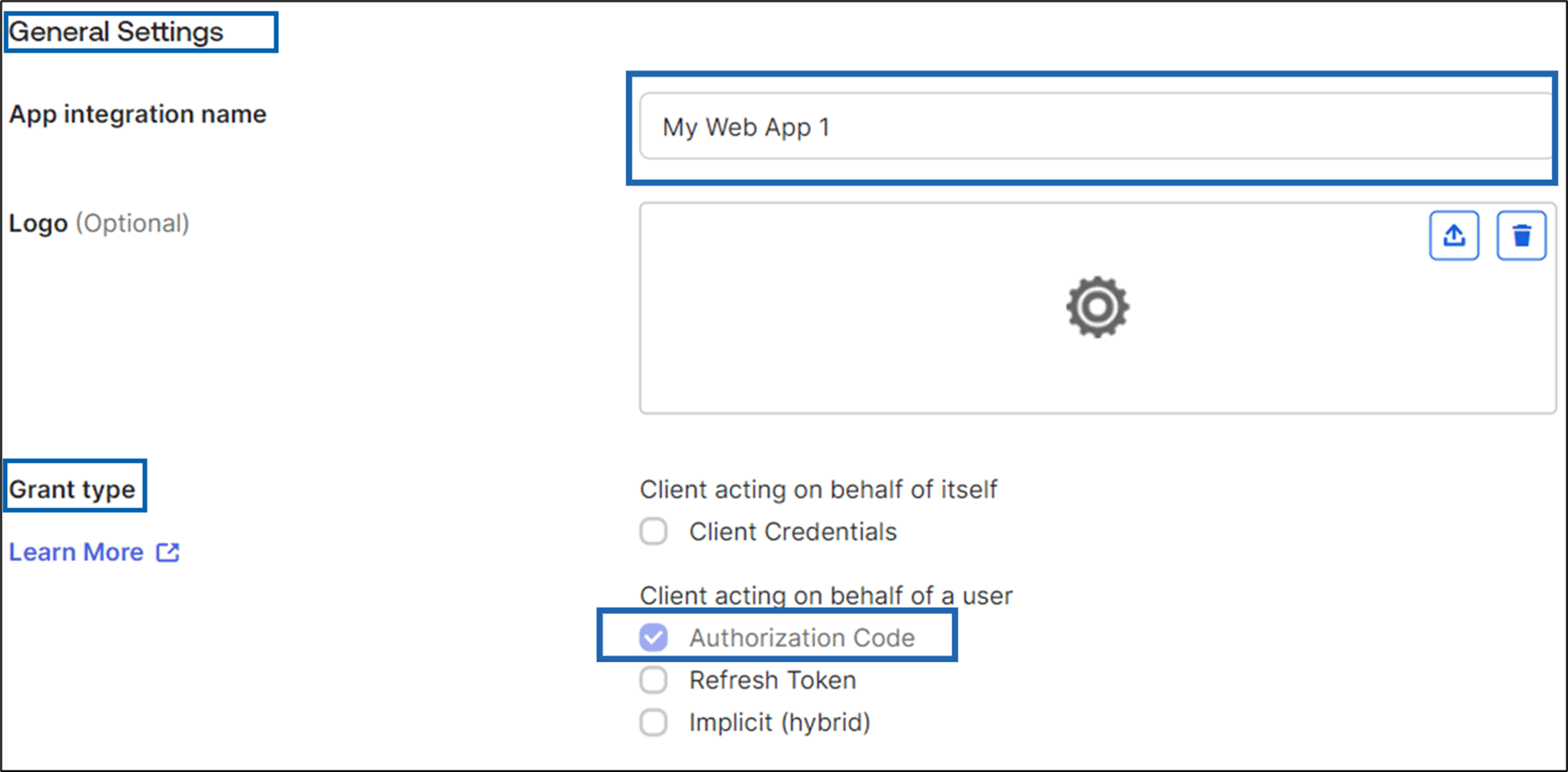
Under General Settings section,
- Enter App integration name.
- Select Authorization Code as Grant type (If not already selected).
-
Enter Sign-in redirect URIs.
Note: The Sign-in redirect URls must be set to https://{yourOrg}.okta.com.

-
Enter Sign-out redirect URIs (Optional).
Note: The Sign-out redirect URls must be set to https://{yourOrg}.okta.com.

-
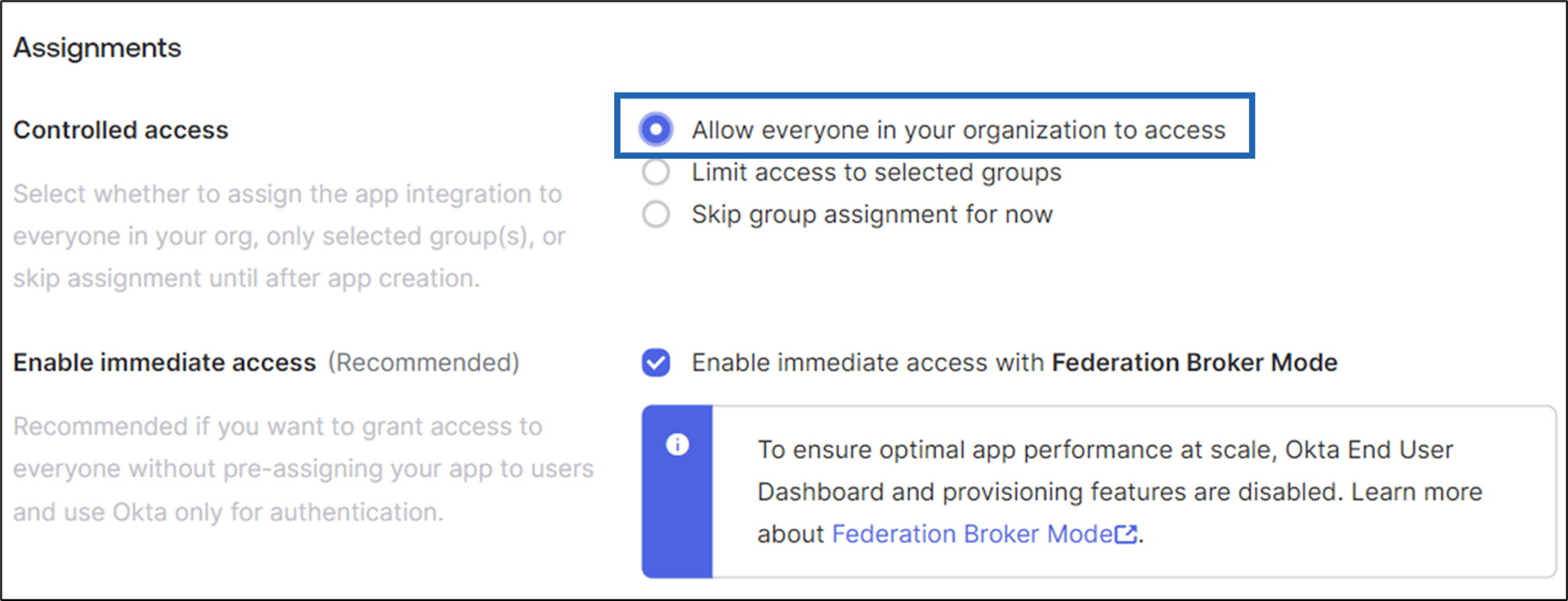
Under Assignments section, select Allow everyone in your organization to access.
-
Under General Settings section,
- Click Save.
Add the ClientID and Client Secret of the new app in Tenant Admin Portal > Identity Provider > IDP Details > IDP Settings tab**.**
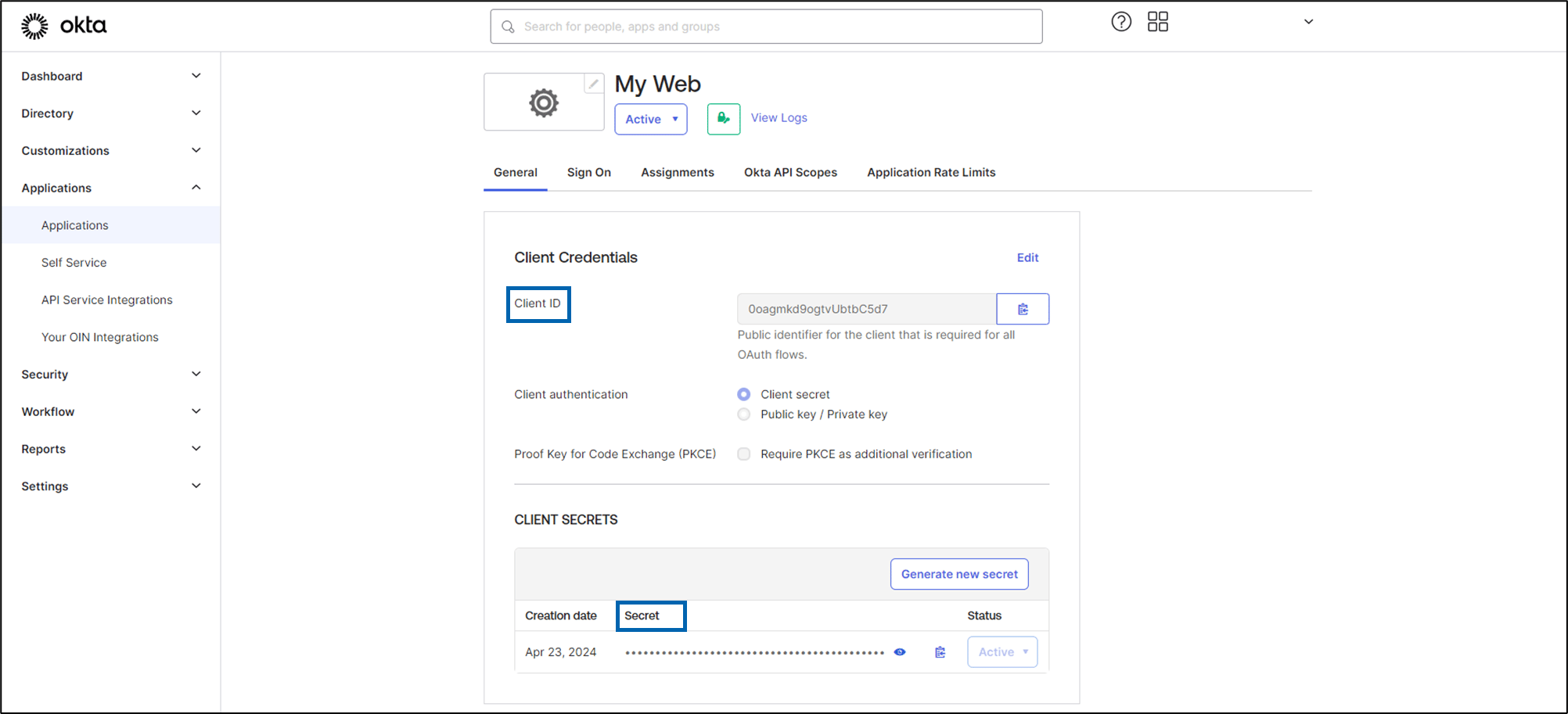
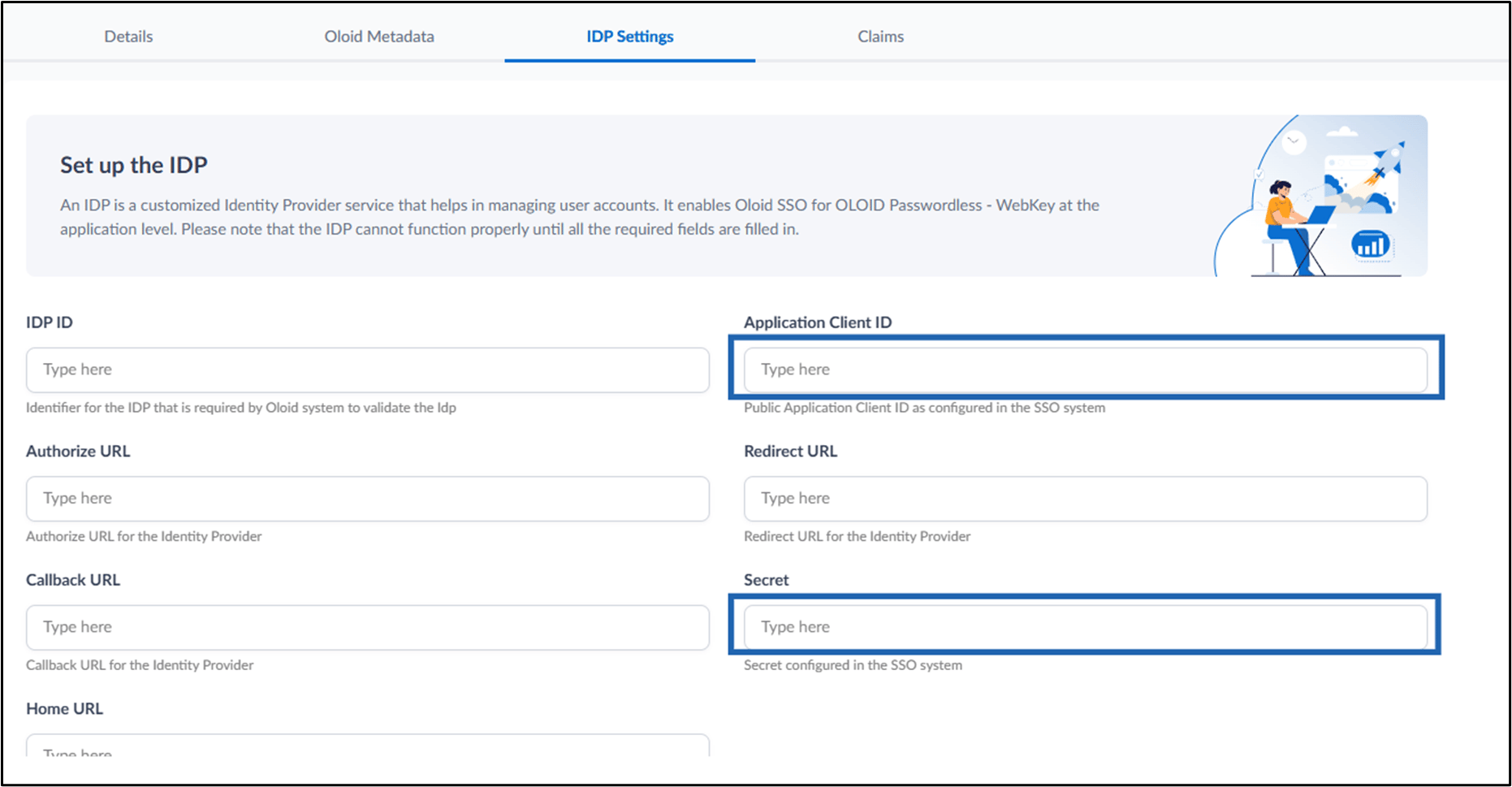
- Configure the IDP Profile in the Tenant Admin Portal:
- On the homepage of the portal, select the preferred IDP to edit.
- On the IDP details page, select the WebKey Application from Select WebKey Application dropdown.
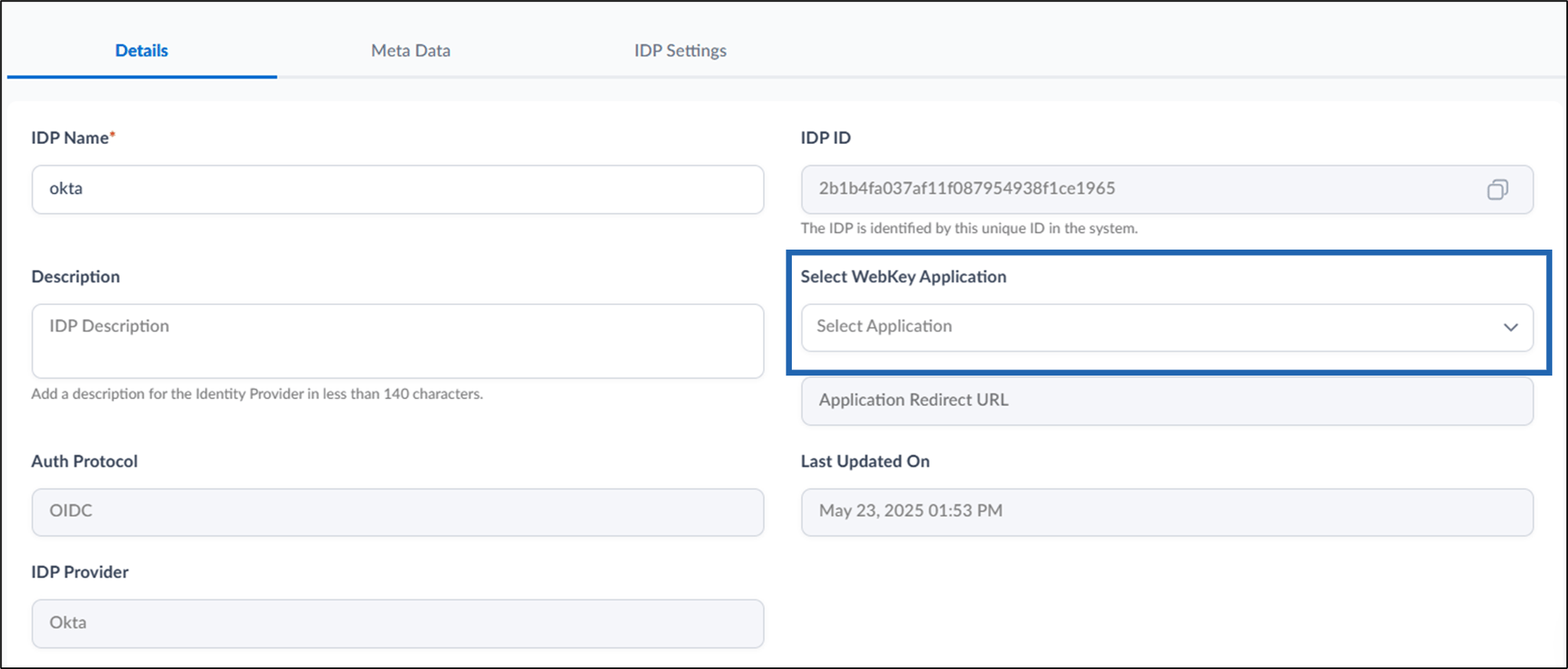
- Click Save.
- On the top-right corner of the preferred WebKey application, select Open login URL to view the configured WebKey application in your browser.