

Introduction
This document provides instructions to invite a user as a Supervisor in the Tenant Admin Portal. A Supervisor has limited access to the Tenant Admin Portal and Oloid-connected devices.Prerequisites
- You must be a Tenant Admin to invite a user as Tenant Supervisor.
-
The user you want to invite must already exist in the Tenant Admin Portal.
Note: If the user does not exist in the Tenant Admin Portal, add the user before inviting them as a Supervisor. For more information, see How to add and invite a Supervisor.
Steps to Invite a Supervisor
- Log in to the Tenant Admin Portal.
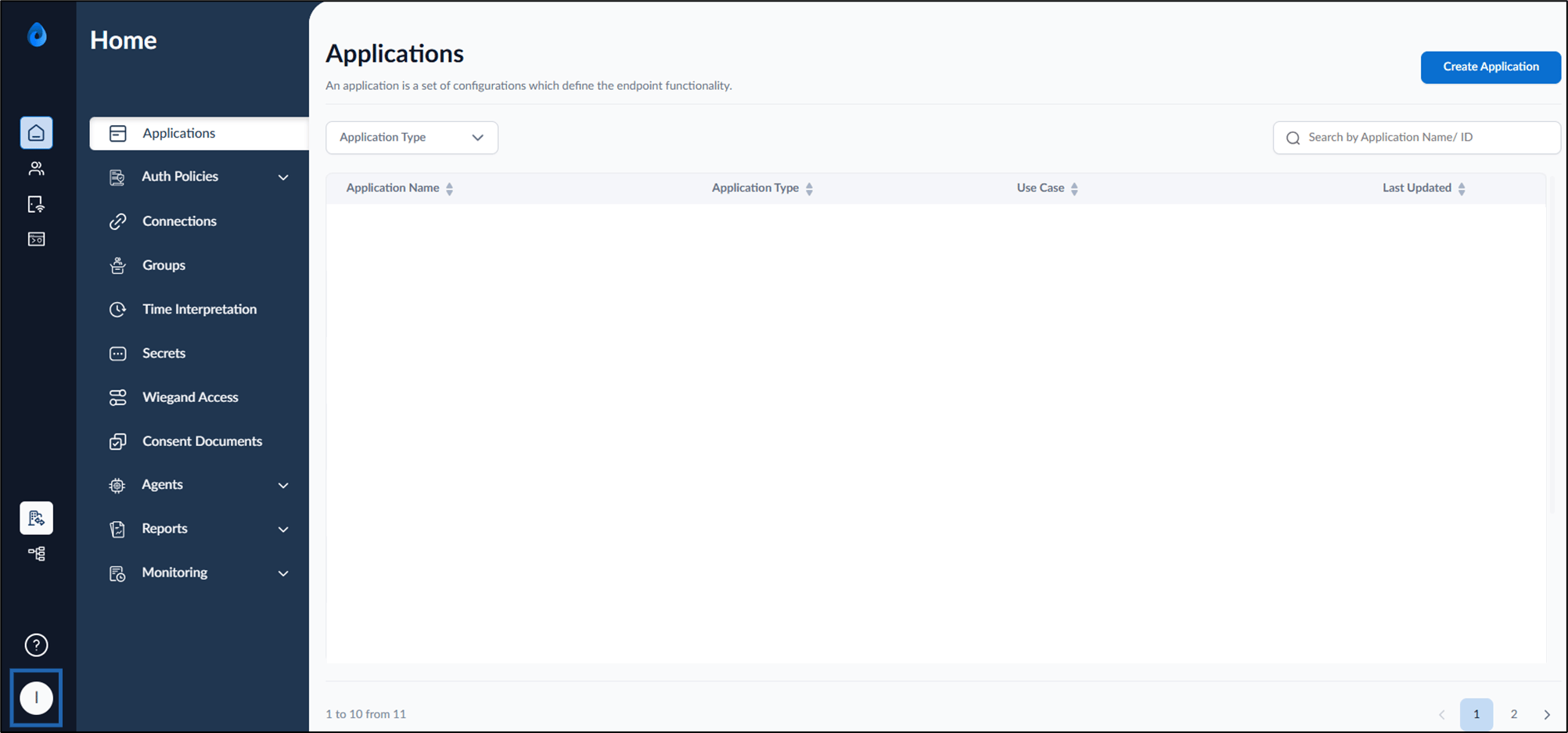
- On the homepage of the portal, click user profile icon on the bottom left.
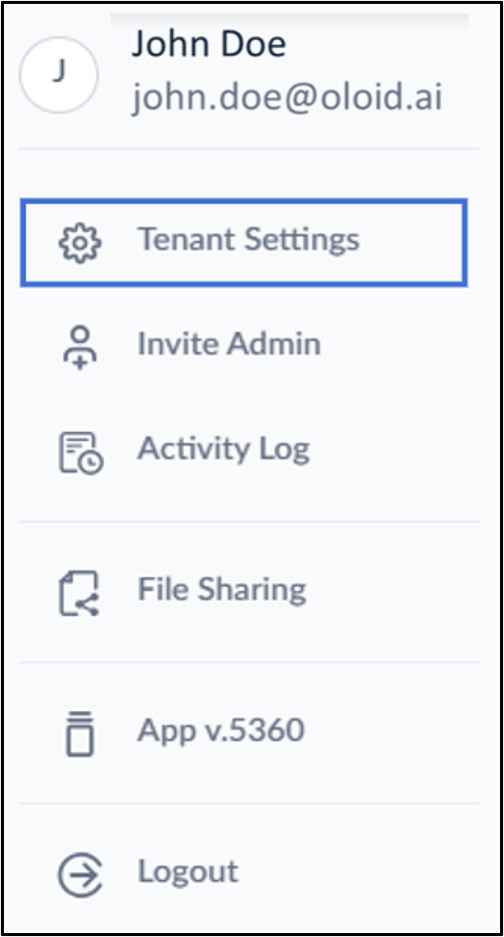
- Click Tenant Settings.
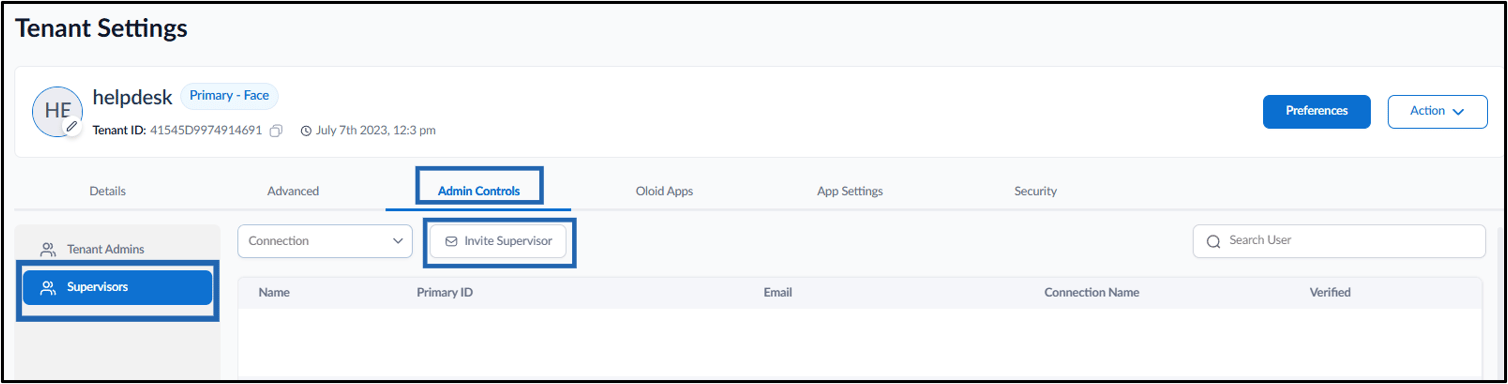
- On the Tenant Settings page, do one of the following:
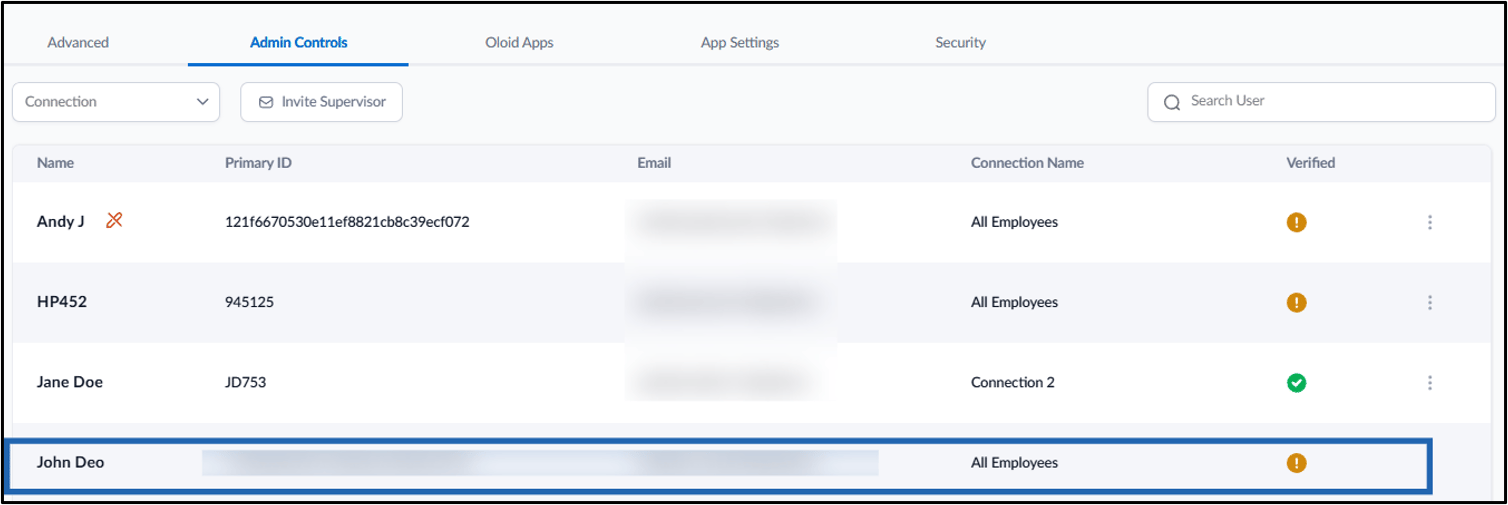
- Go to Admin Controls > Supervisors > Invite Supervisor.
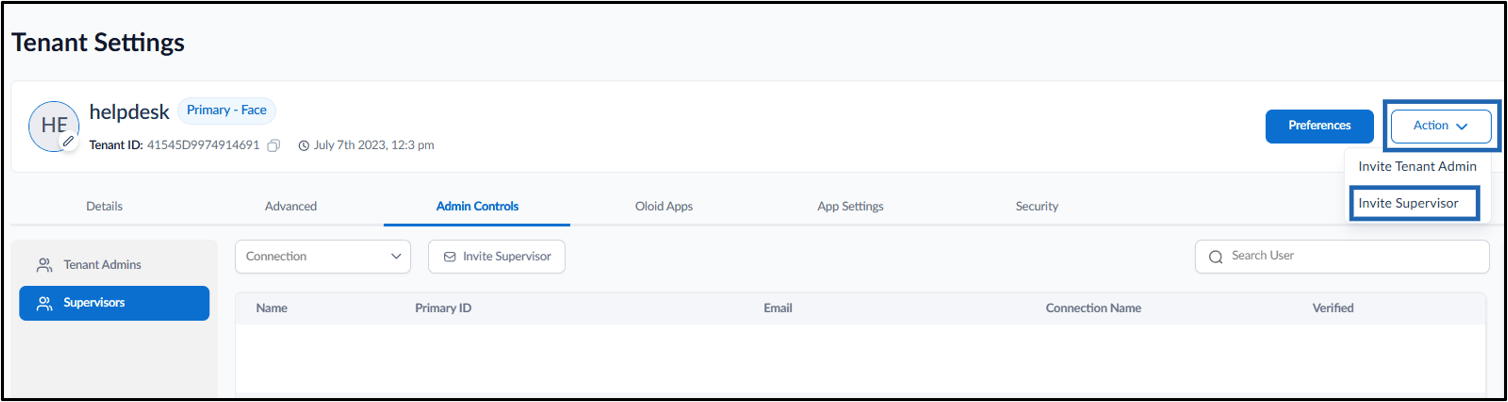
- Click Action > Invite Supervisor.
- Go to Admin Controls > Supervisors > Invite Supervisor.
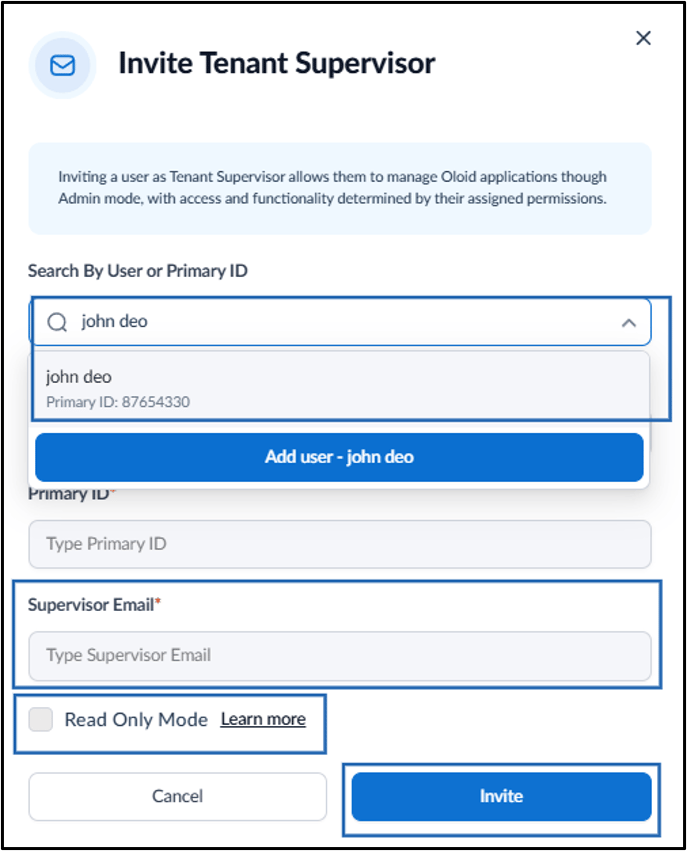
- Do the following:
-
Enter User name or Primary ID of existing user in the search field.
Note: Enter the exact User Name or Primary ID.
- Enter Supervisor Email.
- Select Read Only Mode to restrict the Supervisor from performing any action. (Optional)
-
Click Invite.
-
Enter User name or Primary ID of existing user in the search field.