

Introduction
This document helps to configure an OIDC- based Entra ID Identity Provider (IdP) profile in the Oloid Tenant Admin Portal.Prerequisites
- You must have access to Tenant Admin Portal.
- IDP profile for Entra ID must be created in Tenant Admin Portal. To know more, refer How to Create IDP Profile for OIDC-Entra ID in Tenant Admin Portal.
- IDP Profile for Entra ID must be created and Configured in the Entra ID Admin Console. To know more, refer Integrating Oloid as an External Method Authentication (EAM) with Microsoft Entra ID
Steps to Configure IDP Profile for OIDC - Entra ID
- Log in to the Tenant Admin Portal.
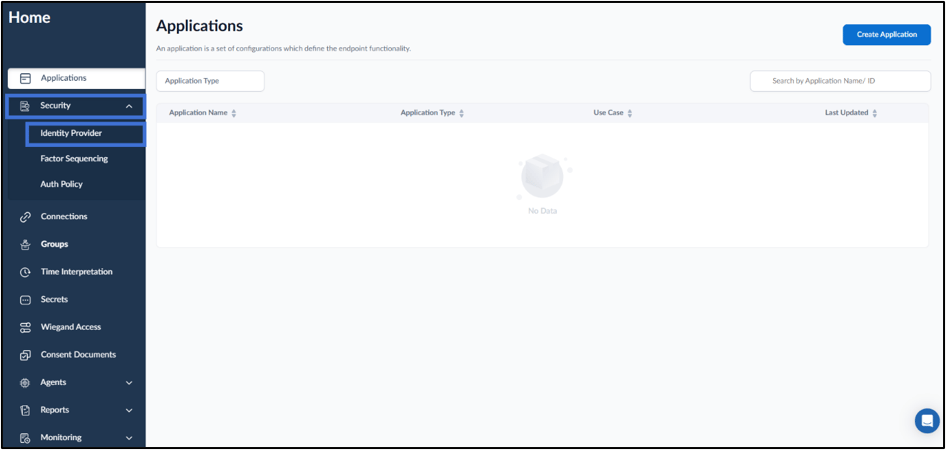
- On the home page of the portal, select Security > Identity Provider.
- Select an IDP Profile for Entra ID.
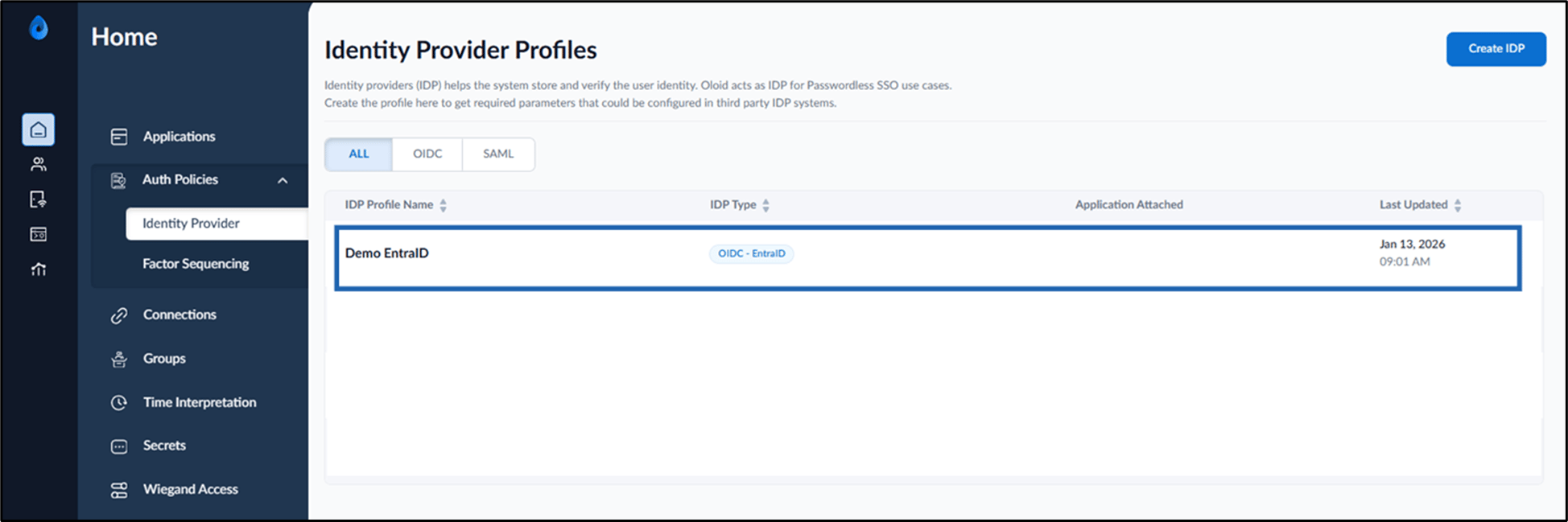
- Do the following:
- Configure Details tab
- Integrate Metadata tab for Entra ID Settings
- Configure IDP Settings tab The IDP Profile is configured.
Configure Details Tab
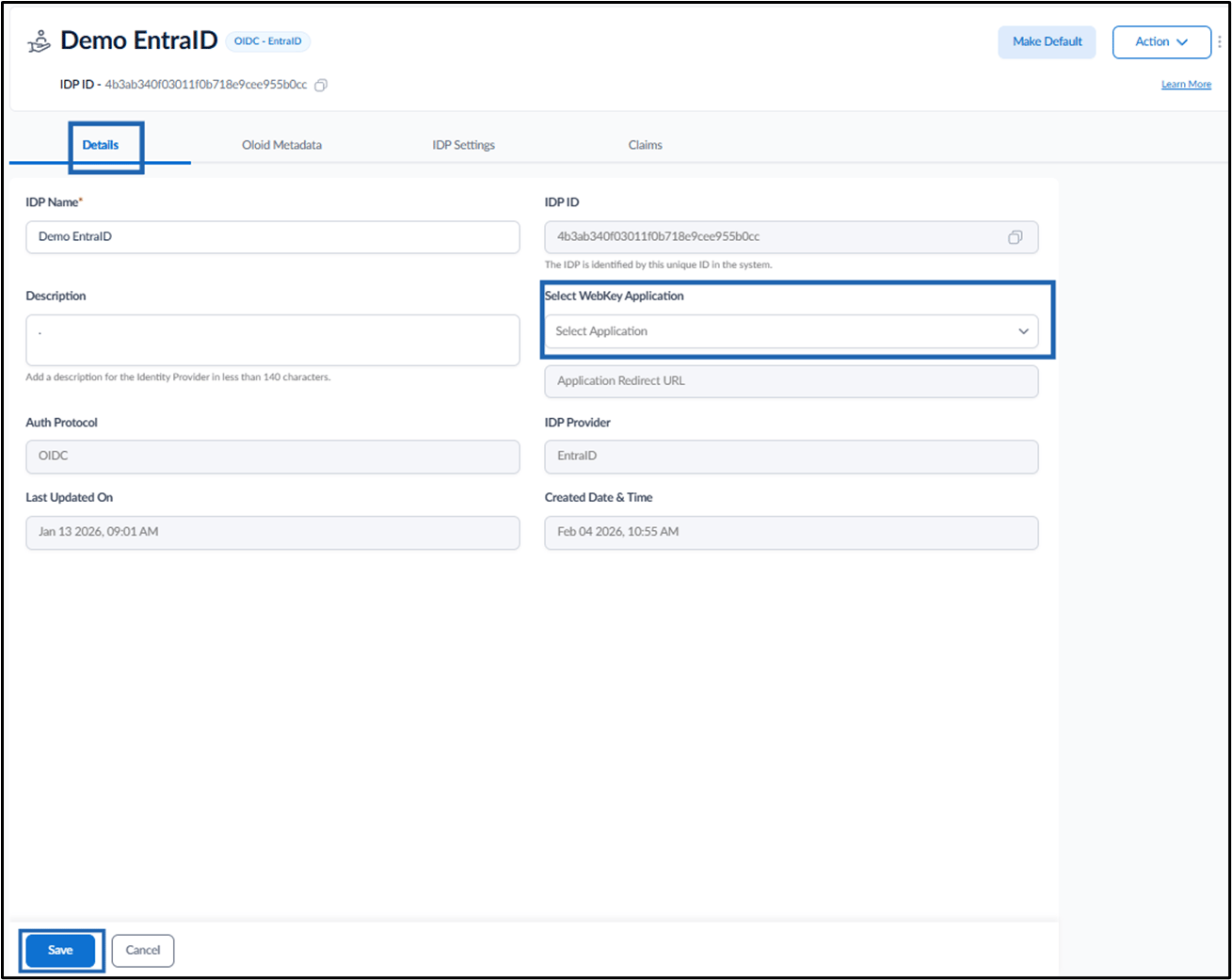
- Click Details tab and do the following:
- Edit the IDP Name. (if required)
- Enter Description. (Optional)
- Select the required WebKey application from the Select WebKey Application drop-down.
-
Click Save.
-
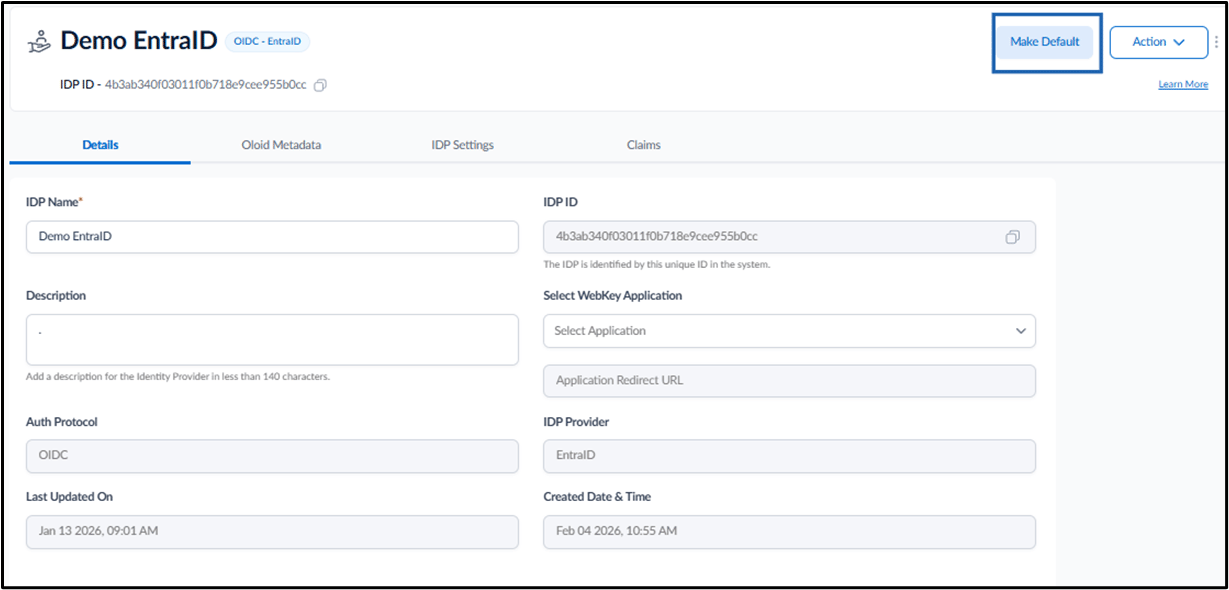
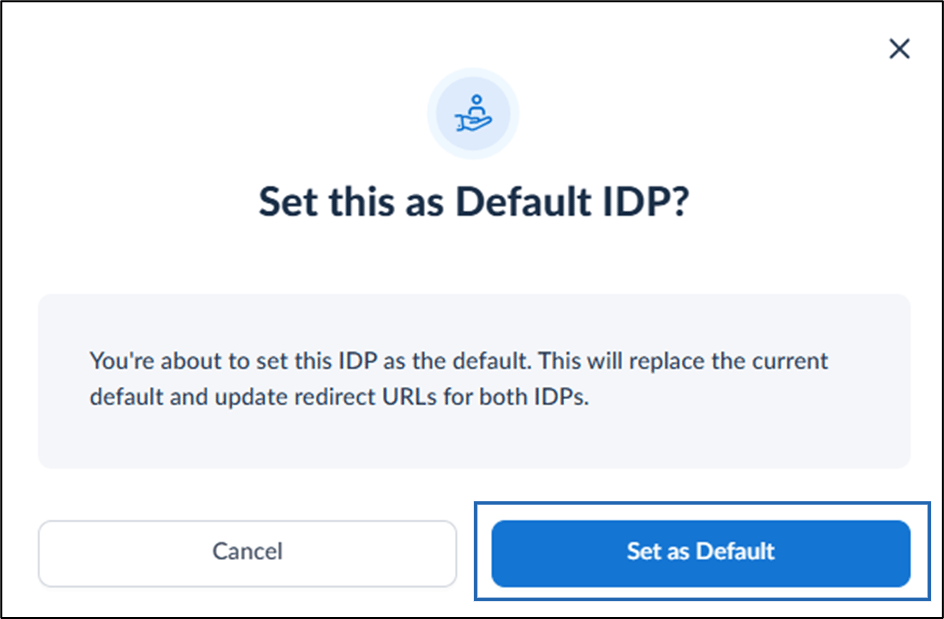
Click Make Default to set this IDP as default. (Optional)
Note: If another IDP is currently set as default, it will be replaced upon confirmation.
-
Click Set as Default to designate the preferred IDP as default.
Integrate Oloid Metadata tab for Entra ID Settings
This section provides Oloid Metadata information for Microsoft Entra ID settings. Copy the Authorization URL and enter it in the Redirect URL field in the Microsoft Entra ID Admin Console.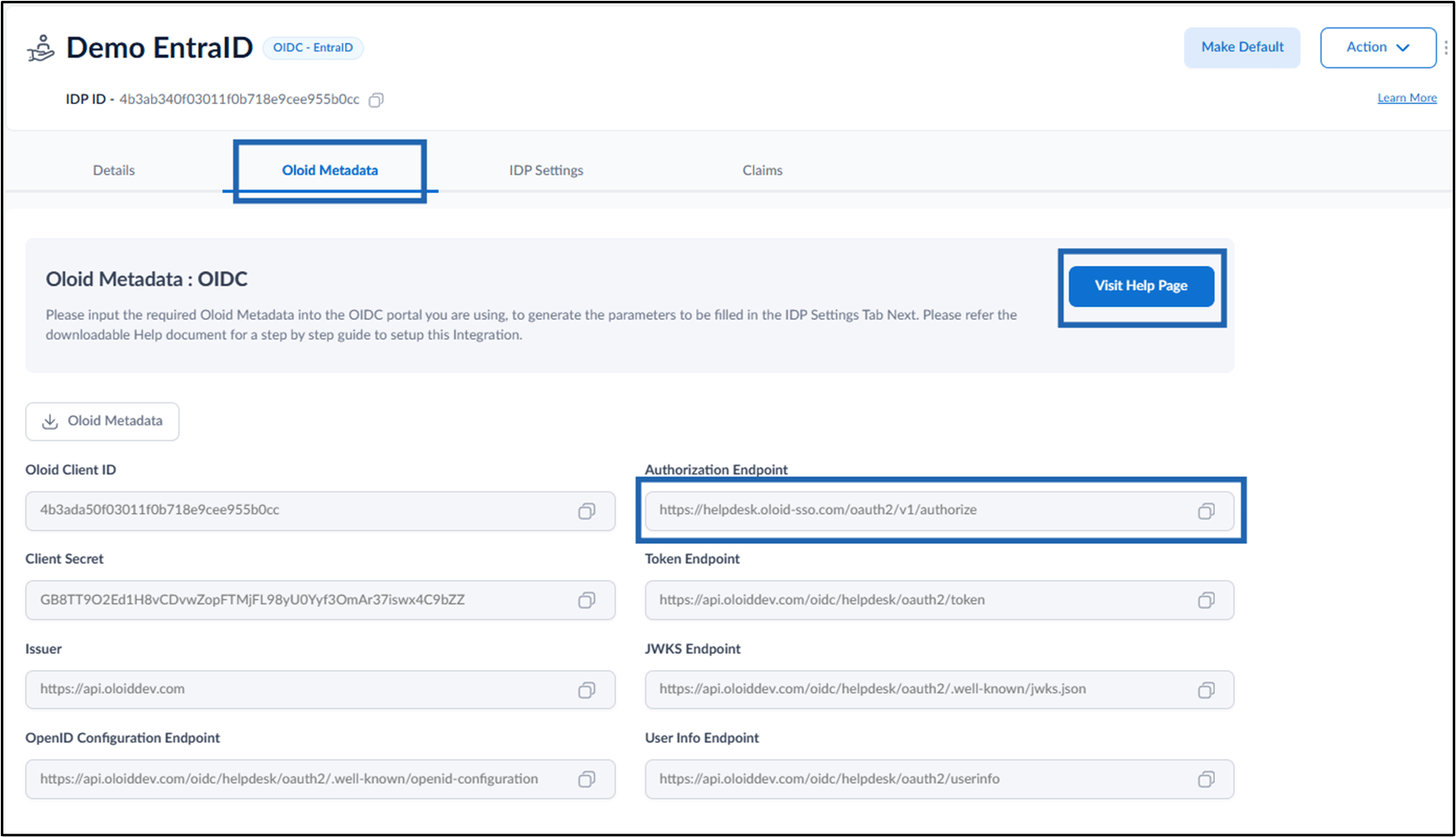
Configure IDP Settings Tab
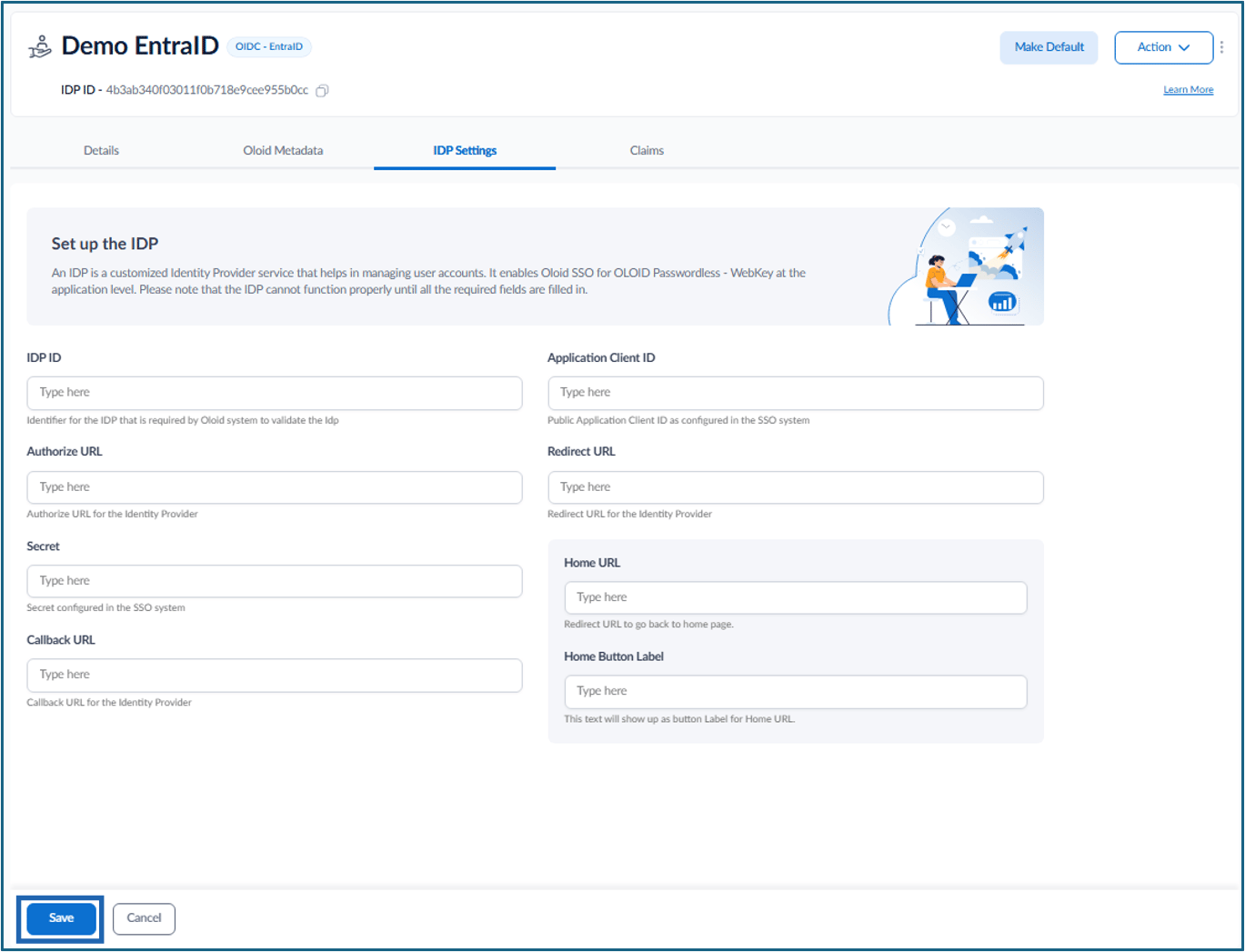
- Click IDP Settings tab.
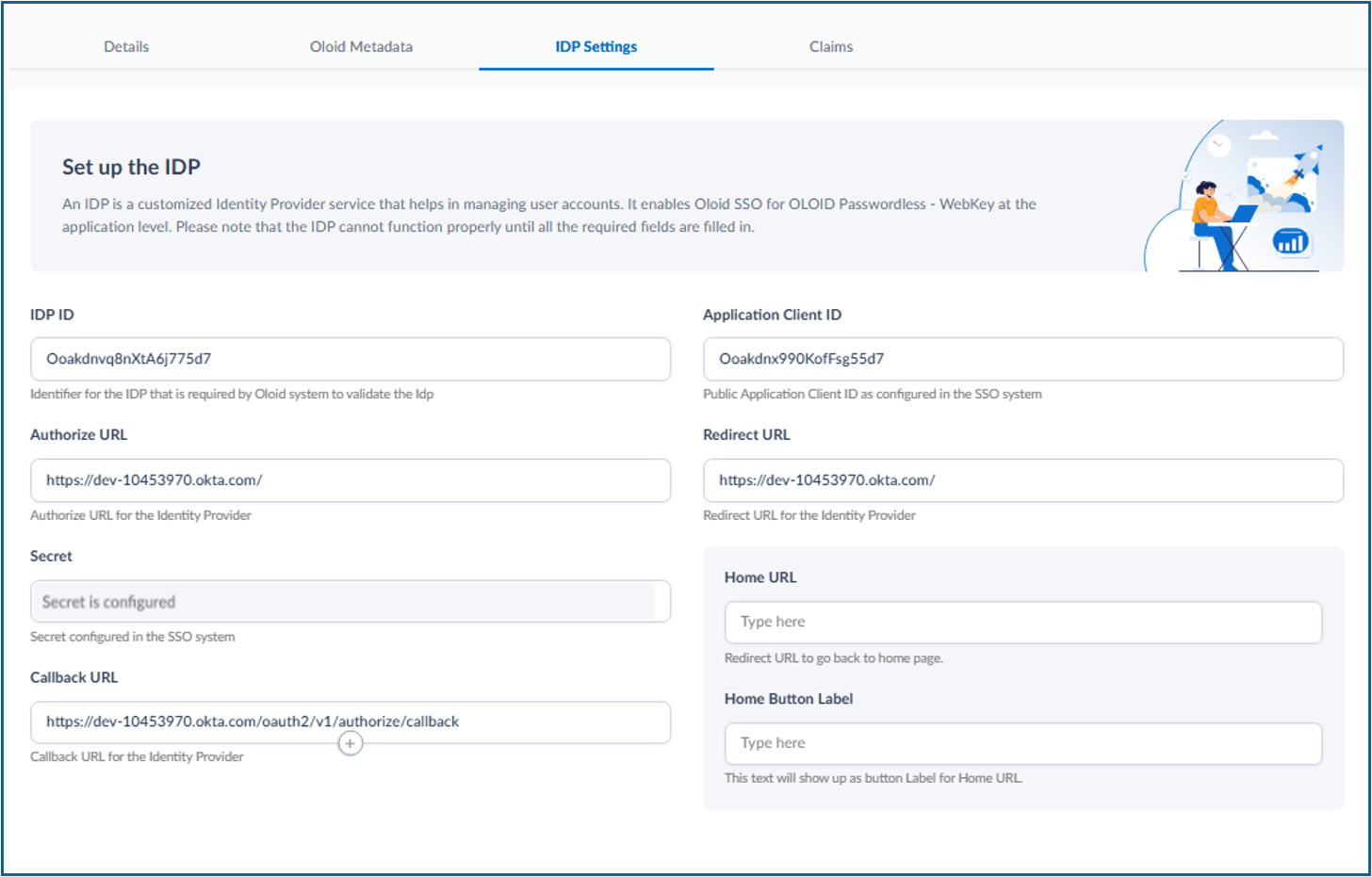
The IDP Settings tab is displayed.
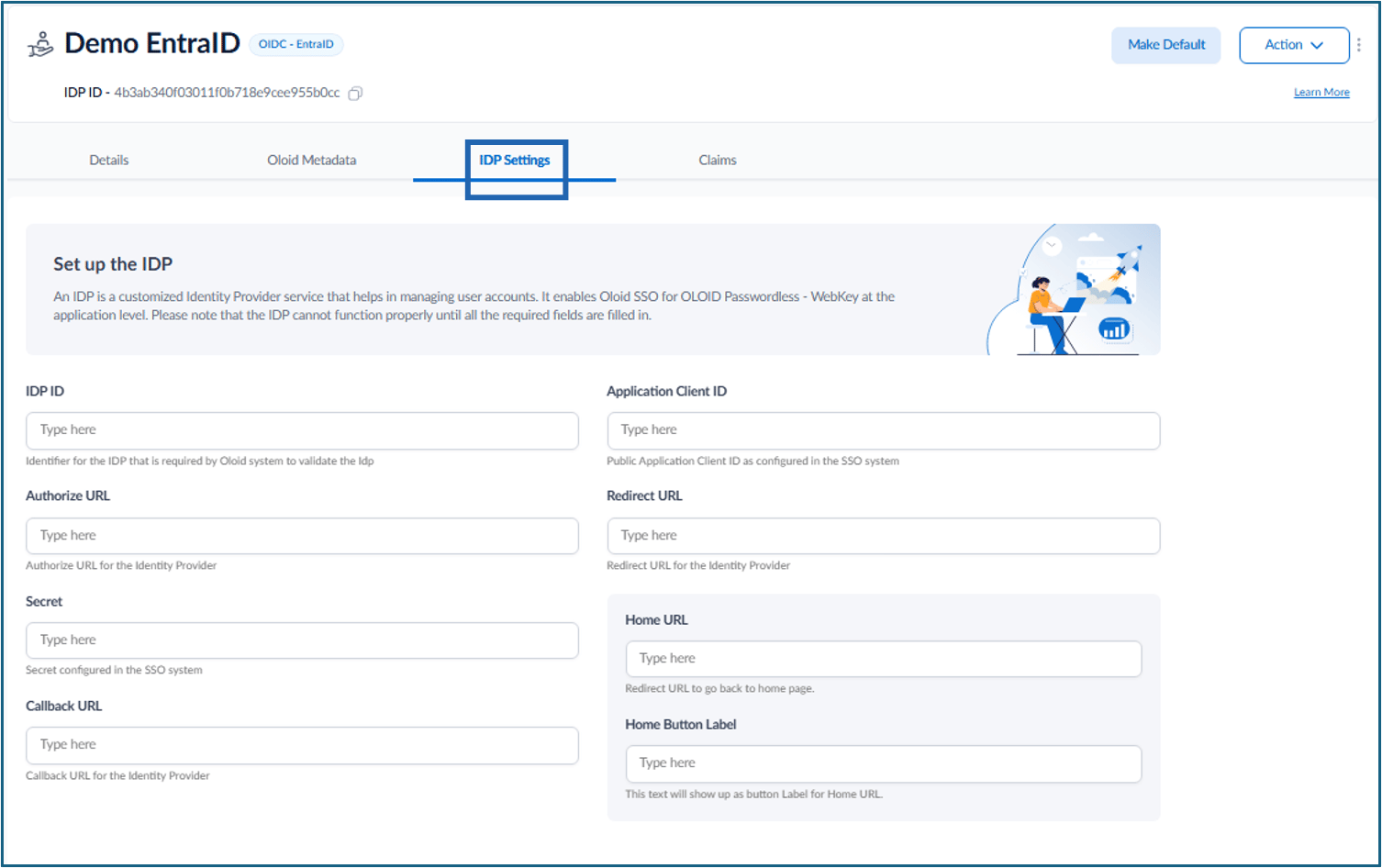
- Do the following:
-
Enter IDP ID.
 Note: The Directory (tenant) ID is the IDP id. You can find this in the Entra ID Admin Console on the Overview tab.
-
Enter Application Client ID.
 Note: You can find this in the Entra ID Admin Console on the Overview tab.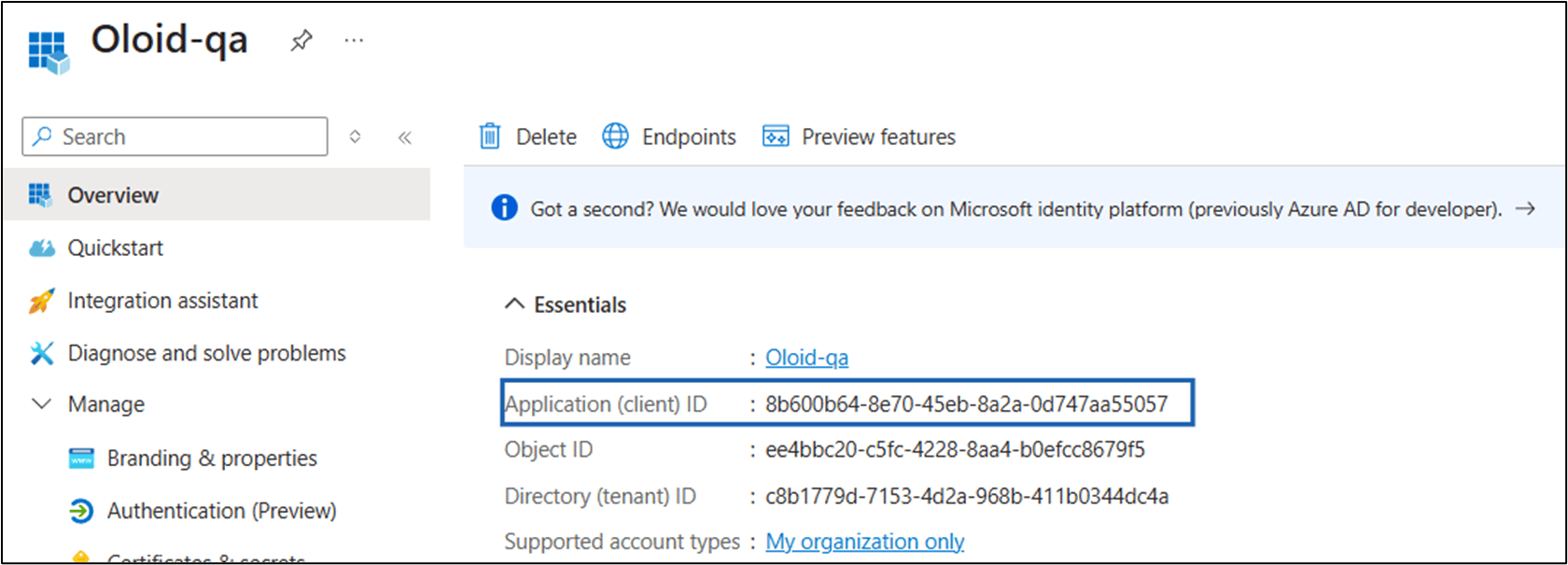
-
Enter Authorize URL.
 Note: You can find this in the Entra ID Admin Console under Overview > Endpoints > OpenID Connect metadata document.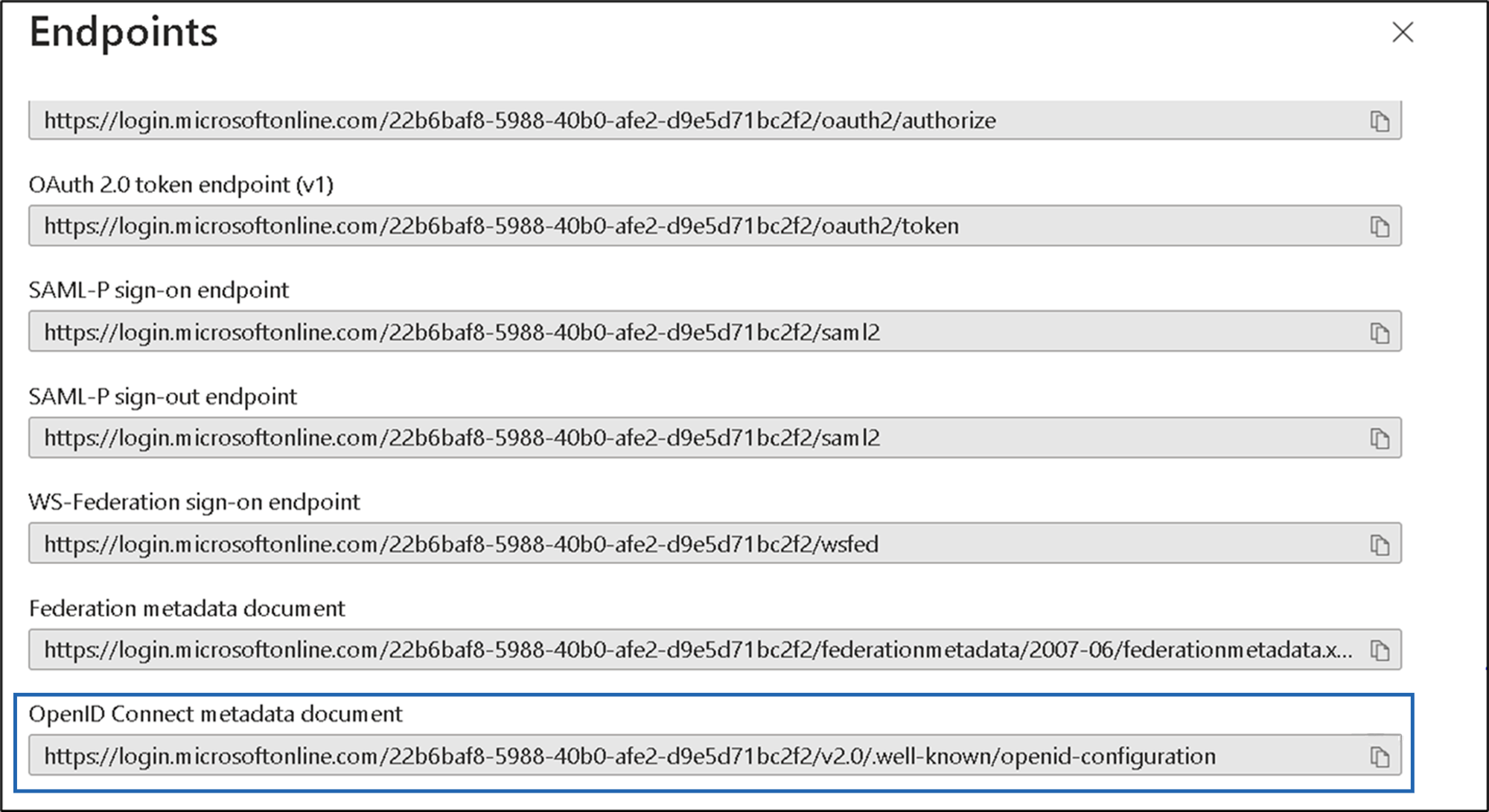
-
Enter Redirect URL.
 Note: You can find this in the Tenant Admin Portal under Metadata tab > Authorization Endpoint.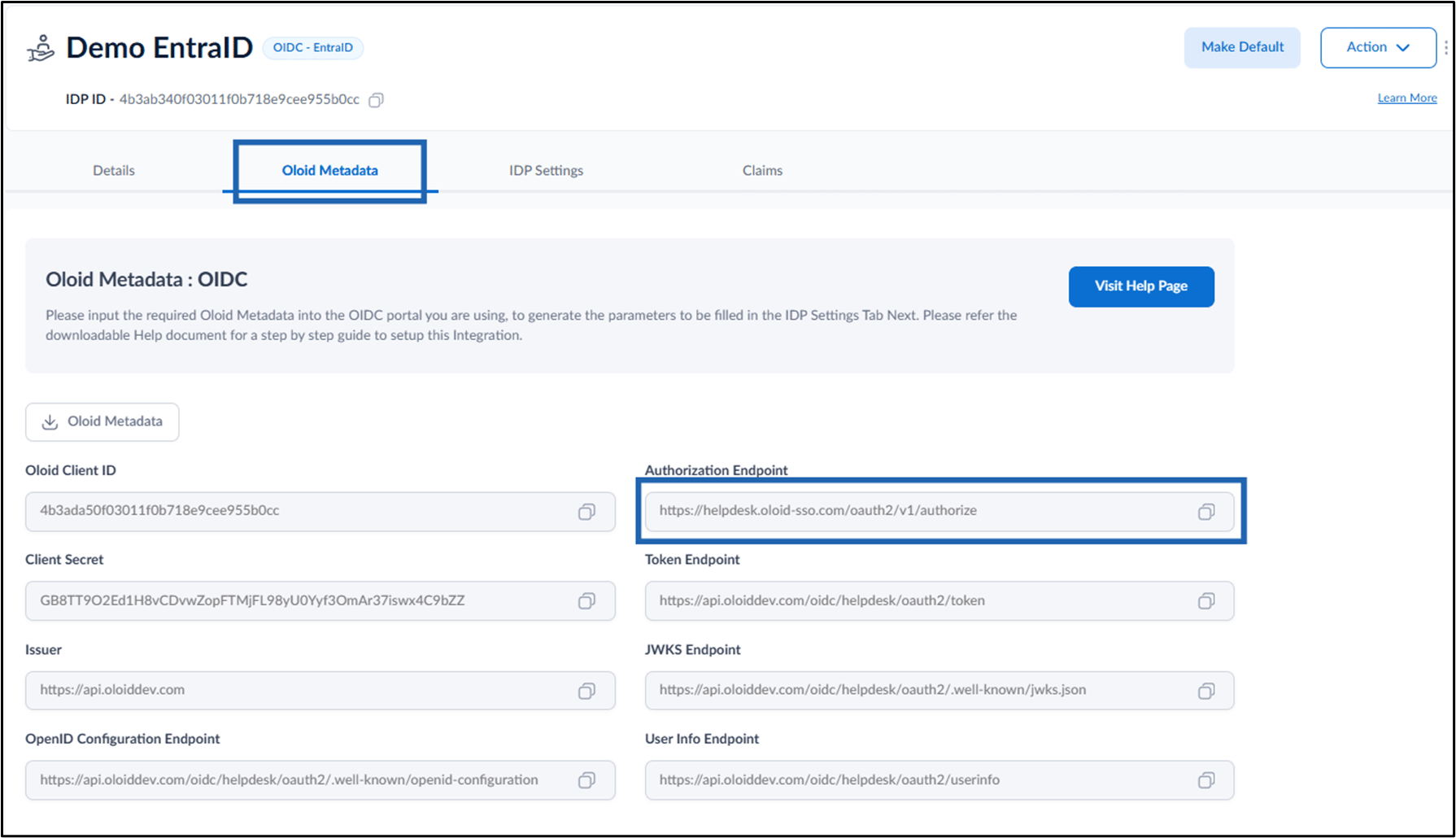
-
Enter Callback URL (Optional).

-
Enter Secret.
 Note: You can find this in the Entra ID Admin Console under Manage > Certificates and Secrets > Client secrets.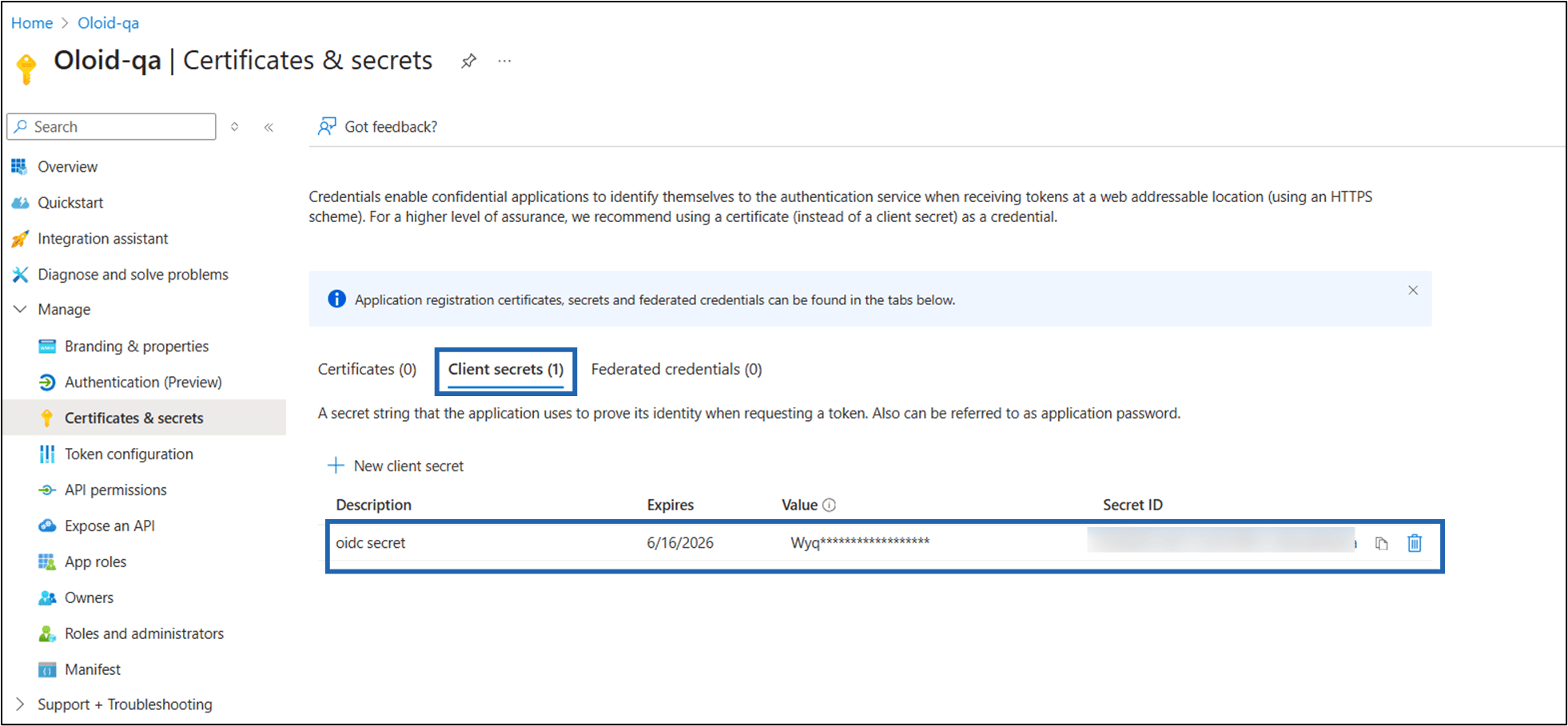
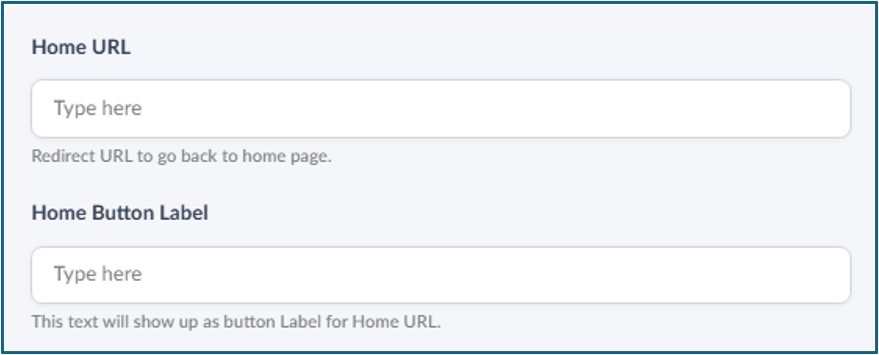
- Home URL: Enter the URL of the home page.
-
Home Label Button: Enter the text displayed on the Home button.
-
Click Save.
-
Enter IDP ID.