

Introduction
The Credentials section under Insights provides admin with visibility into user credential enrollment across the organization.Prerequisite
- You must have Tenant Admin account.
How to Access Credentials Insights
- Log in to the Tenant Admin Portal.
- From the left navigation menu, click Insights.
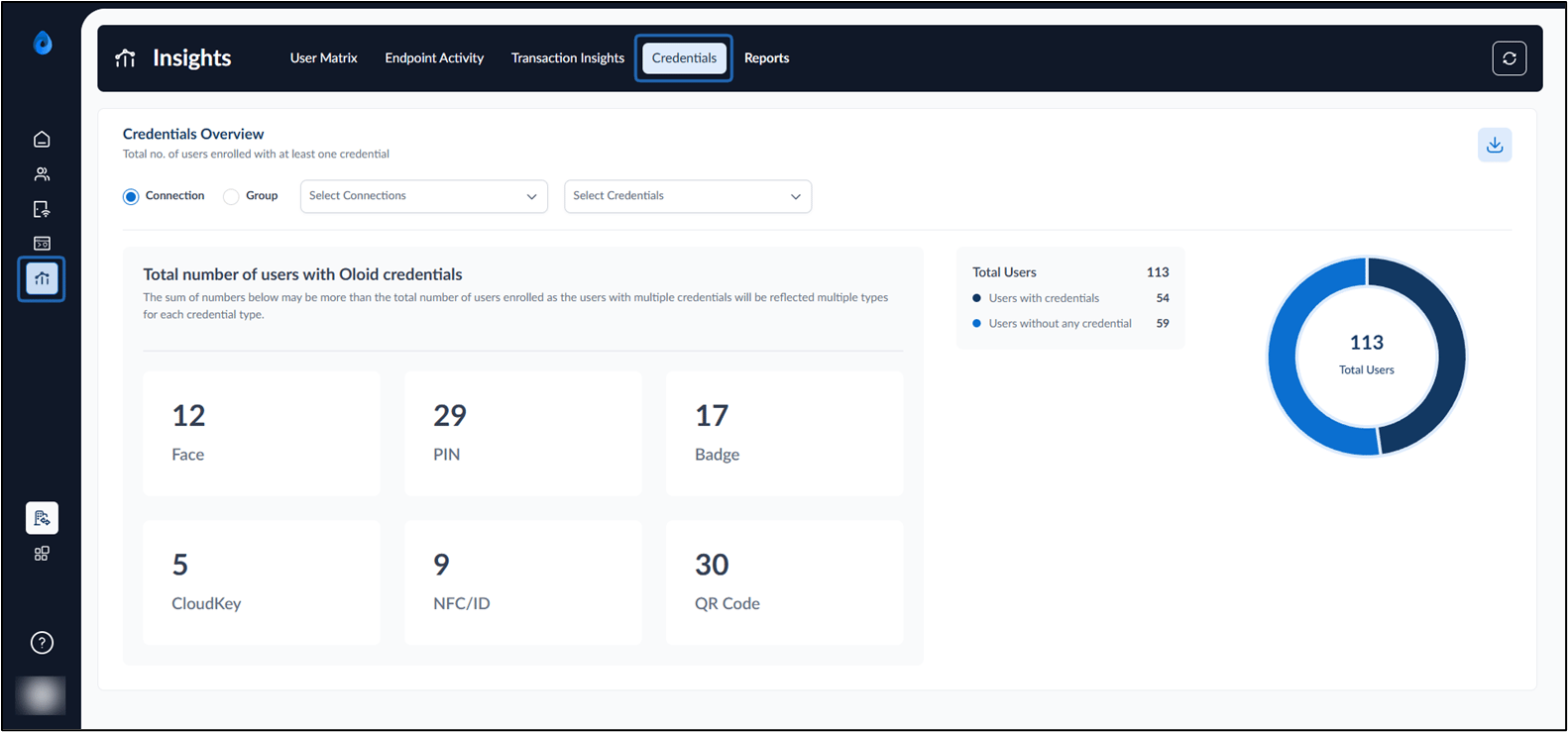
- Select the Credentials tab. The Credentials Insights dashboard is displayed.
- Do one of the following:
- Connection / Group
- Select Connection to filter users based on directory connections.
- Select Group to filter users based on specific user groups.

- Connection / Group
- Select Credentials from dropdown Filter insights by one or more credential types.
- Click Apply after selecting filters to update the dashboard data.
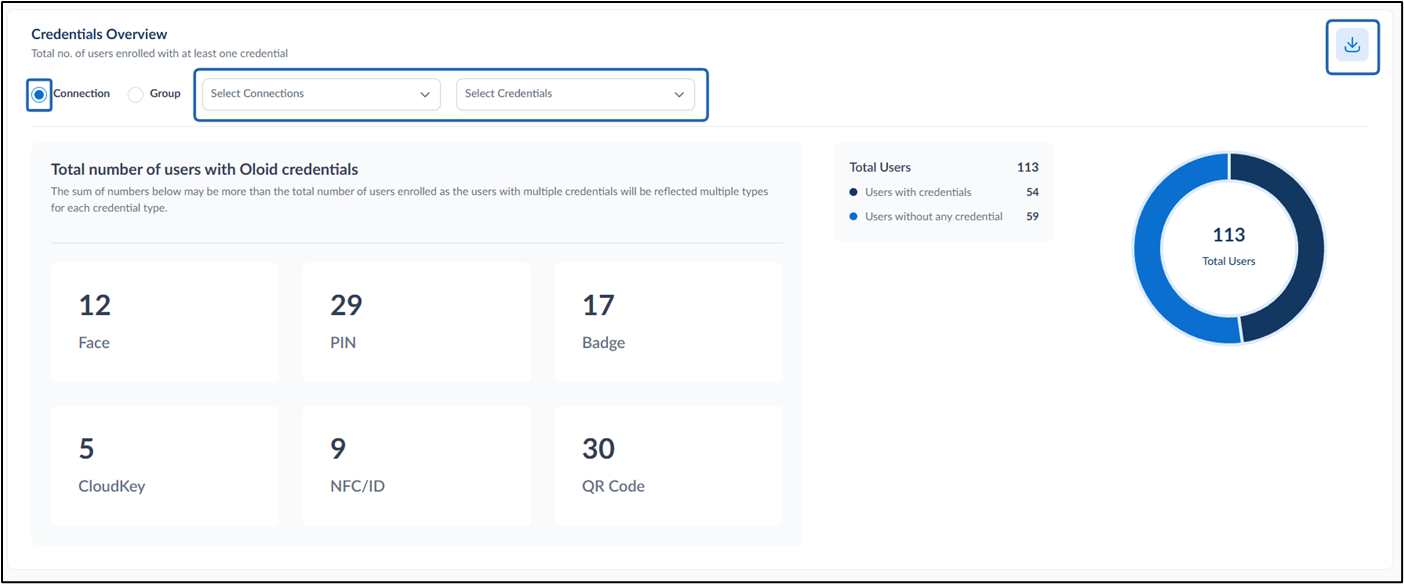
- Click Download. The report is successfully downloaded.
Note: The sum of users across credential types may be greater than the total number of users, as a user can be enrolled with multiple credential types.
- Users with credentials – Users enrolled with at least one credential.
- Users without any credential – Users who have not enrolled any credential.