

To configure CloudKey follow the below steps
- Log in to the Oloid Portal.
- On the homepage of the portal, click user profile icon on the bottom left corner of the menu panel.
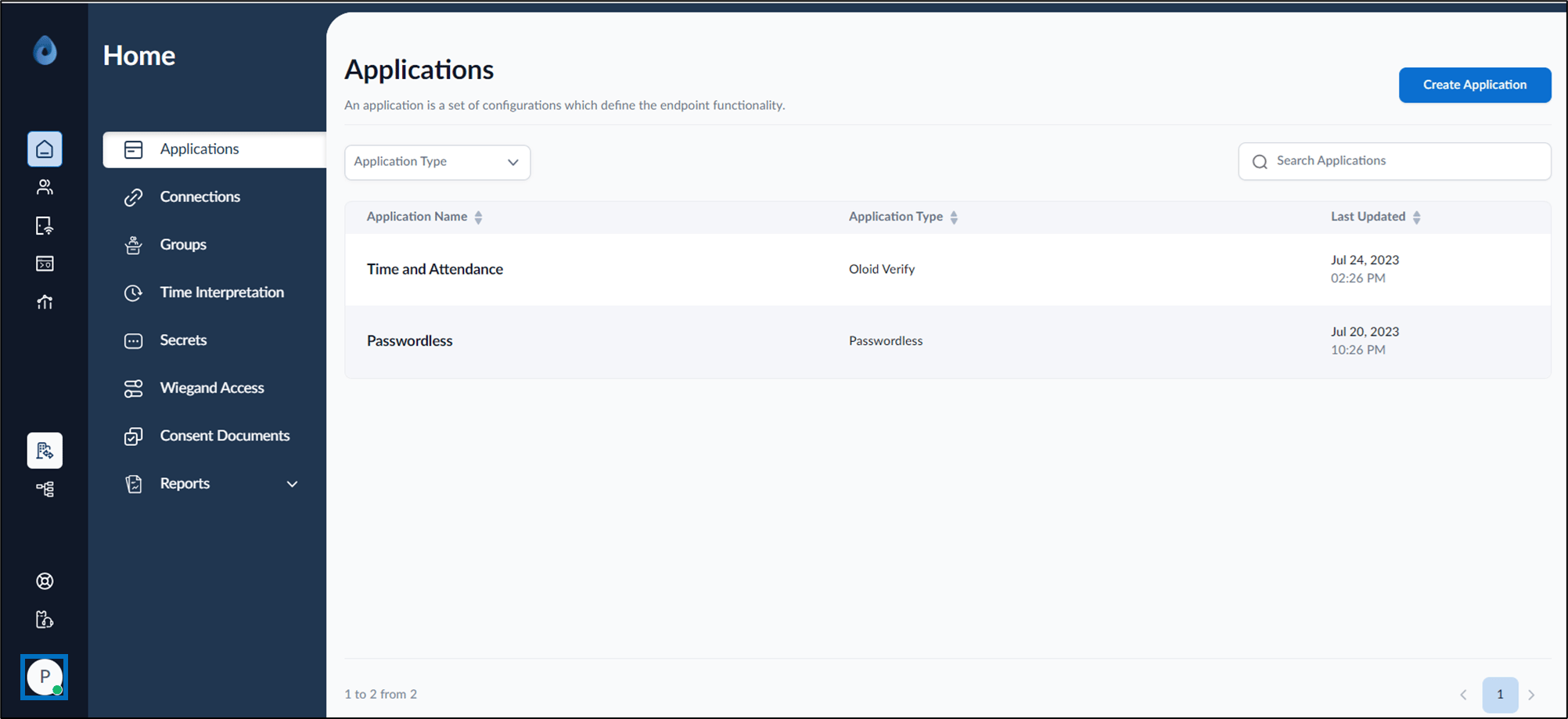
- Select Settings.
The Tenant Settings page is displayed.
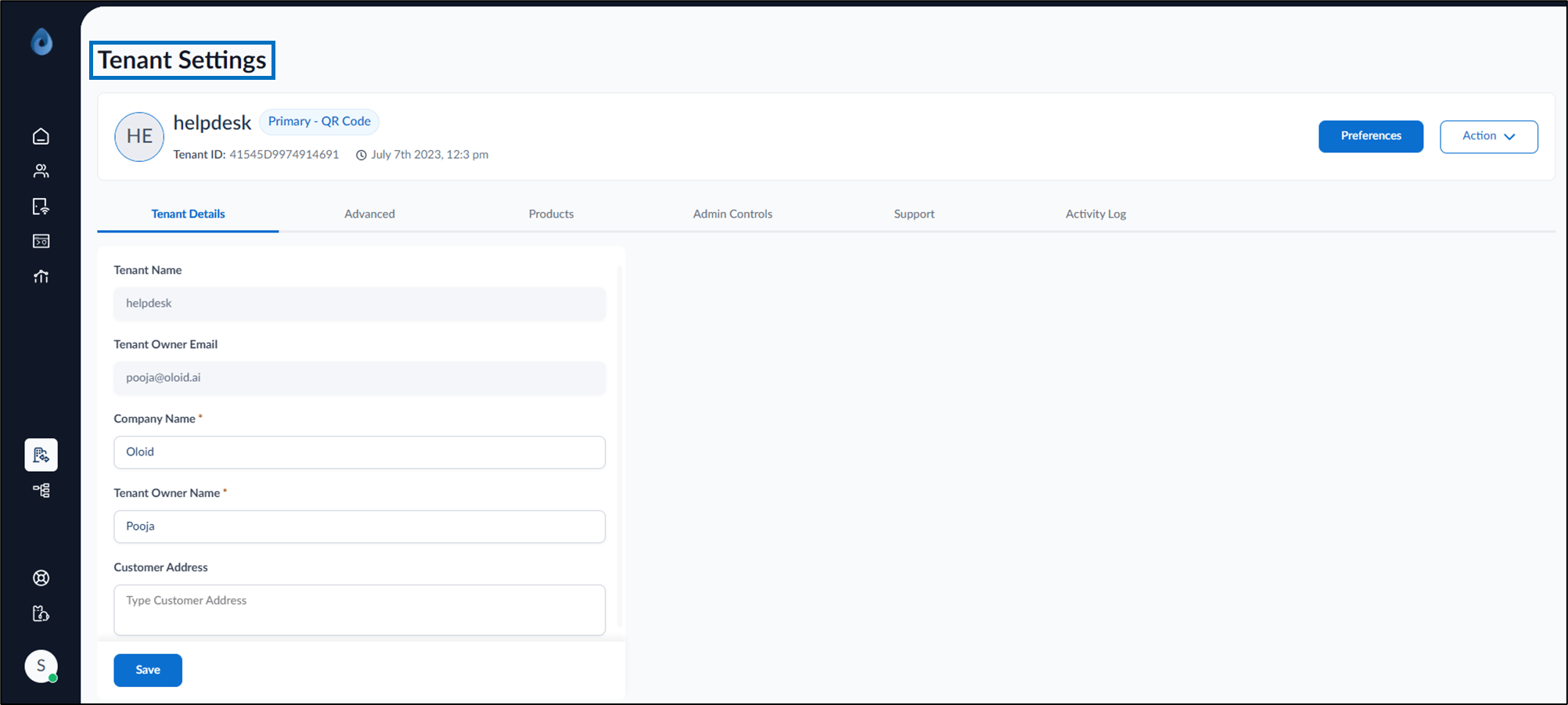
- Go to Advanced tab.

- Under Credentials section select CloudKey.
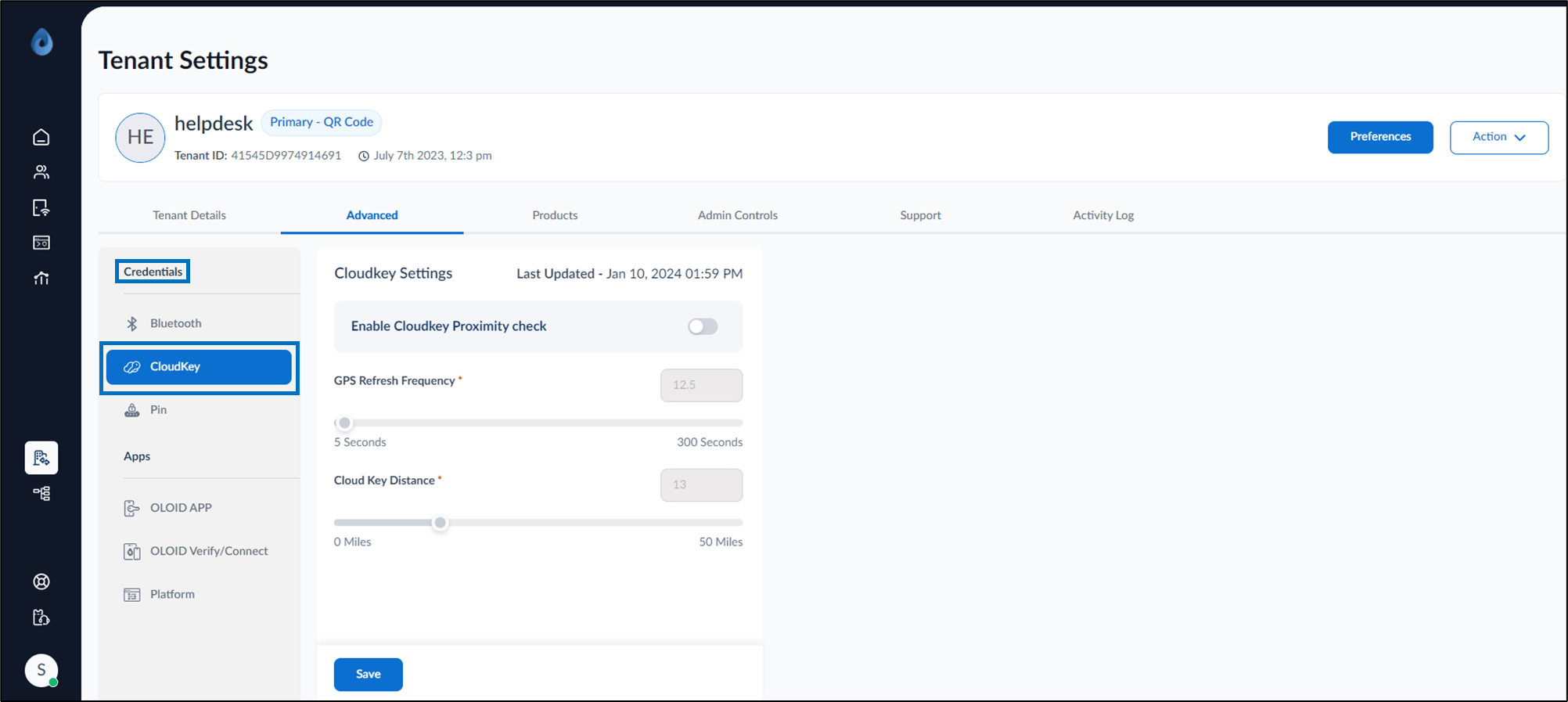
- On the Cloudkey Settings page, do the following:
-
Turn on Enable CloudKey Proximity check to set GPS Refresh Frequency and CloudKey Distance.
Note: Cloud key Proximity check if enabled will make only those CloudKey endpoints visible which are within the proximity range. If not enabled, all the endpoints will be visible.
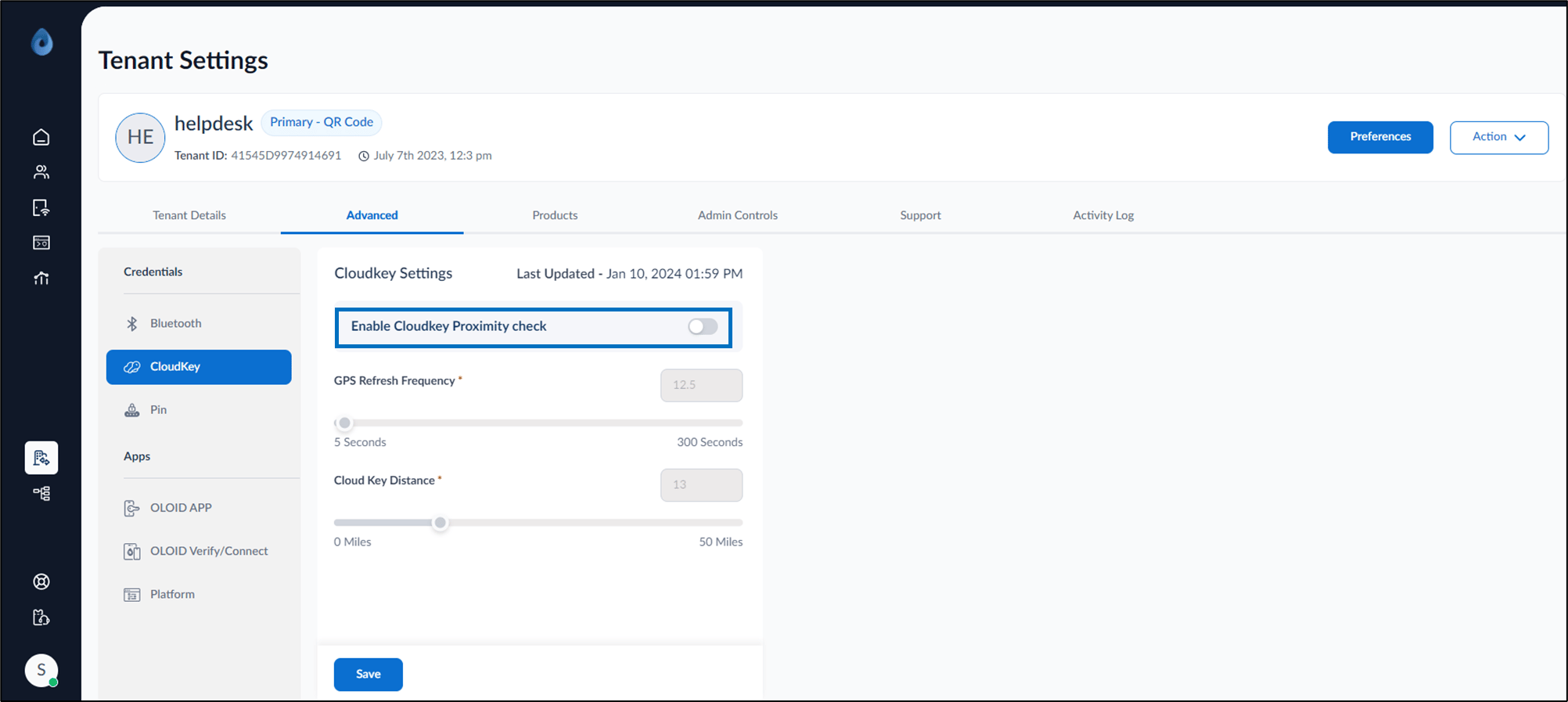
- To set the GPS frequency, adjust the GPS Refresh Frequency.
-
To adjust the distance setting, modify the CloudKey Distance.
Note: Turn off the Enable CloudKey Proximity check to allow users to unlock doors without distance constraints.
- Click Save. The CloudKey is configured and is ready to be use.
-
Turn on Enable CloudKey Proximity check to set GPS Refresh Frequency and CloudKey Distance.