Introduction

This document provides instructions on how to create an Advanced User Sync using the Entra ID - Inbound agent in the Tenant Admin Portal.

Prerequisite

You must have Admin access to the Tenant Admin Portal.

Steps to Create Advanced User Sync

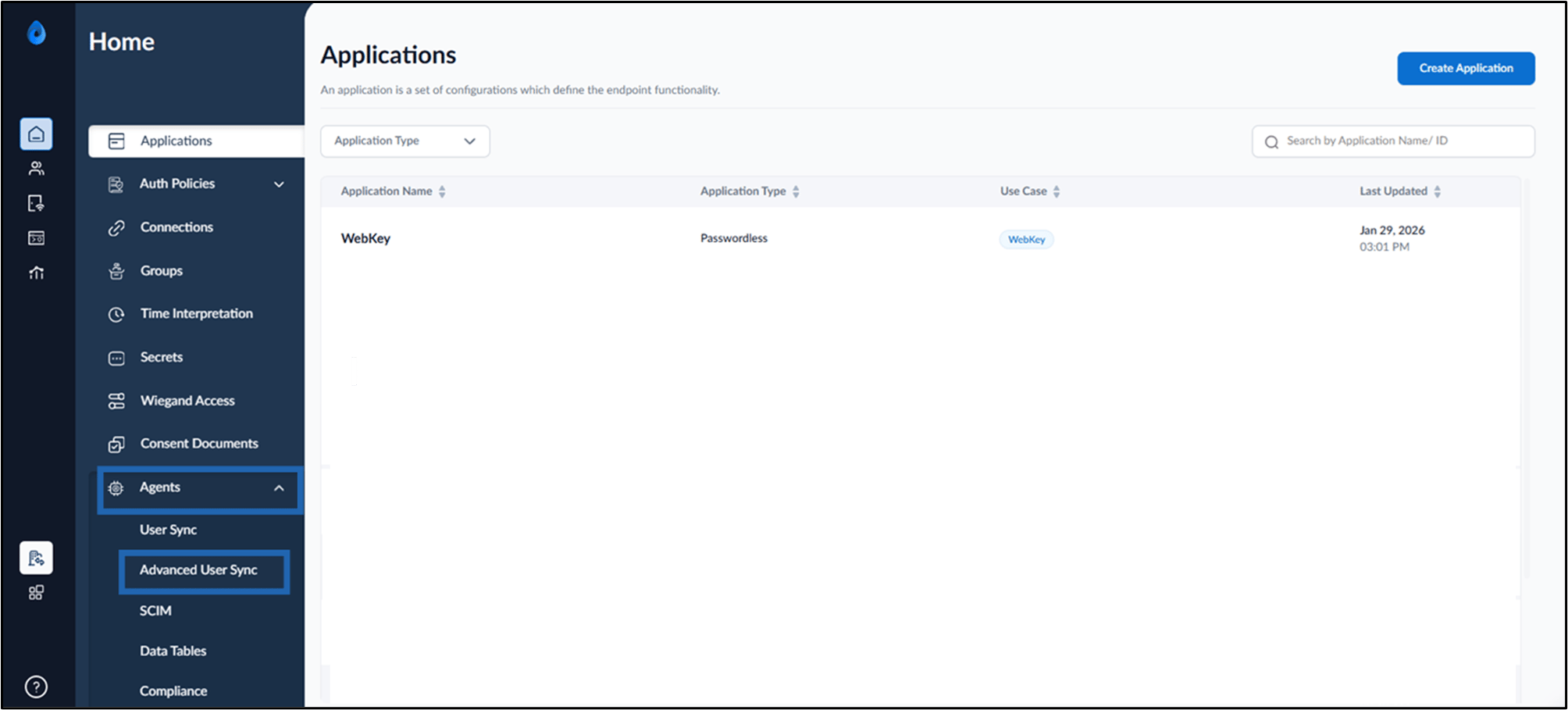
  1. Log in to the Tenant Admin Portal.
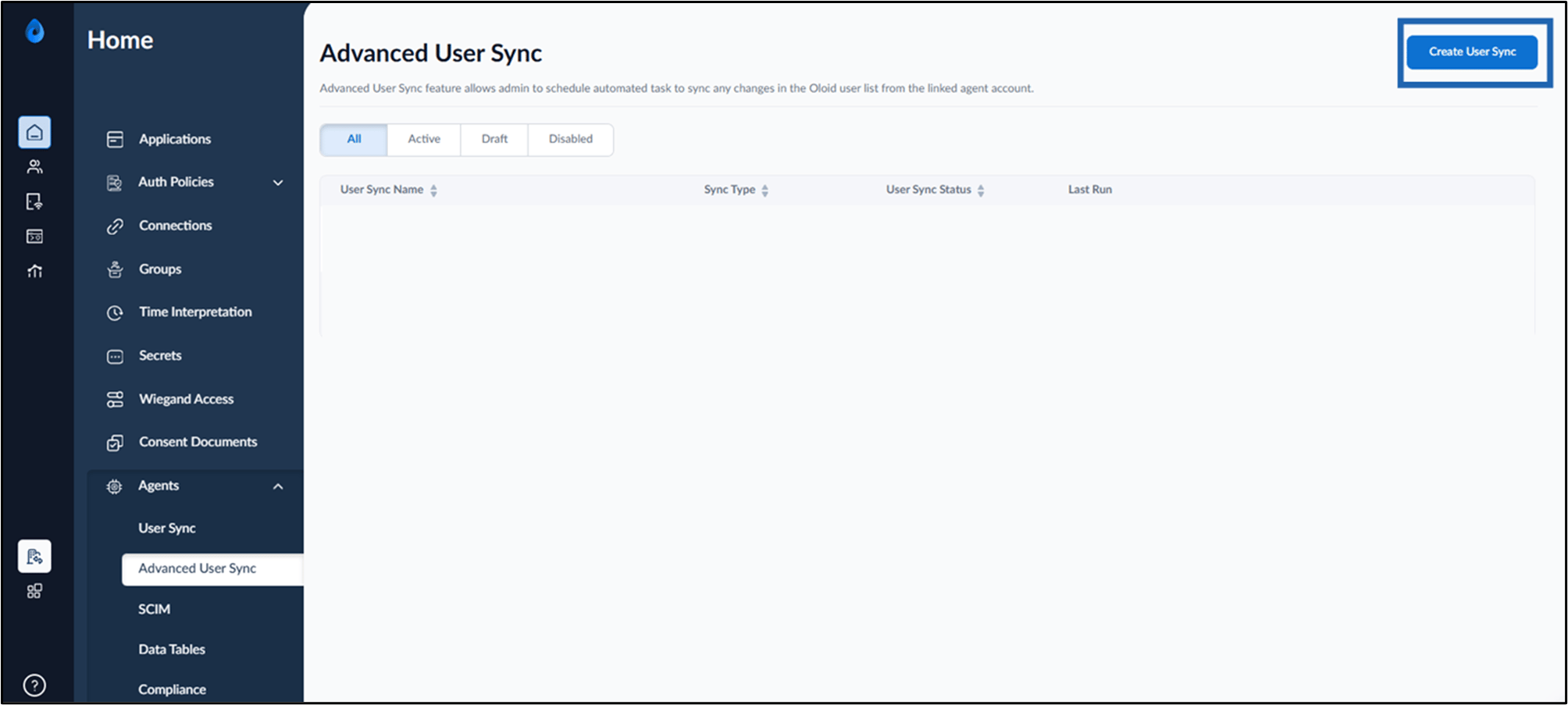
  2. Go to Agents tab > Advanced User Sync. Inbound in the Tenant Admin Portal - screenshot 1 The Advanced User Sync page is displayed.
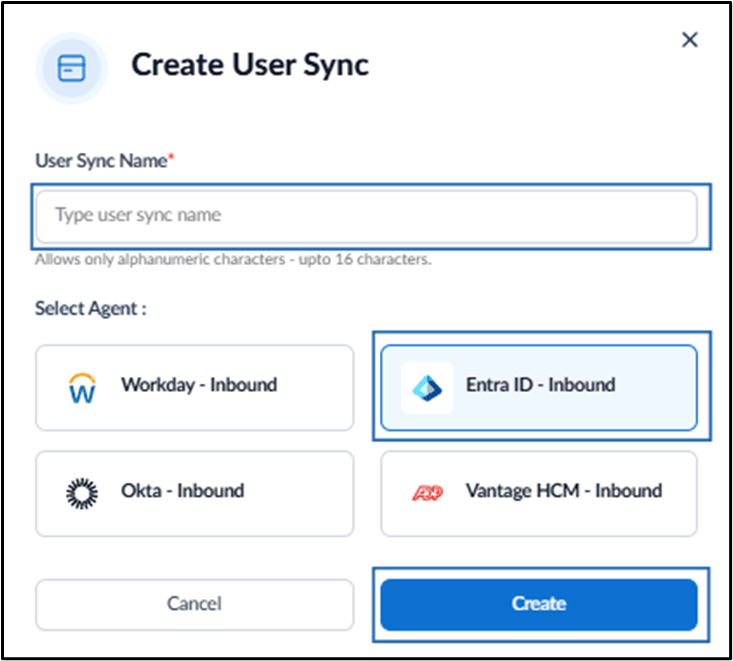
  3. Click Create User Sync. Inbound in the Tenant Admin Portal - screenshot 2 The Create User Sync pop-up box is displayed.
  4. Do the following:
    1. Enter User Sync Name.
    2. Select Agent.
      Note: Select Entra ID - Inbound as agent.
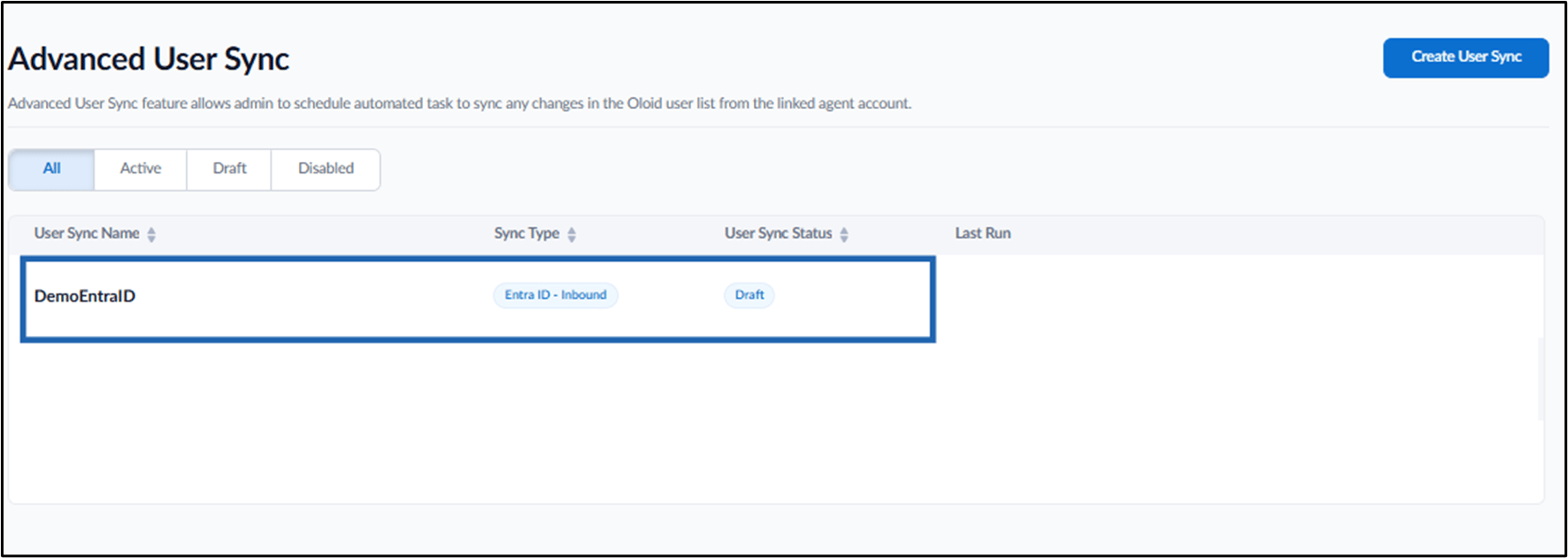
    3. Click Create. Inbound in the Tenant Admin Portal - screenshot 3 The advanced user sync for Entra ID - Inbound is created successfully. Inbound in the Tenant Admin Portal - screenshot 4
Related Articles
How to Configure Advanced User Sync for Entra ID - Inbound in the Tenant Admin Portal