

- Log in to the Oloid Portal.
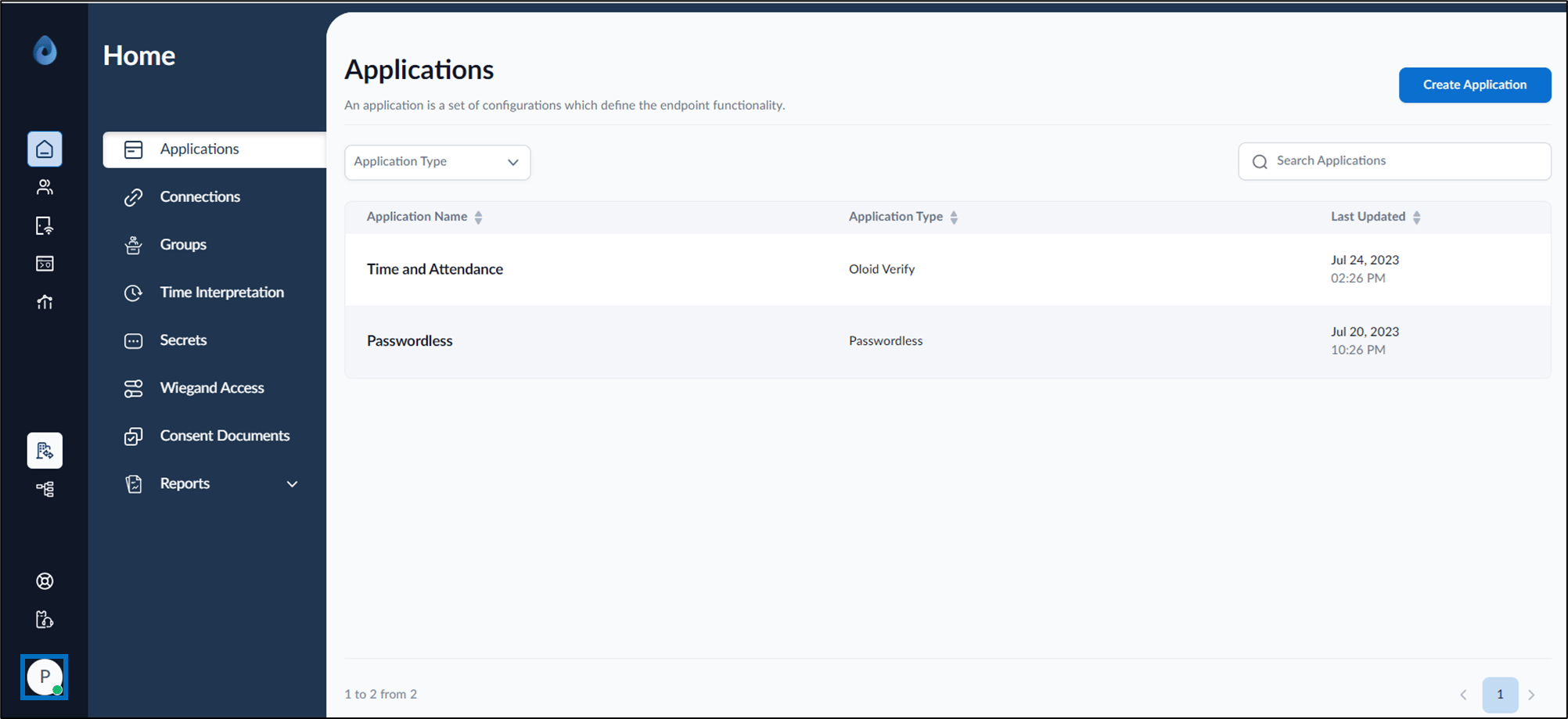
- On the homepage of the portal, click user profile icon on the bottom left corner of the menu panel.
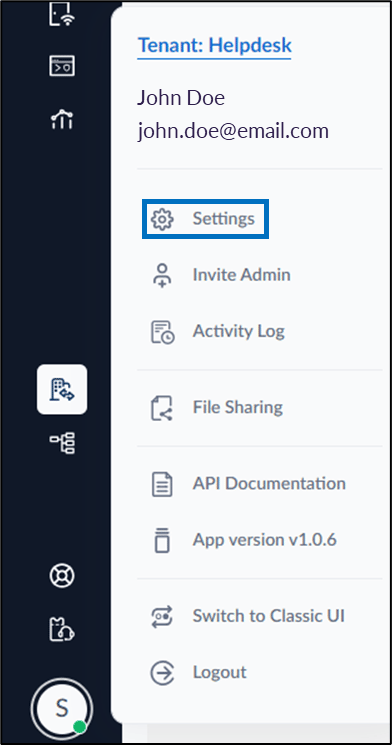
- Select Settings.
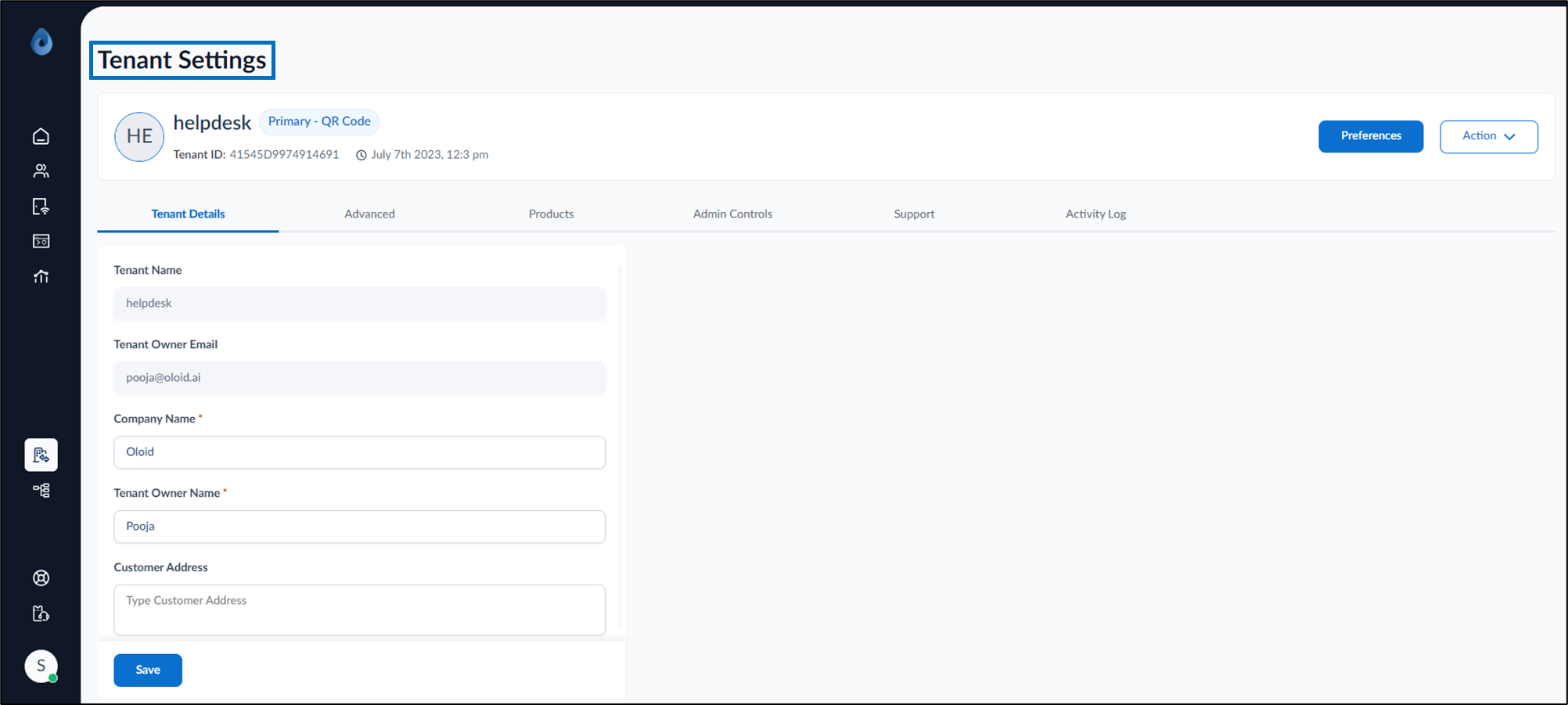
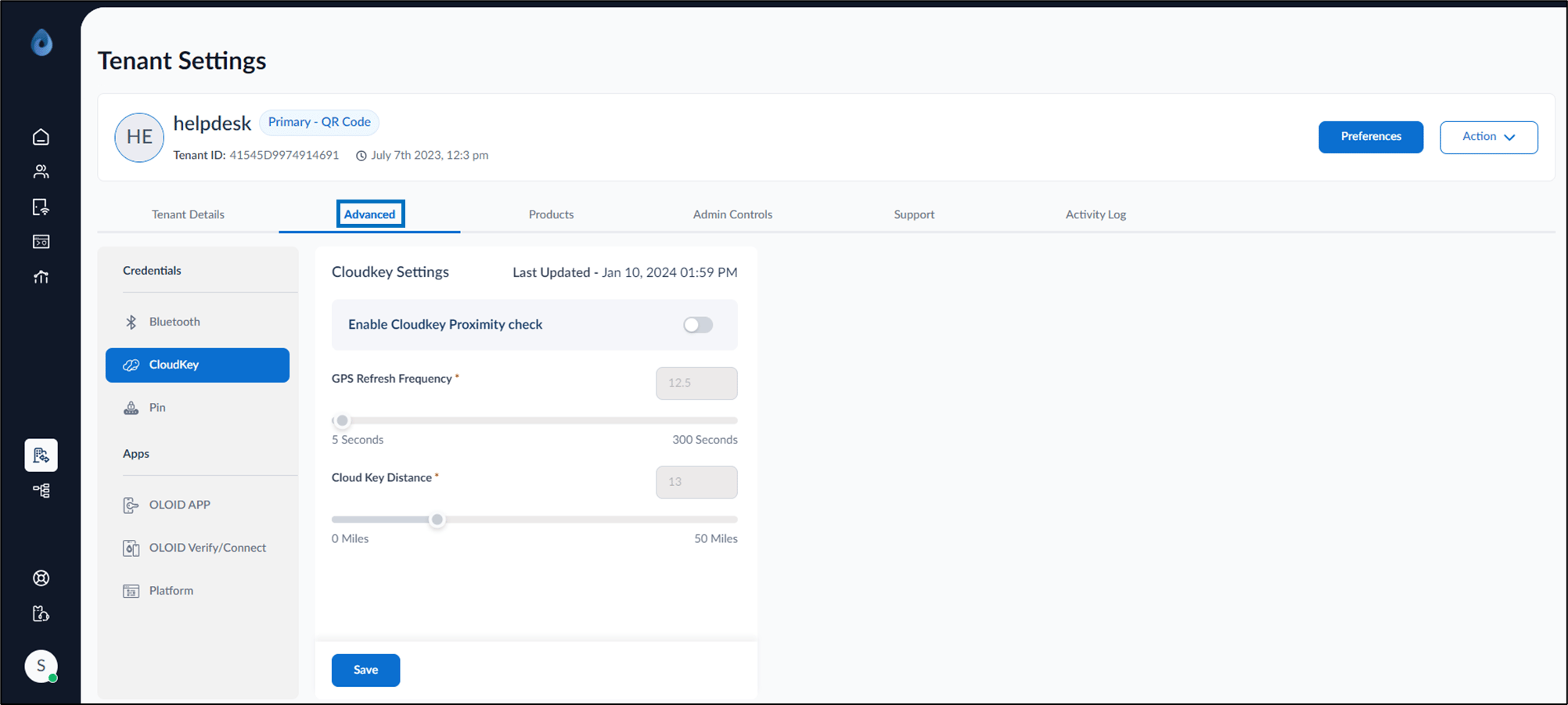
- Go to Advanced tab and do the following:
-
Under Apps section select OLOID APP.
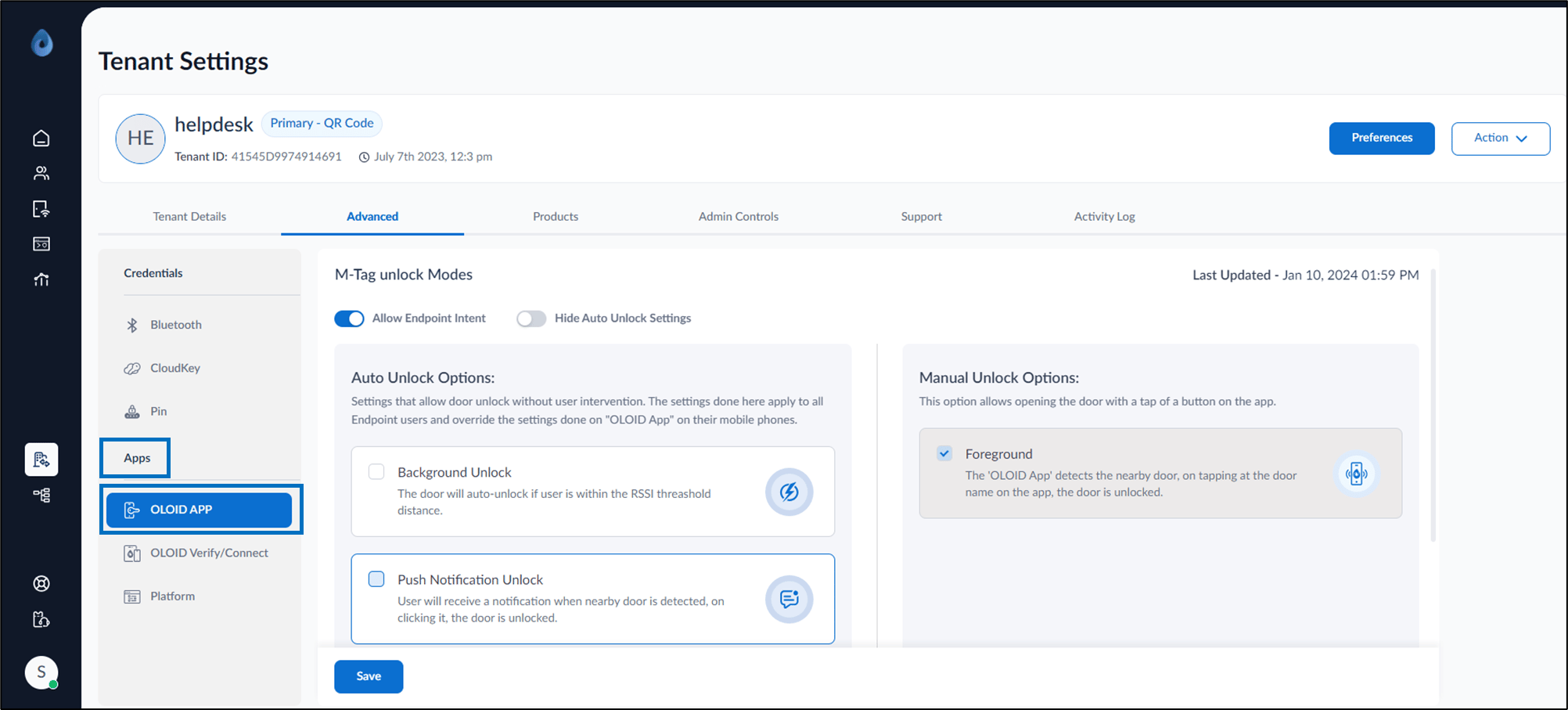
- Enable Allow Endpoint Intent to use the Oloid app in the background mode.
-
Disable Hide Auto Unlock Settings to select preferred modes of auto unlock options in the Oloid app.
Note: The user can select an option from the available choices. You can also enable Hide Auto Unlock Settings to hide the auto unlock options from the Oloid app.
- Manual Unlock Options: The default value is preconfigured.
-
Under Apps section select OLOID APP.
- Click Save. The OLOID app is set up for background mode and is ready to use.
How to configure Oloid app?
To configure Oloid app follow the below steps:
To configure Oloid app follow the below steps:
⌘I