

Introduction
This document provides instructions to set a new password when logging in to the Tenant Admin Portal for the first time.Prerequisite
Ensure that you have received the login email with your login credentials.Steps to Set a New Password
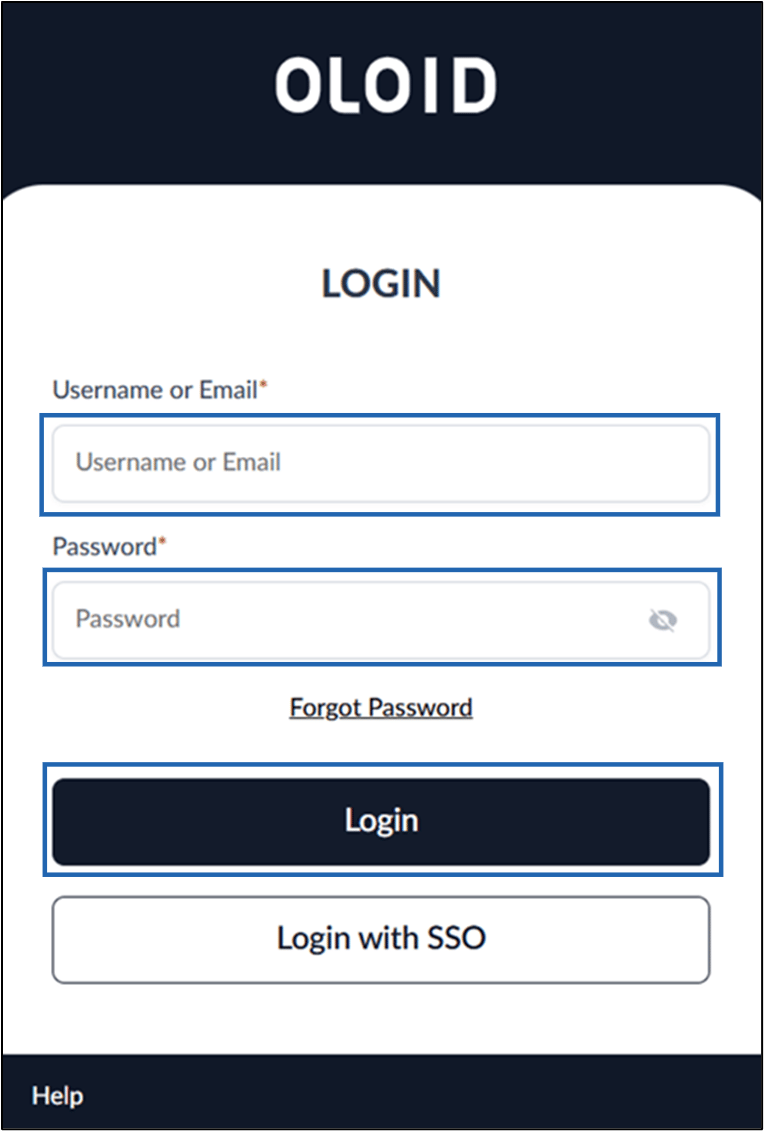
- Open the login email and click Login.

- Do thew following:
- Enter your email address.
-
Enter the Password.
Note: Enter the one-time password received in the email in the Password field.
-
Click Login.
- Do the following:
-
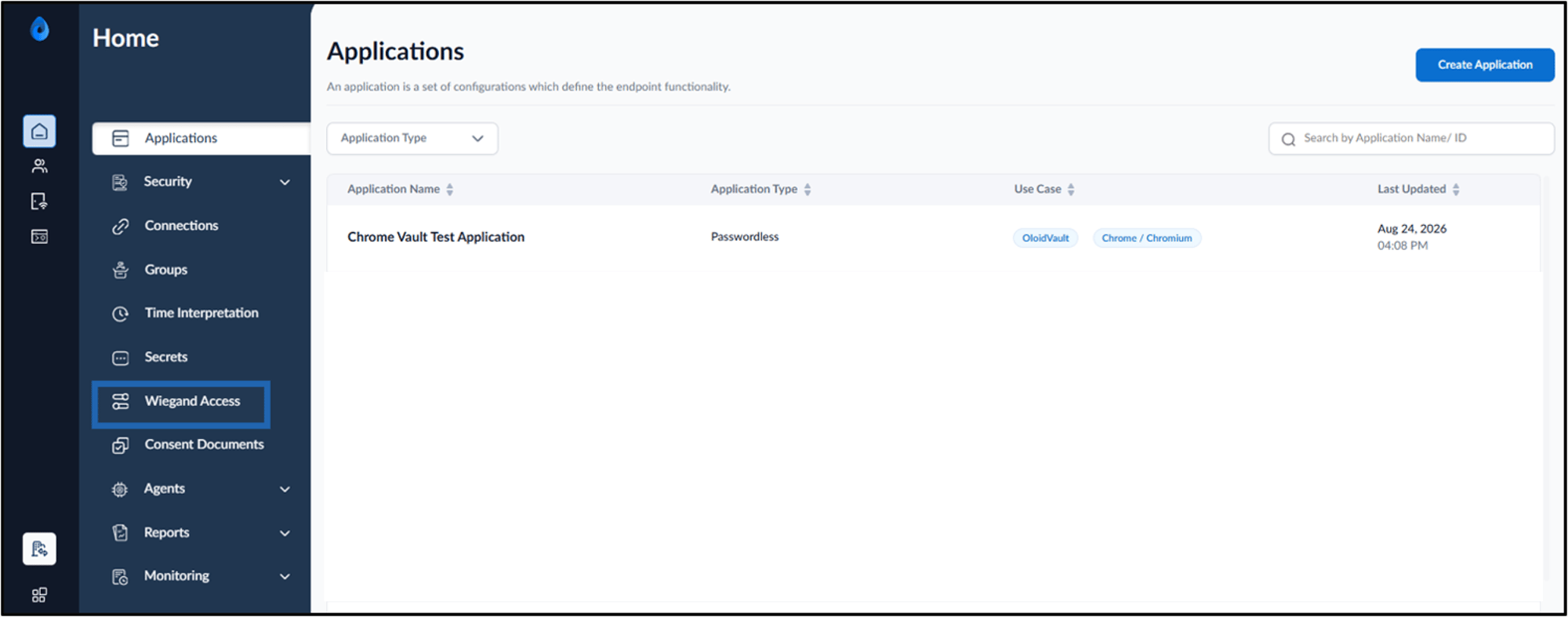
Enter a new password in the New Password field.
Note: The password must contain at least one uppercase letter, one lowercase letter, and one number. It must not contain consecutive or sequential characters or any part of your username.
- Re-enter the new password in the Confirm Password field.
-
Click Login.

-
Enter a new password in the New Password field.