Introduction
The Web Button feature allows users to view transaction or punch details directly from an Oloid Connect endpoint. This document explains how to quickly configure the Web Button from the Tenant Admin Portal.Prerequisite
You must pair Oloid Connect endpoint. To pair refer How to pair an Oloid Connect endpoint.Steps to configure Web Button
- Log in to the Tenant Admin Portal.
-
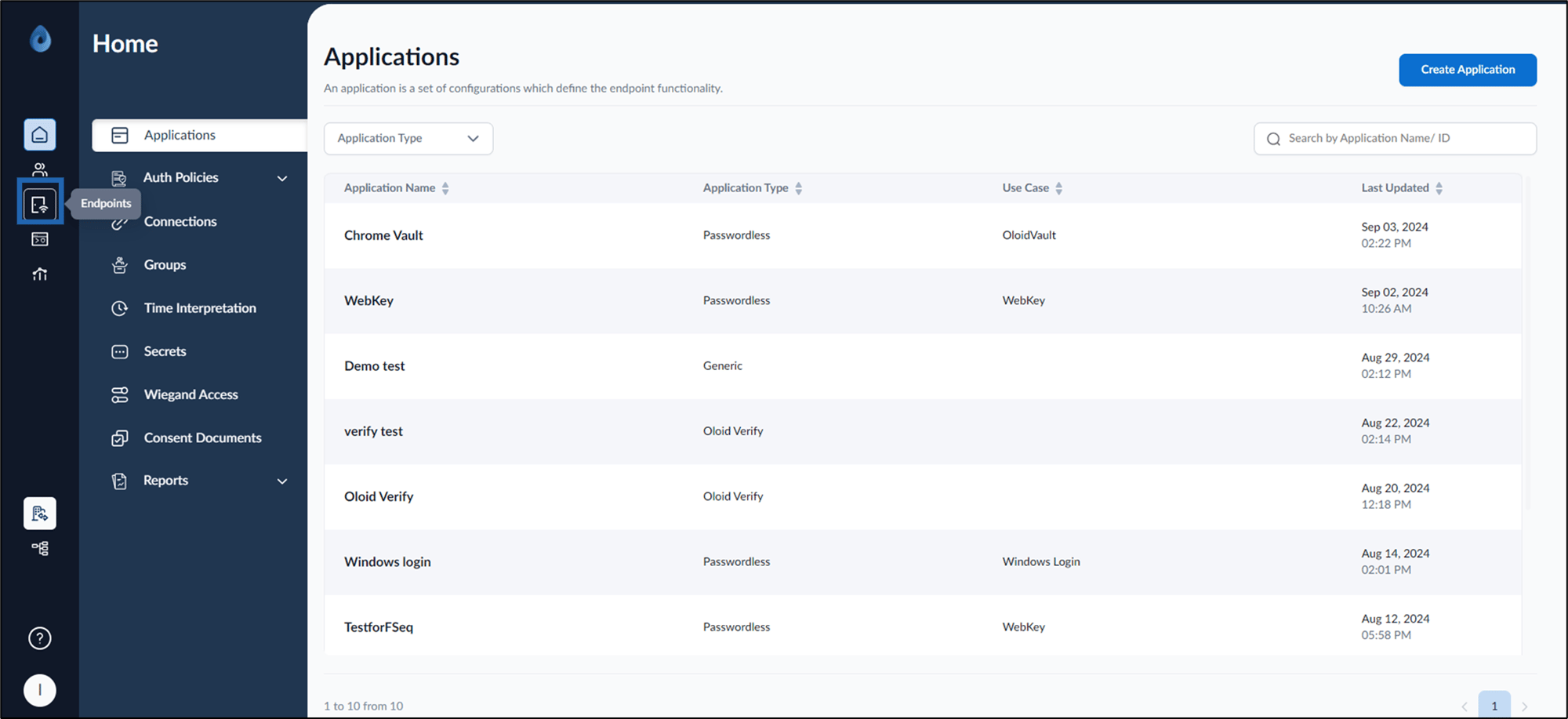
On the home page of the portal, click Endpoints on the left menu panel.
-
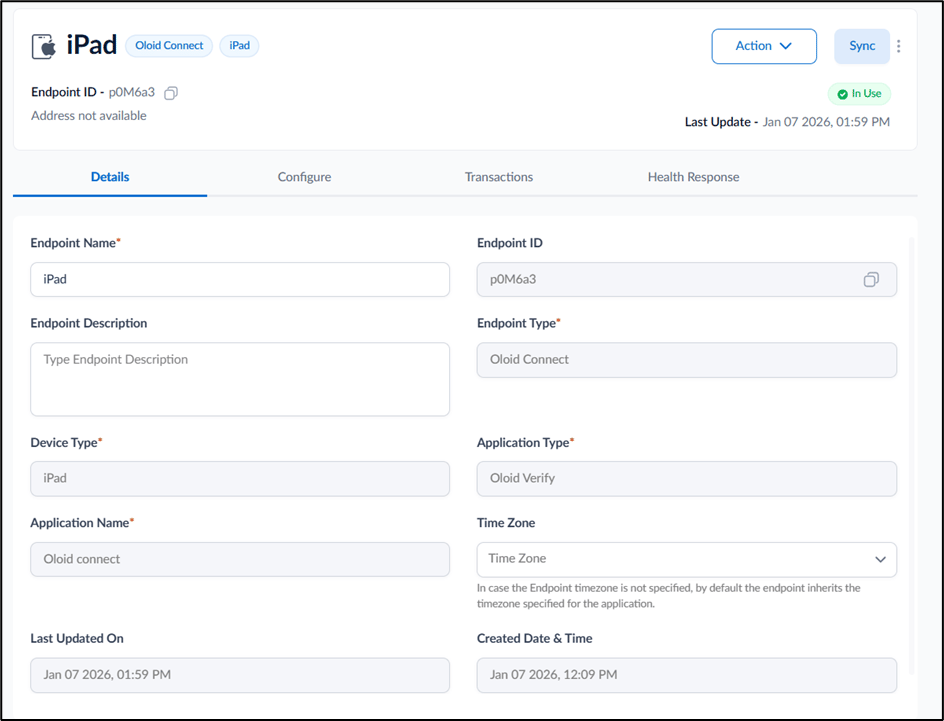
Select the paired Oloid Connect Endpoint.

-
Go to Configure Tab > Click Web Button.

-
Do the following:
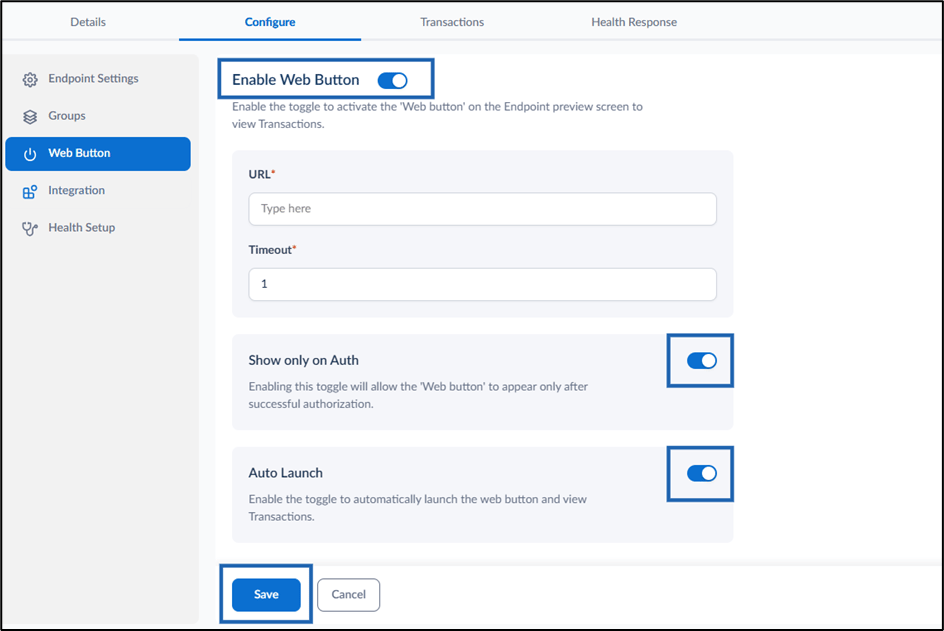
- Enable Web Button toggle to display the Web Button on the endpoint preview screen. This button allows users to view transactions.
-
In the URL field, enter the complete URL of the website where users will review punch data.
Note: You have to enter the URL of the website where the user will review the punches.
- In the Timeout field, enter the delay (in minutes) before the URL launches.
-
In the URL field, enter the complete URL of the website where users will review punch data.
- (Optional) Enable Show only on Auth to display the Web Button only after the user is successfully authorized.
- (Optional) Enable Auto Launch to automatically launch the web button and view transaction.
- Enable Web Button toggle to display the Web Button on the endpoint preview screen. This button allows users to view transactions.