Introduction
The Transaction Insights section under Insights provides admin with visibility into authentication across the organization.Prerequisite
- You must have Tenant Admin account.
How to Access Transaction Insights
- Log in to the Tenant Admin Portal.
- From the left navigation menu, click Insights.
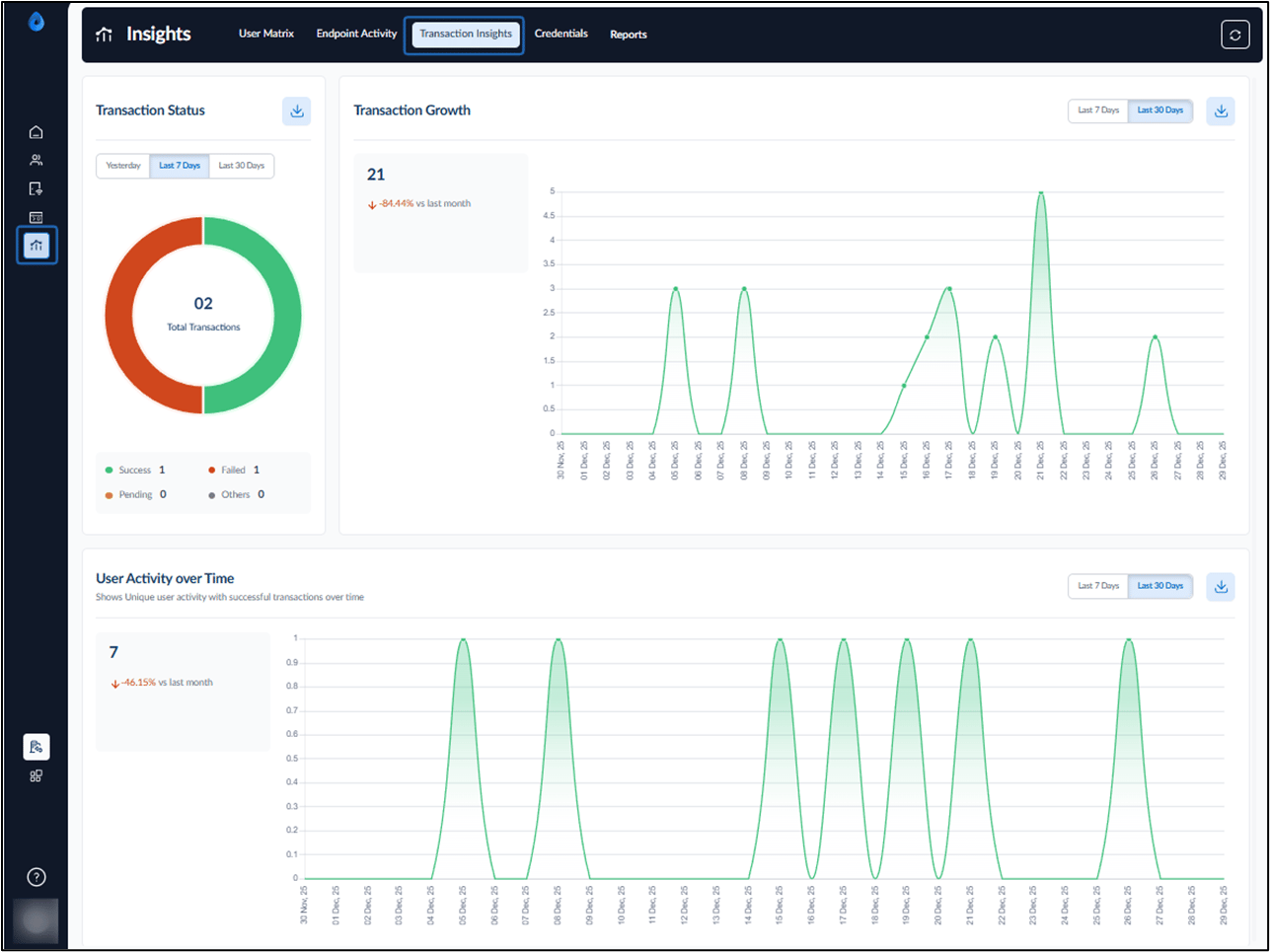
- Select the Transaction Insights tab. The Transaction Insights dashboard is displayed.
- Do the Following:
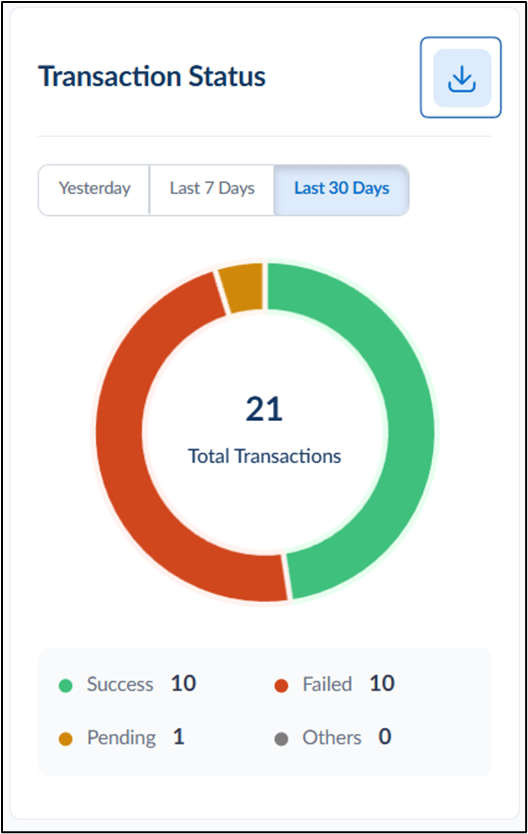
Transaction Status
This section displays the current status of transactions for the selected time period. Available Time Filters:- Yesterday
- Last 7 Days
- Last 30 Days
Note: If no transactions are available for the selected time range, a “No data to show yet” message is displayed.
- Success – Transactions completed successfully.
- Failed – Transactions that did not complete successfully.
- Pending – Transactions that are in progress.
- Others – Transactions that do not fall into the above categories.
Transaction Growth
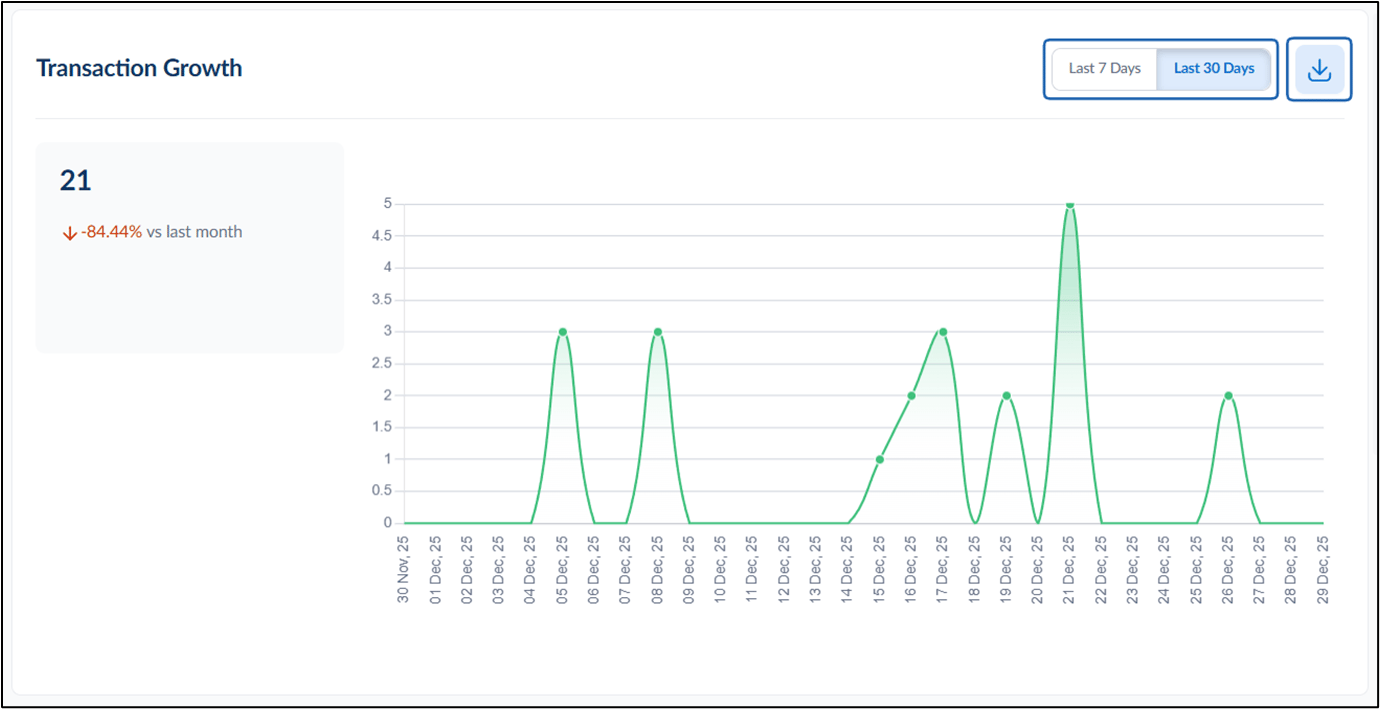
- Compare growth percentage with the previous period (for example, vs last week).
- Switch between:
- Last 7 Days
- Last 30 Days
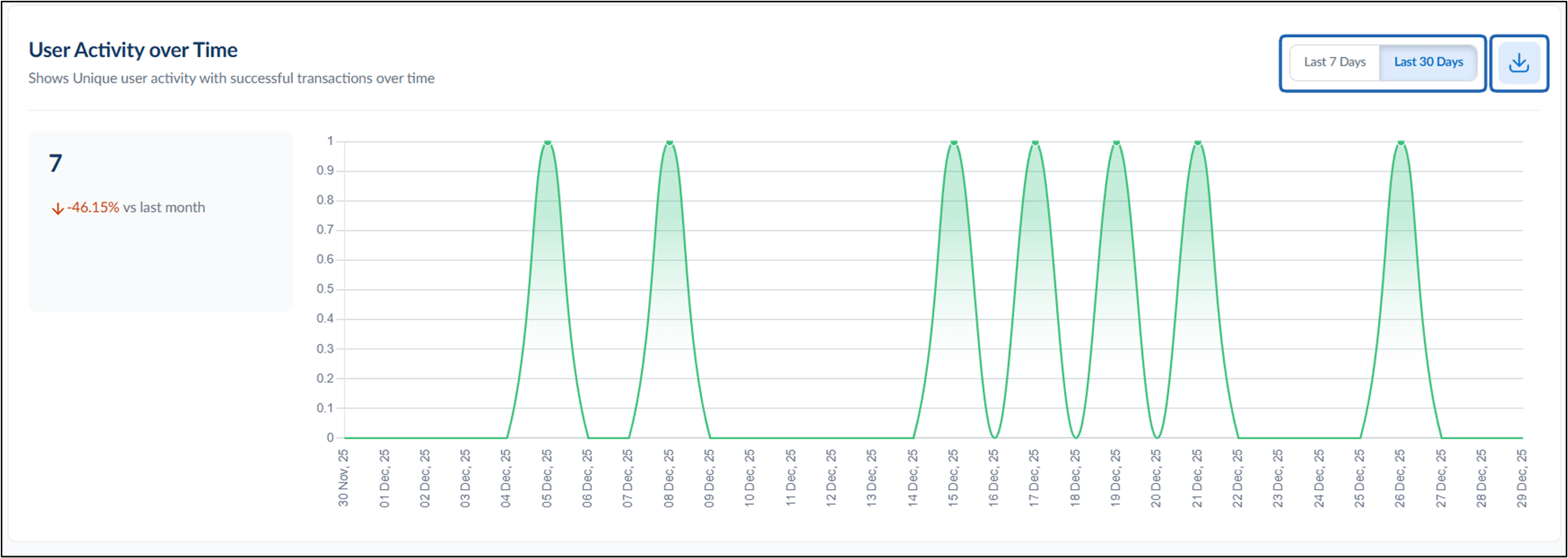
User Activity Over Time
This section shows unique user activity based on successful transactions over a selected time period.- Last 7 Days
- Last 30 Days