Introduction
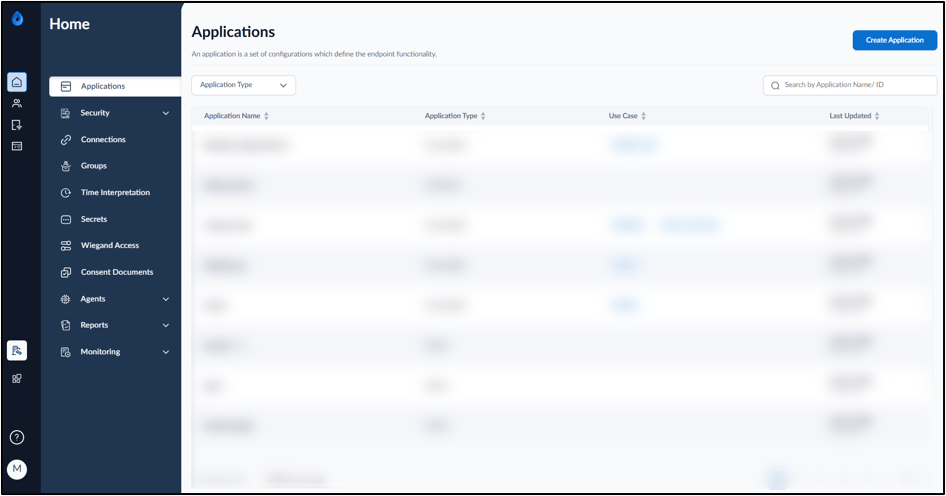
This document explains how to log in to the Oloid Tenant Admin Portal using Google Single Sign-On (SSO).Prerequisites
- You should be a user in the Tenant Admin Portal with Admin/Supervisor role.
- The Google credential (user email ID) must be added to the user detail page.
Steps to log into Tenant Admin Portal using Google SSO
- Launch your browser.
- Enter the URL provided for you in the browser’s address bar > press Enter on your keyboard. The Oloid LOGIN page is displayed.
- Click Login with SSO.

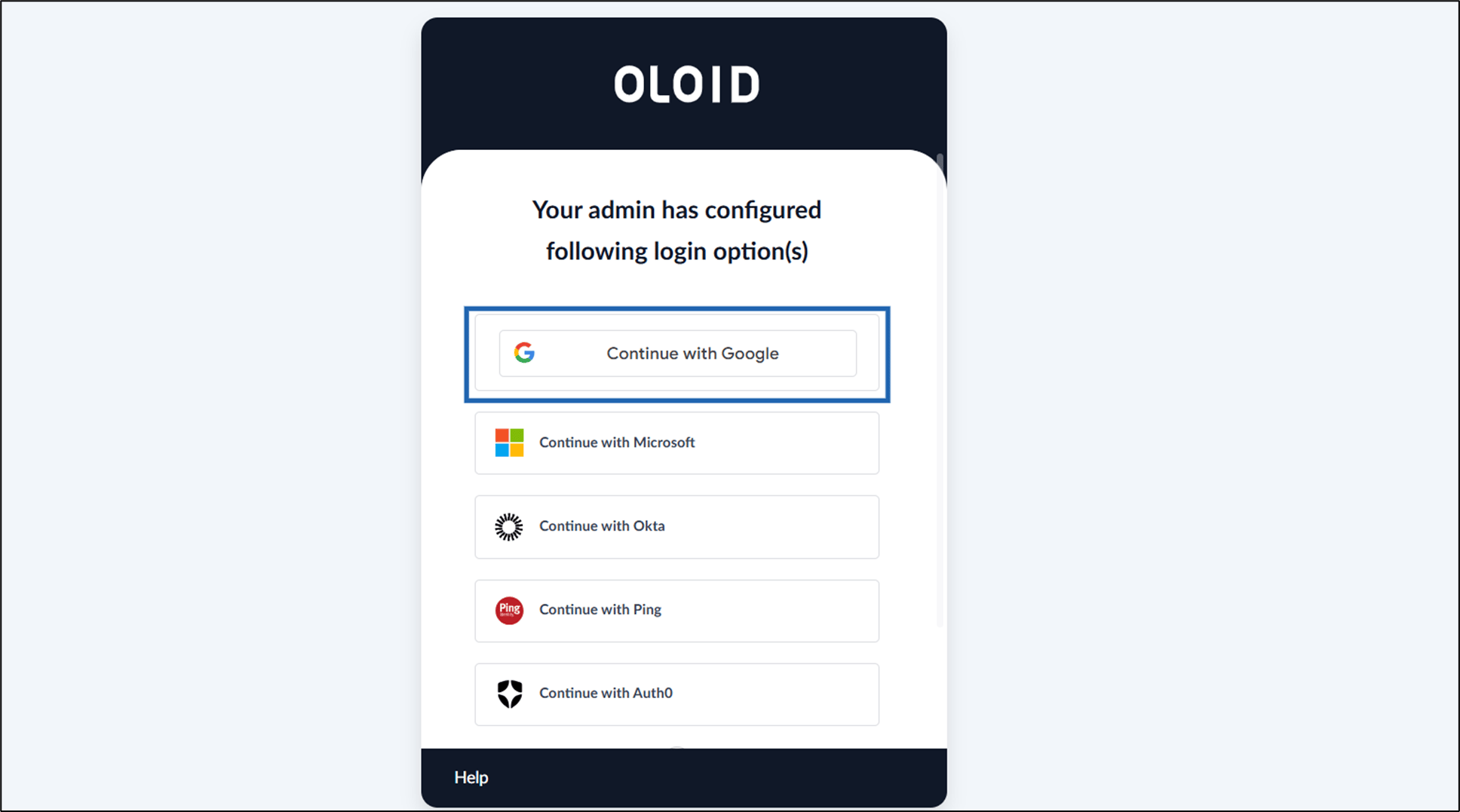
- Click Continue with Google to log in to Oloid Platform with Google SSO.
The configured Log in options are displayed.
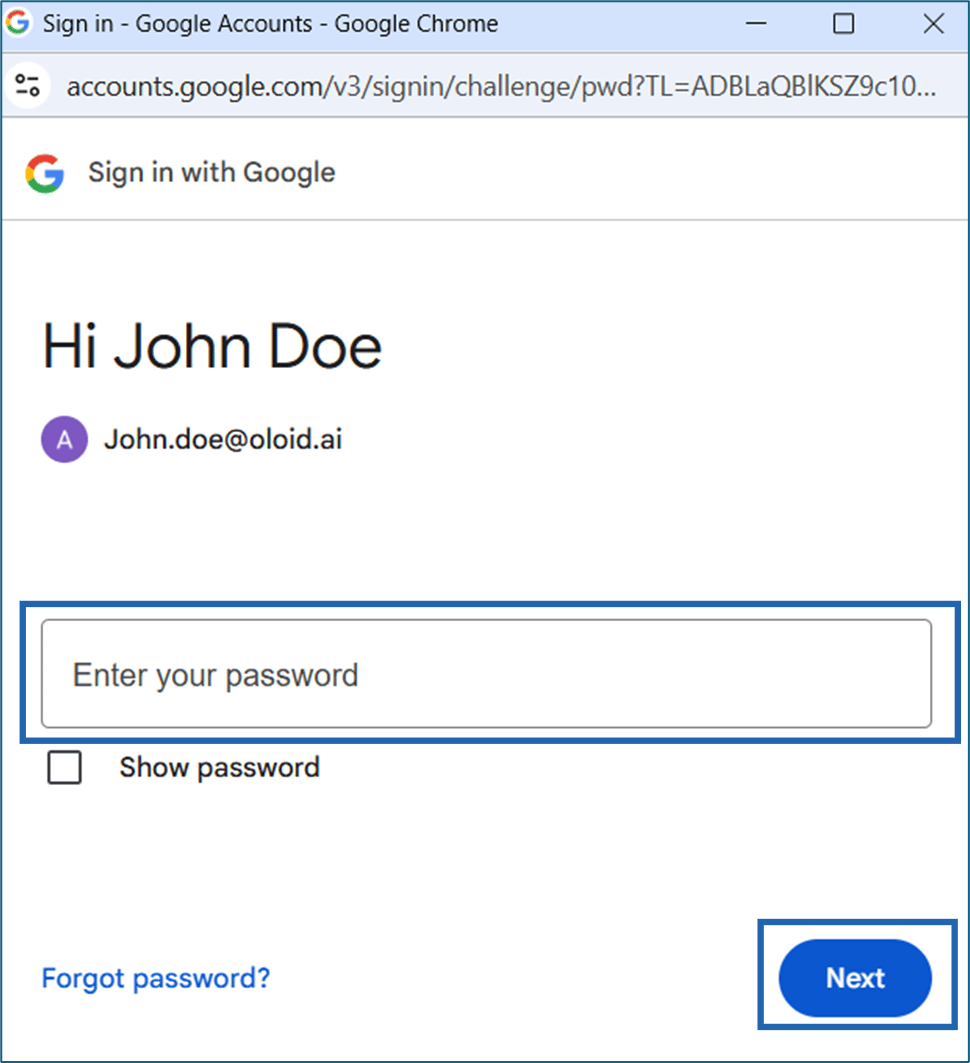
- Enter your Email ID > click Next.

- Enter your Password > click Next.