Introduction
The SAML–Okta Identity Provider (IdP) Profile enables secure authentication between Okta and the Oloid Tenant Admin Portal. Configuring SAML allows users to sign in to Oloid applications using their Okta credentials.Prerequisites
- You must have access to the Tenant Admin Portal.
- Ensure that the SAML IDP application is created. To create SAML application, refer How to Create IDP Profile for Security Assertion Markup Language (SAML) in the Tenant Admin Portal.
- Ensure that the required Okta SAML parameters are available or can be generated from the SAML Identity Provider configuration in the Okta Admin Console. To see the parameter, refer How to Configure Security Assertion Markup Language (SAML) IDP in OKTA Admin Console.
- Ensure that the Webkey application is created. To create Webkey application, refer How to create and configure WebKey Application in Tenant Admin Portal.
Steps to Configure SAML-Okta IDP Profile
- Log in to the Oloid Tenant Admin Portal.
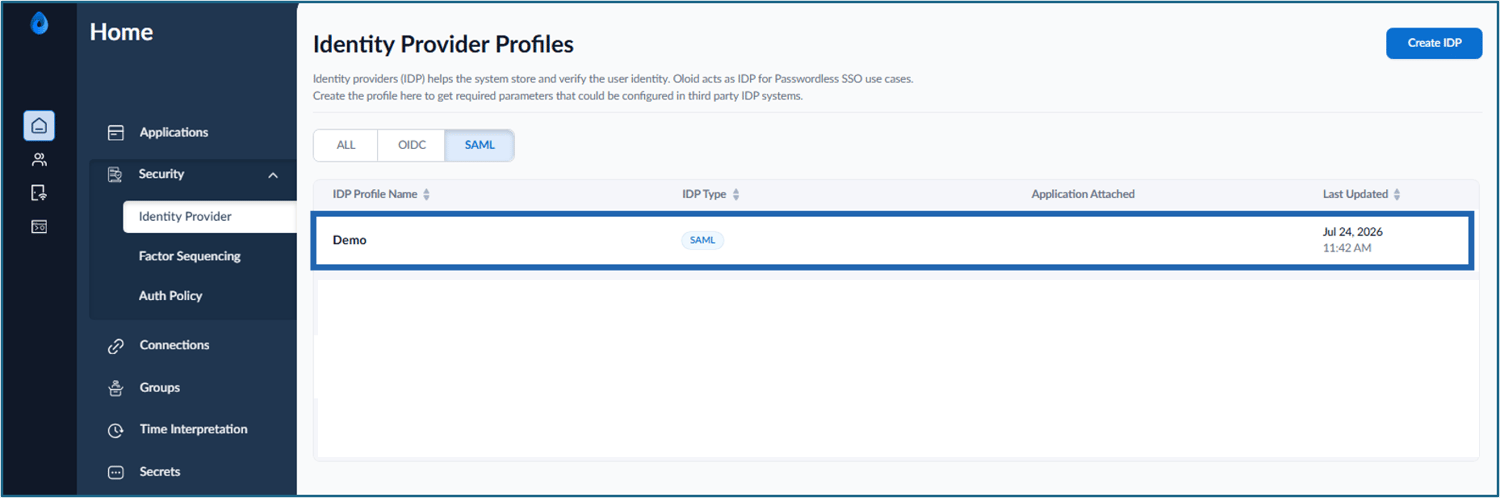
- On the Applications page, click Auth Policies > Identity Provider.

- Click preferred SAML-IDP application.

- Do the following:
- Configure Details tab
- Integrate Metadata tab for Okta Settings
- Configure IDP Settings tab
- Configure Claims tab The IDP Profile is configured successfully.
Configure Details Tab
The Details tab is used to view and manage the basic information for the Microsoft Entra ID identity provider configured in the Tenant Admin Portal. To configure the Details tab, do the following:- Edit the IDP Name (if required).

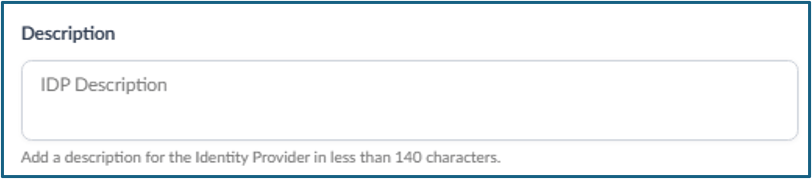
- Enter Description (optional).
- Do one of the following:
-
Select the required WebKey application from the Select WebKey Application drop-down list.

-
Click Make Default.
Note: The Make Default button is enabled only when more than one IDP is added in the Tenant Admin Portal.

- Select the Webkey Application from the drop-down.
-
Click Set as Default.
 Note: If another IDP is currently set as default, it will be replaced upon confirmation.
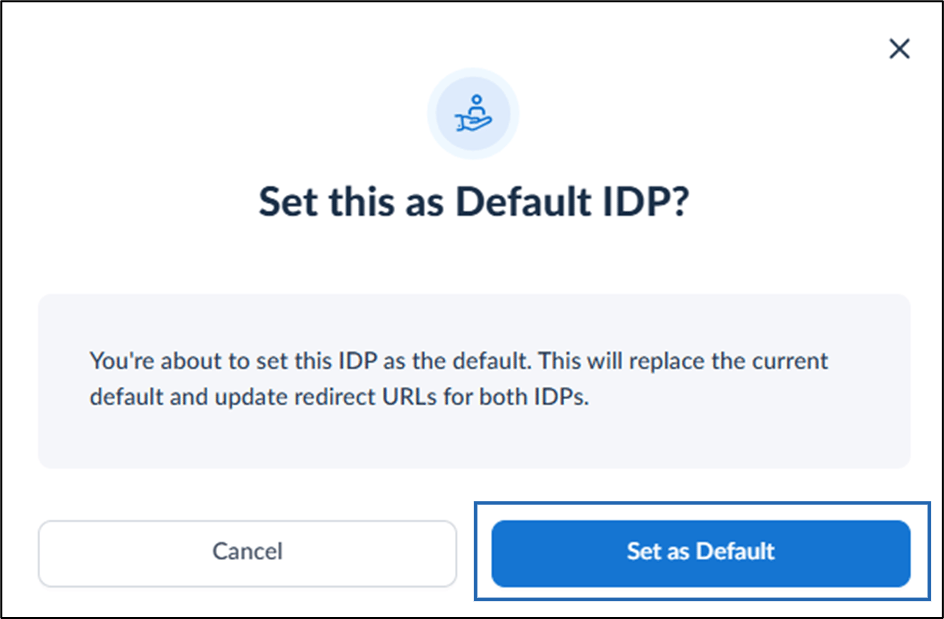
- To make IDP as default, click Make Default. The confirmation pop-up box is displayed.
- Click Set as Default to designate the preferred IDP as default.
-
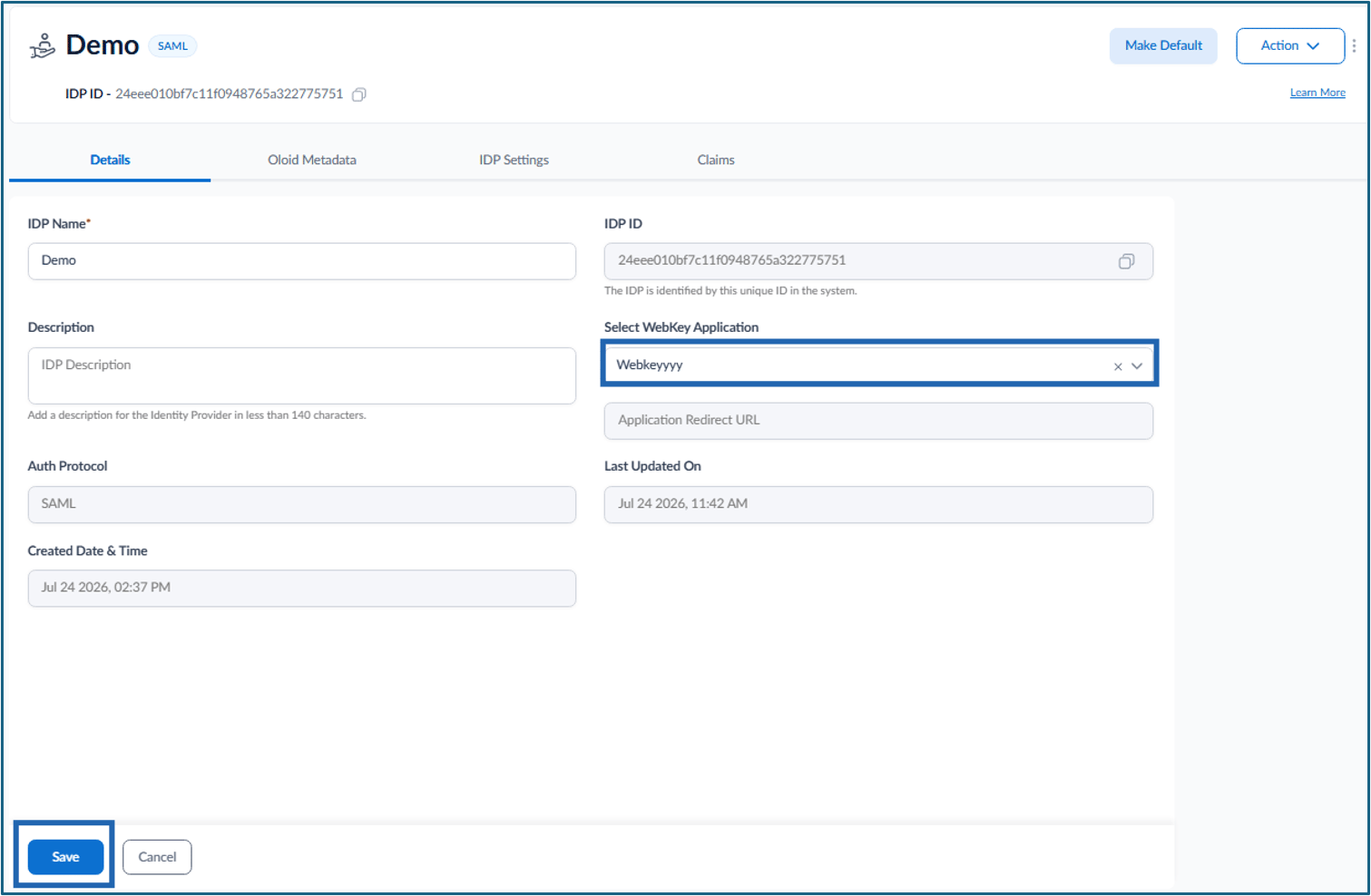
Select the required WebKey application from the Select WebKey Application drop-down list.
- Click Save.
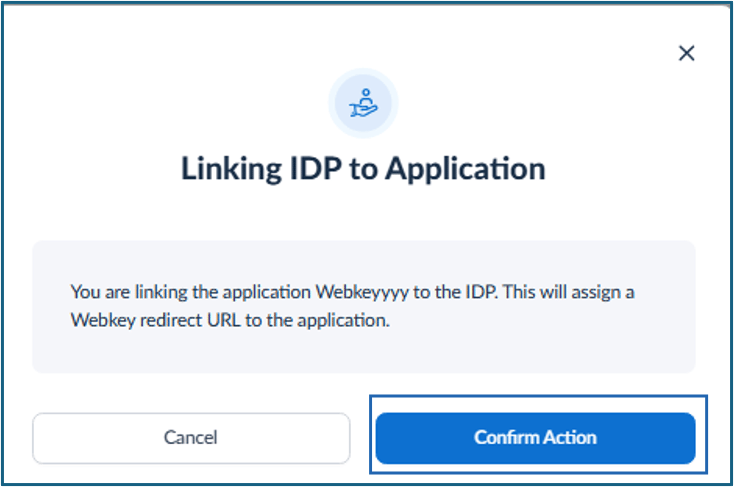
- Click Confirm Action.

Configure Metadata Tab
The Metadata tab is used to provide the required information to configure SAML settings and enable SAML-based authentication between the identity provider and the Tenant Admin Portal.- Click Oloid Metadata tab. The Oloid Metadata tab is displayed.
- Click Visit help page for the document to configure Okta settings for SSO login.
- Do the following:
- Download Certificate: Download the certificate and upload it to the IdP Signature Certificate field.
- Sign-On URL: Copy the Sign-on URL and enter it in the IdP Issuer URL field.
-
Entity ID: Copy the Entity ID and enter it in the Sign-on URL field.
 Note: You can find the IdP Signature Certificate, IdP Issuer URL and Sign-on URL fields on the SAML protocol section on SAML in OKTA Admin Console. For more details, click here.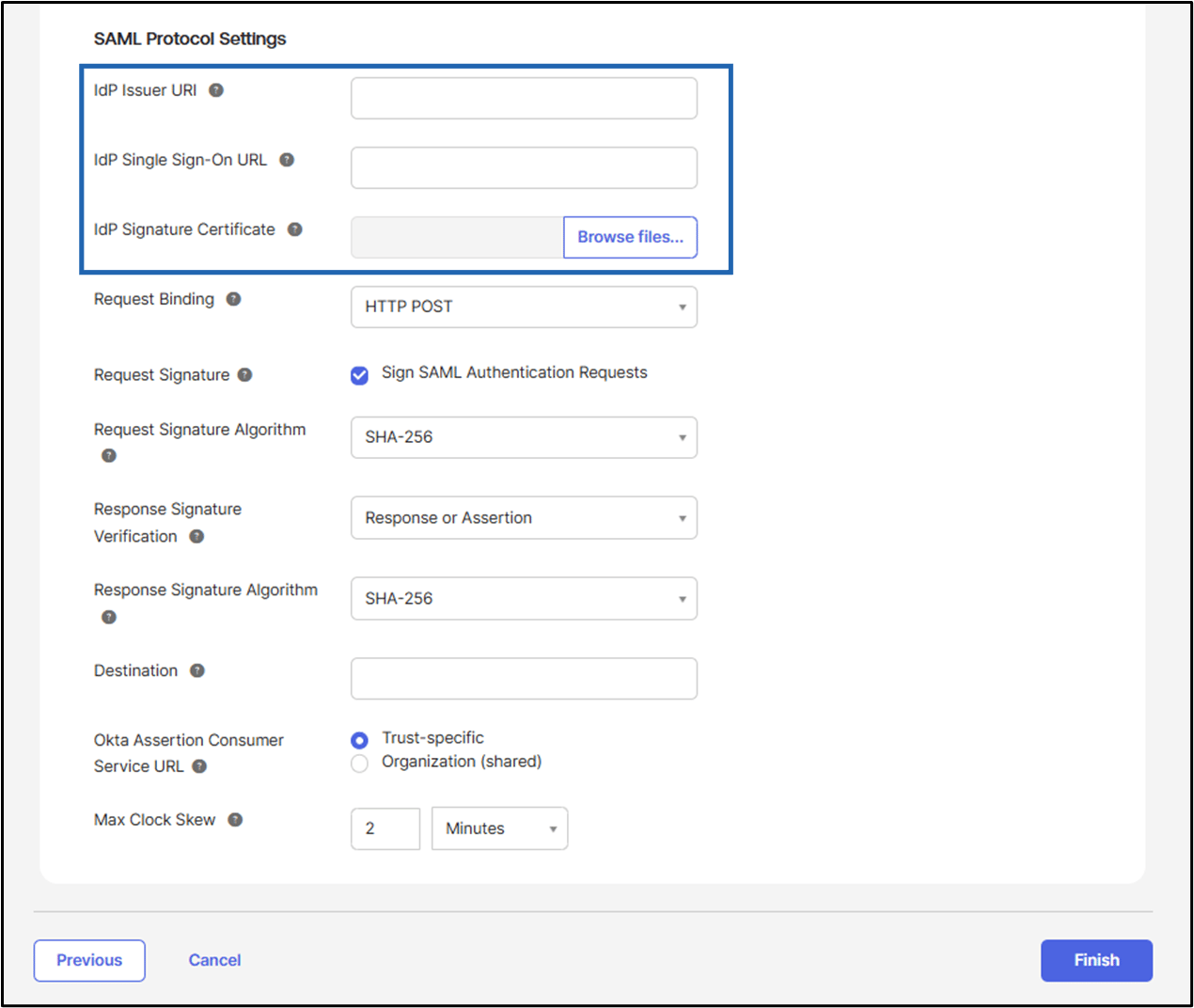
Configure IDP Settings Tab
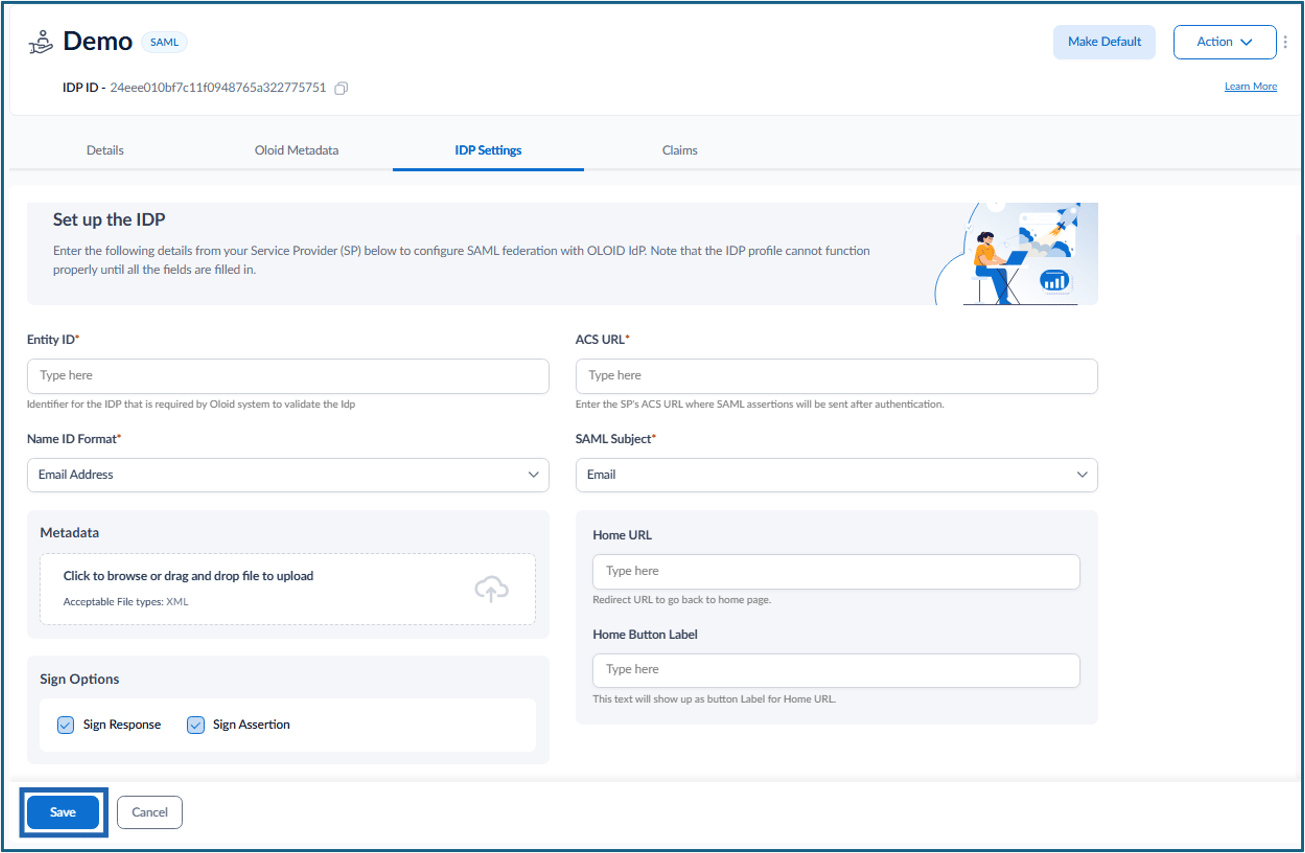
The IDP Settings tab is used to configure and upload the required SAML details to enable authentication between the identity provider and Tenant Admin Portal. To configure the IDP settings tab, do the following:- Click the IDP Settings tab.

- Do one of the following to configure the IDP Settings tab.
-
Upload Metadata file.

-
Enter Entity ID.

-
Enter ACS URL.
 Note: You can find the Metadata file, Entity ID and ACS URL on the SAML application details page. For details, click here.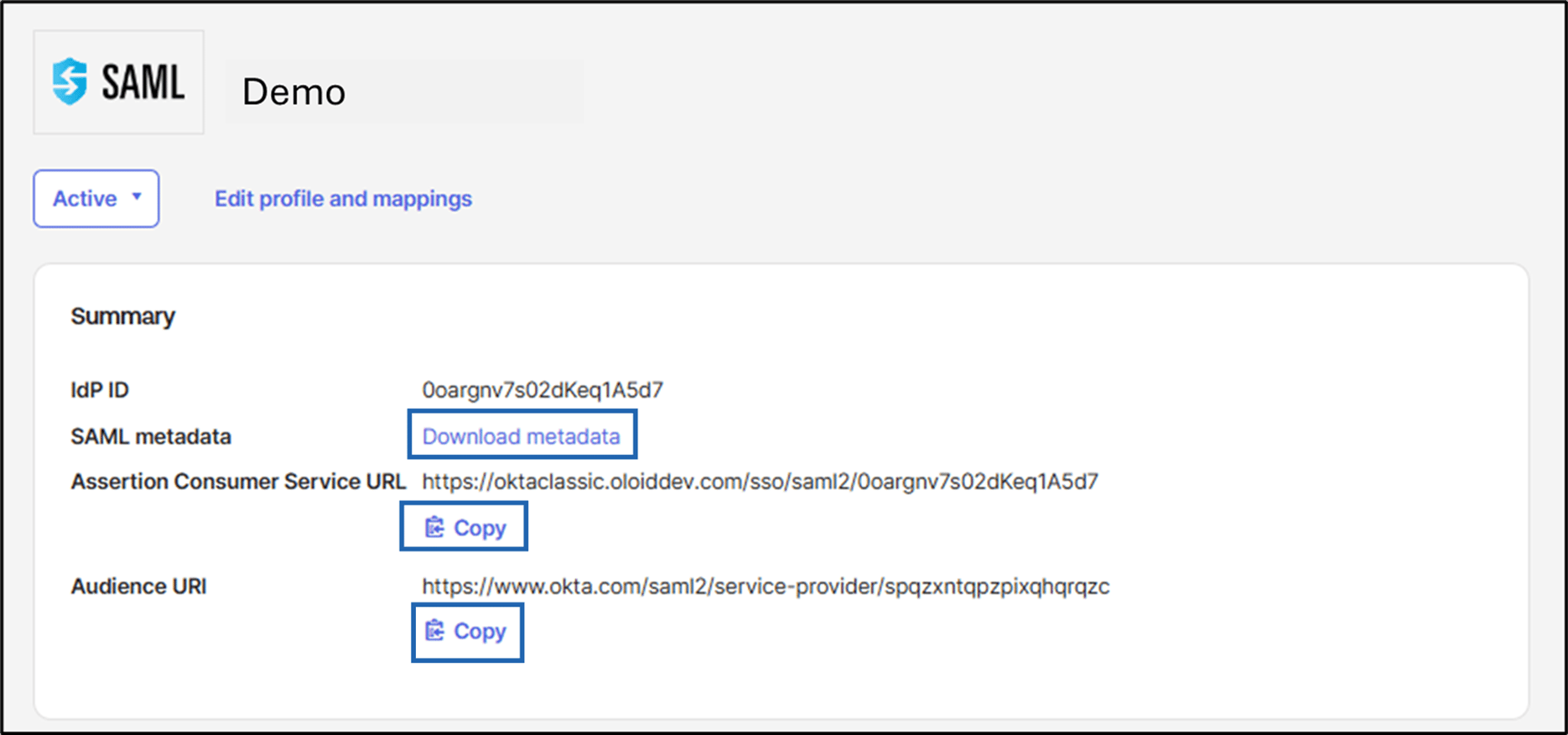
-
Select Name ID Format from the drop-down.
Note: By default, Email Address is selected.

-
Select SAML Subject from the drop-down.
Note: By default, Email is selected.

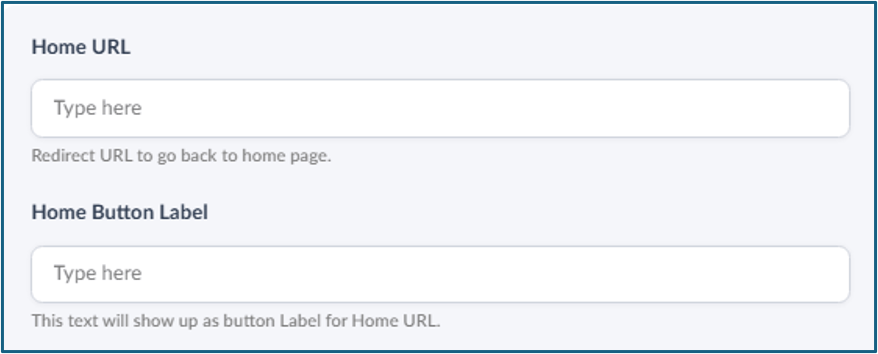
- Enter Home URL: Enter the URL of the home page.
-
Enter Home Button Label: Enter the text displayed on the Home button.
-
Click Save.
-
Upload Metadata file.
Configure Claims Tab (Optional)
The Claims tab is used to configure custom claims that pass user attributes from Oloid to the SAML provider. Do the following: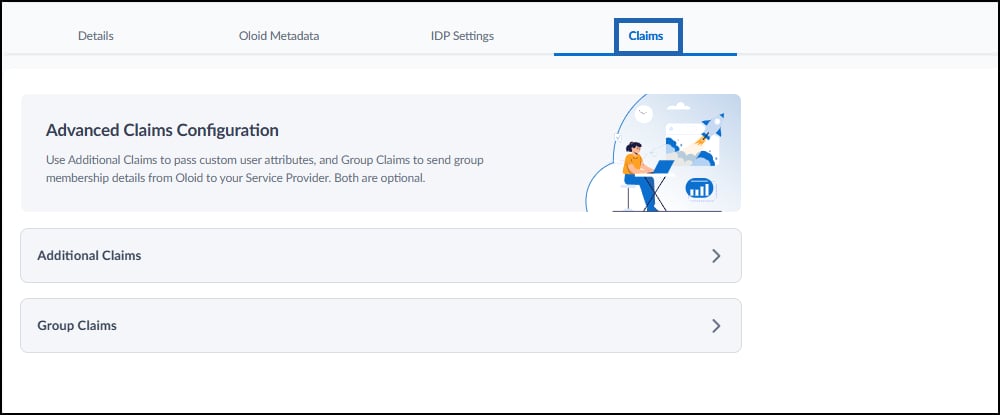
Add Additional Claims
Additional Claims allow the admin to map Oloid user attributes to SAML attributes. Do the following:-
In the Additional Claims section, click Add Field.

- In the SAML Claim field, enter the claim name to be sent to the service provider.
-
Selectone of the following types.
- Basic: Standard claim format.
- Unspecified: No specific format defined.
- URI Reference: Claim uses a URI-based format.
-
In the Oloid Value dropdown, select the corresponding Oloid attribute (for example, Oloid ID).
Note: Click Add Field to add additional claim items.
-
Click Save.

Group Claims
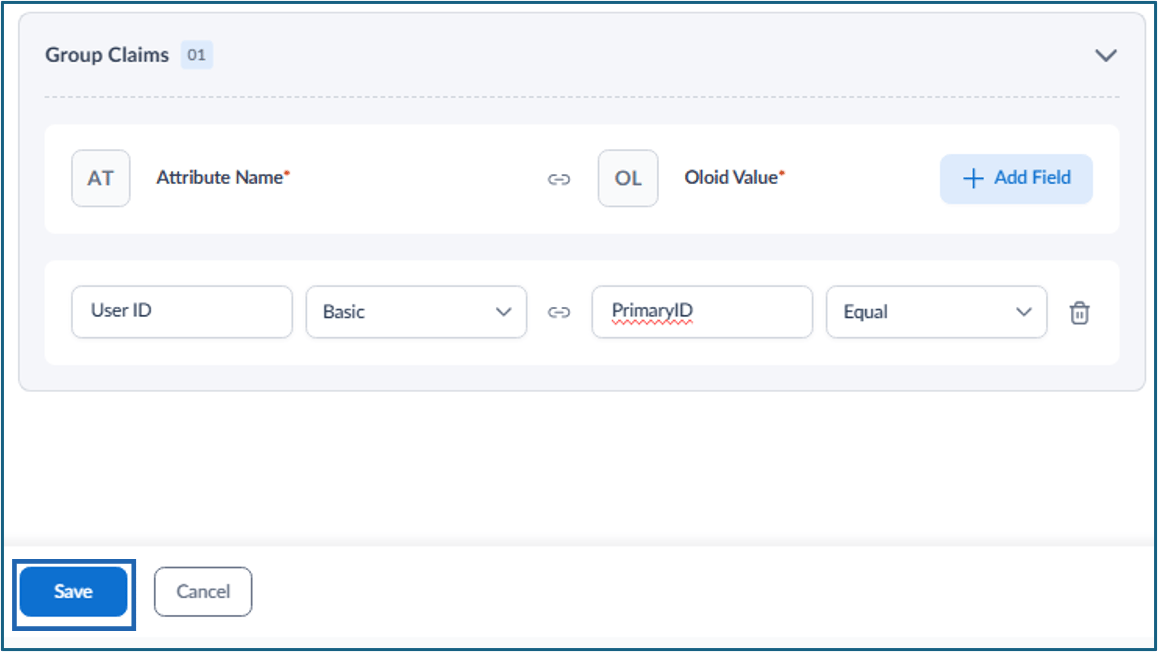
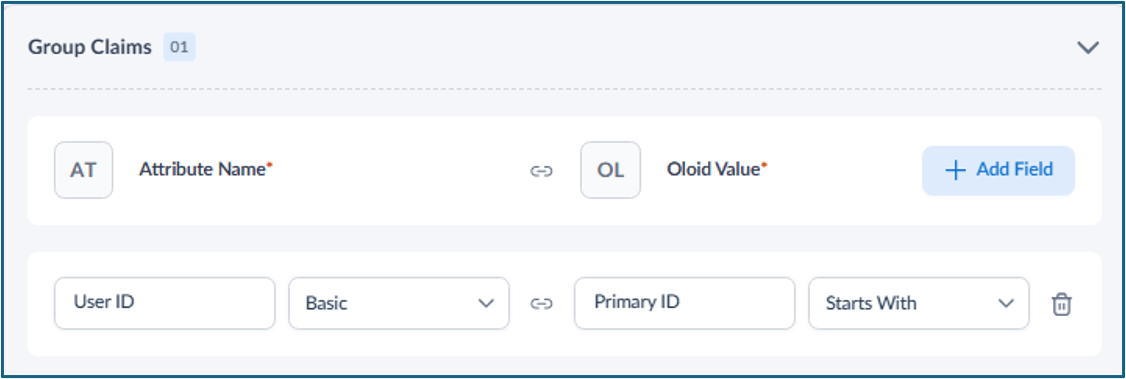
The Group Claims section allows you to pass user group-related attributes from Oloid to the Service Provider during authentication.- In the Group Claims tab, expand the Group Claims section. The Group Claims section is displayed.
- Click Add Field.

- Enter the following details:
- Attribute Name: Enter the group attribute name to be sent to the Service Provider.
- Type: Select the claim format:
- Basic
- Unspecified
- URI Reference
- Oloid Value: Enter or select the group-related value.
- Condition: Select one of the following:
- Contains
- Equal
- Starts With
- Click Save.