

- Log in to the Tenant Admin Portal.
- On the Applications page, click Create Application in the top right corner.
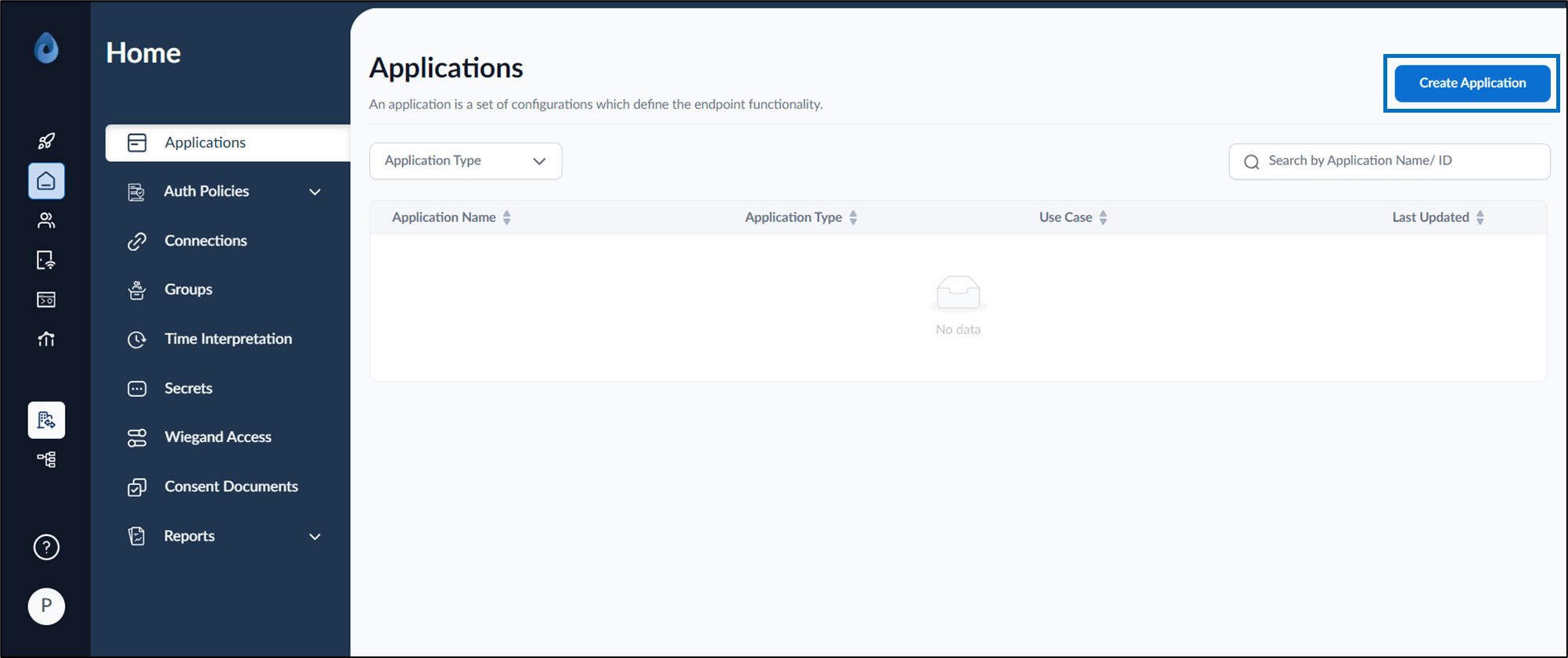
- Do the following:
- Enter Application Name and select Application Type as Passwordless.
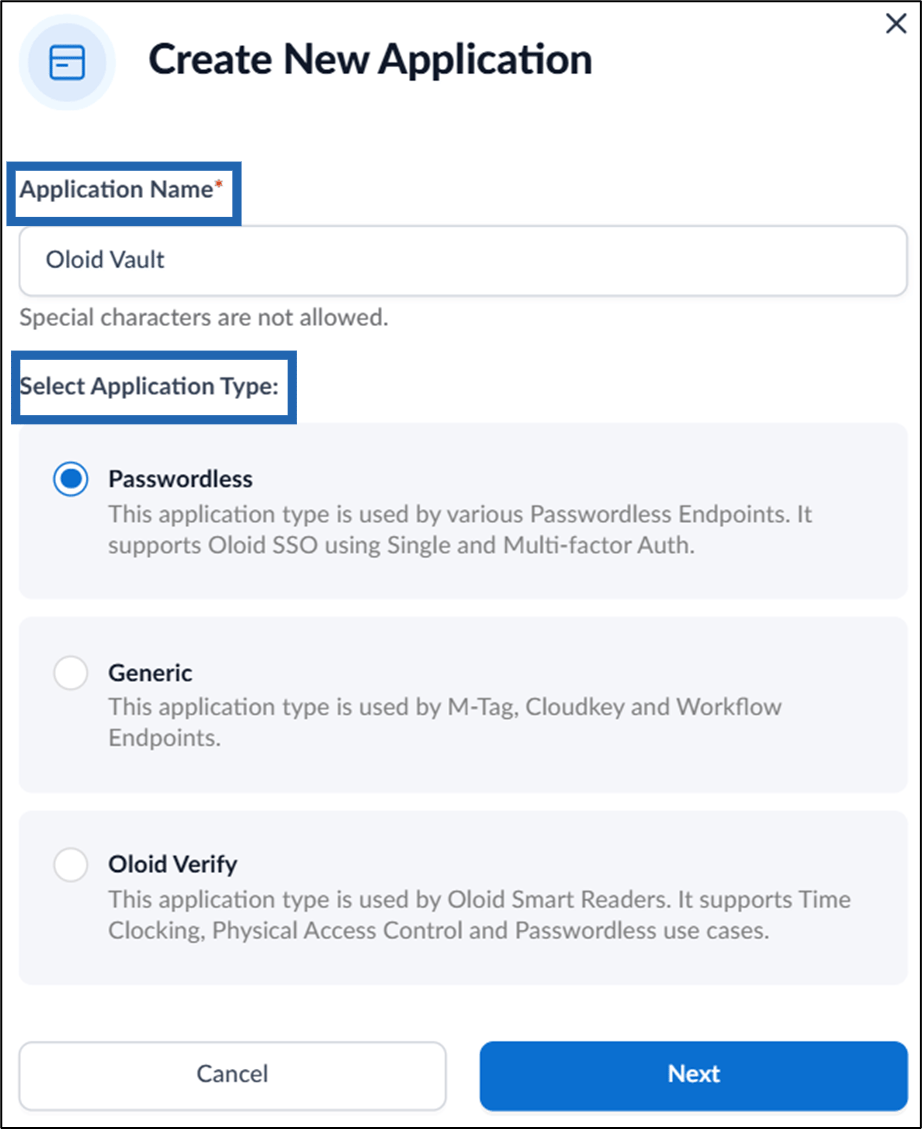
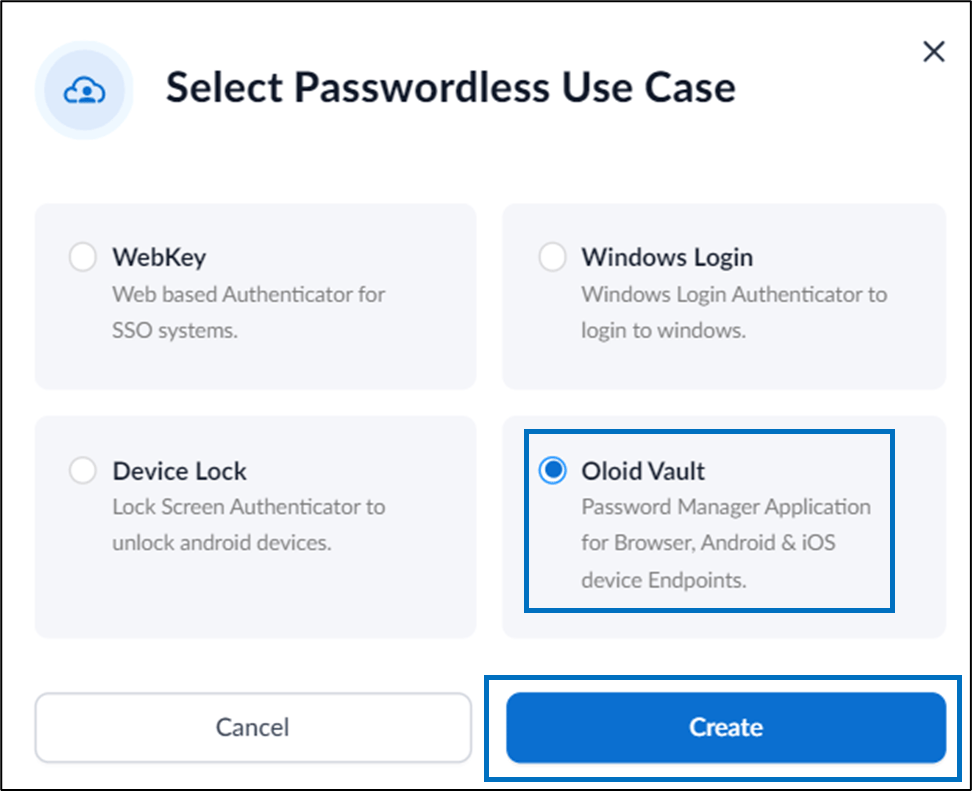
- Click Next. The Select Passwordless Use Case screen is displayed.
- Select Oloid Vault then click Create.
- Enter Application Name and select Application Type as Passwordless.
- Configure the following:
Note: These are one-time settings and all the default settings are recommended.
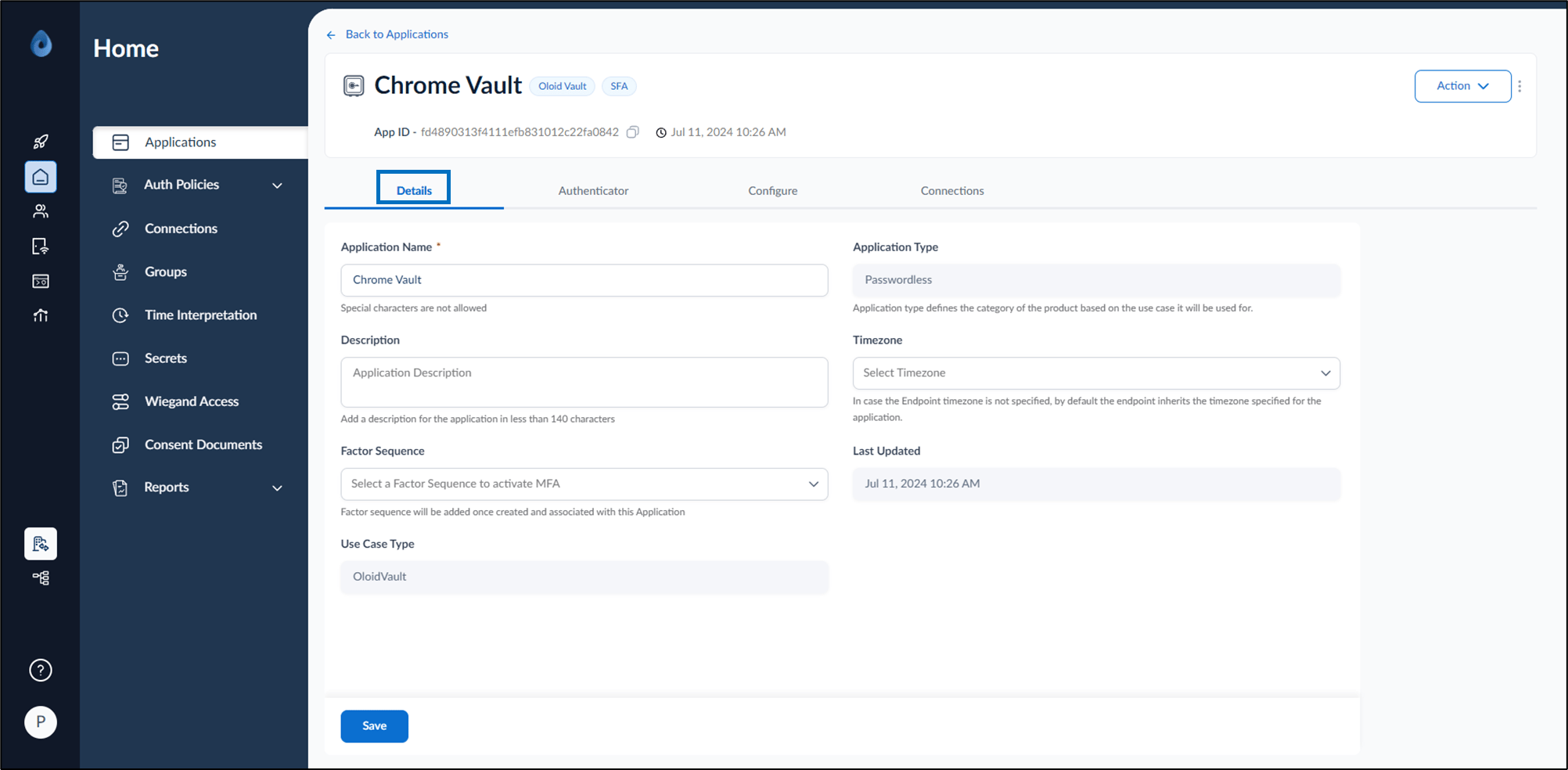
Configure Details Tab
- Modify Application Name.
- Add Description. (Optional)
- Factor Sequence …Coming Soon…
Configure Authenticator Tab
You may enable one or more credential options based on your requirements.Face
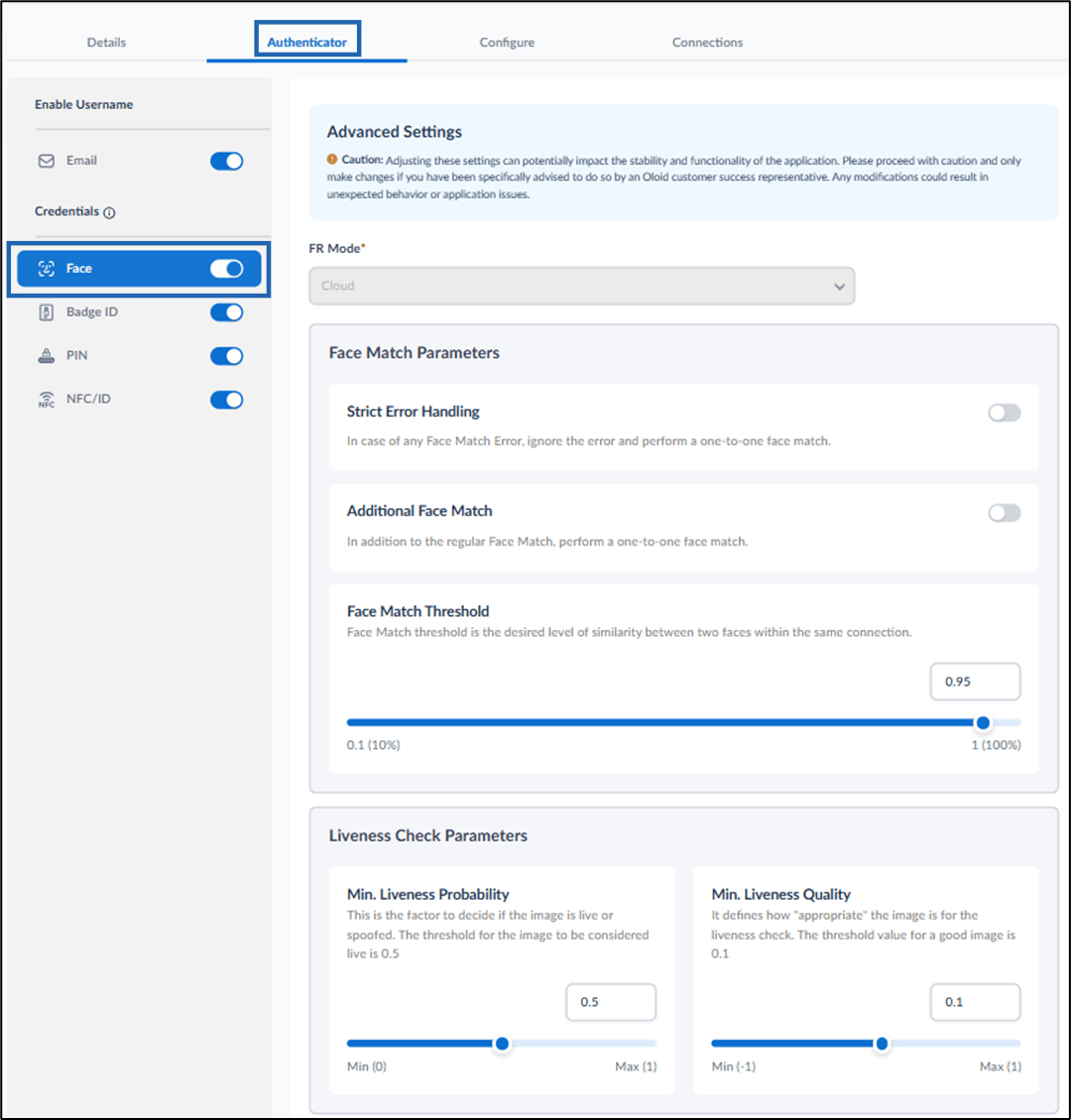
- To use face as credential, enable Face option.
The Advanced Settings page is displayed.
- Configure Face Match Parameters, and Liveliness Check Parameters on the Advanced Settings page.
Note: The parameters are pre-configured. This is done by Oloid admin.
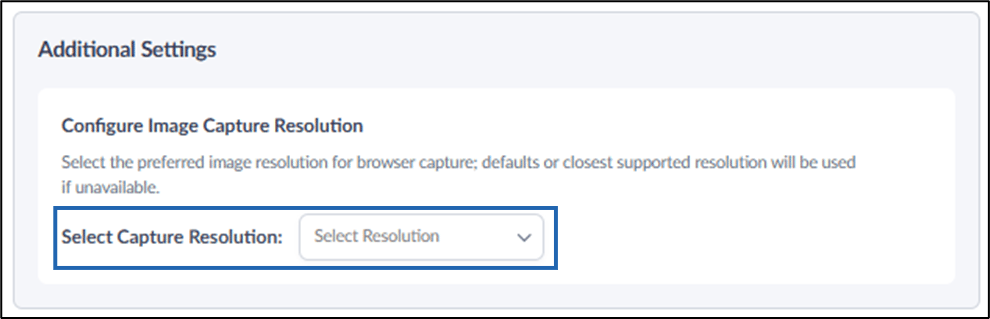
- Configure Image Capture Resolution: Select the preferred resolution from the Select Resolution dropdown list for image capture during facial authentication.
-
Click Save.
Note: If the selected resolution is not available, the browser will default to the closest supported resolution.
Badge ID

PIN
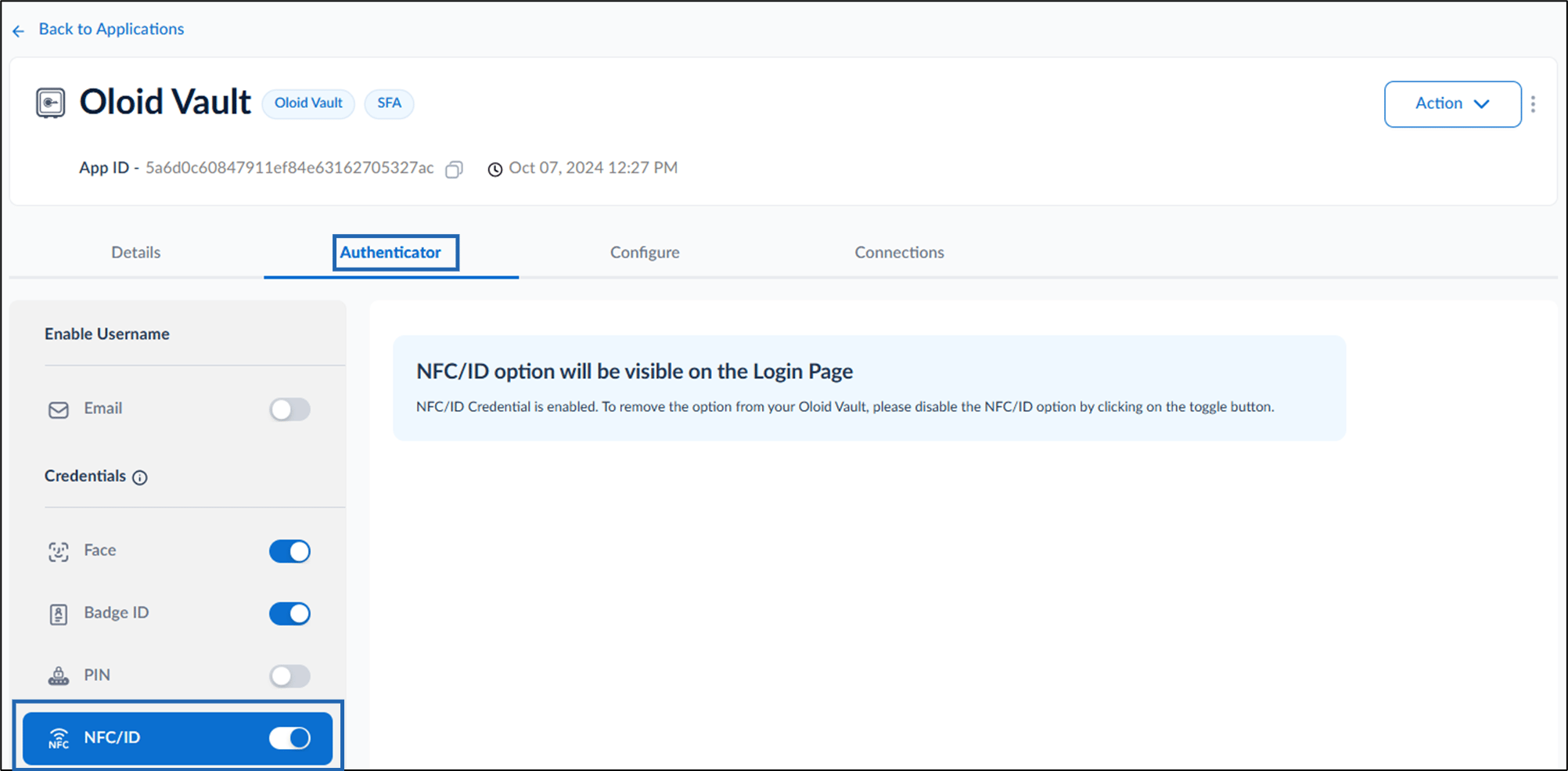
Coming SoonNFC/ID
Design Configure Tab
Do the following:Configure Settings Tab
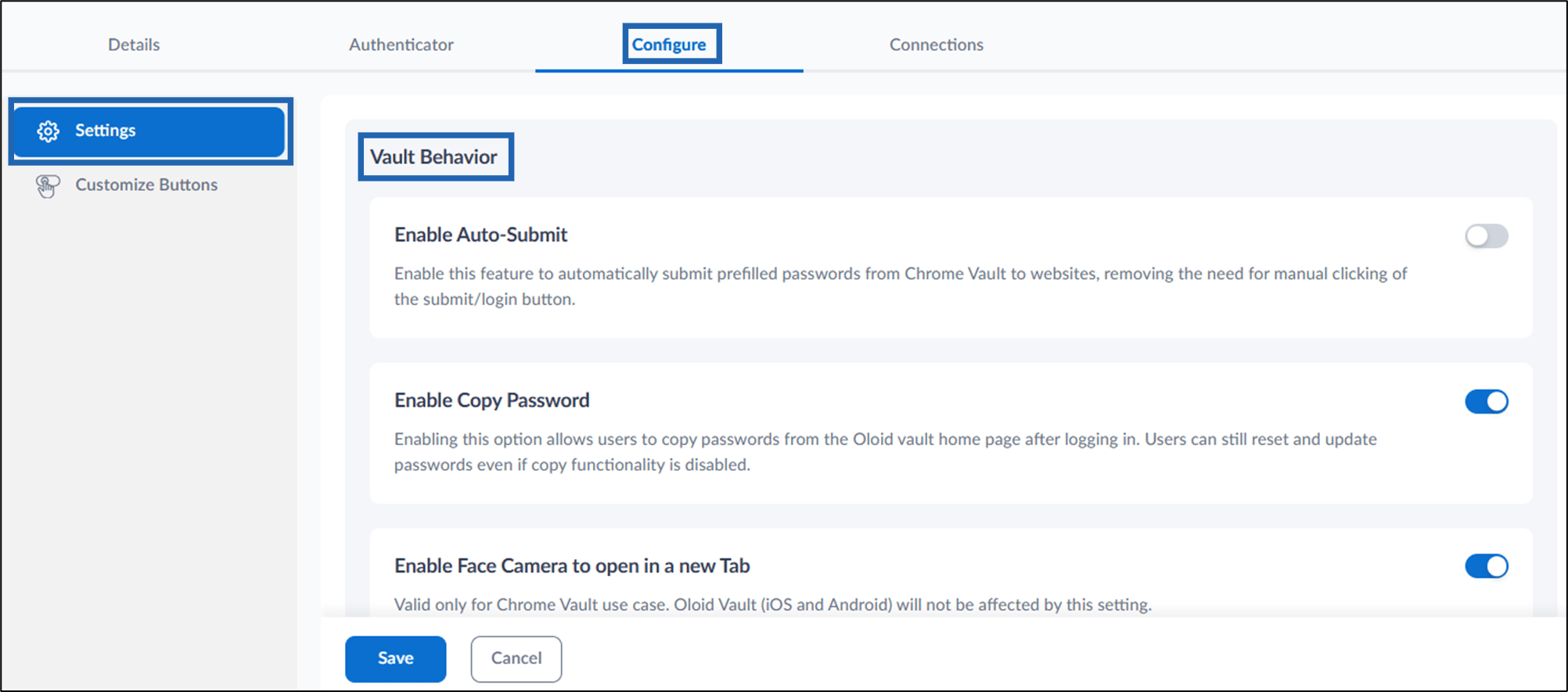
Vault Behavior
- Enable Auto-Submit: Coming Soon
- Enable Copy Password: Select this option to allow users to copy passwords from the Oloid Vault home page after logging in.
- Enable Face Camera to open in a new Tab: Select this option to open the face camera in a new tab for Oloid Vault users.
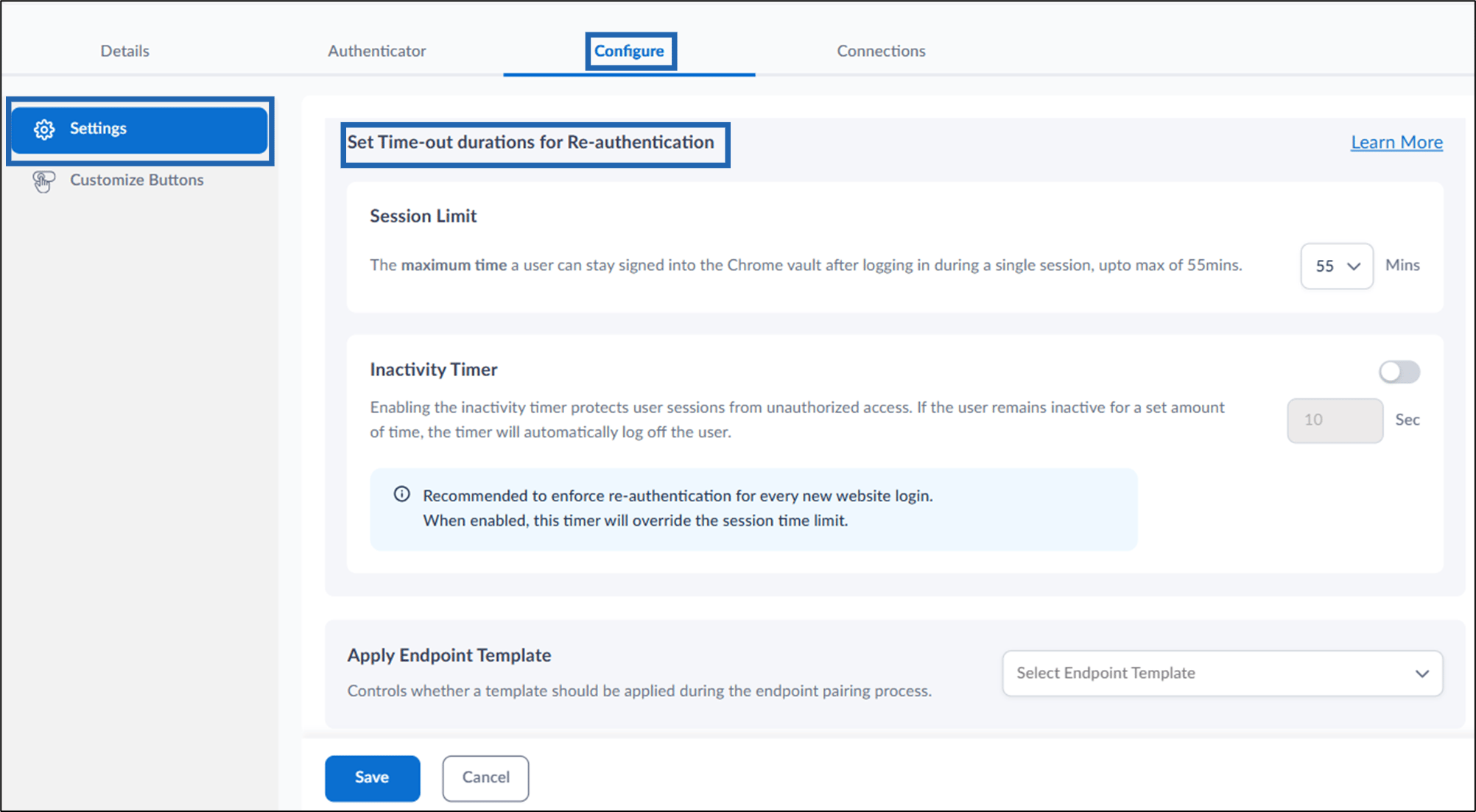
Set Time-out durations for Re-authentication
- Session Limit: Set the maximum duration a user can remain signed into the Oloid Vault per session, up to a max of 55 mins.
- Inactivity Timer: Enable this option to protect user sessions from unauthorized access. Set the timer to automatically log off the user after a specified period of inactivity.
Customize Buttons Tab
You can customize the button label of your application’s authentication page by following the onscreen instructions.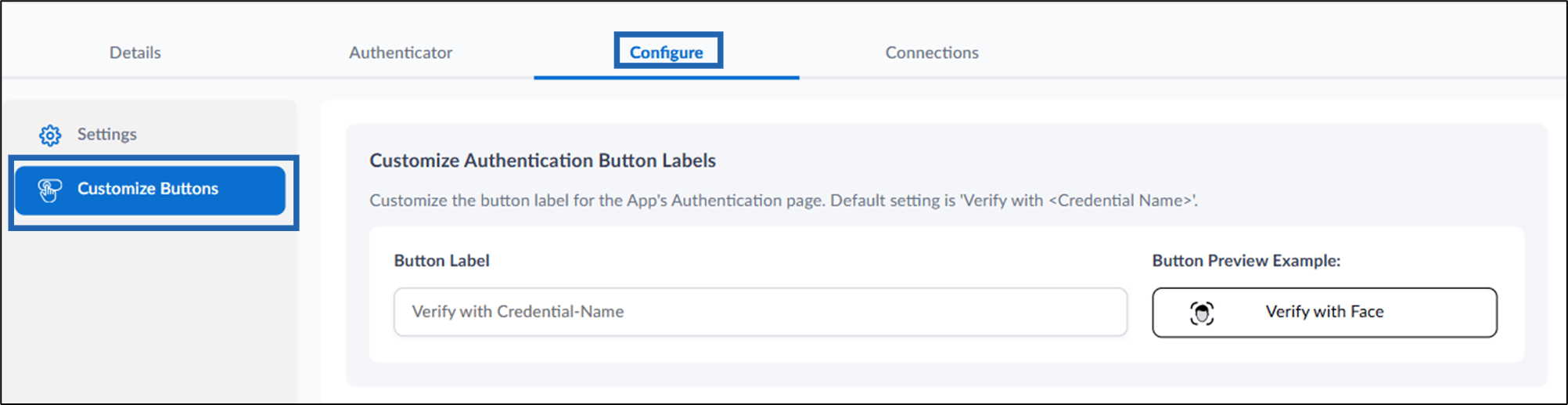
Configure Connections Tab
- Do the following:
-
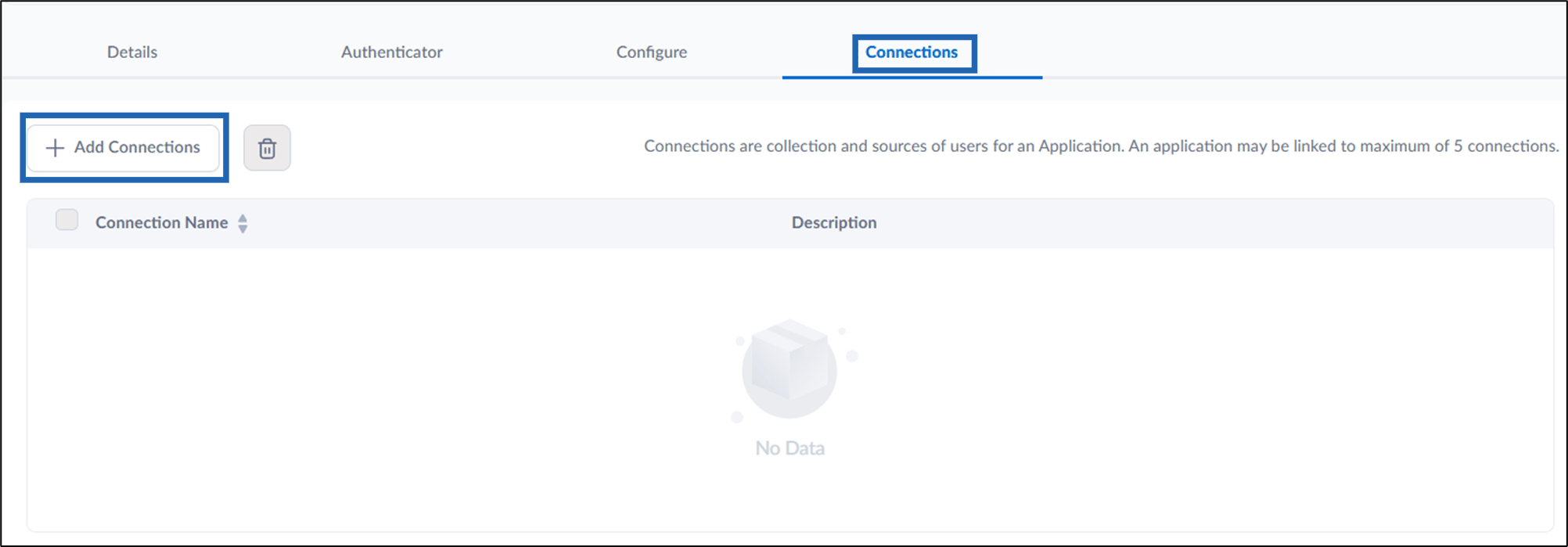
Select + Add Connections to map a connection to the application.
-
On the Add Connections pop-up box, select connection name(s) from the Select Connection dropdown list and click Add.
 The Oloid Vault application is configured and listed on the Application page.Note: Click Save after each action to save your configuration.
-
Select + Add Connections to map a connection to the application.