

Introduction
The Language Version option allows the Tenant Admin to create localized versions of an existing consent template. Multiple language versions can be added to a single consent document.Prerequisite
- You must have a Tenant Admin account.
- Consent Template must be created. Refer How to create and configure consent template
- Legal Document must be created. Refer How to create Legal Document.
To create a consent template
- Log in to the Tenant Admin Portal.
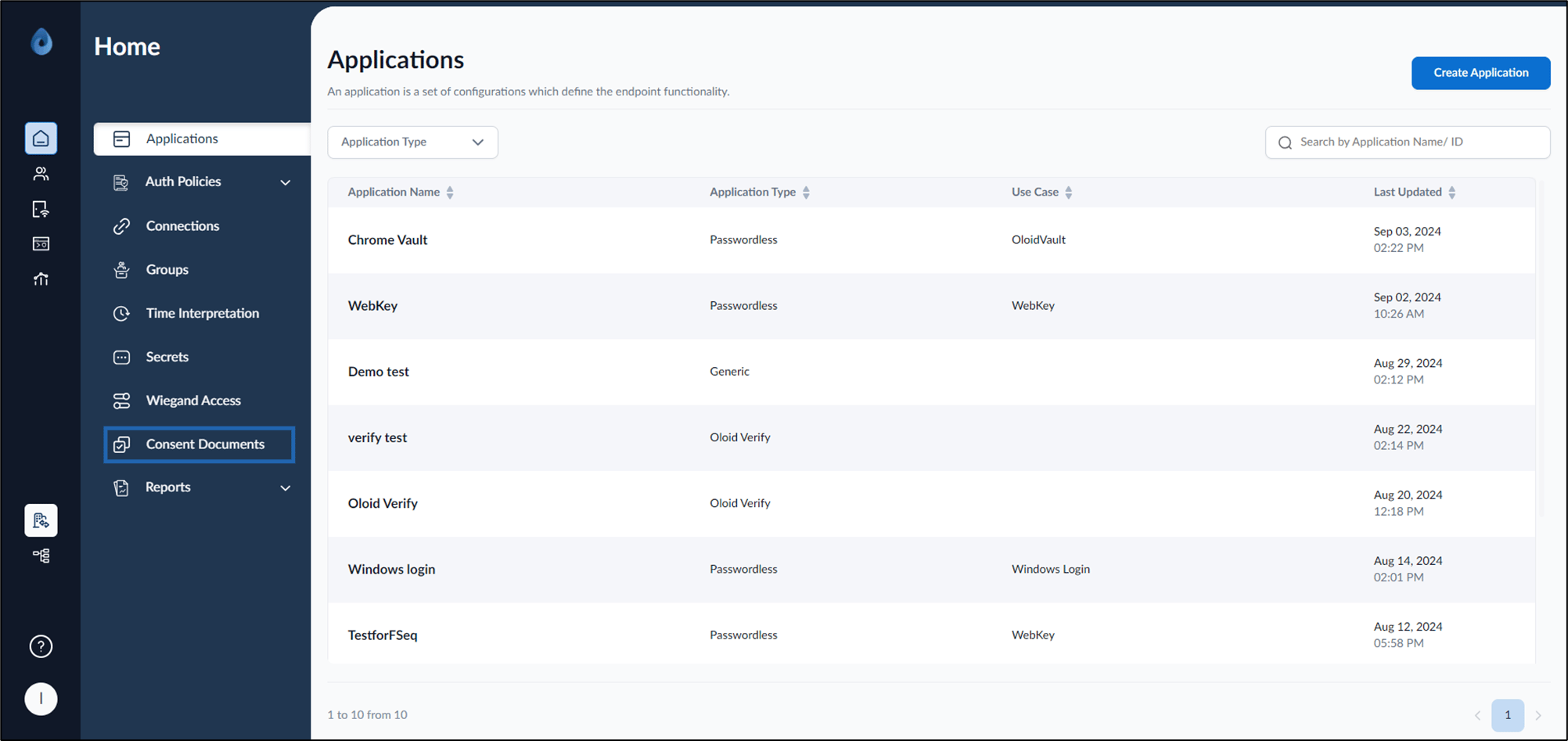
- On the home page of the portal, click Consent Documents on the left menu panel.
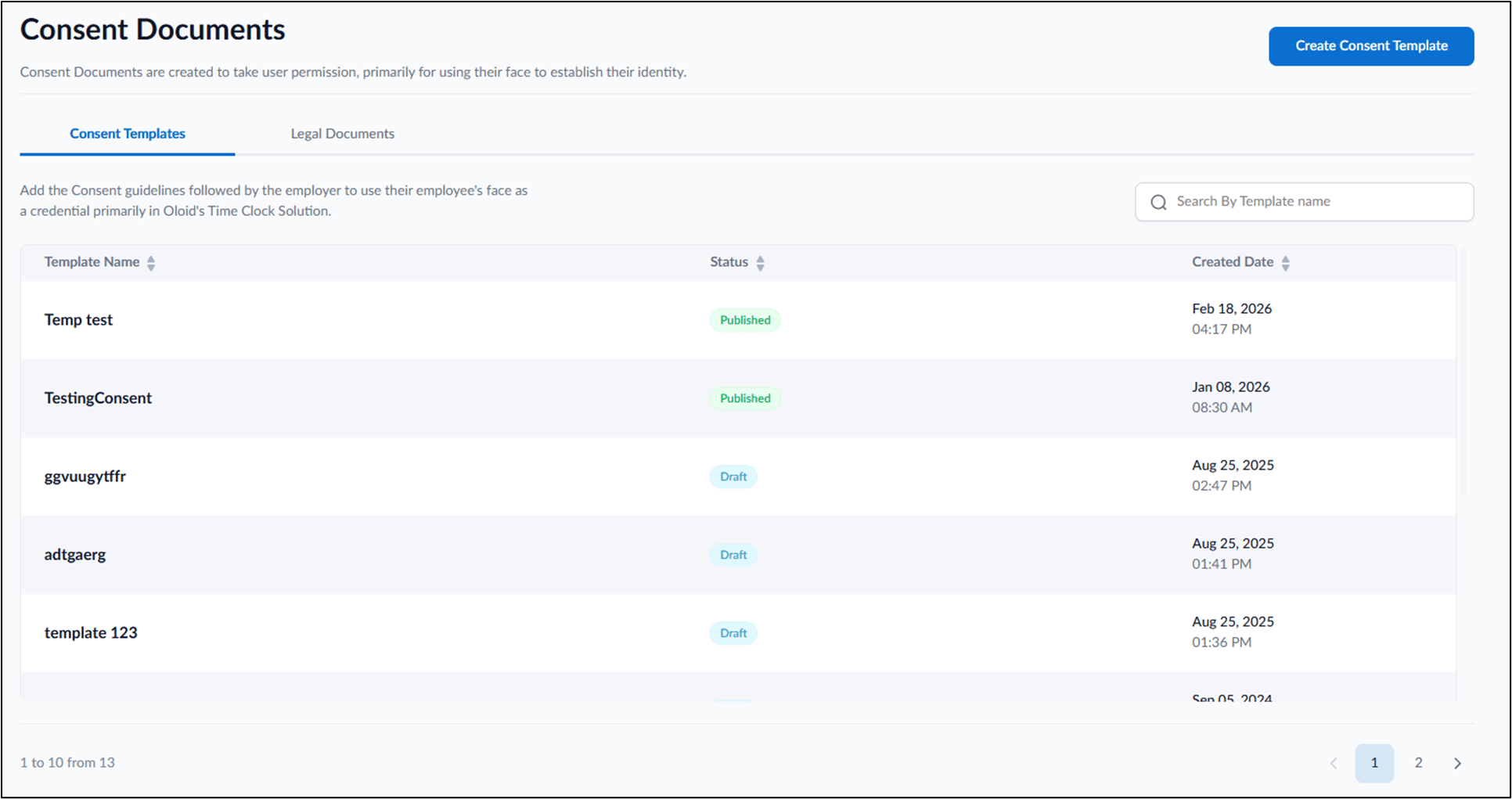
- Select the required Consent Template for which Language version needs to created.
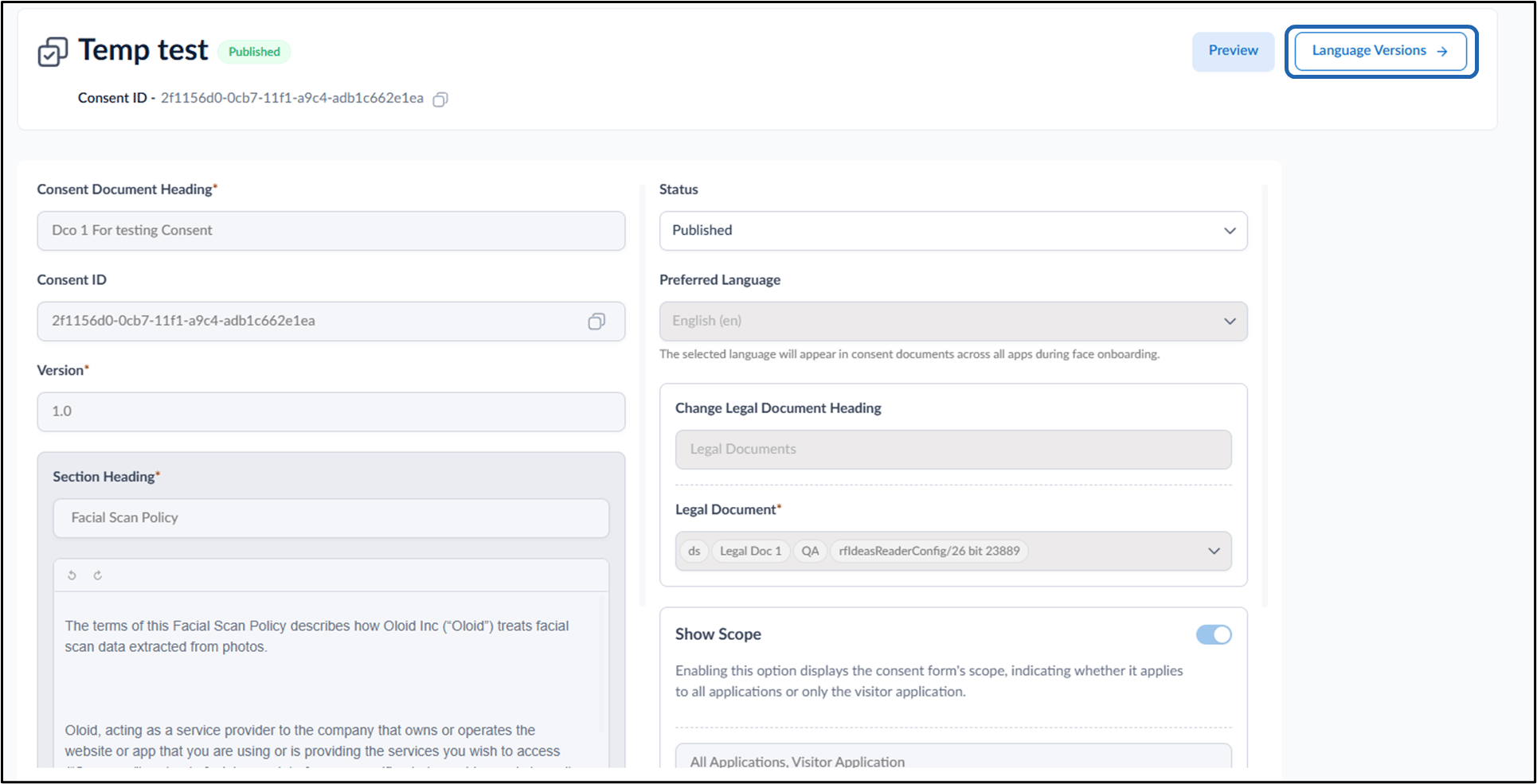
- On the top right, click Language Version.
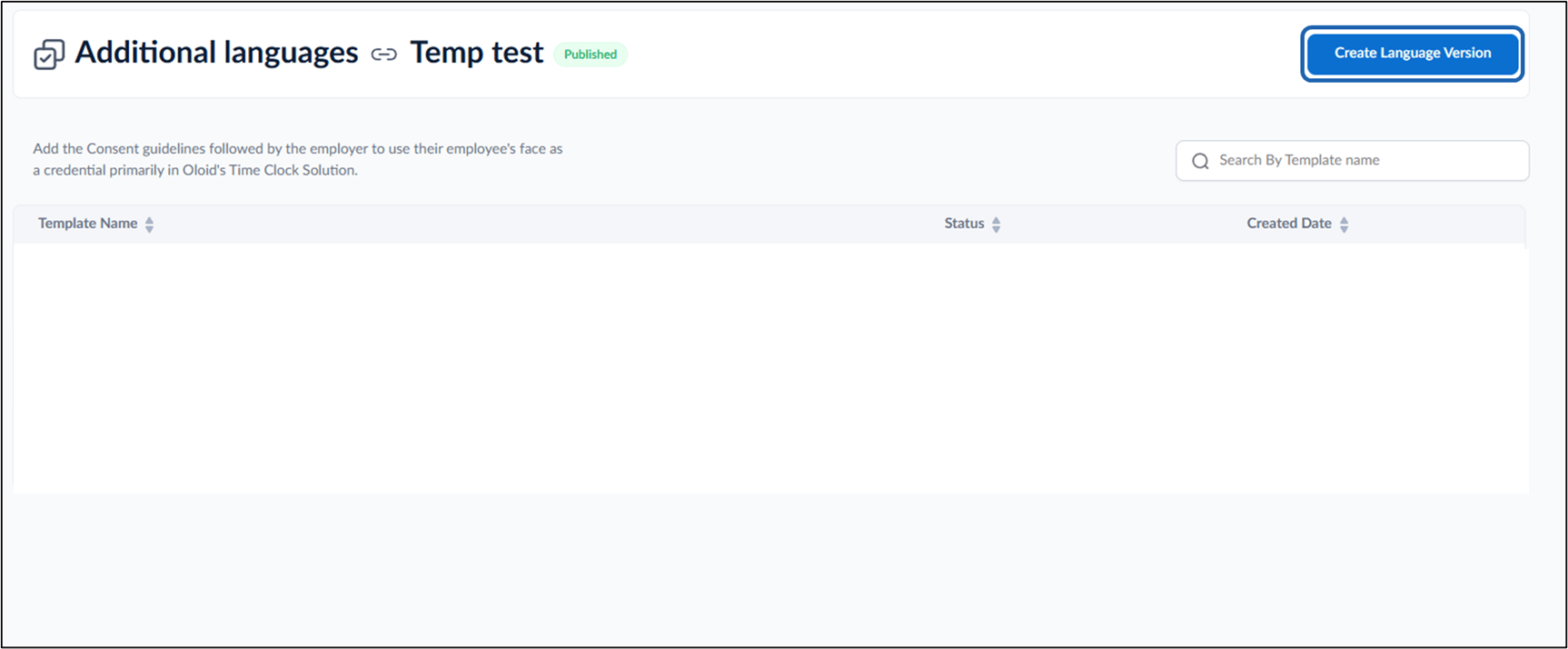
- On the top right, click Create Language Version.
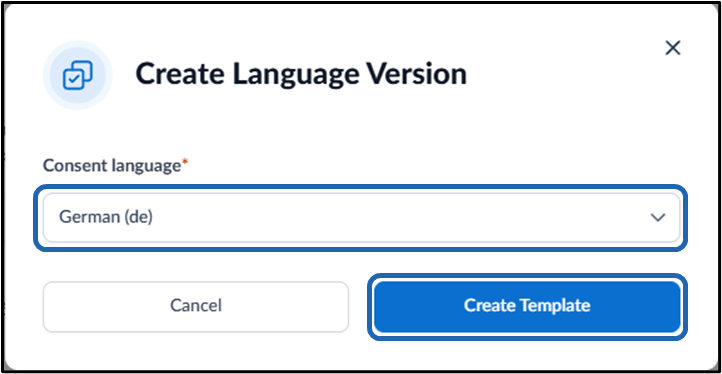
- Select Consent Language from dropdown > click Create Template.
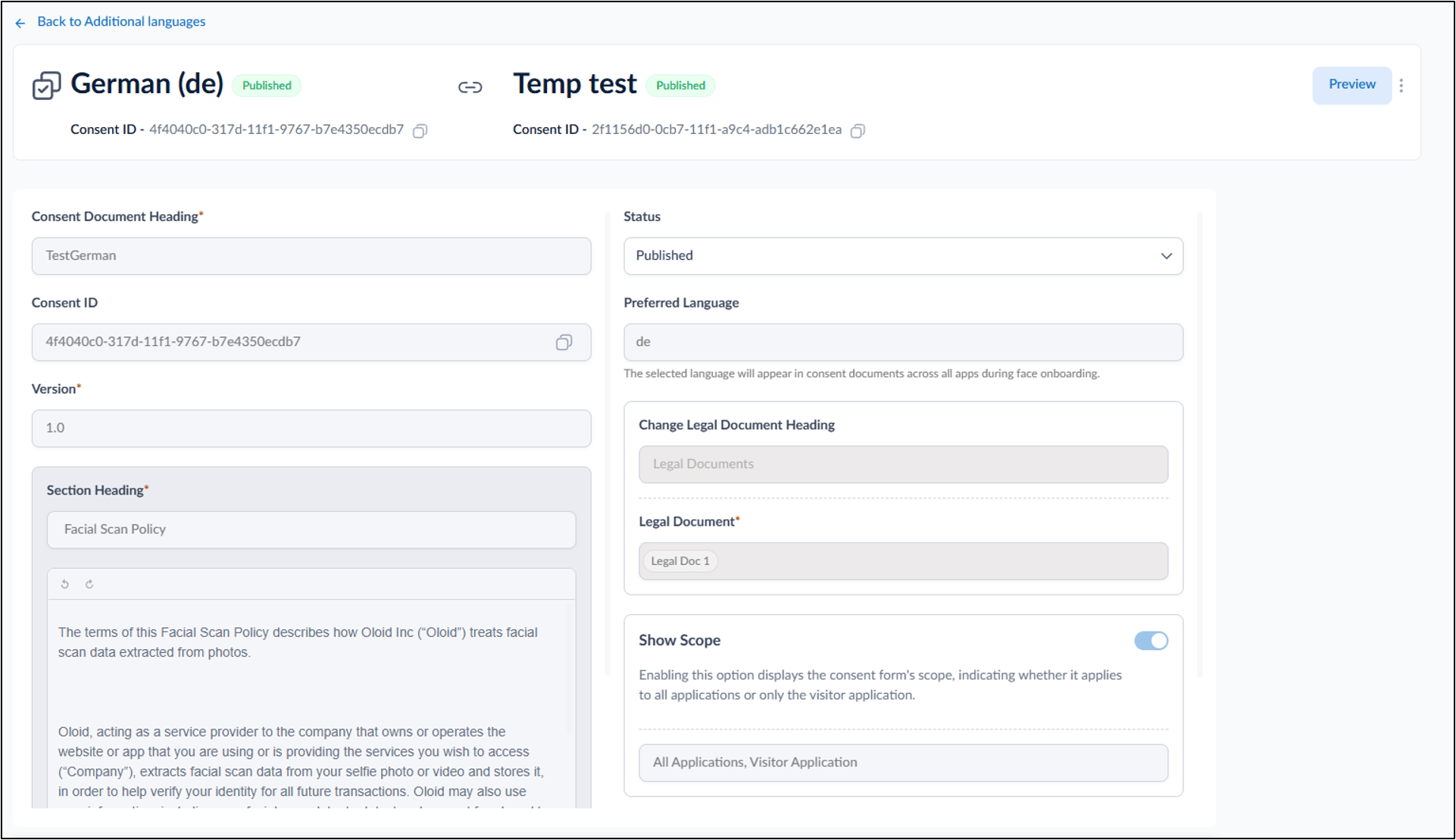
Note: The created language version must be in published status, language version(s) in draft status will not appear in preferred language selection dropdown.
