

Introduction
The Assign Windows shared Passkey feature allows an admin to securely assign an existing shared passkey to a specific user.Prerequisites
- You must have a Tenant Admin account.
- Windows Passkey must already be created. For more information please refer: Oloid Platform - How to create Windows Passkey as credential for users in Tenant Admin Portal
Steps to Assign Windows Shared Passkey
- Login to the Tenant Admin Portal.
-
On the homepage, click Directory from the left menu panel.

-
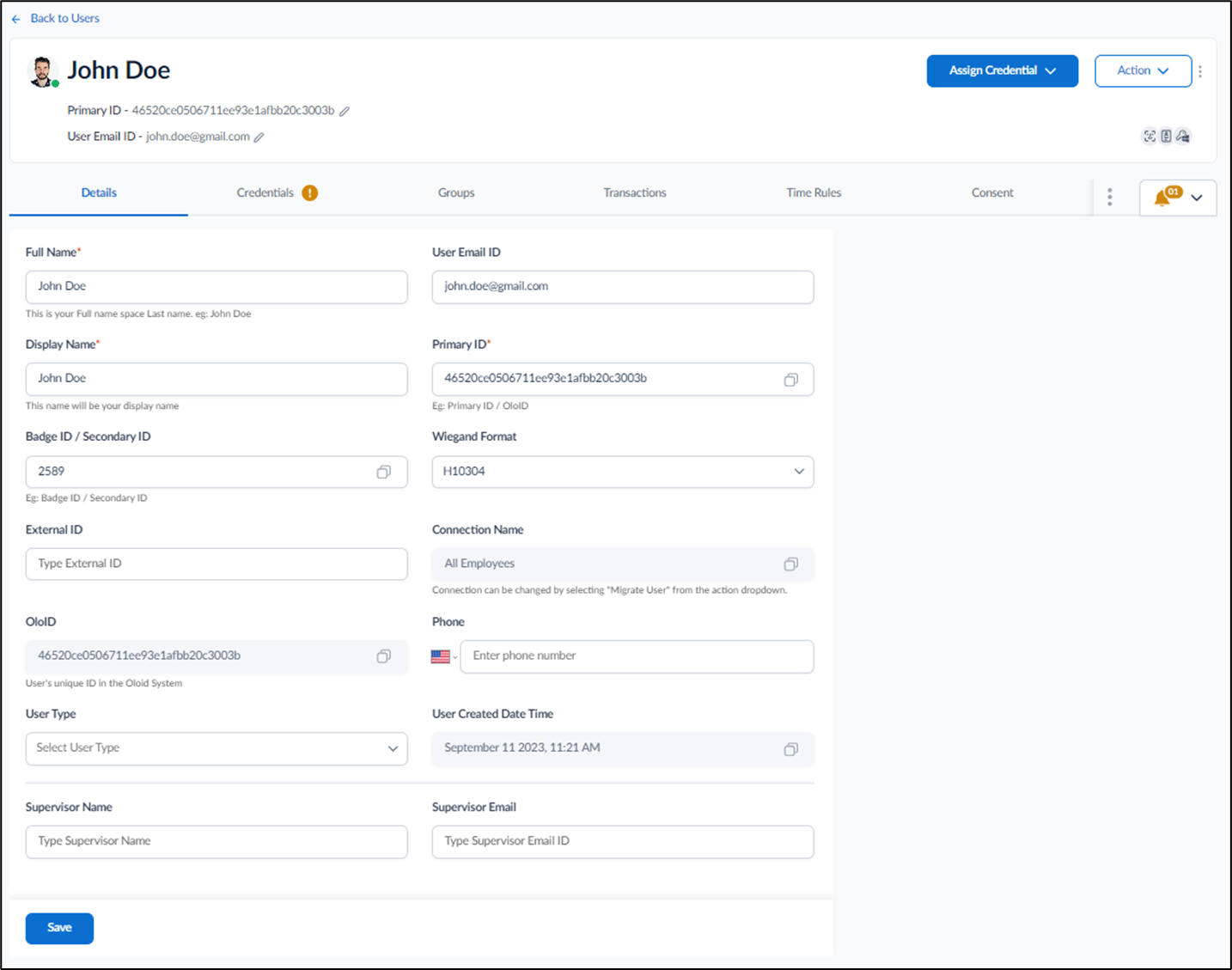
Click username to edit.

-
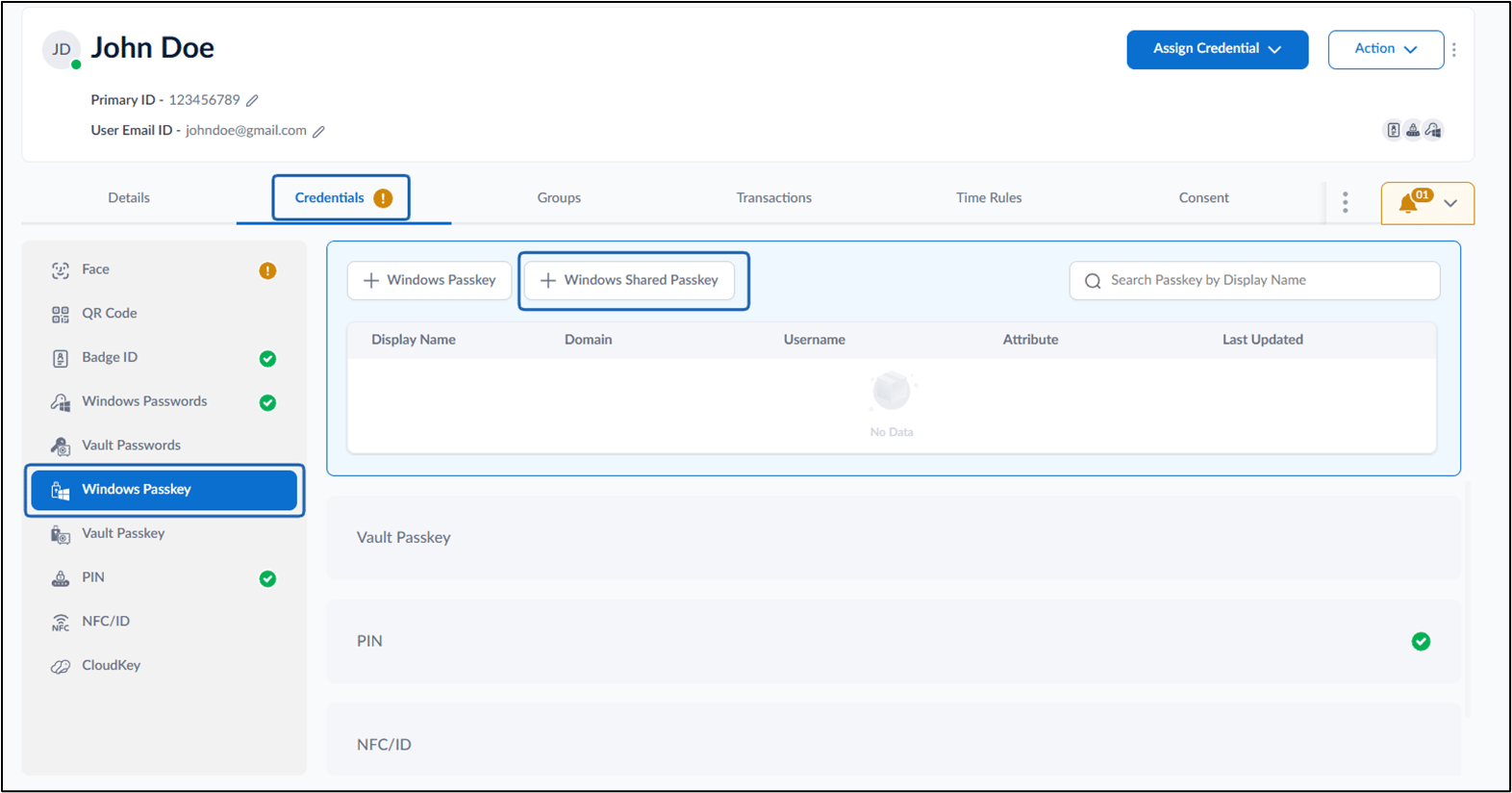
Go to Credential tab > Windows Passkey > + Windows Shared Passkey.

- Select Windows Shared Passkey to Assign from the dropdown.
-
Click Assign.
Windows Shared Passkey successfully added message is displayed.
Note: More than one Windows Shared Passkey can be assigned for a user.